Polygons and topology: the points, lines, and faces that make a 3D model
A 3D model is a net woven from points, lines, and faces. This guide explains the kinds of polygons, and why topology, meaning how the faces are laid out, matters.
한국어English
Based on: the official Blender 5.2 LTS manual. Menu names follow the English interface.
Whether it is a game character or a car in an animation, most 3D models on screen are made as a net of small flat pieces joined together. Each of these pieces is called a polygon, and the way the pieces are divided and joined, that is, the "weave" of the net, is called topology. Even for the same shape, good topology lets a model bend naturally when it moves and makes it easy to smooth. This guide explains the three basic elements that make up a 3D model, the kinds of polygons (triangles, quads, and n-gons), topology and edge loops, water-tight meshes, and how to check the weave of your own model in Blender.
The materials of a 3D model: points, lines, and faces
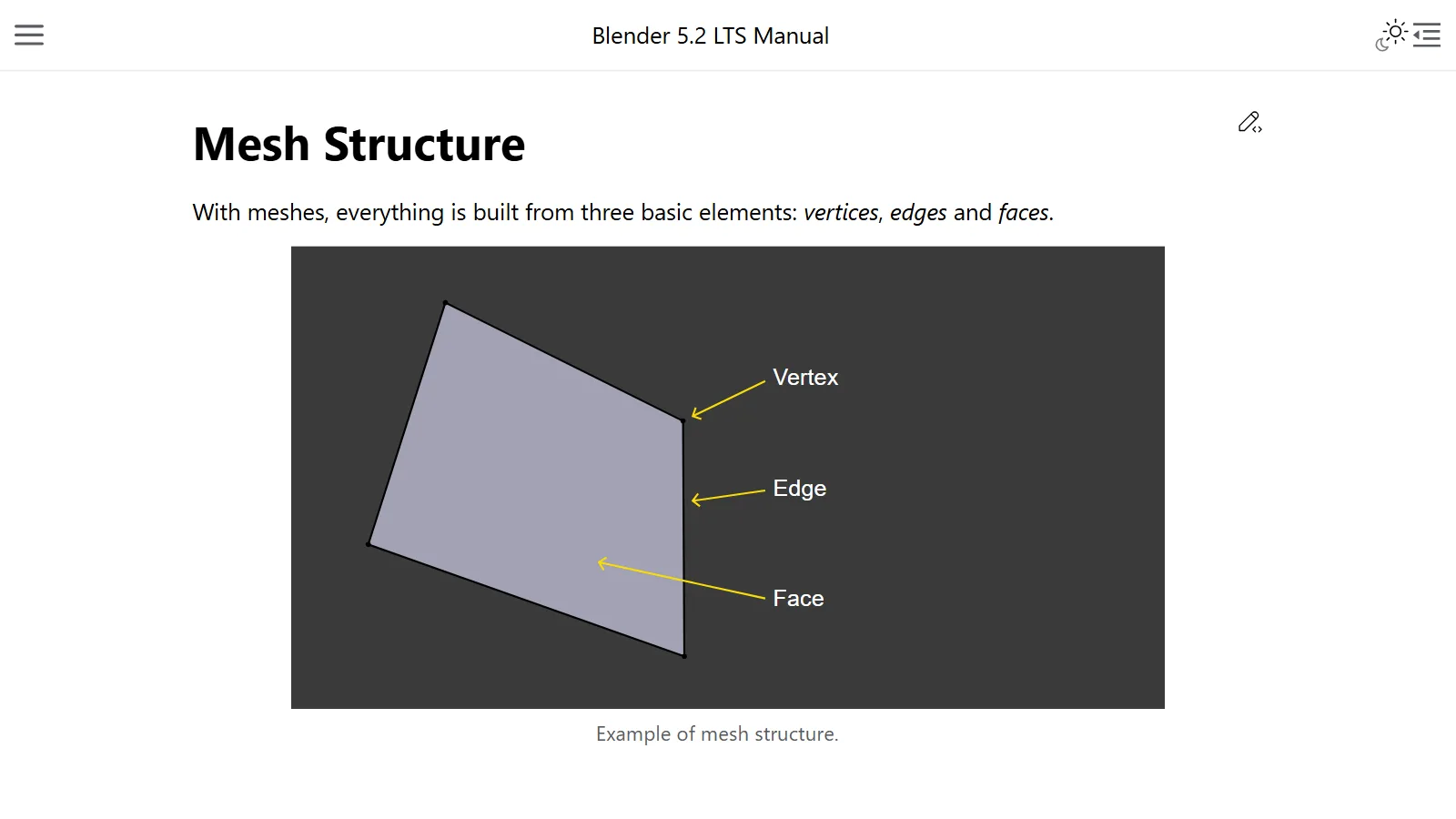
The most common 3D model type in Blender is called a mesh. The word means a "net." Everything in a mesh is made from three basic elements.
| Element | Blender term | Description | Simple comparison |
|---|---|---|---|
| Point | Vertex | One position in 3D space | A tent peg |
| Line | Edge | A straight line joining two points | The rope between the pegs |
| Face | Face | The actual surface enclosed by lines | The fabric stretched between the ropes |
Other sources may call points "vertices" and lines "edges" or "sides." They all mean the same thing. A few more details:
- Points are shown in Edit Mode as small dots at the end of each line. Don't confuse them with the object's origin. The origin looks similar but is larger, and it can't be selected like a mesh point.
- Lines are visible in Wireframe view (the wire look). They usually don't show in the final rendered image; they act as the frame that makes the faces.
- Faces are the parts you actually see when you render. Where there is no face, the rendered image shows it as transparent or as if nothing were there. It is like a net with no fabric between the knots: you can see through it.
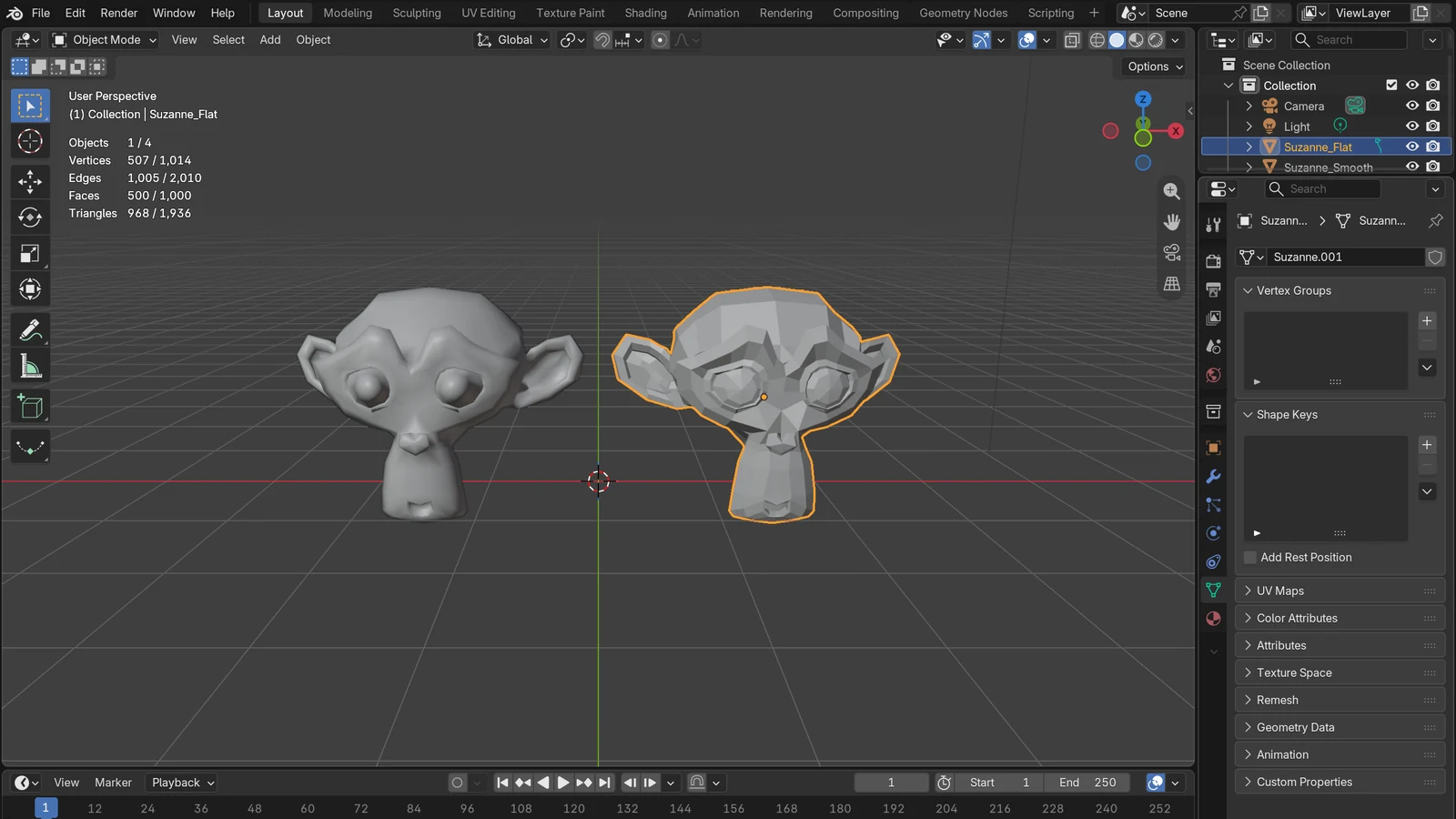
Each of these faces is commonly called a polygon. So phrases like "many polygons (high-poly)" and "few polygons (low-poly)" mean many or few faces. The style that uses few faces on purpose to bring out an angular look is covered separately in Low-poly style basics.
Three kinds of polygons: triangles, quads, and n-gons
Faces are divided into three kinds by how many points they have. For short, they are called tris, quads, and n-gons.
| Kind | Points | Features |
|---|---|---|
| Triangle (tri) | 3 | Always flat, so it is easy to calculate |
| Quad | 4 | Deforms well, so it is used a lot for animation and subdivision modeling (a feature that splits faces into smaller ones to smooth the model) |
| n-gon | 5 or more | A face with more points than a quad |
A triangle is always flat for the same reason a three-legged stool doesn't wobble even on a bumpy floor. Three points always lie on one plane, but from four points on, if one lifts slightly, the face can twist.
That doesn't mean "triangles are bad and quads are good." Both have strengths.
- Triangles: Easy to calculate and always flat. Blender has a Triangulate feature and modifier that turn all faces into triangles, and the modifier has an option (Clip) that splits n-gons into triangles the same way the viewport display does.
- Quads: Give even results when you bend or smooth a model. That is why models are often built mostly from quads during modeling. There is also the opposite feature, Triangles to Quads (shortcut
Alt+J), which merges two neighboring triangles into a quad. - n-gons: Can cover a large area in one go, but they break the flow of connected quads. A face loop, a row of faces joined in a line, stops when it meets a triangle or an n-gon (explained below).
Topology: the same shape, a different weave
Topology is the arrangement of points, lines, and faces that defines the shape of a mesh. In other words, it is what shape of loops the net was woven with, and in which direction.
Compare it to knitting. Two sweaters of the same shape stretch differently when worn depending on whether the stitches were knitted evenly or tangled here and there. A garment knitted evenly at places that fold a lot, like the elbow, folds naturally, but a tangled one wrinkles strangely. 3D models are exactly the same. In a single still picture the difference is hard to see, but it shows the moment the model moves or is smoothed.
Edge loops: the "grain" of the net
The term that comes up most often when talking about good topology is the edge loop. An edge is the line from earlier, and an edge loop is a series of lines that runs unbroken along quad faces. Picture a rubber band wrapped around a cylinder: a line that runs all the way around the model. If you join the faces between the lines in a row instead of the lines, you get a face loop.
Edge loops are especially useful in organic modeling (models with many curves, such as people and animals) and character animation, for three reasons.
- Used well, edge loops let you build a model that looks natural when smoothed even with relatively few points, and that deforms well in animation.
- On a human model, edge loops follow the natural contours and fold lines of the skin and the muscles beneath it.
- Places that move a lot, like shoulders and knees, get more closely spaced loops.
Take a cylinder-shaped arm as an example. If the rings are wrapped evenly and gather where the arm bends, it bends smoothly. If long, thin triangles are tangled there instead, the same bend tends to pull toward one point and crumple. Putting bones in a character to move it is covered in Rigging basics.
Poles: where loops stop
In a flat grid made only of quads, 4 lines meet at each point. A point where 3, or 5 or more, lines meet is called a pole (points with 1, 2, or 4 lines are not poles).
The reason to know about poles is that loops stop at poles. At a pole, there is no single way to continue the loop. Face loops also stop when they meet a triangle or an n-gon. Poles appear naturally when you build round shapes, so they are not something to remove at all costs. But they are where the flow of loops changes, so knowing where poles are in your model helps you predict how it will bend.
Topology that shows when you smooth
The Subdivision Surface modifier splits faces into smaller ones to make the model smooth. Thanks to this feature, you can make complex, smooth surfaces even from a simple mesh with few points. For an even result, the base mesh has to be woven evenly, mostly from quads. This is why quads are used so much in subdivision modeling.
There is also something to watch out for. The higher the subdivision level, the more points the mesh has and the more memory (RAM and graphics card memory) it uses, and if memory runs out, Blender may freeze or close. Graphics card memory is explained in What VRAM means. For modifiers in general, see Blender modifier basics.
Water-tight meshes and broken meshes
Another idea to know in topology is manifold. A manifold mesh is a water-tight mesh: a closed volume that doesn't overlap itself. It is like a container that doesn't leak when you pour water into it.
On the other hand, a non-manifold mesh is a shape that can't exist as a solid object. For example:
- A face is missing, leaving a hole
- There is a line floating on its own that doesn't belong to any face
- Three or more faces are attached to one line
Meshes like these are not suitable for work that needs to know inside from outside, such as light refraction, fluid simulation, Booleans (a feature that adds and subtracts two objects), and 3D printing. This is the kind of case where a model looks fine on screen and the problem only shows when you try to print it on a 3D printer.
How to check it yourself in Blender
You can inspect the weave of your model with Blender's built-in features alone.
- See the face count: Open the Overlays menu at the top right of the 3D Viewport and turn on Statistics. The viewport then shows information such as the number of points, faces, and triangles of the selected mesh.
- Switch to Wireframe view: Of the view mode buttons lined up at the top right of the 3D Viewport, press the first one (Wireframe). When the display shows the lines, you can see at a glance how the net is woven.
- Find broken spots: In Edit Mode, use Select ‣ Select All by Trait ‣ Non Manifold to select the non-manifold parts. It works only in Vertex or Edge select mode. Change the select mode with the three buttons (point, line, face) lined up at the top left of the 3D Viewport. With the options, you can choose what to look for, such as holes (Boundaries), floating lines (Wire), and lines with three or more faces (Multiple Faces).
- Find faces by kind: Faces by Sides in the same menu selects faces by the number of lines around them. For example, you can find only n-gons.
- Find poles: Poles by Count in the same menu finds points where a certain number of lines meet, that is, poles.
- Turn triangles into quads: In Edit Mode, Face ‣ Triangles to Quads (
Alt+J) merges neighboring triangles. It uses an angle limit so that oddly shaped quads aren't created, so some triangles may remain.
Summary
- A 3D mesh is made of points, lines, and faces. Where there is no face, nothing shows in the render.
- Faces (polygons) are divided by their number of points into triangles (3), quads (4), and n-gons (5 or more). Triangles are always flat and easy to calculate; quads are better for deformation and subdivision.
- Topology is how the faces are divided and joined, that is, the weave of the net. The difference shows when the model moves or is smoothed.
- Edge loops are lines that run unbroken along quad faces; spacing them closely where the model folds a lot lets it bend naturally. Loops stop at poles.
- For a model meant for 3D printing or Booleans, check that it is a water-tight mesh (manifold) with the Non Manifold selection.
Once your model is finished, read UV unwrapping basics next to put an image on its surface, or Comparing 3D file formats if you plan to move it to another program.
References
The manual links point to the latest version, so their content may differ after 5.2.
- Blender Manual, Mesh Structure (Vertices, Edges, Faces, Loops, Poles) — https://docs.blender.org/manual/en/latest/modeling/meshes/structure.html
- Blender Manual, Glossary (Topology, Edge Loop, Face Loop, Pole, Manifold, Non-manifold) — https://docs.blender.org/manual/en/latest/glossary/index.html
- Blender Manual, Select All by Trait (Non Manifold, Faces by Sides, Poles by Count) — https://docs.blender.org/manual/en/latest/modeling/meshes/selecting/all_by_trait.html
- Blender Manual, Triangles to Quads — https://docs.blender.org/manual/en/latest/modeling/meshes/editing/face/triangles_quads.html
- Blender Manual, Triangulate Modifier — https://docs.blender.org/manual/en/latest/modeling/modifiers/generate/triangulate.html
- Blender Manual, Subdivision Surface Modifier — https://docs.blender.org/manual/en/latest/modeling/modifiers/generate/subdivision_surface.html
- Blender Manual, Viewport Overlays (Statistics) — https://docs.blender.org/manual/en/latest/editors/3dview/display/overlays.html