Rigging basics: moving a character with a skeleton (armature)
Rigging is the work of putting a skeleton inside a character and attaching the skin so it can move. This guide explains armatures, skinning, weights, and IK in plain terms.
한국어English
Based on: the official Blender 5.2 LTS manual (English UI, default shortcuts)
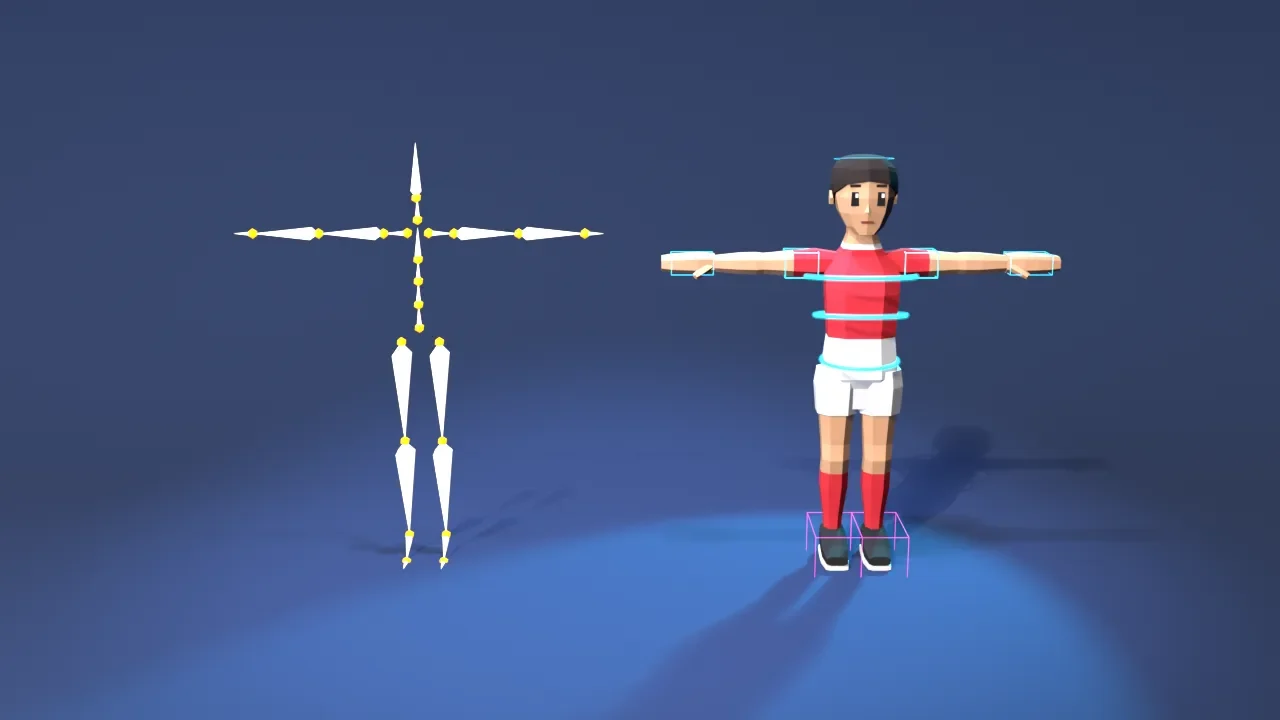
Finishing a character model does not mean it can walk or wave right away. The model is still a hollow statue. Rigging is the work of putting a skeleton inside that statue, connecting it so the surface bends naturally when the bones move, and making it easy for an animator to control. This guide explains the armature, Blender's skeleton; the structure and kinds of bones; skinning, which joins bones and model; weights, which set how much things bend; IK, where moving just the fingertip makes the arm follow; and the automatic rigging tool Rigify.
Rigging: attaching strings to a puppet
A rig is like the control bar and strings that move a marionette (a string puppet). In a puppet show, when a person tilts the wooden bar, the limbs of the puppet hanging from the strings move. Rigging is attaching these strings and bars to a 3D character, and animation is pulling those strings to create motion.
In Blender, the object that works as the skeleton is called an armature. An armature is similar to a real skeleton. It is made of several bones, and when you move a bone, the things attached to it move and bend along with it.
The armature and its three modes
Like any other object, an armature is a single object with a location, rotation, and scale. You can make your first armature by adding a one-bone armature with Add ‣ Armature ‣ Single Bone in the 3D Viewport.
When you work with an armature, first tell the modes (working states) apart.
| Mode | What it does | Comparison |
|---|---|---|
| Object Mode | Moves and rotates the whole armature as one piece | Moving the puppet, box and all |
| Edit Mode | Adds bones and sets their length and position to build the base pose | Designing the puppet's skeleton |
| Pose Mode | Rotates and moves bones to create a pose | Pulling the strings to make the puppet act |
The base pose set in Edit Mode is called the rest position. In the rest position, each bone is in a "neutral" state with location and rotation at 0 and scale at 1. When you move a bone in Pose Mode, what gets recorded is how far it has moved away from this base pose. So animation done in Object Mode applies only to the whole armature, and bone motion, such as waving an arm, has to be made in Pose Mode.
What one bone looks like
One bone has three parts.
- Head (root): the joint where the bone starts
- Body: the part between the two joints
- Tail (tip): the joint where the bone ends
A bone rotates around its head. It is like bending your elbow: the forearm rotates around the elbow joint. A bone's Y axis always runs along the bone, from head to tail.
Bones link to each other in parent-child relationships to form chains. If the upper arm bone is the parent and the forearm bone is the child, rotating the upper arm makes the forearm follow. When a parent bone moves, the child bone inherits its location and rotation. It is like your own body: turn your shoulder and your elbow and hand go along.
Deform bones and control bones
Bones split into two kinds depending on the Deform setting.
- Deform bones (Deform on): drag the model's points (vertices, the corners of the mesh) around and actually bend its shape. The upper arm bone and forearm bone belong here.
- Control bones (Deform off): do not bend the model directly, but act as handles that control other bones. A typical example is the bone in IK, covered later, that marks "where the hand should be."
In puppet terms, deform bones are the skeleton inside the puppet, and control bones are the bars the person holds.
Joining bones and model: skinning
With only a skeleton, all you get is a dancing skeleton. Unless that is what you want, you need to attach "skin" to the skeleton. The process of connecting an armature to a model is called skinning.
There are two ways.
| Way | Result | Suits |
|---|---|---|
| Parent the object to a bone | The object follows the bone as a whole, without bending | Hard parts, like a robot arm or a jointed doll |
| Armature modifier | The model's shape bends | Bodies that bend smoothly, like people and animals |
The Armature modifier way is more complex but powerful. Of the two, it is the only one that actually bends the model's shape. A modifier is a feature that changes a shape without editing the original directly. The concept is covered in detail in the modifier guide.
The easiest way to connect: Ctrl+P ‣ Armature Deform
The steps are these.
- In Object Mode, first select the model the skeleton will go into.
- Select the armature last. You must keep this selection order.
- Press
Ctrl+Pand choose a method under Armature Deform.
The armature then becomes the model's parent, and an Armature modifier is added to the model automatically. There are three methods.
- With Empty Groups: creates an empty vertex group (a set of points) with the same name as each deform bone. Here, a point means a vertex of the mesh. You decide yourself which points follow which bone.
- With Automatic Weights: calculates each bone's influence automatically from the distance between points and bones. It is the easiest to set up, but on complex characters some parts may not bend the way you want. Then you fix the weights by hand.
- With Envelope Weights: gives weight to points inside an influence range (envelope) set around each bone.
At first, it is usually easiest to understand if you start with Automatic Weights and fix only the places that bend strangely.
Weights: how much the skin follows the bone
When you bend a finger, the skin of the finger follows the bone almost exactly, but the skin on the back of the hand follows only a little. A weight is this "how much it follows," written as a number. 0 means it does not follow at all, and 1 means it follows completely.
You can edit weights as if painting with a brush. This is called Weight Paint. Select the model, then enter Weight Paint Mode from the mode selector (Ctrl+Tab). On screen, weights show as colors.
- Blue: close to weight 0 (almost no influence)
- Green, yellow, orange: in-between values
- Red: close to weight 1 (follows completely)
If the colors change smoothly around a joint, the skin there is shared naturally between the two bones and bends smoothly. If the colors break off sharply, the joint folds like paper or the wrong parts get dragged along. The Armature modifier has a Preserve Volume option. Without it, the shape around a joint tends to shrink when the joint rotates a lot. Turning it on reduces this.
For a joint to bend well, there must be enough faces around it. Why the flow of faces and edges matters continues in the guide to polygons and topology.
Posing: FK and IK
Once skinning is done, rotate bones in Pose Mode to create poses. There are two ways to do this.
FK (Forward Kinematics) rotates bones in order, starting from the root. To grab a cup, you turn the shoulder, bend the elbow, and adjust the wrist. In this way, the child bones follow every time you move a parent bone, so small, precise adjustments get harder toward the end of the chain. Even a small fix to the hand position may mean adjusting again from the shoulder.
IK (Inverse Kinematics) is the opposite. You place only the last bone of the chain where you want it, and the other bones settle into place automatically. It is like taking someone by the finger and moving it: the arm follows. Put the control bone from earlier where the hand should be and set the arm bones to aim at it, and moving just the hand makes the elbow and shoulder bend on their own.
| FK | IK | |
|---|---|---|
| Control | Rotate in order: shoulder → elbow → wrist | Move only the hand (the end of the chain) |
| Good for | Big swinging arcs of the arm | Leaning on a wall, keeping feet planted while walking |
| In Blender | Rotate bones directly in Pose Mode | Mostly an IK constraint (a rule set on a bone). A simple Auto IK also exists |
Neither is the one right answer. You choose based on the motion. IK is mostly set up as a constraint on a bone (Bone Constraint), and Pose Mode also has a simple Auto IK feature. In Pose Mode, you can also tell a bone's state by its color. In the default theme, bones with constraints look green, and bones with IK look yellow.
How to save poses over time and turn them into motion continues in the keyframe animation guide.
An automatic rigging tool: Rigify
Building a rig for one person from scratch takes dozens of bones and IK setup. An add-on (an extra feature) called Rigify automates this work. Rigify builds character rigs by assembling parts such as arms, legs, spine, and fingers, and generates the FK and IK controls in one go.
The basic steps are these.
- First, turn on Rigify. In Edit ‣ Preferences, find Rigify on the Add-ons tab and check it. If you do not turn it on, the menu items in the next step do not appear.
- In the 3D Viewport, add a "metarig" (a blueprint with only the bone positions set) from Add ‣ Armature. Options include Basic Human, Human, Basic Quadruped, Cat, Wolf, Horse, and Shark.
- Move the metarig's bones to fit the character's body. It is best to leave the knees and elbows slightly bent, because Rigify needs to know which way the joints bend.
- Click the Generate Rig button in the Rigify panel on the armature data tab of the Properties Editor, and the finished rig is created.
There are things to know. Rigify assumes 1 unit is 1 meter (a person is about 2 units tall), so if your character's size is very different, adjust it first. Also, Rigify creates only the rig's bones and controls automatically. You have to do the skinning that connects it to the model yourself. The rig you make works as is even on a computer without Rigify. For how to turn on and manage add-ons, see the Blender add-ons guide.
Where beginners often get stuck
- Trying to pose in Edit Mode: moving a bone in Edit Mode changes the base pose itself. Pose in Pose Mode.
- Reversing the
Ctrl+Pselection order: select the model first and the armature last, so that the armature becomes the parent. - Trusting automatic weights as they are: places where bones crowd together, such as the armpits and groin, easily follow the wrong bone. Check them with Weight Paint.
- Thinking Rigify also does skinning: only generating the skeleton is automatic.
Rigging looks like a lot of terms at first, but it comes down to four steps: "put in bones (armature) → attach skin (skinning) → decide how much it follows (weights) → make it easy to control (IK)." Remember just this flow, and whatever tutorial you watch, you will know which step you are on.
References
The manual links are fixed-version Blender 5.2 LTS addresses.
- Blender 5.2 LTS Manual, Armatures Introduction — https://docs.blender.org/manual/en/5.2/animation/armatures/introduction.html
- Blender 5.2 LTS Manual, Bones Introduction — https://docs.blender.org/manual/en/5.2/animation/armatures/bones/introduction.html
- Blender 5.2 LTS Manual, Bone Structure — https://docs.blender.org/manual/en/5.2/animation/armatures/bones/structure.html
- Blender 5.2 LTS Manual, Skinning Introduction — https://docs.blender.org/manual/en/5.2/animation/armatures/skinning/introduction.html
- Blender 5.2 LTS Manual, Armature Deform Parent — https://docs.blender.org/manual/en/5.2/animation/armatures/skinning/parenting.html
- Blender 5.2 LTS Manual, Armature Modifier — https://docs.blender.org/manual/en/5.2/modeling/modifiers/deform/armature.html
- Blender 5.2 LTS Manual, Weight Paint Introduction — https://docs.blender.org/manual/en/5.2/sculpt_paint/weight_paint/introduction.html
- Blender 5.2 LTS Manual, Posing Introduction — https://docs.blender.org/manual/en/5.2/animation/armatures/posing/introduction.html
- Blender 5.2 LTS Manual, Inverse Kinematics — https://docs.blender.org/manual/en/5.2/animation/armatures/posing/bone_constraints/inverse_kinematics/introduction.html
- Blender 5.2 LTS Manual, Rigify Introduction — https://docs.blender.org/manual/en/5.2/addons/rigify/introduction.html
- Blender 5.2 LTS Manual, Rigify Basic Usage — https://docs.blender.org/manual/en/5.2/addons/rigify/basics.html