UV unwrapping: how images are put on 3D objects
UV unwrapping is the process of laying out the surface of a 3D object flat, like a paper net, so you can put an image on it. This guide explains the idea, seams, and unwrapping methods in simple terms.
한국어English
ON THIS PAGE
- 01Why the image needs an unwrapped surface
- 02What the name UV means
- 03The idea, seen through a box net
- 04Seams: the lines that decide where to cut
- 05The order for unwrapping in Blender
- 06How to choose an unwrapping method
- 07Checking and reducing stretching (distortion)
- 08Where it connects to shader nodes
- 09Common mistakes
- 10References
Based on: the official Blender 5.2 LTS manual (English interface, default keymap)
To put a photo or a drawing on a 3D object, you have to solve one problem: the image is flat and 2D, but the object is solid. UV unwrapping is the process of laying the surface of a 3D object out flat, like the net of a paper box, to decide which part of the image goes on which face of the object. This guide explains what the name UV means, the idea seen through a box net, seams (the lines where you cut), how to choose an unwrapping method in Blender, and how to check and reduce stretching (distortion).
Why the image needs an unwrapped surface
Blender also has procedural textures, which make patterns from formulas. But when the look you want is hard to make with a procedural texture, or the pattern is not uniform, you need an image texture. For example, scratches on a car should not appear randomly over the whole body; they should appear only in "a few places that make sense." A pattern like this has to be drawn as an image and placed in exactly the right spot.
To place it exactly, you have to pair points: "this point on the image is this point on the object." The list of these pairs is the UV map. There are projection methods that wrap an image automatically, such as box or sphere projection, but they fit well only on simple shapes. For complex shapes you need to make a UV map.
What the name UV means
Directions in 3D space are called X, Y, and Z. If directions on a flat image were also called X and Y, the two would get mixed up. So the image coordinates use different letters: U (horizontal) and V (vertical). The name UV comes from the axes of a map, and the letters were chosen to avoid confusion with X and Y in 3D space. In the end, a UV map is an address book that records "where on the image (U, V) each point of the 3D object belongs."
Each point in the UV map corresponds to one point (vertex) of the mesh (a 3D shape made of faces), each line in the UV map to a line (edge) of the mesh, and each face in the UV map to a face of the mesh. The 3D shape is drawn once more on a flat plane, "like a shadow."
The idea, seen through a box net
Imagine cutting a paper box along its edges with scissors and laying it flat on a table. Looking down at the table, left and right are U, and up and down are V. Now place the flattened box on a poster, cut out the same shape, glue the poster pieces onto the box, and fold the box back together. You get a 3D box covered with the 2D poster image.
That is exactly what UV unwrapping is: deciding where to cut with scissors (seams), laying it flat on the table (Unwrap), and placing an image on top of it (image texture).
Faces that touched in 3D, like the top and front of the box, sit in touching squares on the net too. Keeping faces that neighbor each other in 3D as close as possible after unwrapping is what UV unwrapping does. On the other hand, the outer border of the net, that is, where the scissors cut, was a joined edge in 3D, so a pattern that crosses this border may look broken when you paint.
There are two more freedoms on top of this. First, you can detach faces one by one and move, rotate, and scale them separately. Second, you can make faces overlap in the UV map, and then the two faces share the same part of the image. For an object whose left and right are identical, you can use this to save image space.
A connected piece that has been unwrapped is called a UV island (one connected piece). Unwrapping a box all at once gives one island; cutting the lid off separately gives two islands.
Seams: the lines that decide where to cut
For a box you can just cut the edges, but for round shapes like a ball or a character's face, you have to decide where to cut yourself. This is what a seam is for. In sewing, a seam is where the ends of the fabric are sewn together. The UV map is split at the seams.
You can also compare it to peeling an orange. Score the peel in a few lines, peel it off, and you can lay it flat, with the peel stretching a little as you flatten it. Those score lines are the seams.
Tips for placing seams
- Few seams, little stretching: More seams mean less stretching, but more pieces make the image harder to paint. It is best to keep both seams and stretching as low as you can and strike a balance between them.
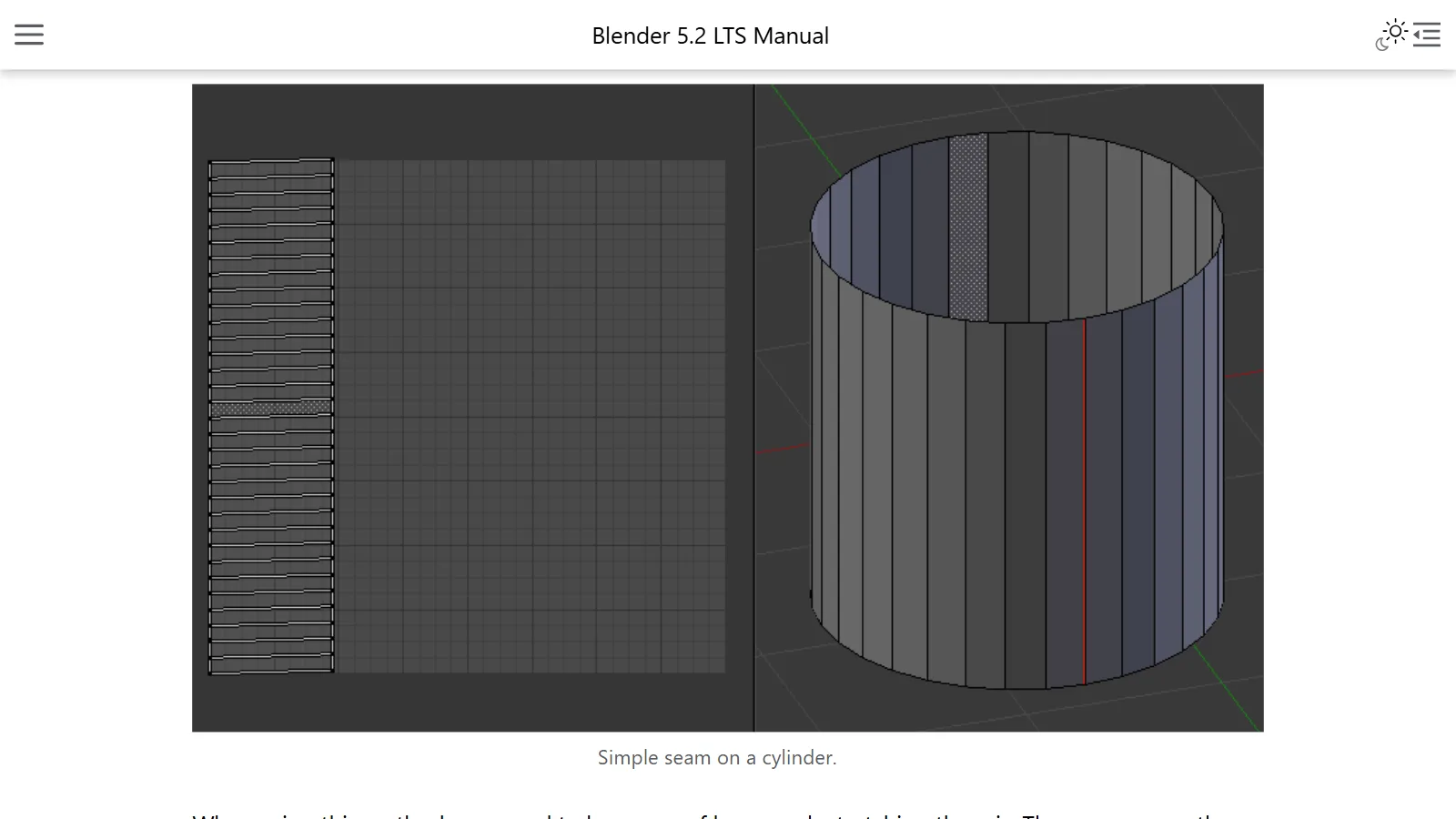
- Hide them where they won't be seen: The image may look broken along a seam, so put seams in less noticeable places such as the back or the inside of the sides. For example, put the seam of a cylinder on the vertical line at the very back.
- Cut down the middle if it is symmetrical: For objects whose left and right are the same, such as a head or a body, cutting along the axis of symmetry lets the right and left share the same part of the image.
- Cut off parts you don't need: Parts that need no image, such as the top of a head that hair will cover, can be bounded with seams and left out of the unwrap.
Adding a seam is simple. In Edit Mode, select edges, press Ctrl+E, and choose Mark Seam. To remove one, use Clear Seam in the same menu. The order of work the manual recommends is "mark seams → unwrap → fix seams and repeat → tidy the UVs by hand."
The order for unwrapping in Blender
It is best to unwrap after the shape is almost finished. If you add or split faces after unwrapping, Blender does fit the new faces in, but they may need extra work.
- In the workspace tabs at the top of the screen, choose UV Editing. A screen opens that is split into the UV Editor on one side and the 3D Viewport on the other.
- Select the object in the 3D Viewport and press
Tabto enter Edit Mode. All unwrapping is done in Edit Mode. - Mark seams where needed.
- Select the faces to unwrap (
Afor all) and pressUto open the unwrap menu. If you added seams, choose Unwrap Angle Based first. If the object is angular, like a box or a machine, and you added no seams, choose Smart UV Project. - The unwrapped pieces (islands) appear in the UV Editor on the left. Tidy up places that overlap or are skewed.
To find each area of the screen easily, see the Blender interface guide as well.
How to choose an unwrapping method
The U menu has several methods. Here they are, sorted so they are easy to choose from at first.
| Method | What it does | Suited to |
|---|---|---|
| The three Unwrap options | Cuts along seams, flattens, and lays out the pieces | Round, organic shapes such as people and animals |
| Smart UV Project | Looks at the angles between faces and cuts at sharp edges automatically | Angular shapes such as machines and buildings |
| Cube / Cylinder / Sphere Projection | Projects onto an imaginary box, cylinder, or sphere, then unwraps | Parts close to a box, a pole, or a ball |
| Project from View | Stamps and unwraps exactly as seen from the current view | Putting a photo of a real object on as it is |
| Lightmap Pack | Lays out each face separately | Baking lighting into an image (a special use) |
Choosing among the three Unwrap options
In Blender 5.2, Unwrap in the U menu is split into three items. All three do the same job of cutting along seams and flattening; only the calculation used to flatten differs.
| Menu name | Description | When |
|---|---|---|
| Unwrap Angle Based | Represents the mesh well in 2D (the calculation is called ABF) | The default choice for a first unwrap |
| Unwrap Conformal | Usually less accurate than Angle Based, but fits better on simple objects (the calculation is called LSCM) | Simple shapes such as boxes |
| Unwrap Minimum Stretch | Tries to reduce distortion of both area and angle (the calculation is called SLIM). Raising the number of iterations (Iterations) reduces distortion further | Try again when stretching is noticeable |
As a comparison, they are three ways of ironing the same net flat. For ABF, LSCM, and SLIM, it is enough to recognize the names when other tutorials use them. A safe order is to unwrap with Angle Based first, then unwrap again with Minimum Stretch if the checker pattern looks very stretched.
A few things to know:
- Unwrap (all three) overwrites existing UVs. If you already have UVs you tidied up, select only the faces to unwrap before running it.
- Smart UV Project's Angle Limit: A lower value makes many small islands with little distortion; a higher value makes fewer, larger islands, but distortion may increase.
- Project from View stretches the parts that face away. Faces that slant away from the camera stretch the image out long.
Unwrapping part by part
Take a character's head as an example. If you unwrap the whole head at once, the ears and face may be squashed and the neck stretched too much. It is better to unwrap each part with a suitable method, for example Sphere Projection for the head, Project from View from the front for the ears, and Cylinder Projection for the neck. You can get a similar result by adding seams around the ears and neck and running Unwrap once (for example, Unwrap Angle Based).
Checking and reducing stretching (distortion)
The most common problem in unwrapping is distortion. Think of a round roof (a dome) unwrapped into a disc. If you put a checker image with squares of equal size on this dome, the squares at the bottom look small and the ones at the top look big. This is because the size ratios of the UV faces changed from what they were in 3D during unwrapping. It is the same reason the polar regions stretch a lot when a globe is laid out as a flat world map. You can reduce distortion with seams and similar means, but removing it completely is not always possible.
There are two ways to check distortion.
-
Put a checker image on the object: You don't need to find a checker image elsewhere. Press the New button in the UV Editor header (the bar at the top) and change Generated Type to UV Grid, and Blender creates its built-in checker test image. Put this image on the object in this order.
- Go to the Shading workspace tab at the top of the screen and create a material on the object.
- In the Shader Editor, press
Shift+Aand add a Texture ‣ Image Texture node. - Choose the image you just made from the node's image list, and connect the node's Color output to Base Color on the Principled BSDF.
If all the squares look like similar squares, the unwrap is good. If some look long or small, try changing the seams or the unwrapping method for that part.
-
Turn on Display Stretch in the UV Editor: Turning on this option in the UV Editor's overlays shows the amount of distortion as color. Blue means little distortion, and red means a lot. You can choose whether to look at the difference in angle (Angle) or in area (Area).
Tidying islands: Pack Islands
If you unwrap in several passes, islands may overlap each other. To select one island, select one point and press Ctrl+L; everything connected to it is selected. Shrink and move overlapping islands so they don't overlap, or let Blender arrange them automatically with UV ‣ Pack Islands in the menu at the top of the UV Editor. Pack Islands adjusts the size, position, and rotation of the islands to fill the image space efficiently, leaving margins between them. It is like packing a suitcase with no gaps.
Where it connects to shader nodes
Unwrapped UVs are used in materials. The Image Texture node in shader nodes uses the object's active UV map as its coordinates when its Vector input is left empty. So after unwrapping, connecting an Image Texture node to Base Color on the Principled BSDF puts the image on according to the UVs. You can continue with how to connect nodes in the shader nodes and materials guide, and with realistic material textures such as metal and roughness in the PBR materials guide.
UV maps are managed in the UV Maps list in the Data tab of the Properties editor. One mesh can have several UV maps (for example, one per texture).
Common mistakes
- Unwrapping before the model is finished: If you change faces a lot later, you may need to unwrap again.
- Unwrapping a round object with Unwrap Angle Based without seams: The pieces may be badly squashed. Add seams first.
- Running a full Unwrap again (Angle Based, Conformal, or Minimum Stretch) over tidied UVs: The existing UVs are overwritten.
- Not finding the single "Unwrap" menu item seen in tutorials: In 5.2, Unwrap Angle Based, Unwrap Conformal, and Unwrap Minimum Stretch in the
Umenu take its place. - Islands overlapping by mistake: The image is stamped identically in two places. If that is not intended, tidy up with Pack Islands.
In a low-poly style built mostly from flat colors, the look is often made with material colors alone, without careful UV unwrapping. You can read more about which styles save which work in the low-poly style guide, and about how the flow of faces and edges affects unwrapping in the polygons and topology guide.
References
The manual links point to the fixed Blender 5.2 LTS version.
- Blender 5.2 LTS Manual, UV Editor Introduction — https://docs.blender.org/manual/en/5.2/editors/uv/introduction.html
- Blender 5.2 LTS Manual, Unwrapping Introduction — https://docs.blender.org/manual/en/5.2/modeling/meshes/uv/unwrapping/introduction.html
- Blender 5.2 LTS Manual, Seams — https://docs.blender.org/manual/en/5.2/modeling/meshes/uv/unwrapping/seams.html
- Blender 5.2 LTS Manual, UV Operators — https://docs.blender.org/manual/en/5.2/modeling/meshes/editing/uv.html
- Blender 5.2 LTS Manual, Layout Workflow — https://docs.blender.org/manual/en/5.2/modeling/meshes/uv/workflows/layout.html
- Blender 5.2 LTS Manual, UV Editing (Pack Islands) — https://docs.blender.org/manual/en/5.2/modeling/meshes/uv/editing.html
- Blender 5.2 LTS Manual, UV Editor Overlays — https://docs.blender.org/manual/en/5.2/editors/uv/overlays.html
- Blender 5.2 LTS Manual, UVs & Texture Space — https://docs.blender.org/manual/en/5.2/modeling/meshes/uv/uv_texture_spaces.html
- Blender 5.2 LTS Manual, Image Texture Node — https://docs.blender.org/manual/en/5.2/render/shader_nodes/textures/image.html
- Blender 5.2 LTS Manual, Applying Textures (UV Grid test image) — https://docs.blender.org/manual/en/5.2/modeling/meshes/uv/applying_image.html