Resolution and aspect ratio: 720p, 1080p, and 4K, 16:9 and 9:16
Resolution is the number of dots, and aspect ratio is the shape of width against height. A plain explanation of 720p and 4K, and 16:9 and 9:16.
한국어English
Based on: the Blender 5.2 LTS official manual, international broadcast standards (ITU-R), and YouTube official help. Checked in September 2026. Menu names follow the English interface.
The first two things you meet in video settings are resolution and aspect ratio. Resolution is how many dots (pixels) make up the picture, and aspect ratio is the shape of the width against the height. The two look alike, but you set them separately. This guide explains what a pixel is, what 720p, 1080p, and 4K mean, how 16:9 and 9:16 differ, what to watch out for when you change resolution and aspect ratio in Blender, and how to choose a resolution.
Pixels and resolution
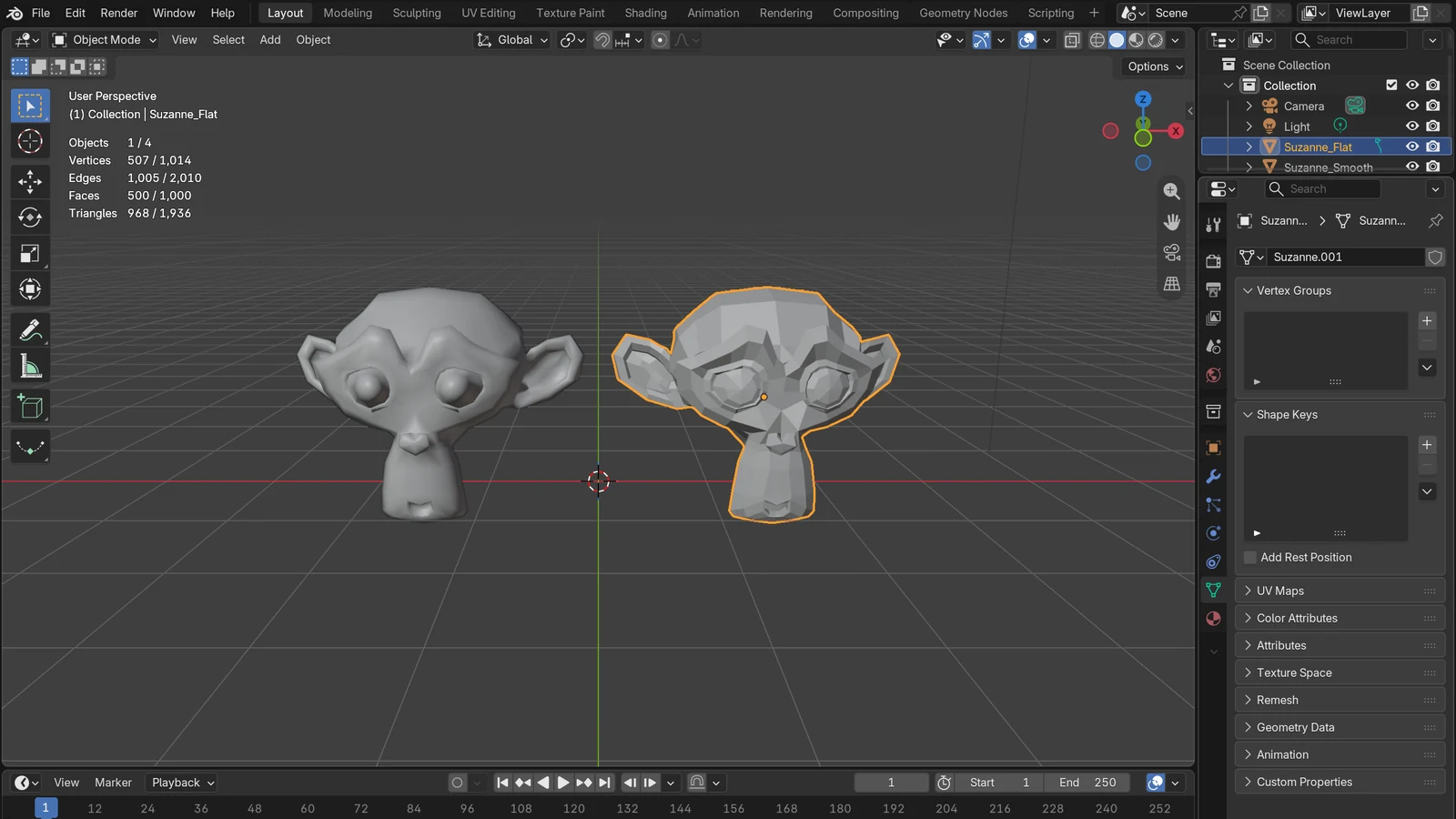
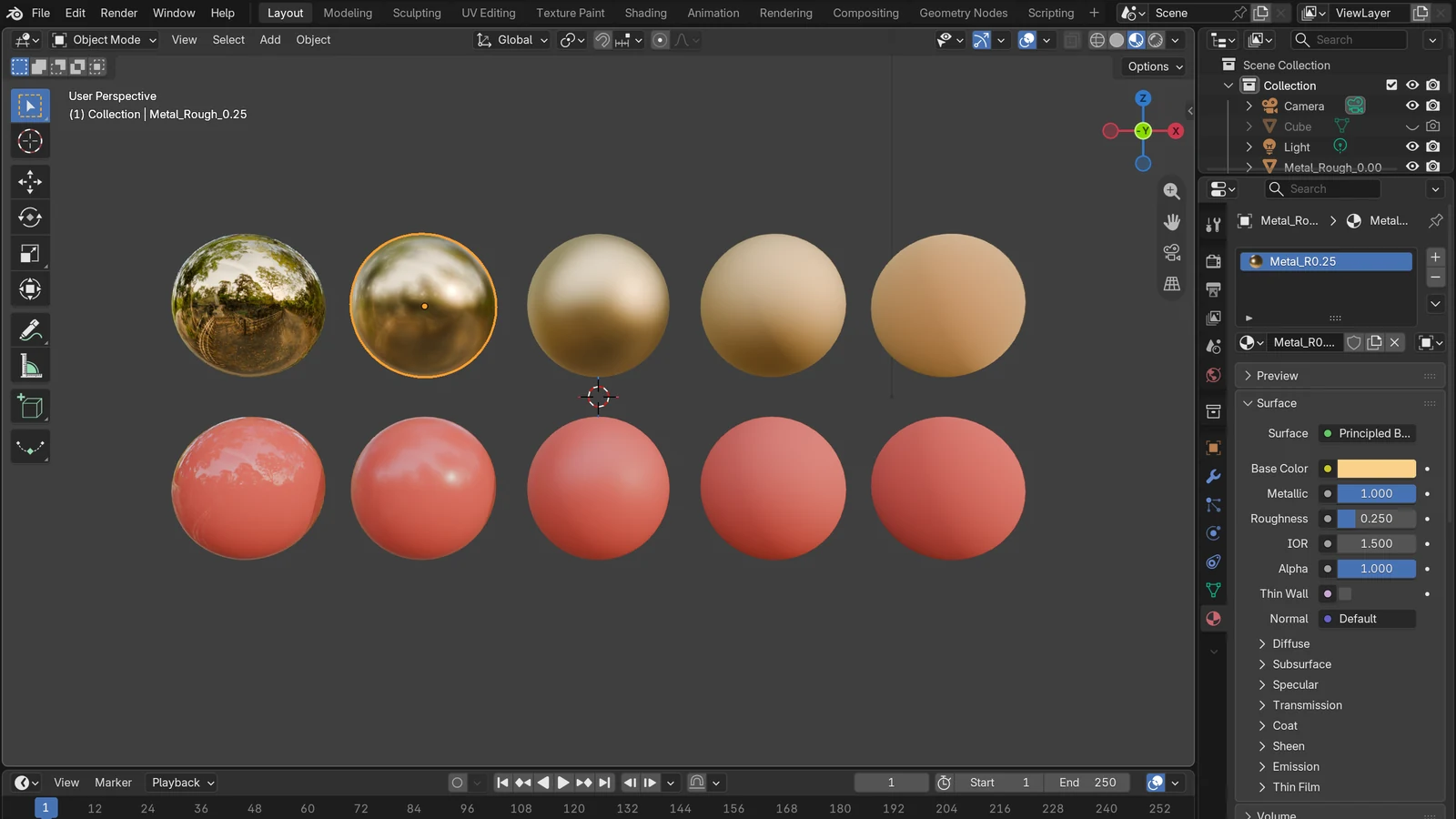
A digital image is made of very small colored dots arranged in a grid, like a checkerboard. Each of these dots is called a pixel. It is like a mosaic tile mural. On a wall of the same size, draw an apple with a few big tiles and it comes out as a bumpy staircase shape. Draw it with thousands of small tiles and you get a smooth, detailed apple.
Resolution tells you how many of these pixels there are across and down. 1920×1080 means there are 1,920 pixels across and 1,080 pixels down. Resolution X and Y in Blender are also the number of pixels across and down in the image.
What 720p, 1080p, and 4K mean
Video resolutions are usually named by the number of pixels down + p. 1080p is a video with 1,080 rows of pixels. The p at the end stands for progressive scan, which draws a whole frame at once. 4K is a little different. The resolution table in the YouTube Help Center lists 3840×2160 with both names, "2160p (4k)." Counted down, it is 2160p, and because it is 3,840 pixels across, close to 4,000, it is usually called 4K.
The resolutions the YouTube Help Center recommends for 16:9 videos are as follows.
| Name | Width×height | Total pixel count |
|---|---|---|
| 8K (4320p) | 7680×4320 | About 33.18 million |
| 4K (2160p) | 3840×2160 | About 8.29 million |
| 2K (1440p) | 2560×1440 | About 3.69 million |
| HD (1080p) | 1920×1080 | About 2.07 million |
| HD (720p) | 1280×720 | About 920,000 |
| SD (480p) | 854×480 | About 410,000 |
| SD (360p) | 640×360 | About 230,000 |
The YouTube table also has an even smaller 240p (426×240). The total pixel count is the width multiplied by the height. The point to notice here is that when the width and height each double, the pixel count goes up four times. Going from 1080p to 4K doubles both the width and the height, so there are four times as many pixels. Compared with 720p, 1080p has 2.25 times as many, and 4K has 9 times as many.
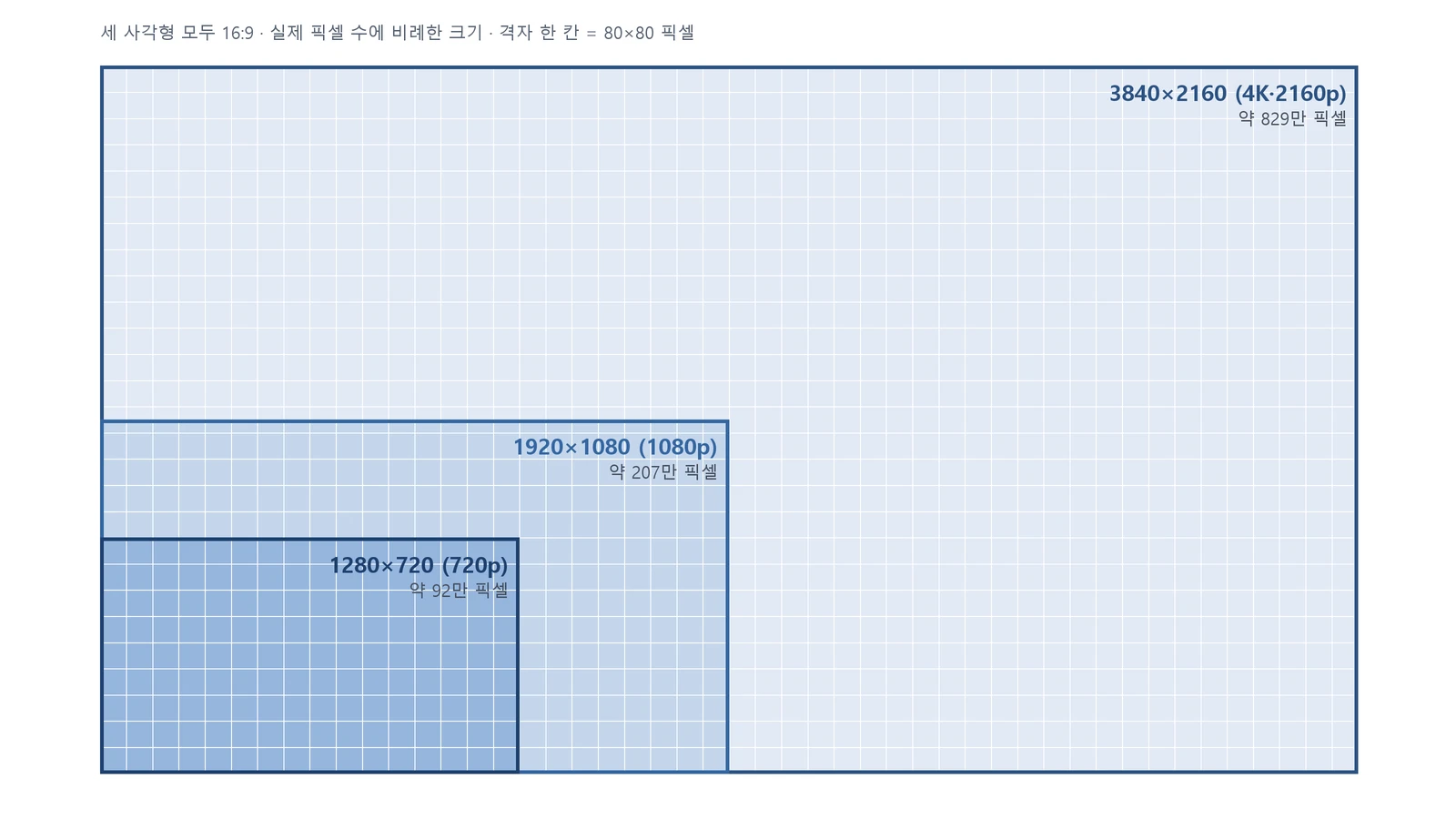 From the smallest dark blue: 720p, 1080p, and 4K. All three rectangles are exactly 16:9, and their sizes are in proportion to the real pixel counts. The 4K rectangle has room for four 1080p rectangles or nine 720p rectangles (chart, labels in Korean)
The mosaic comparison above and this chart look at the same fact from two directions. If the wall is the same size, more tiles (pixels) make the picture denser. If the tiles are the same size, more tiles make the wall larger. Seen on a screen of fixed size, such as a monitor or phone, it is the mosaic view. Seen from 3D rendering, which calculates each pixel, it is this chart's view. Either way, the pixel count is the amount of information the picture can hold.
You can also find these numbers in broadcast standards. The high-definition TV standard ITU-R BT.709 specifies 1920×1080, and the ultra-high-definition TV standard ITU-R BT.2020 specifies 3840×2160 and 7680×4320. Both standards use a 16:9 aspect ratio.
Pixel count and workload in 3D
3D rendering is the computer calculating the color of every single pixel. So when the pixel count goes up, the amount to calculate goes up too. Rendering time is not exactly in proportion to the pixel count, but a 4K video has four times as many points to calculate as 1080p. The file size to store also grows.
Aspect ratio: 16:9 and 9:16
Aspect ratio is the ratio of the width to the height. 16:9 is a ratio of 16 units across to 9 units down, a rectangle that is wider than it is tall. The standard ratio for YouTube on a computer is 16:9. The resolutions in the table above are all 16:9. 1920÷1080 and 1280÷720 both come to about 1.78.
9:16 is 16:9 stood on its end, that is, vertical video. Short videos watched with a smartphone held upright are the typical example. On YouTube, videos that are square or vertical and up to 3 minutes long are classed as Shorts.
In the mosaic comparison, resolution is the number of tiles, and aspect ratio is the shape of the wall. Even with the same 1920×1080 tiles, if you stand the wall upright, you get a 1080×1920 vertical mural. The number of tiles stays the same, and only the shape changes.
Why you should not add the borders yourself
When you watch a vertical video on a computer, the sides look empty. The YouTube player adds the borders (padding) by itself to fit the video size and the device. That is why YouTube advises not to draw black bars (letterboxing) or borders into the video yourself. If you add them, the player cannot adjust the screen size to fit the video.
Setting resolution and aspect ratio in Blender
Where to set them
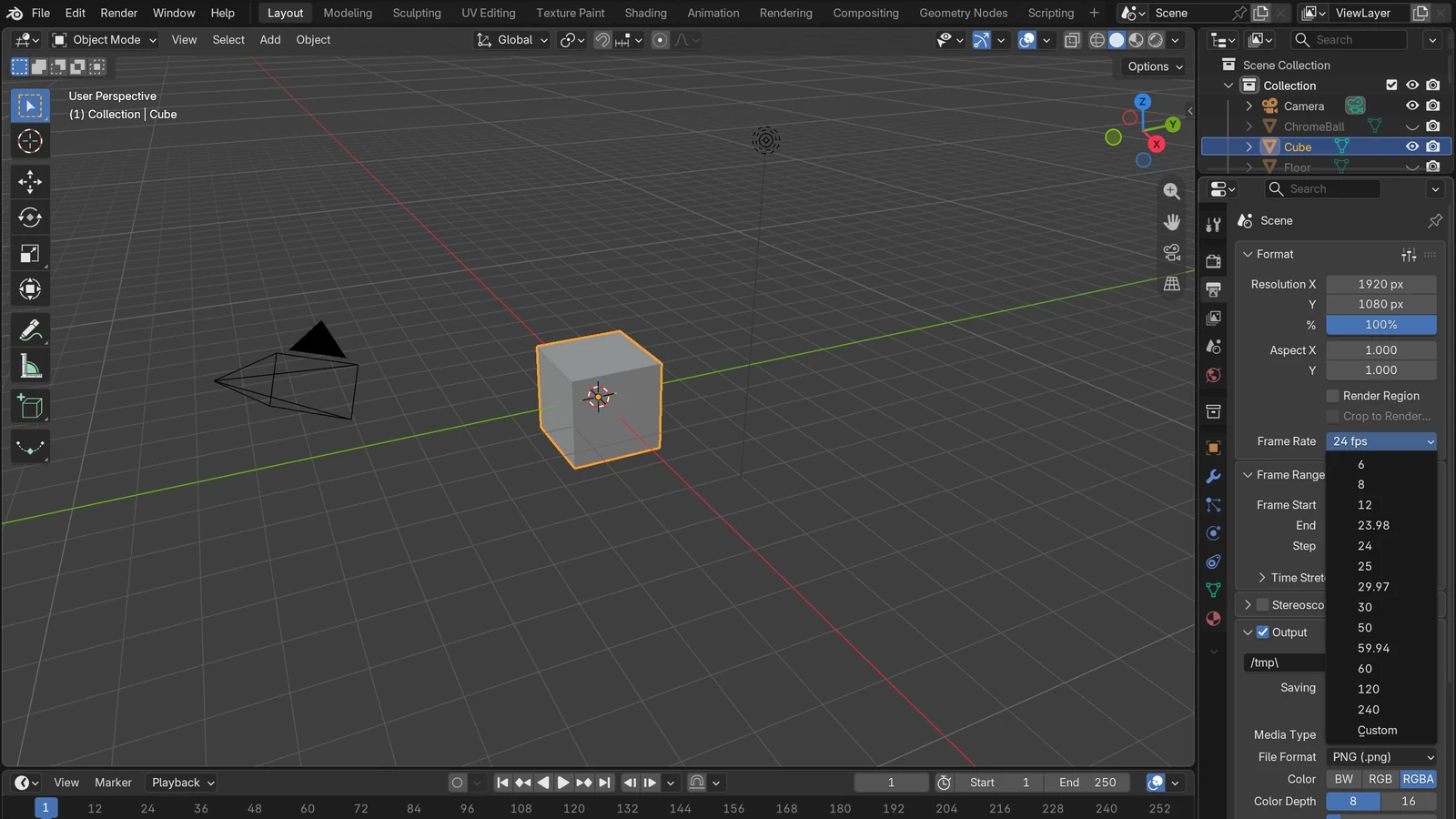
Set them on the Format panel of the Output tab in the Properties editor.
- Resolution X, Y: Enter the number of pixels across and down. You can also pick common resolutions for TV and screens from the preset menu in the panel header.
- Swap Dimensions: Appears when you right-click the resolution fields, and swaps the width and height, turning 1920×1080 into 1080×1920.
- Percentage (%): A slider for test renders that keeps the ratio and only shrinks the size. How to use it is covered in An introduction to render settings.
- Aspect X, Y: The name makes this easy to confuse, but it is not the aspect ratio. It is the shape of a single pixel. It is meant for old TVs whose pixels were not square, so if you enter a value other than 1, the picture looks stretched on a computer screen. BT.709 and BT.2020 both specify square pixels (1:1), so for normal work, leave it at 1 and 1.
How the framing changes when you change the ratio
If you change a scene made as horizontal video to vertical, the area the camera captures changes, even with the same camera. Select the camera, and a Sensor Fit field appears on the camera data tab of the Properties editor. When this value is Auto, the sensor size is calculated from the longer side of the resolution. So when you switch from horizontal to vertical, the longer side changes from the width to the height, and the framing changes: the sides get cut off a lot, and the background on both sides of a person disappears.
After you change the ratio, check the framing again in camera view (numpad 0), and adjust the camera position or focal length if needed. A framing that shows a person large on a vertical screen only comes from setting it up again yourself like this.
Using Safe Areas
Turn on the Safe Areas panel on the same camera data tab, and guide lines appear on the screen. Put information that must be seen, such as text or graphics, inside Title Safe, and put important action and people inside Action Safe. Today's digital screens do not cut off the edges, but the Blender manual still recommends staying within the safe areas. If you plan to make both a horizontal and a vertical version, keeping important objects close to the center of the screen makes them easier to move.
How to choose a resolution
- First decide where it will be shown. For YouTube on a computer, use 16:9. For vertical video on a smartphone, use 9:16. If you plan to post in both places, frame things toward the center from the start.
- Choose the final resolution for the purpose. For online video, 1080p (1920×1080) is the common standard. Consider 4K when you need a sharper result and have enough hardware and time. For vertical video, use the width and height swapped, such as 1080×1920.
- Render small when checking your work. You do not need high resolution at the stage where you look at framing and motion. For example, if the final resolution is 1920×1080, set Percentage to 50% and check at 960×540.
- Keep the aspect ratio and pixel shape fixed to the end. If you change the ratio partway through, you have to check the framing again, and if you change the pixel shape (Aspect), the picture gets stretched.
960×540 and 1920×1080 are both 16:9, so like 720p and 1080p in the chart above, they have the same shape and only differ in size. That is why the framing stays the same. The order of checking small and finishing large is in An introduction to render settings, and why you should fix the fps is in Understanding frame rate.
Common misunderstandings
- "4K is twice as sharp as 1080p." The width and height are each twice as large, so there are four times as many pixels. But how sharp it actually looks depends on the screen size and viewing distance.
- "Changing the resolution changes the aspect ratio." You can change only the size while keeping the same ratio, as with 1280×720 and 1920×1080. The ratio changes only when the proportion of width to height changes.
- "Aspect X, Y in Blender is the aspect ratio." It is the shape of a single pixel. The aspect ratio is set by the ratio of Resolution X to Y.
- "You make a vertical video by adding black bars on both sides of a horizontal video." YouTube advises against adding borders yourself. Rendering at a vertical resolution from the start fills the screen.
References
- Blender 5.2 LTS Manual, Format (Resolution, Percentage, Aspect) — https://docs.blender.org/manual/en/5.2/render/output/properties/format.html
- Blender 5.2 LTS Manual, Cameras (Sensor Fit, Safe Areas) — https://docs.blender.org/manual/en/5.2/render/cameras.html
- ITU-R BT.709-6, Parameter values for the HDTV standards — https://www.itu.int/rec/R-REC-BT.709
- ITU-R BT.2020-2, Parameter values for UHDTV systems — https://www.itu.int/rec/R-REC-BT.2020
- YouTube Help, Video resolution and aspect ratios — https://support.google.com/youtube/answer/6375112
- YouTube Help, YouTube Shorts up to 3 minutes long — https://support.google.com/youtube/answer/15424877
- YouTube Help, Recommended upload encoding settings — https://support.google.com/youtube/answer/1722171