Blender for complete beginners, chapter 13: finishing a small piece — a low-poly desk scene
A first finished piece for complete beginners. Combine what you learned in chapters 1 to 12 (adding objects, size, Edit Mode, modifiers, materials, lights, the camera, and rendering) to build a low-poly scene with a desk, a mug, a desk lamp, and a book using exact numbers, then render it at 1280×720.
한국어English
ON THIS PAGE
- 01What you will learn in this chapter
- 020. Preparation: an empty scene
- 031. The desk top
- 042. Four desk legs: make one and Mirror it
- 053. The mug
- 064. Desk lamp, book, floor, and wall
- 075. Adding color (materials)
- 086. Camera
- 097. Lights
- 108. Render and save
- 119. Exercises (make it your own)
- 1210. Common mistakes and fixes
- 13In one line
- 14References
Blender for complete beginners, chapter 13 · Based on: Blender 5.2 LTS (screenshots from 5.2.1, English interface, default keymap) All images are real screens. The red numbers and outlines were added for explanation. Add-on tabs in the sidebar are blurred.
What you will learn in this chapter
You will combine what you learned in chapters 1 to 12 to make one finished picture from start to end.
| Step | What you make | Skills used (chapter to review) |
|---|---|---|
| 1 | Desk top | Adding (chapter 4), size and Dimensions (chapter 3), applying scale, Bevel (chapter 7) |
| 2 | Four desk legs | Mirror modifier (chapter 7) |
| 3 | Mug | Cylinder, deleting a face in Edit Mode (chapter 6), Solidify (chapter 7), torus handle |
| 4 | Desk lamp and book | Stacking cones and cylinders, floor and wall |
| 5 | Adding color | Materials (chapter 8) |
| 6 | Camera | Camera position and lens (chapter 10), enlarging the floor and wall |
| 7 | Lights | Point and Sun (chapter 9) |
| 8 | Render | Rendering at 1280×720 and saving (chapter 11) |
Before you start: units are meters (m), and save often. In Blender, 1 is 1 m. The desk in this chapter is the size of a real desk: 1.2 m wide, 0.6 m deep, and 0.775 m tall (0.725 m legs + a 0.05 m top). At the start, press
Ctrl+Sto savedesk-scene.blend(chapter 5), and pressCtrl+Sagain at the end of every step.
0. Preparation: an empty scene
- Start from a new file (File ‣ New ‣ General).
- Click the cube and delete it with
Delete(chapter 4). Keep the camera and the light. - Check that the 3D cursor is at the origin. If it is not, press
Shift+C(chapter 2).
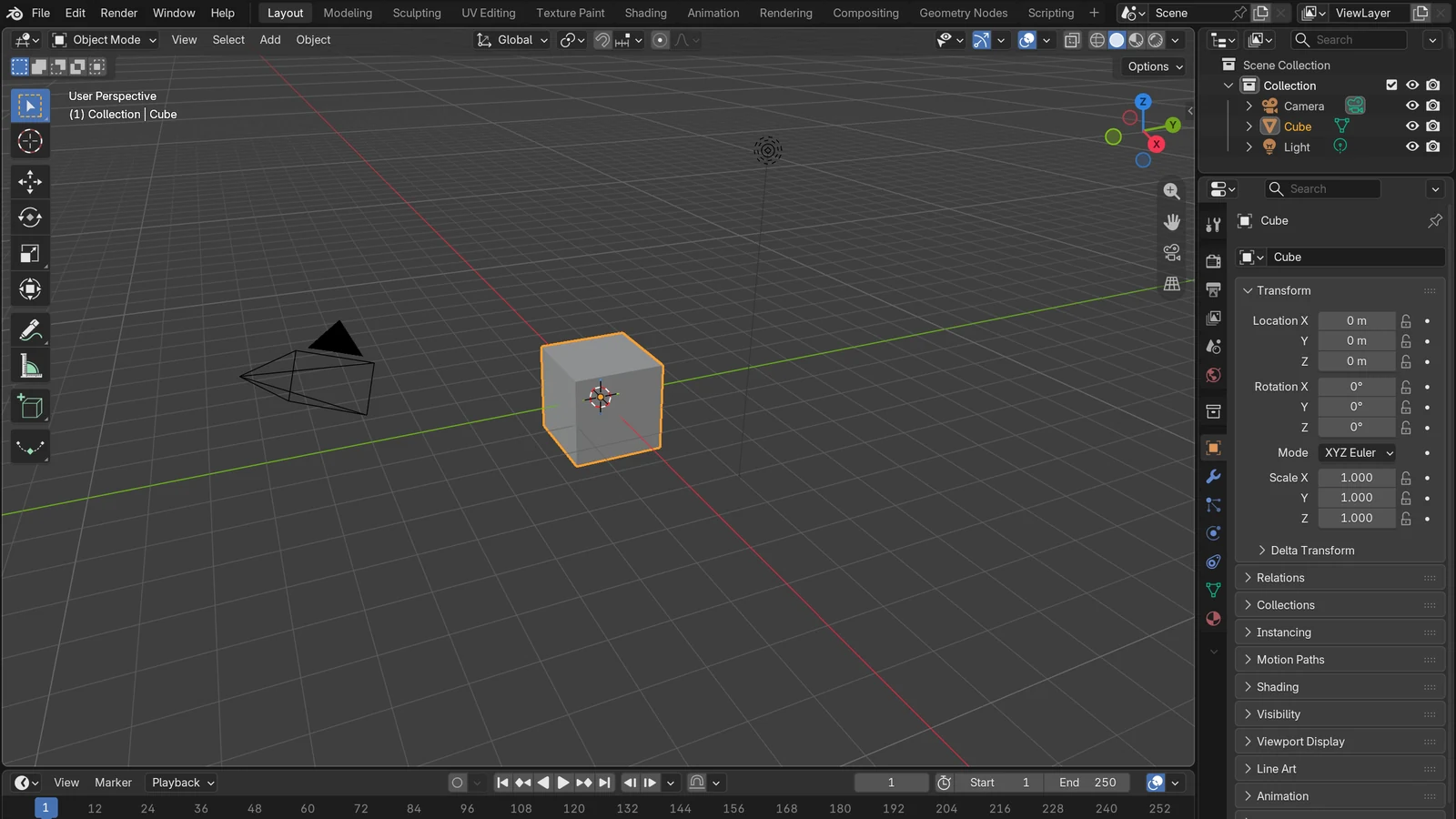
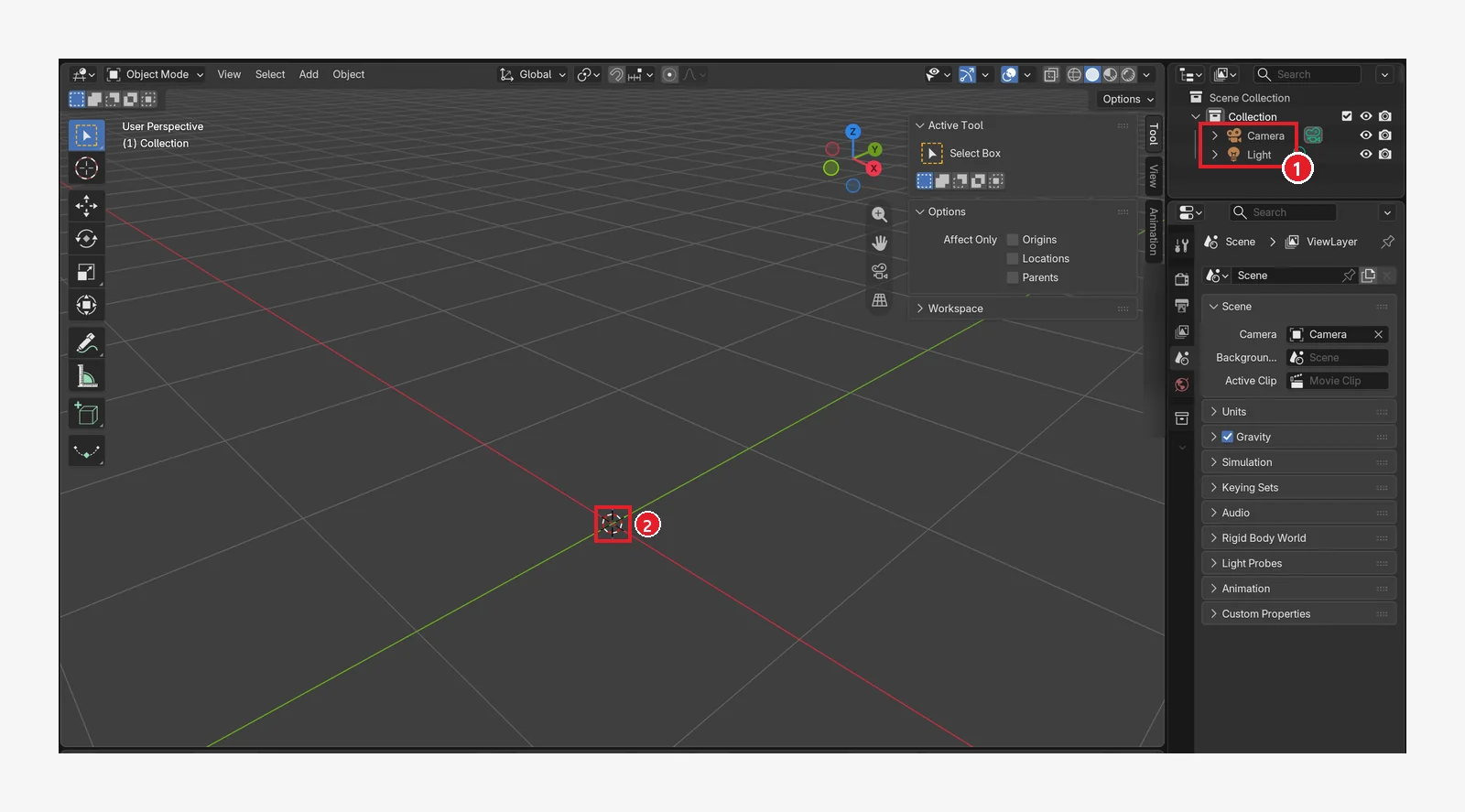 Figure 13-1. The starting screen: ① only Camera and Light remain in the Outliner ② the 3D cursor is at the origin (0, 0, 0). On the right is the sidebar, opened with
 N (Blender screenshot)
1. The desk top
1-1. Add a cube and set its size
- Press
Shift+A‣ Mesh ‣ Cube to add a cube. Right after adding it, enter Location Z = 0.75 in the Adjust Last Operation panel at the bottom left (chapter 4, section 3). Double-click its name in the Outliner and rename itDeskTop. - Open the sidebar with
Nand look at the Item tab. The default cube is 2 m on each side.
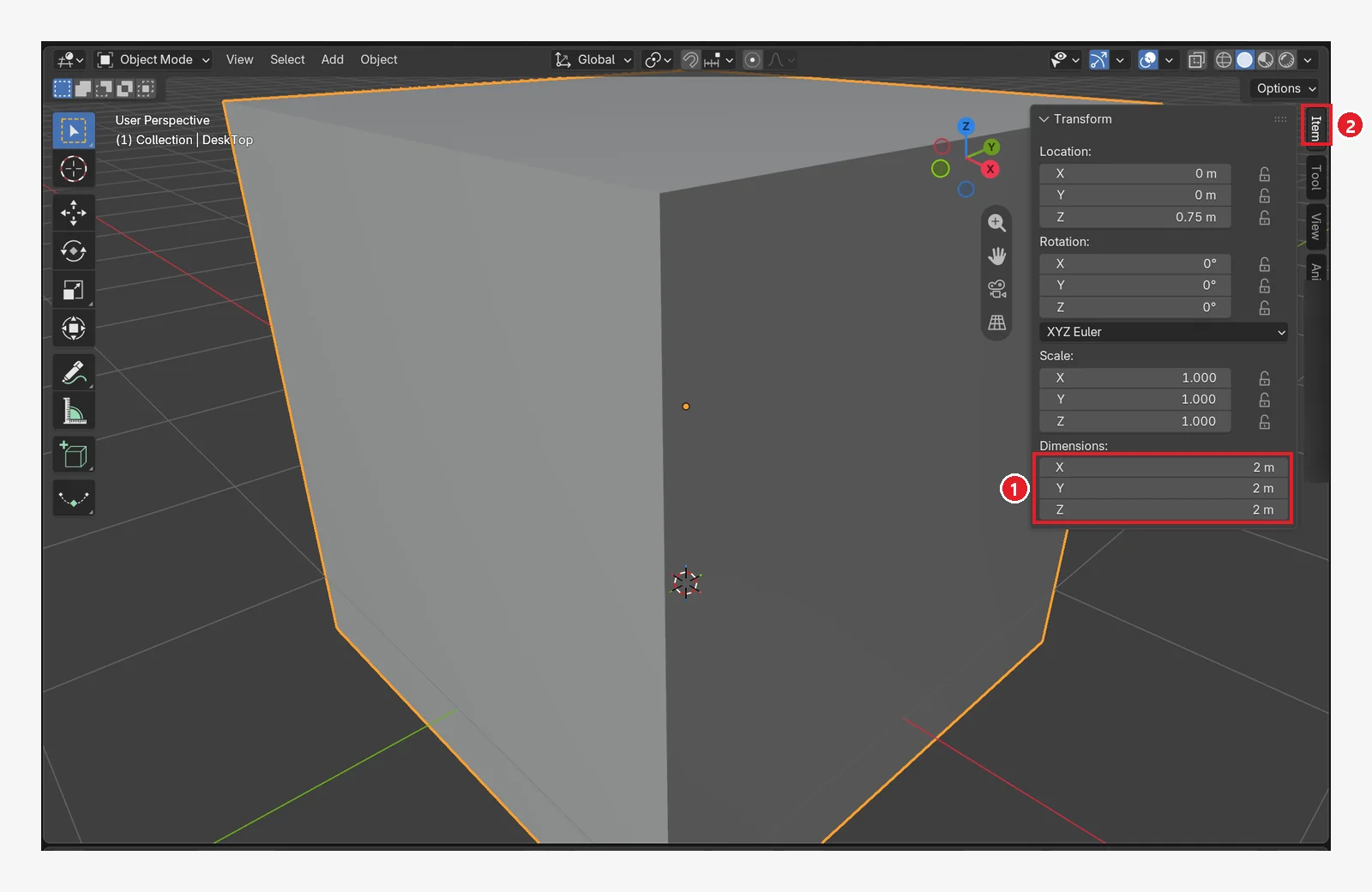 Figure 13-2. Right after adding the cube: ① Dimensions X, Y, and Z are all 2 m ② the sidebar Item tab. A big box fills the screen (Blender screenshot)
- In Dimensions, enter X
1.2, Y0.6, and Z0.05(double-click a field, type the number, then pressEnter).
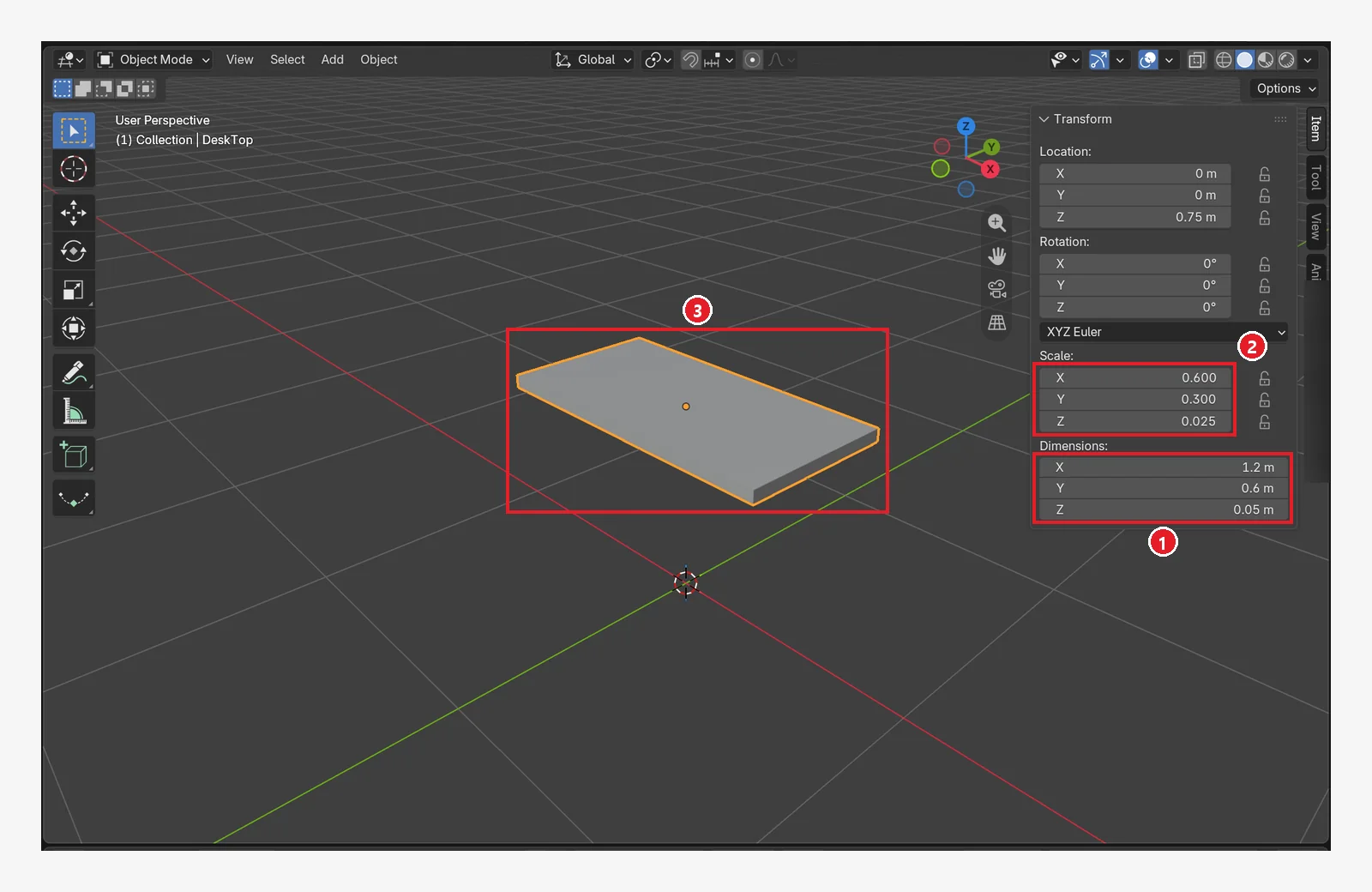 Figure 13-3. After entering the size: ① Dimensions 1.2 m × 0.6 m × 0.05 m ② Blender turned this size into Scale 0.600 / 0.300 / 0.025 ③ the flat desk top (Blender screenshot)
1-2. Apply the scale: Ctrl+A ‣ Scale
If Scale is not 1, the Bevel you add next will be distorted ("applying scale" in chapter 7). In the 3D Viewport, press Ctrl+A and choose Scale.
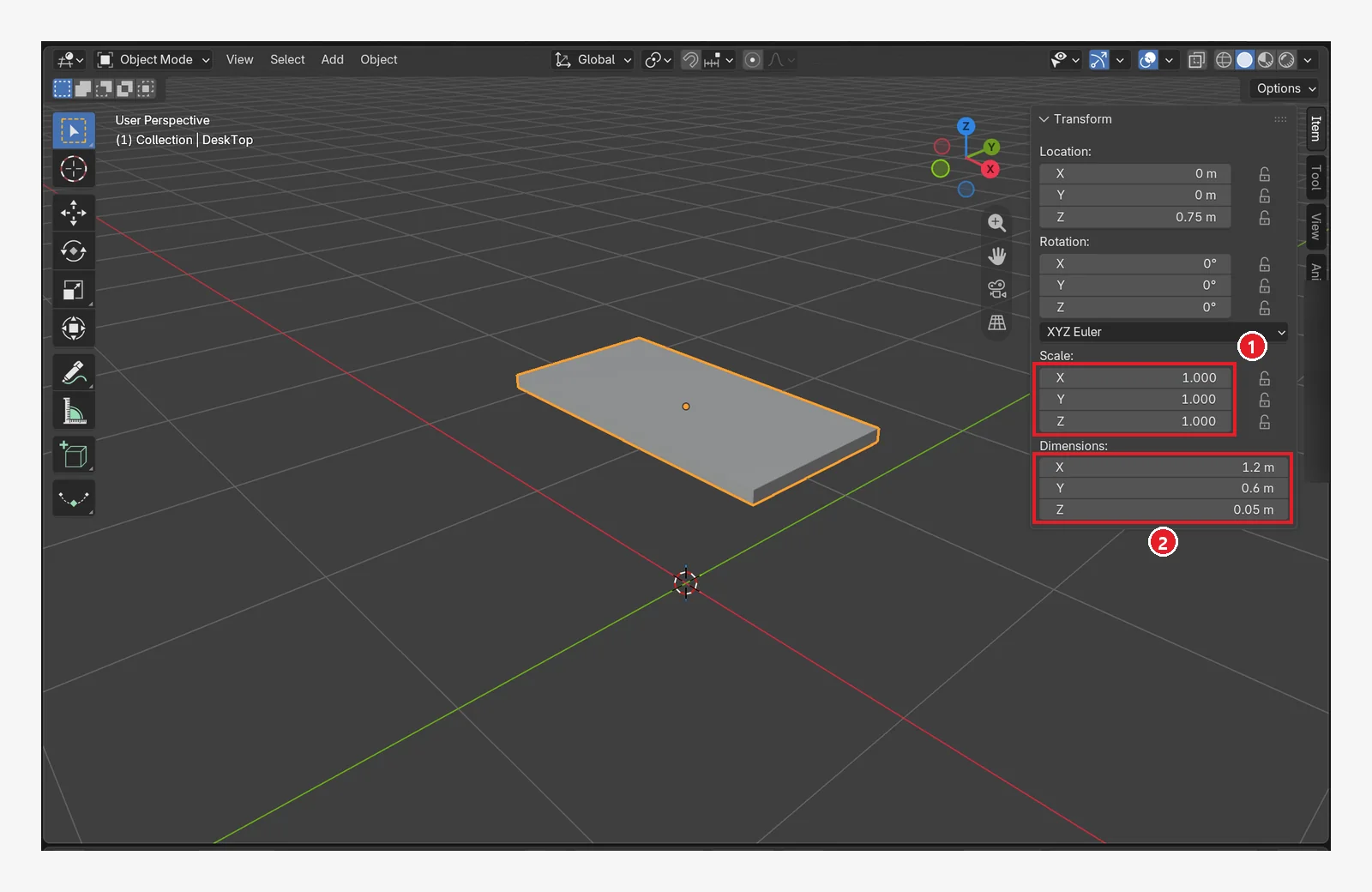 Figure 13-4. After applying the scale: ① Scale is back to 1.000 / 1.000 / 1.000 ② Dimensions stay at 1.2 m × 0.6 m × 0.05 m. The shape is the same; only the numbers were tidied up (Blender screenshot)
1-3. Round the edges: Bevel
In the Properties editor, go to the Modifier tab (wrench icon) ‣ Add Modifier ‣ Generate ‣ Bevel (chapter 7). Enter 0.01 for Amount and 2 for Segments.
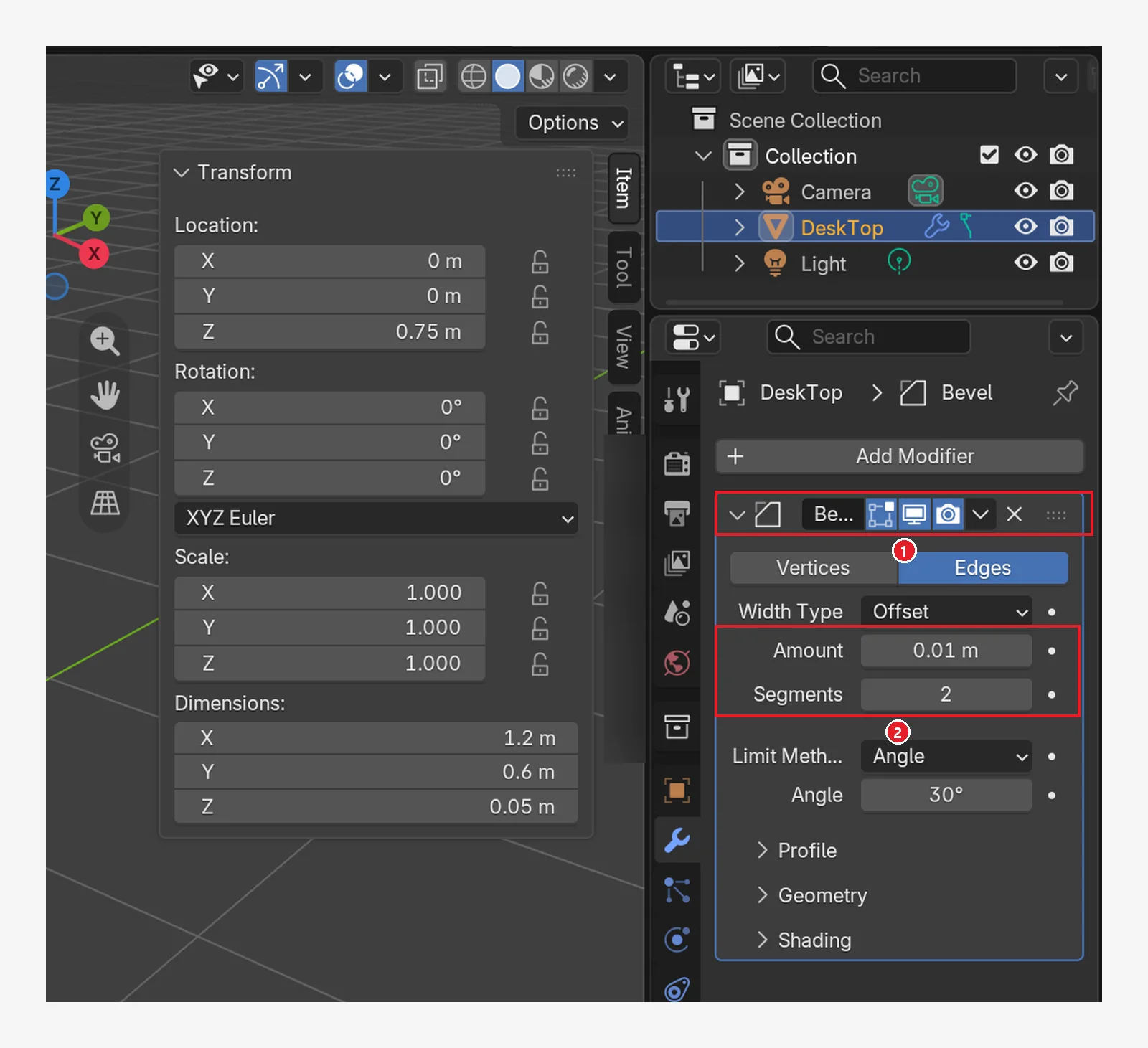 Figure 13-5. ① The Bevel modifier ② Amount 0.01 m (cuts 1 cm off the edges), Segments 2 (splits the cut face into two strips to round it). Everything else (Width Type Offset, Limit Method Angle 30°) stays at the default (Blender screenshot)
1 cm is very small, so it is hard to see from far away. Look closely at the desk-top edge in the render (Figure 13-28) and you will see the corner is slightly rounded.
2. Four desk legs: make one and Mirror it
- Press
Shift+A‣ Mesh ‣ Cube again to add a cube, and rename itDeskLeg. - In the sidebar Location, enter X
0.55, Y0.25, and Z0.3625. - In Dimensions, enter X
0.05, Y0.05, and Z0.725, then apply the scale withCtrl+A‣ Scale.
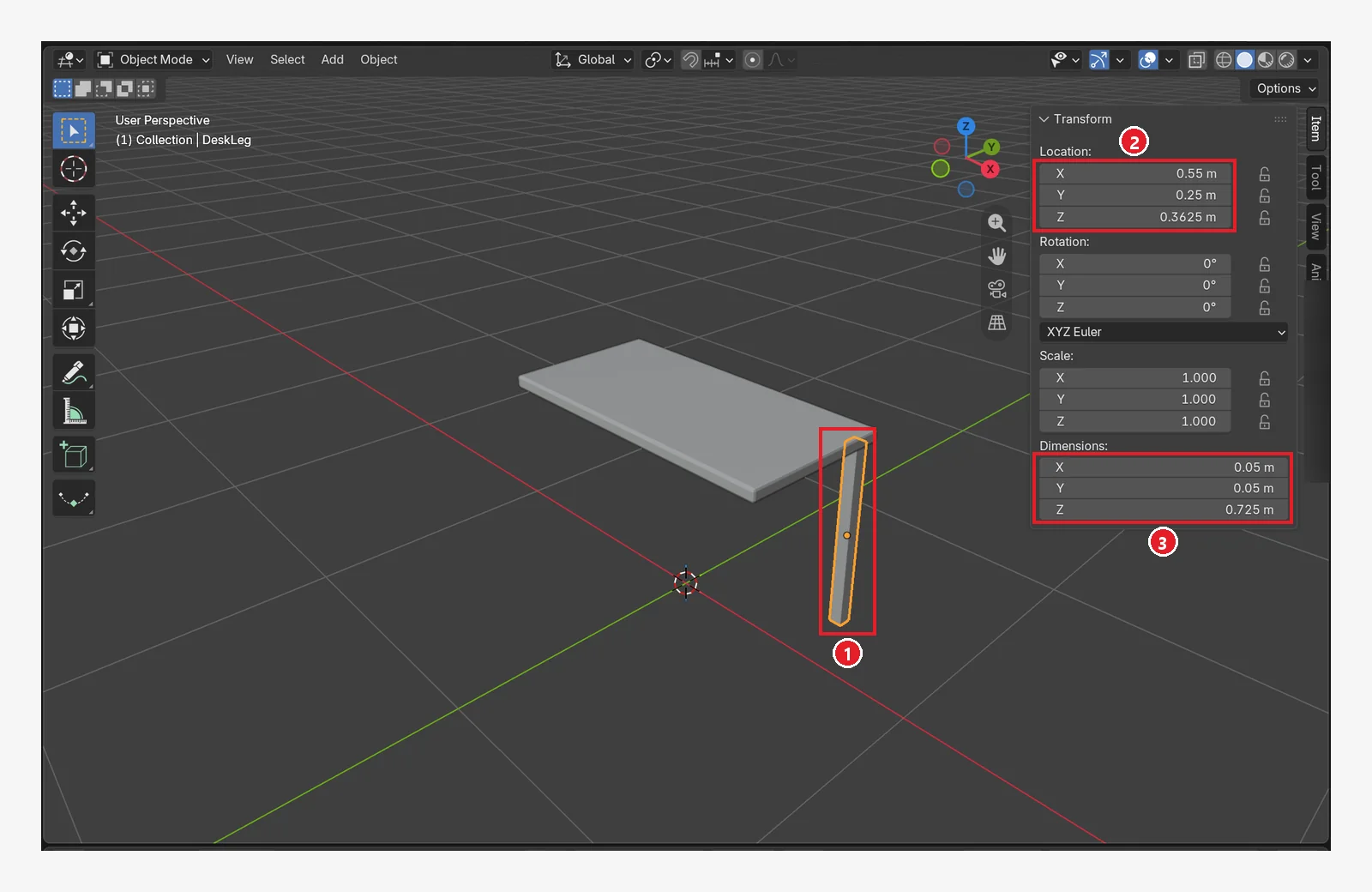 Figure 13-6. One leg: ① the leg under the front-right corner of the desk top ② Location 0.55 / 0.25 / 0.3625 m ③ Dimensions 0.05 × 0.05 × 0.725 m. Z 0.3625 is half of the leg height of 0.725, so the bottom of the leg touches the floor (Z 0) exactly (Blender screenshot)
- With the leg selected, go to the Modifier tab ‣ Add Modifier ‣ Generate ‣ Mirror.
- Under Axis, leave X on and turn on Y as well.
- In the Mirror Object field, choose
DeskTop. The leg is copied as if folded and stamped around the center of the desk top.
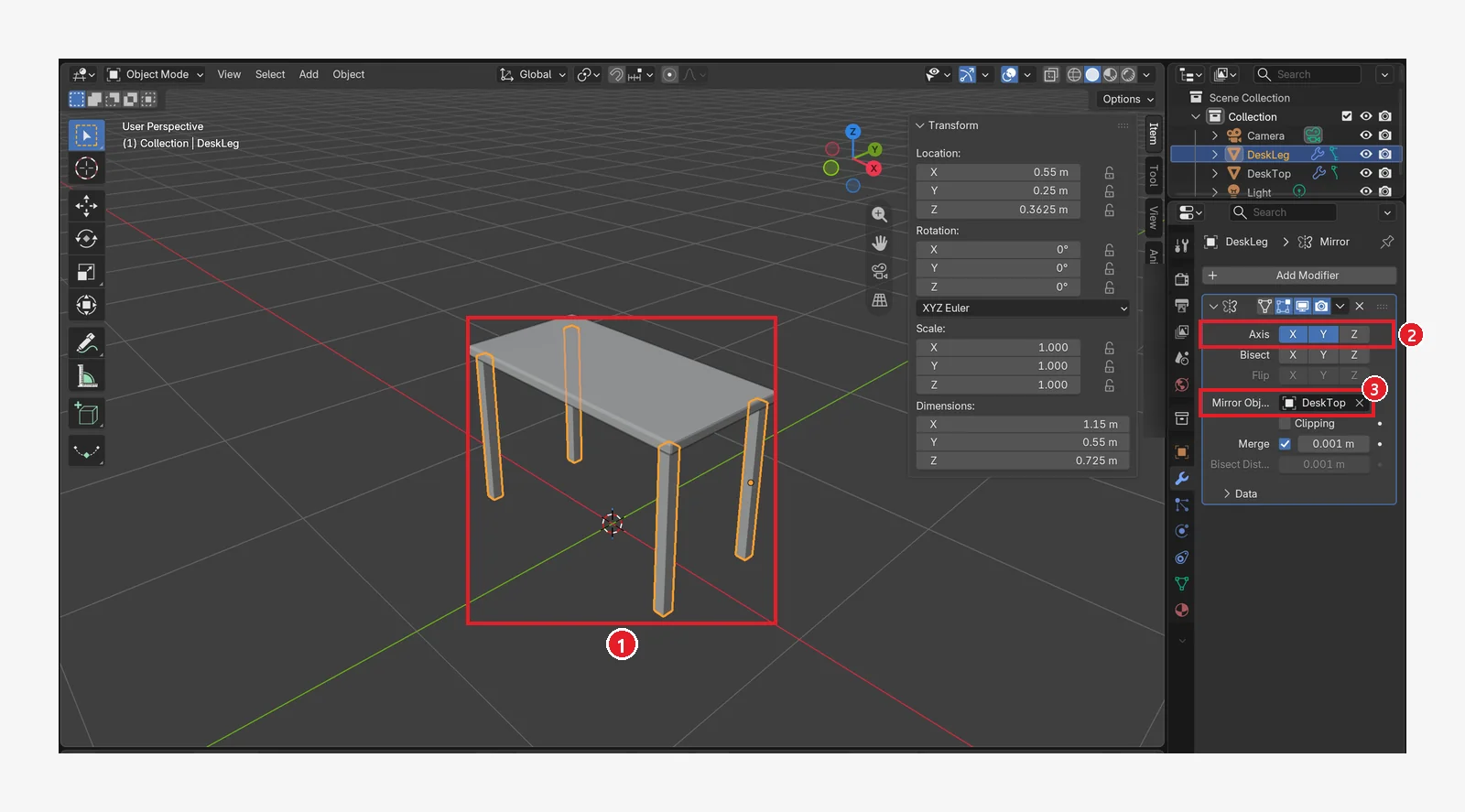 Figure 13-7. ① One leg becomes four ② Axis X and Y on ③ Mirror Object: DeskTop. The sidebar Dimensions changed to 1.15 m × 0.55 m because they now show the modifier result (the size of all four legs together) (Blender screenshot)
Why use Mirror: If you change the one leg, all four change together. To make the legs thicker, change only the Scale of
DeskLeg. The Dimensions field shows the size of all four legs together, so don't use it to set the leg thickness (exercise 2).
3. The mug
3-1. Add a cylinder
Add Shift+A ‣ Mesh ‣ Cylinder. Right after adding it, enter Vertices 12, Radius 0.04 m, Depth 0.1 m, and Location X 0.3, Y -0.1, Z 0.825 in the panel, then rename it Mug.
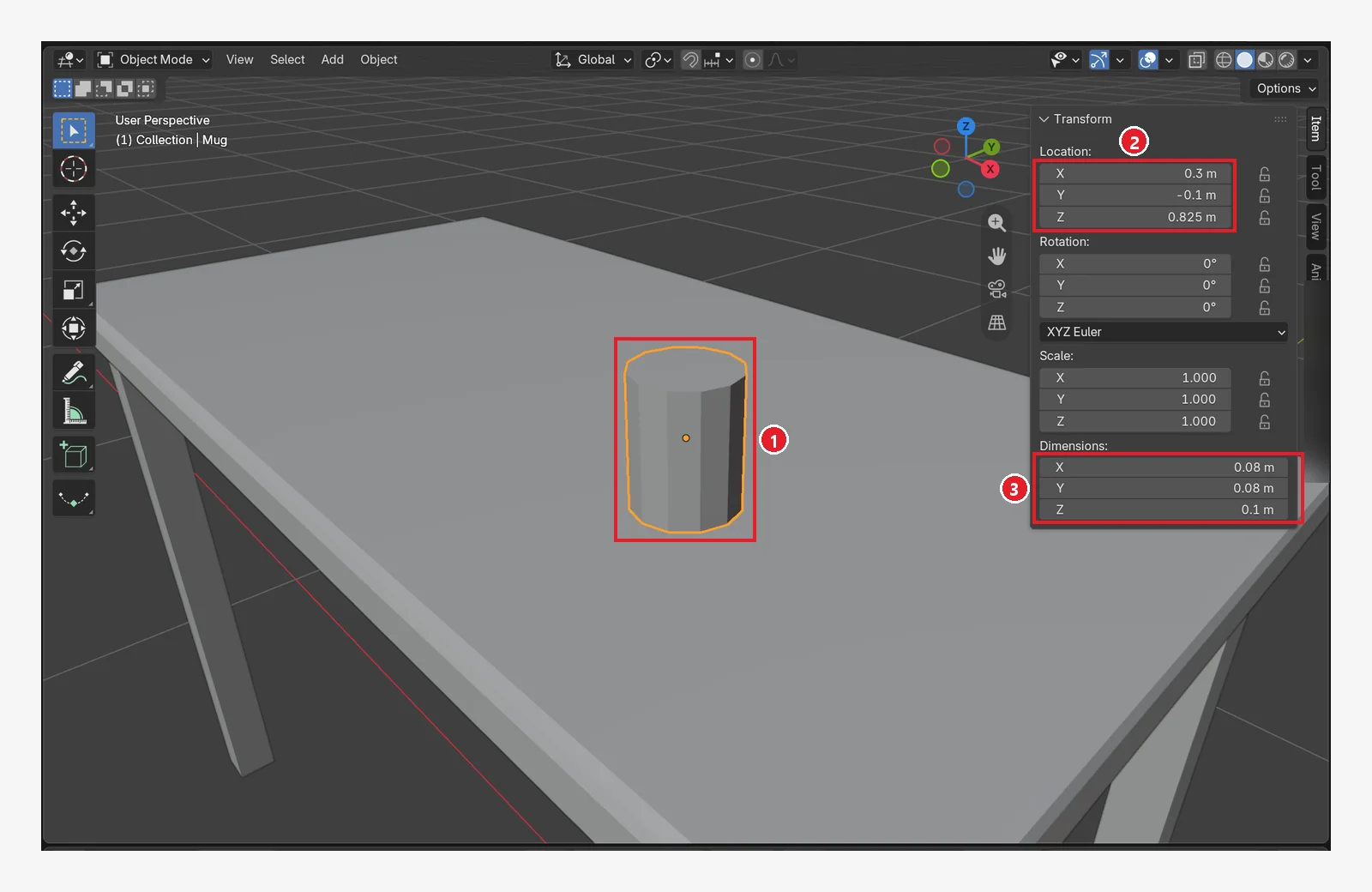 Figure 13-8. The mug body: ① an angular cylinder with 12 vertices (a low-poly look) ② Location 0.3 / −0.1 / 0.825 m ③ Dimensions 0.08 × 0.08 × 0.1 m (8 cm across, 10 cm tall). Its bottom, at 0.775 m, is level with the top of the desk (Blender screenshot)
3-2. Delete the top face (Edit Mode)
- Press
Tabto enter Edit Mode (chapter 6). - Press
3to switch to face select mode. - Click the top face (it turns orange).
- Press
X‣ Faces to delete only that face. - Press
Tabto go back to Object Mode.
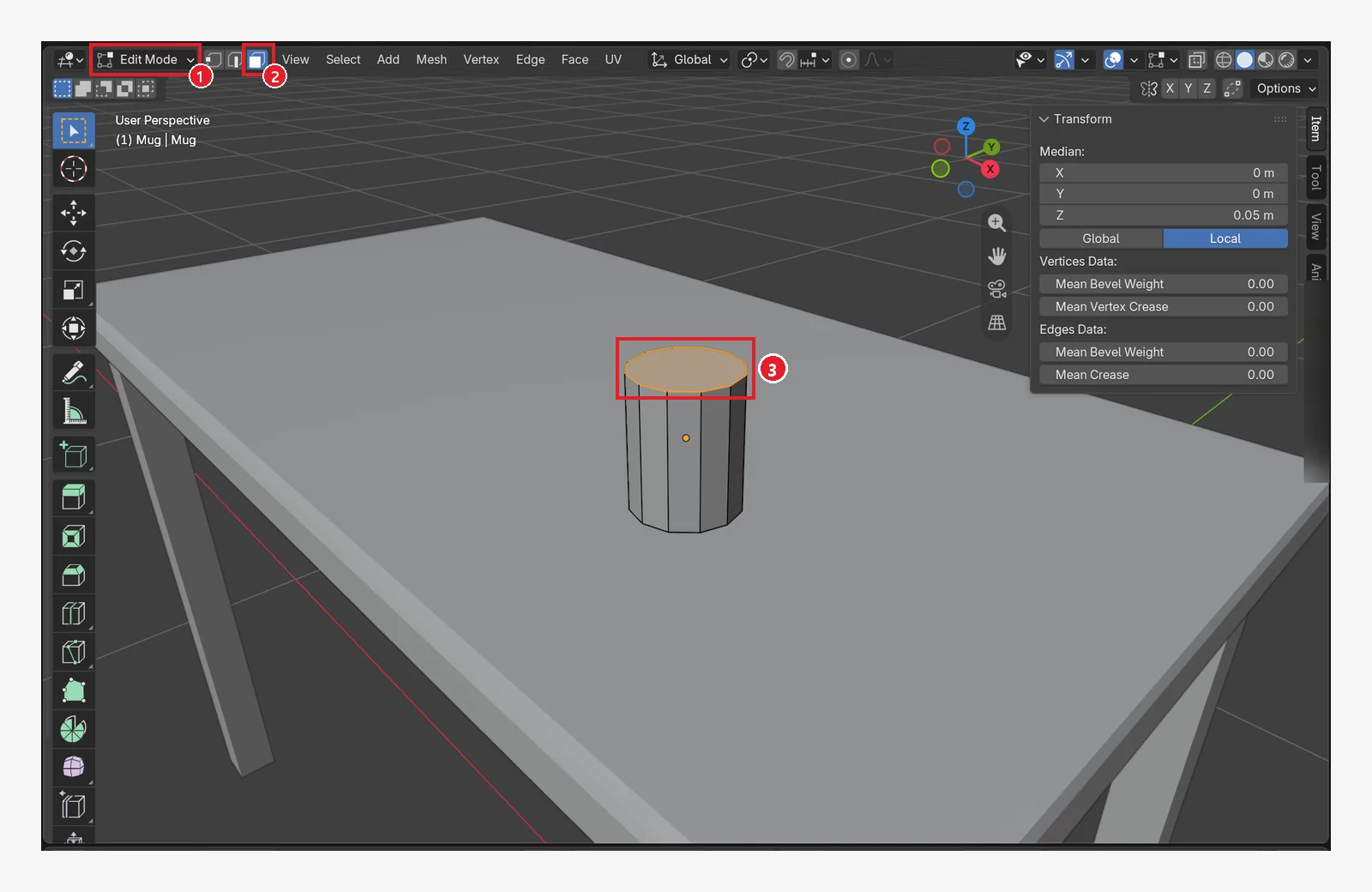 Figure 13-9. ① The header shows Edit Mode ② face select (the blue button) ③ the selected top face (orange). Median Z 0.05 m in the sidebar means the selected face is 5 cm above the center of the mug (Blender screenshot)
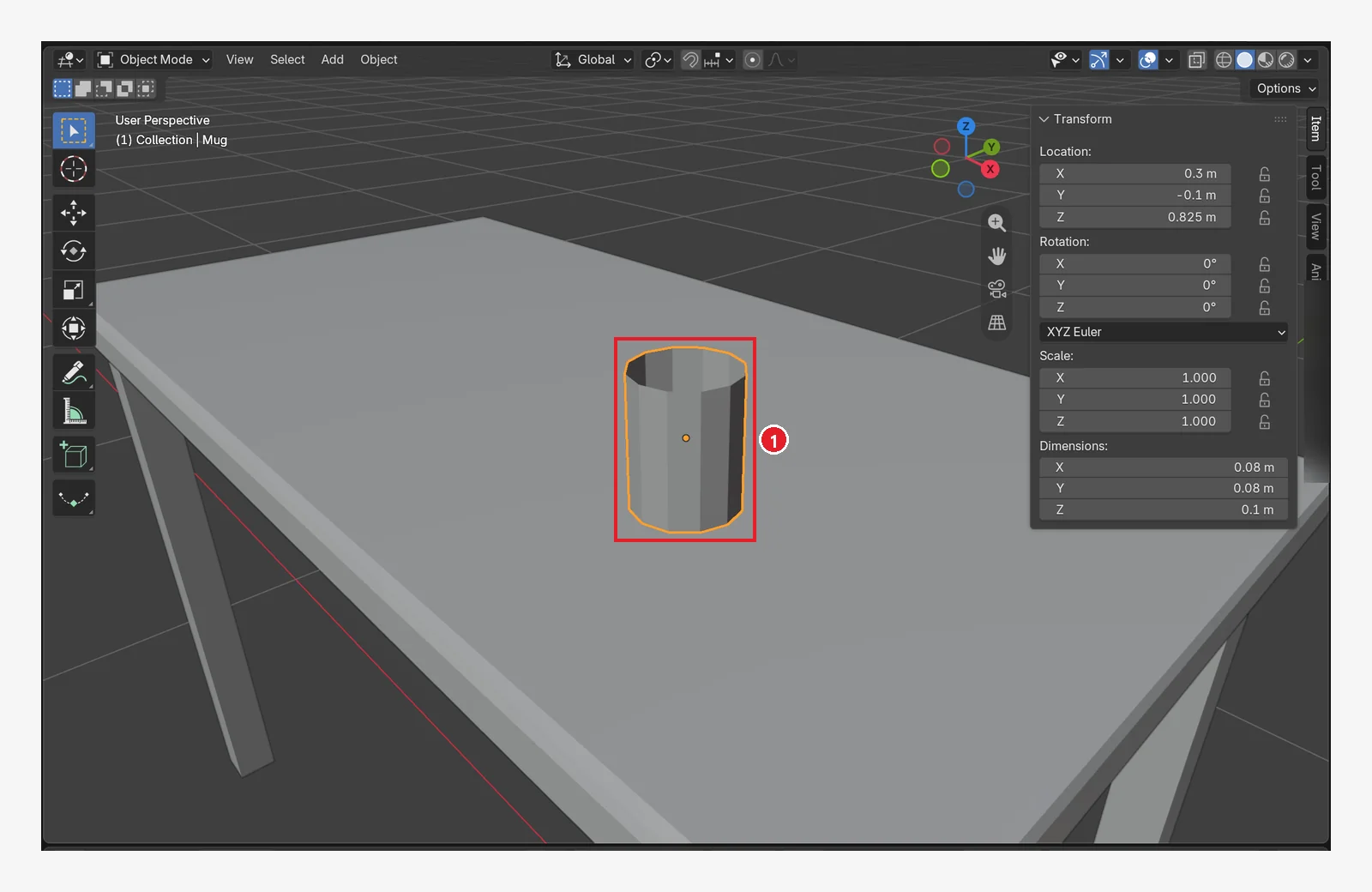 Figure 13-10. ① With the top face gone, you can see inside. But the wall has zero thickness, so it still looks like a paper cup (Blender screenshot)
3-3. Give it thickness: Solidify
Go to the Modifier tab ‣ Add Modifier ‣ Generate ‣ Solidify and change Thickness to 0.006 (m).
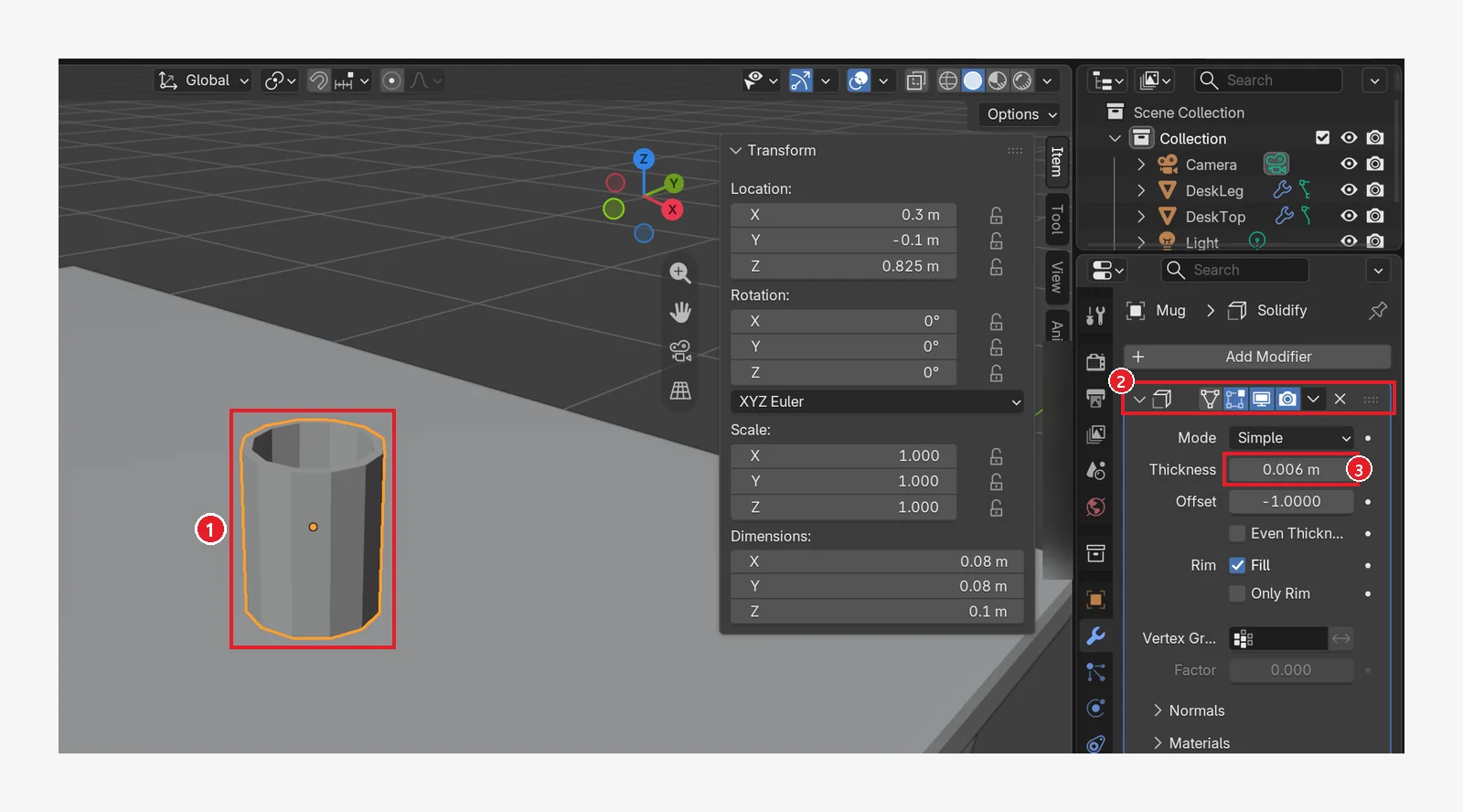 Figure 13-11. ① The mug wall now has thickness ② the Solidify modifier ③ Thickness 0.006 m (6 mm). Offset −1 (the default) means the thickness is added on the inside, so the outer size stays the same (Blender screenshot)
3-4. The handle: a donut (Torus)
Add Shift+A ‣ Mesh ‣ Torus. In the panel, enter Major Segments 12, Minor Segments 6, Major Radius 0.025 m, Minor Radius 0.006 m, Location X 0.365, Y -0.1, Z 0.825, and Rotation X 90°, then rename it MugHandle.
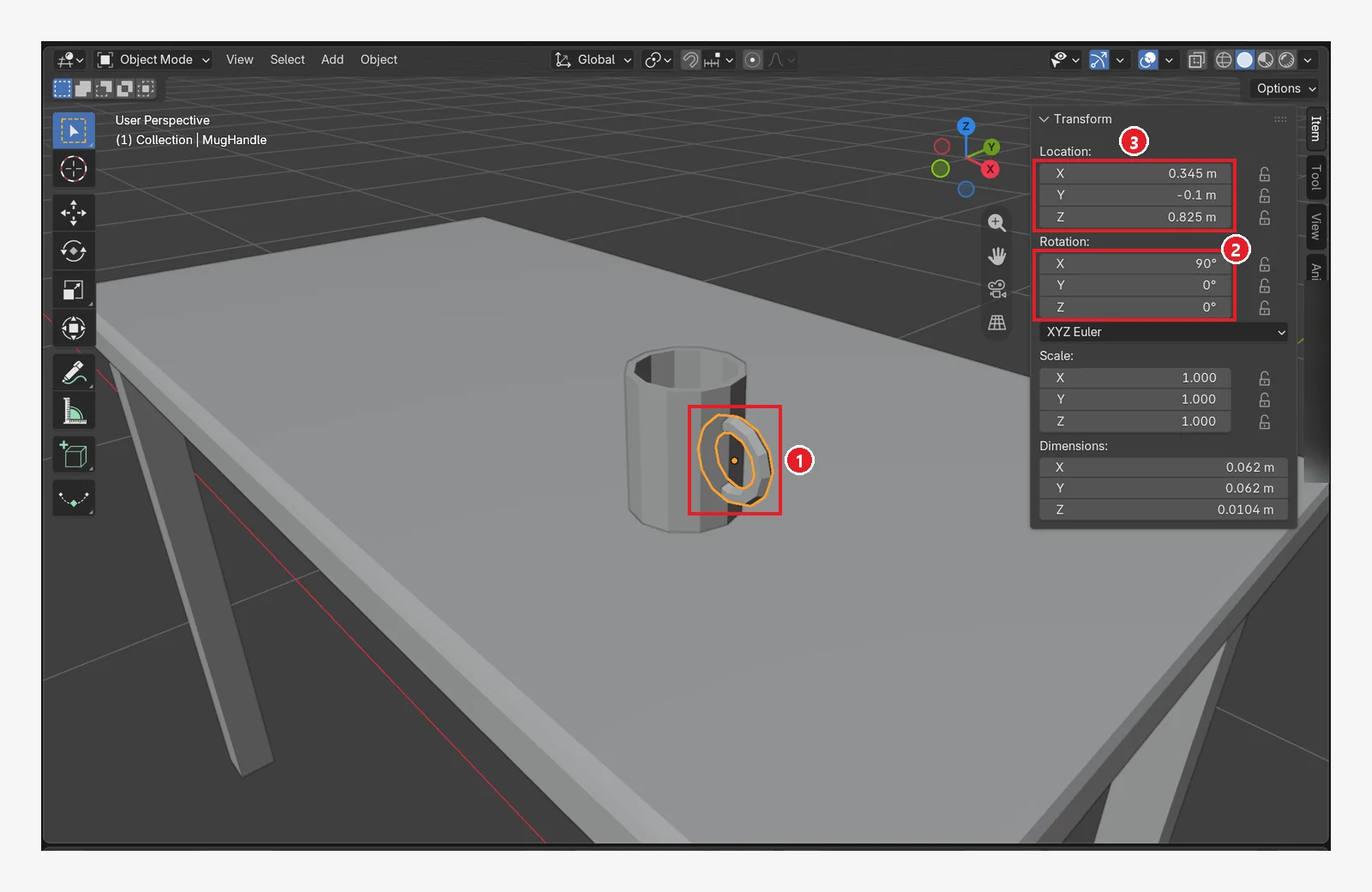 Figure 13-12. ① The donut stood up and placed against the side of the mug as a handle ② Rotation X 90° (stands the flat donut upright) ③ Location X (0.345 m in the image, 0.365 m in the text) — one side of the donut sinks into the mug wall (Blender screenshot)
Why the image and the value differ: Figure 13-12 shows X at 0.345 m, so the handle sits a little deeper. At 0.345, the end of the handle pokes into the inside of the mug (Figure 13-13). At 0.365, it stops inside the mug wall (Figure 13-14).
The two images below look down at the mug with numpad 7 (top view) and Shift+Z (Wireframe view, chapter 2). The two 12-sided rings are the mug wall.
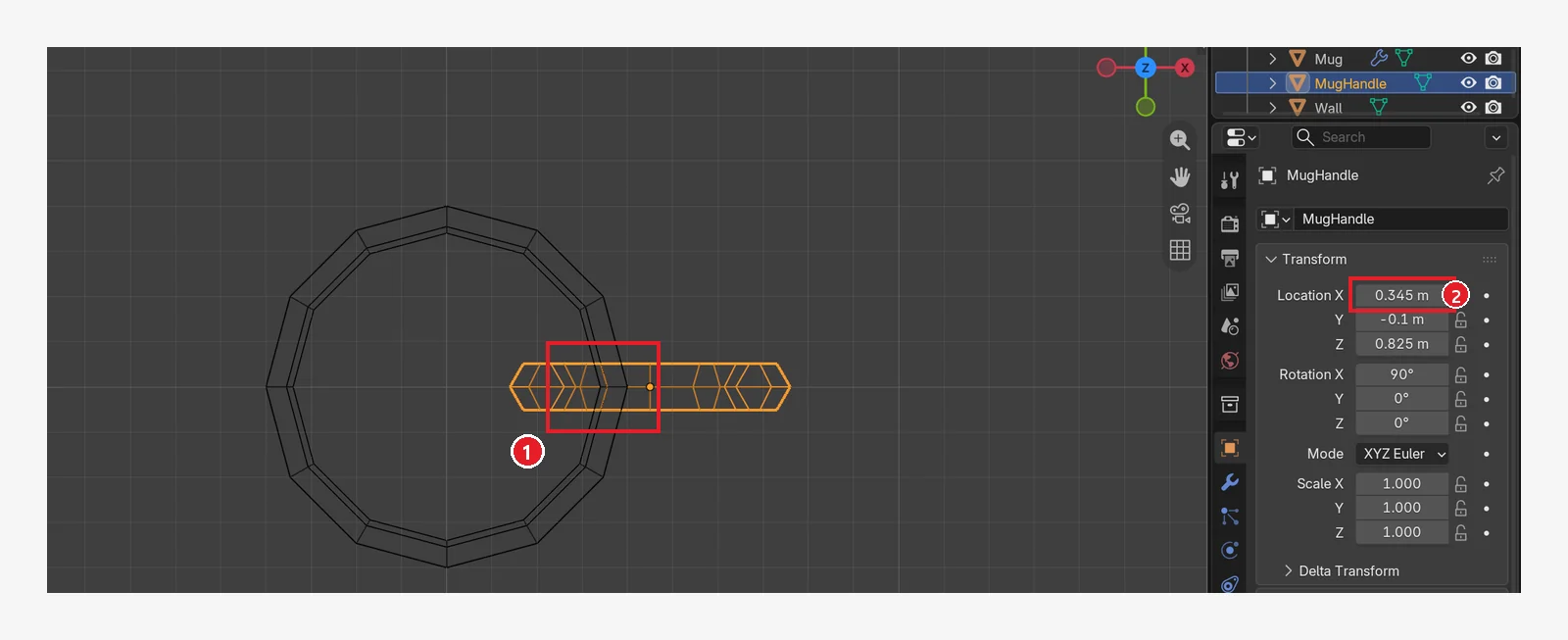 Figure 13-13. At Location X 0.345 m: ① the left end of the handle passes the inner wall (the inner 12-sided ring) and enters the inside of the mug ② Location X 0.345 m (Blender screenshot)
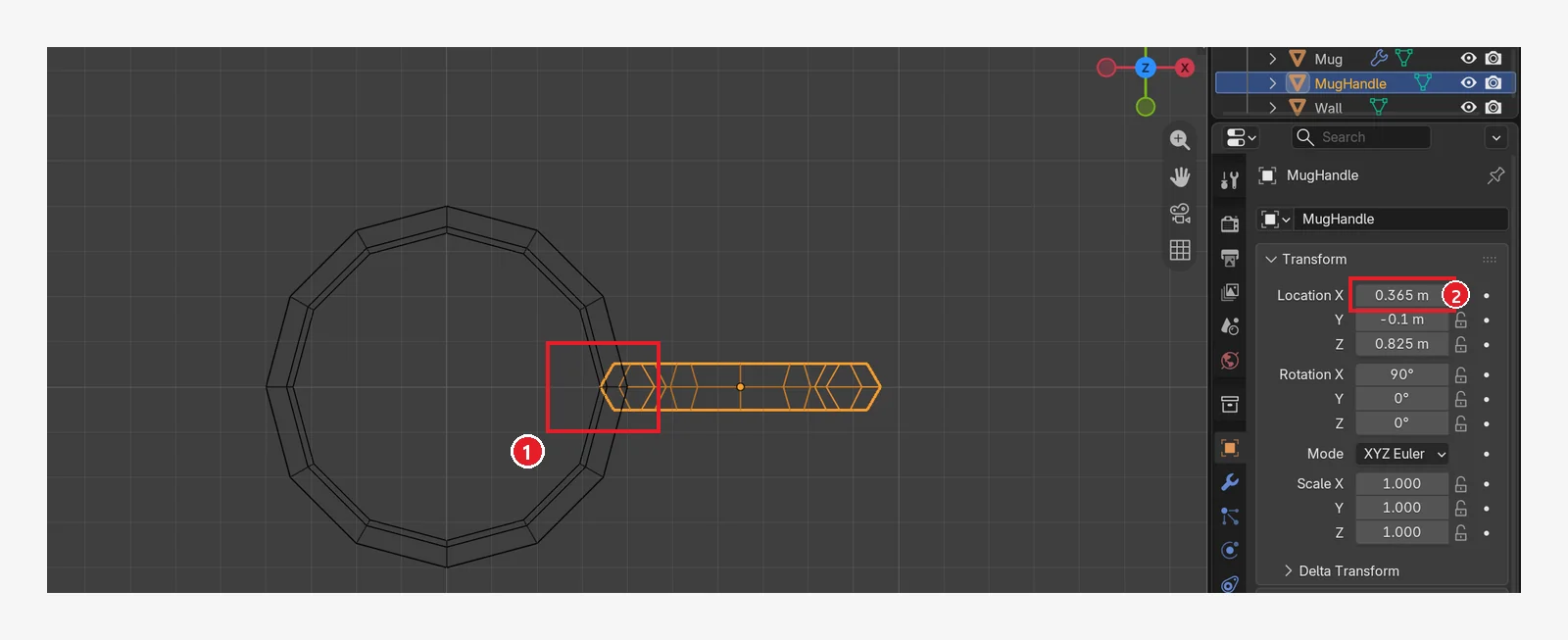 Figure 13-14. At Location X 0.365 m: ① the end of the handle stops within the wall thickness (between the two 12-sided rings) and does not come out inside the mug ② Location X 0.365 m (Blender screenshot)
4. Desk lamp, book, floor, and wall
4-1. Desk lamp (two cylinders + one cone)
| Part | Add | Panel values | Location (X, Y, Z) |
|---|---|---|---|
| LampBase (base) | Cylinder | Vertices 12, Radius 0.07, Depth 0.02 | −0.4, 0.1, 0.785 |
| LampArm (pole) | Cylinder | Vertices 8, Radius 0.012, Depth 0.35 | −0.4, 0.1, 0.97 |
| LampShade (shade) | Cone | Vertices 12, Radius 1 0.1, Radius 2 0.035, Depth 0.12, Base Fill Type: Nothing → modifier Solidify Thickness 0.004 | −0.4, 0.1, 1.16 |
- Add the three parts with the values in the table, and rename them in the Outliner to the names in the table. Right after adding the shade (Cone), change Base Fill Type to Nothing in the panel at the bottom left to remove the top and bottom caps. If the bottom is closed, the light from the bulb you put inside in section 7 will be trapped.
- With the shade selected, go to the Modifier tab ‣ Add Modifier ‣ Generate ‣ Solidify and enter Thickness 0.004 m (4 mm). This works the same way as the mug in section 3-3 and gives thickness to a shade that is as thin as paper.
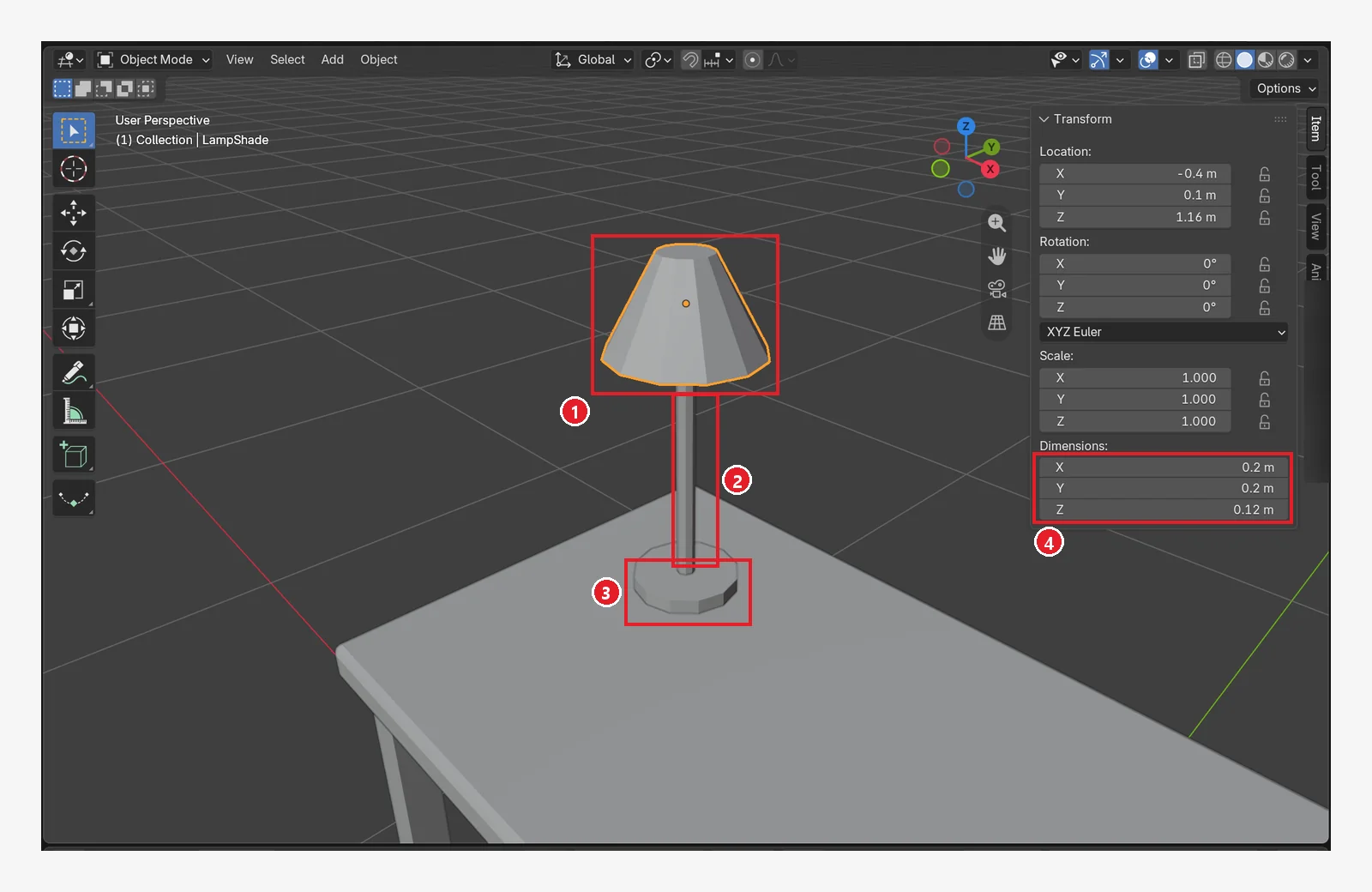 Figure 13-15. ① Shade (Cone) ② pole ③ base ④ the shade's Dimensions 0.2 × 0.2 × 0.12 m. The image shows the shade with its bottom closed. If you follow the table, the bottom looks open (Figure 13-16) (Blender screenshot)
The difference made by step 2 (Solidify) is clear when you look closely at the shade's rim from below.
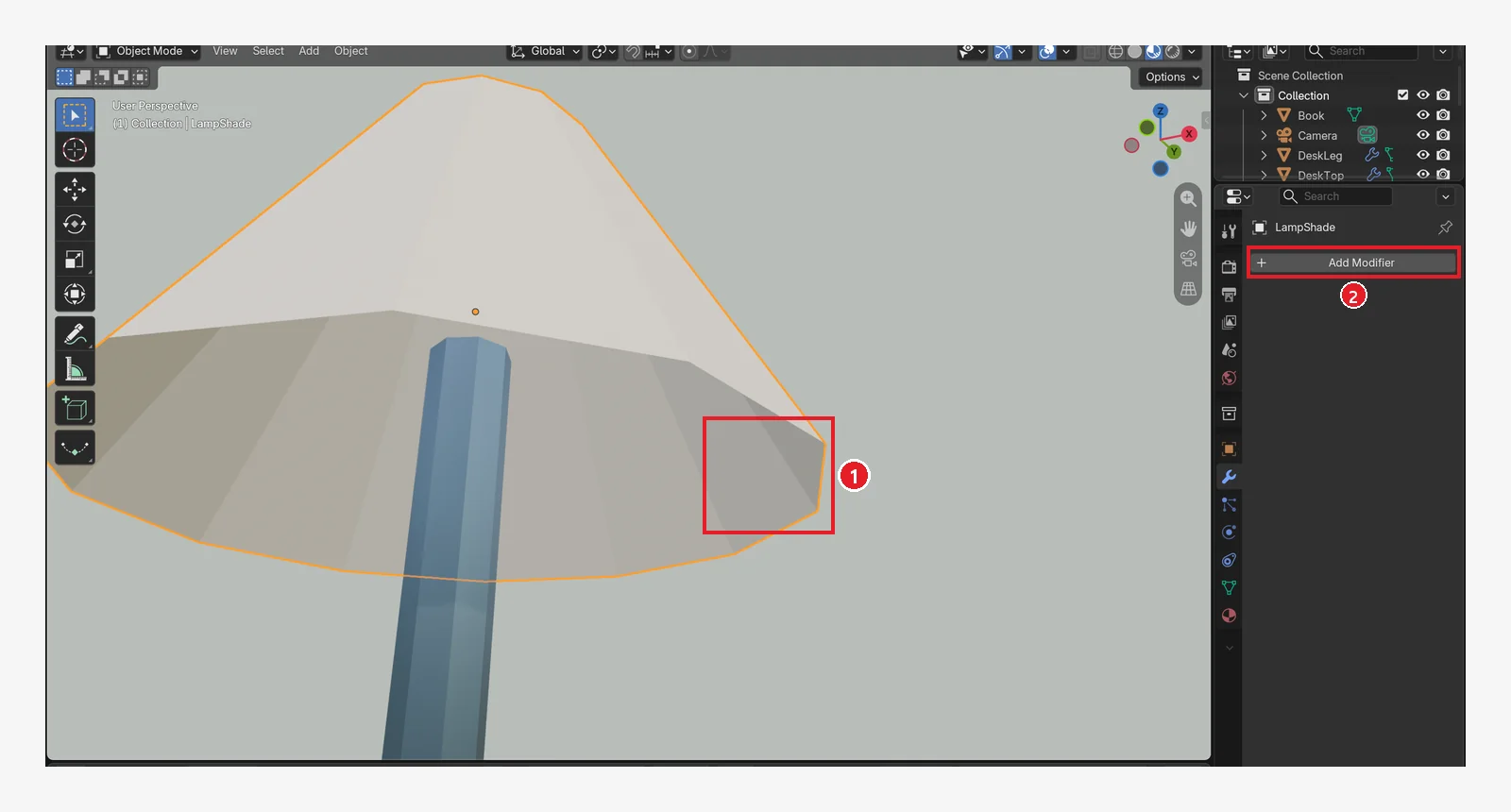 Figure 13-16. Before adding Solidify (the shade with its caps removed by Base Fill Type: Nothing): ① the rim has no thickness and is as thin as paper ② the Modifier tab is still empty (Blender screenshot)
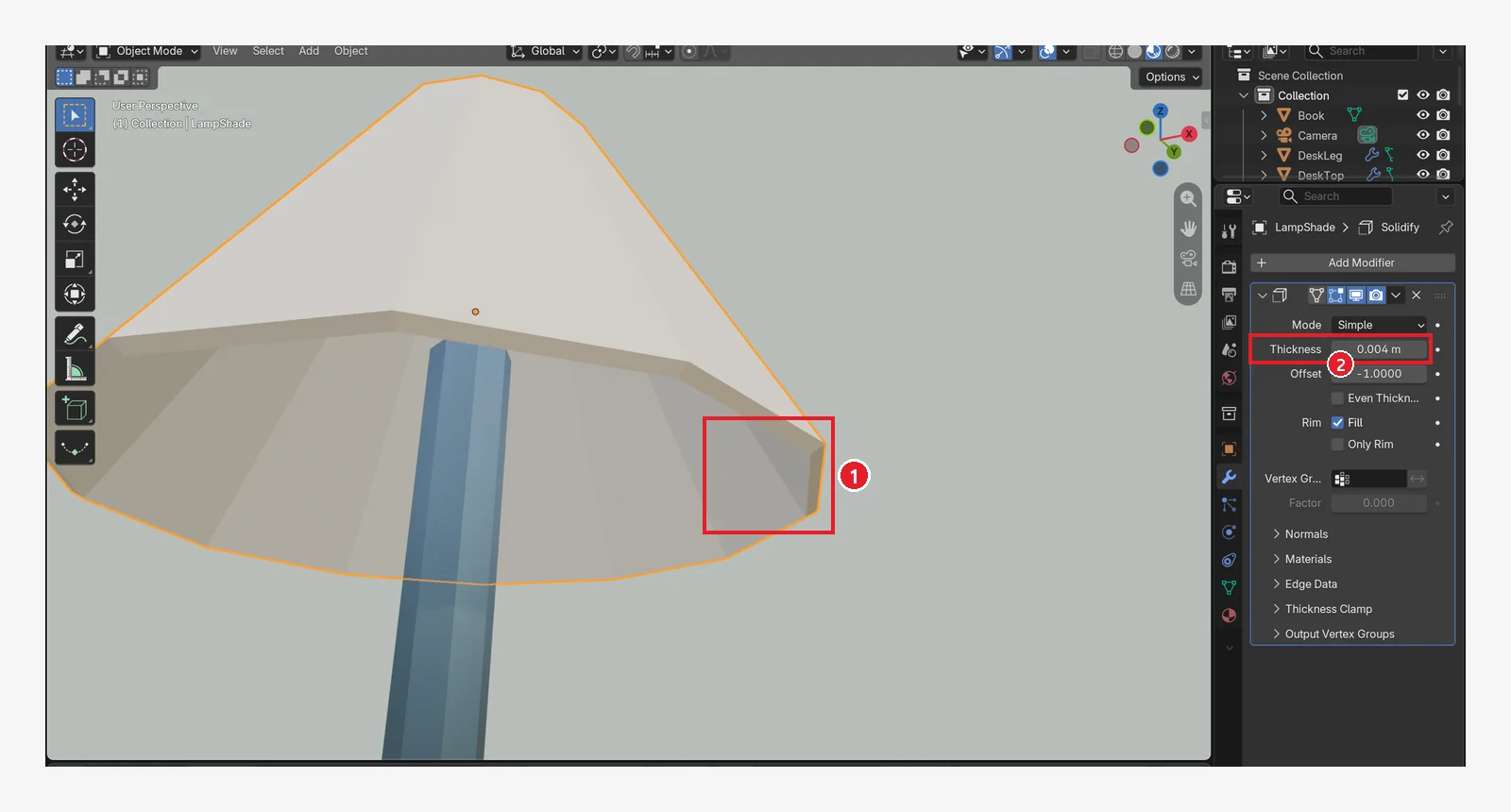 Figure 13-17. After adding Solidify (Thickness 0.004 m), same view: ① a 4 mm band now runs along the rim ② Thickness 0.004 m. With Offset −1 (the default), the thickness is added on the inside (Blender screenshot)
4-2. Book, floor, and wall
Add the three objects below with the values in the table, and rename them in the Outliner to the names in the table. Enter the Plane's Size in the panel at the bottom left right after adding it, and enter Location, Rotation, and Dimensions in the sidebar (N) Item tab.
| Name | Add | Values |
|---|---|---|
| Book | Cube | Location 0, 0.05, 0.79 / Rotation Z 15° / Dimensions 0.24 × 0.17 × 0.03 → Ctrl+A ‣ Scale |
| Floor | Plane | Size 4, Location 0, 0, 0 (enlarged 4 times in section 6-2) |
| Wall | Plane | Size 4, Location 0, 0.6, 2 / Rotation X 90° (enlarged and moved in section 6-2) |
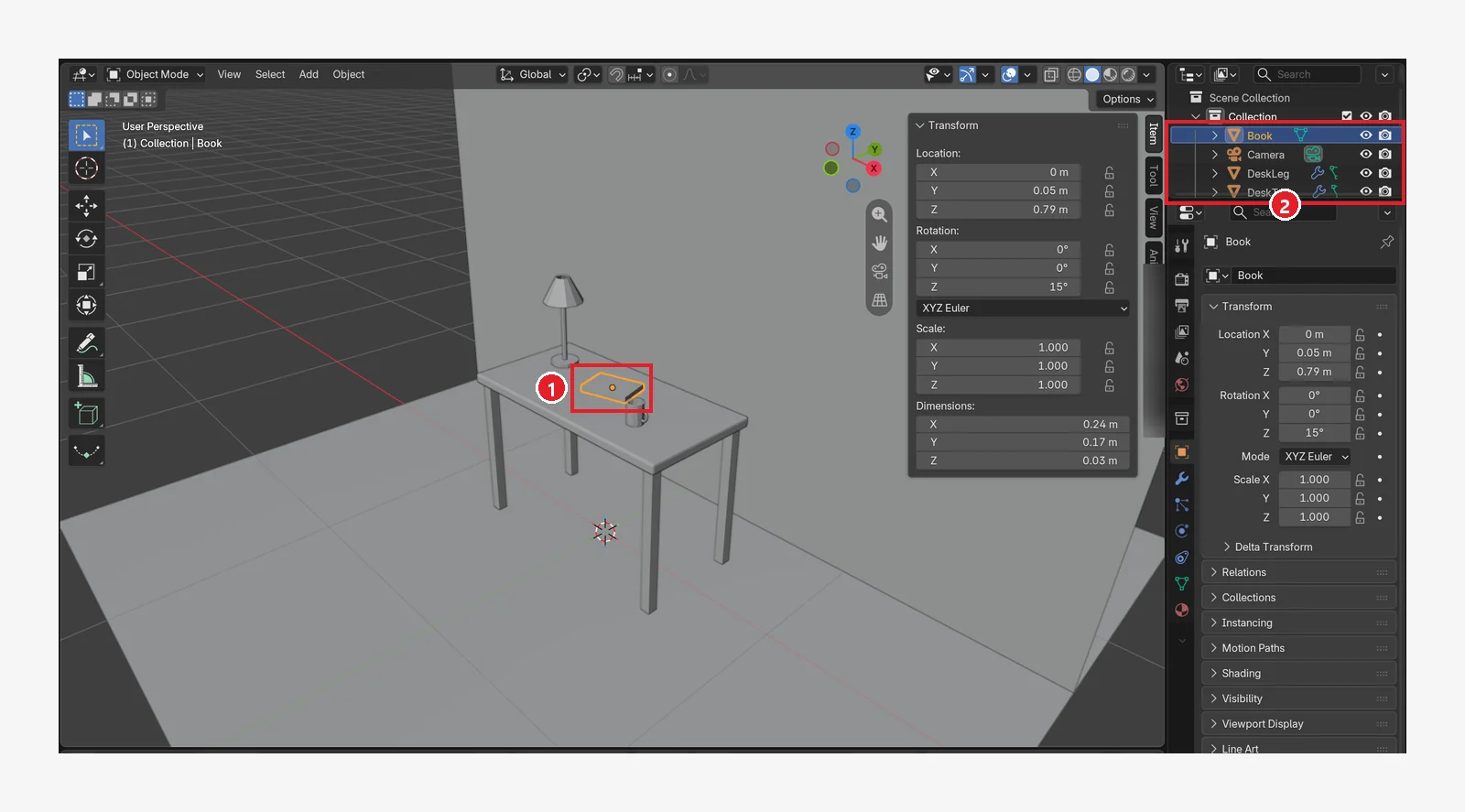 Figure 13-18. ① The book, turned 15° (0.24 × 0.17 × 0.03 m) ② the parts in the Outliner grow one by one (Book, Camera, DeskLeg, DeskTop…). The grey surface at the back is the wall (Wall), and the one below is the floor (Floor) (Blender screenshot)
5. Adding color (materials)
Select an object, go to the Properties editor Material tab ‣ New, then change the name and values (chapter 8). To use the same material on several objects, press the ball-shaped button to the left of the New button (to the left of the ② New label in chapter 8, Figure 8-21). When the list of materials you already made appears, choose from it.
| Material name | Objects | Base Color (R, G, B) | Roughness | Metallic |
|---|---|---|---|---|
| Wood | DeskTop, DeskLeg | 0.45, 0.26, 0.13 | 0.6 | 0 |
| MugRed | Mug, MugHandle | 0.85, 0.30, 0.25 | 0.3 | 0 |
| LampMetal | LampBase, LampArm | 0.15, 0.25, 0.35 | 0.35 | 0.8 |
| ShadeCream | LampShade | 0.95, 0.88, 0.70 | 0.7 | 0 |
| BookBlue | Book | 0.15, 0.30, 0.65 | 0.5 | 0 |
| FloorGrey | Floor | 0.55, 0.52, 0.48 | 0.8 | 0 |
| WallGreen | Wall | 0.60, 0.72, 0.62 | 0.9 | 0 |
(To enter a color, click the Base Color field, press the RGB button in the color picker that opens, and type into the R, G, and B fields (chapter 8, section 3-1). As chapter 8 explained, to see the same color in Solid view too, set the material's Viewport Display ‣ Color to the same values.)
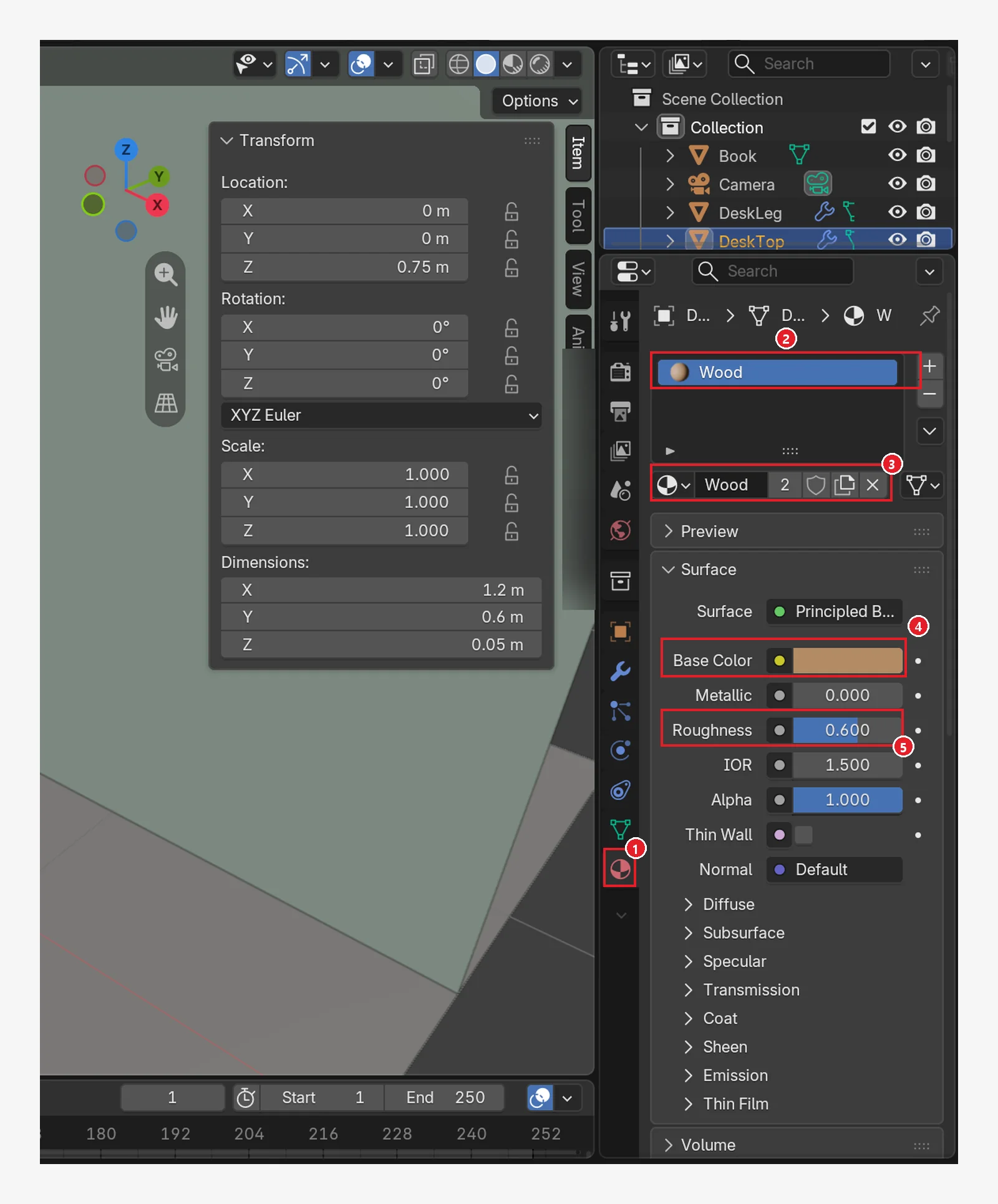 Figure 13-19. ① Material tab ② Wood in the material field ③ the number 2 next to the name — two objects, the top and the legs, share this material (the user count from chapter 8) ④ Base Color (wood brown) ⑤ Roughness 0.600 (Blender screenshot)
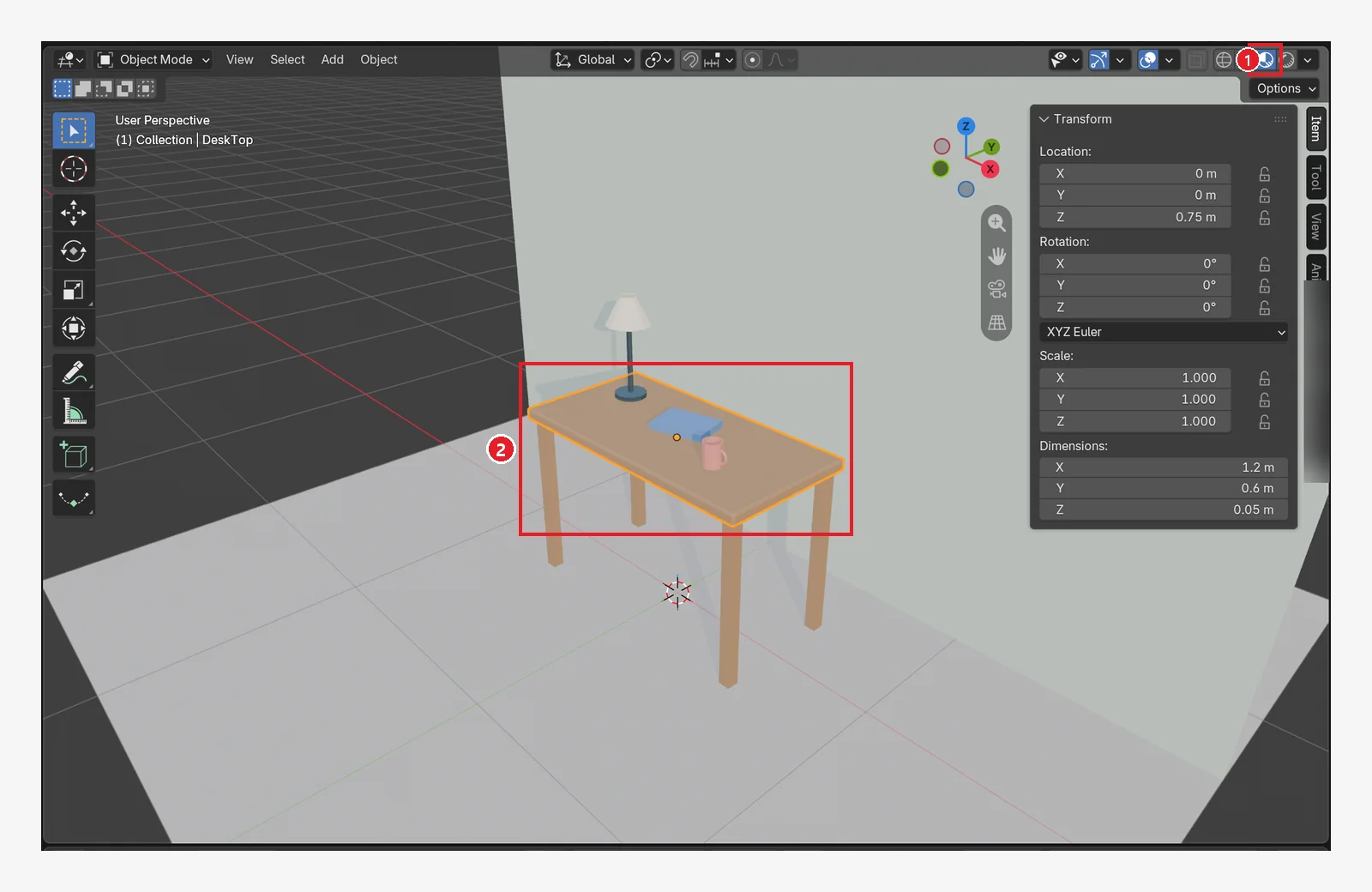 Figure 13-20. ① Material Preview ② you can see the brown desk, the blue book, the red mug, the navy lamp, and the cream shade (Blender screenshot)
6. Camera
Set up the camera before the lights. You need to know what the camera sees before you can decide how much to enlarge the floor and wall and where the light should come from.
6-1. Camera position and lens
Select the camera and enter the values in the sidebar (chapter 10). Turn on the camera view with numpad 0 and check.
| Item | Value |
|---|---|
| Location | X 1.7, Y −2.0, Z 1.5 |
| Rotation | X 70°, Y 0°, Z 40.5° (values that aim a little below the center of the desk. The image shows 70.019° and 40.486°. You can ignore the difference) |
| Focal Length (Camera tab) | 30 mm |
6-2. Enlarge the floor and wall
When the camera frames a wide view, the edges of the 4 m floor and wall come into the frame and leave grey empty areas. So you enlarge the floor and wall.
- Select
Floorand enter Scale 4 / 4 / 1 in the sidebar. The 4 m plane becomes a 16 m square. - Select
Walland enter Scale 4 / 2 / 1 and Location Z 3.5. It becomes 16 m wide and 8 m tall, and its bottom edge (Z −0.5 m) goes a little below the floor, so no gap appears between the floor and the wall.
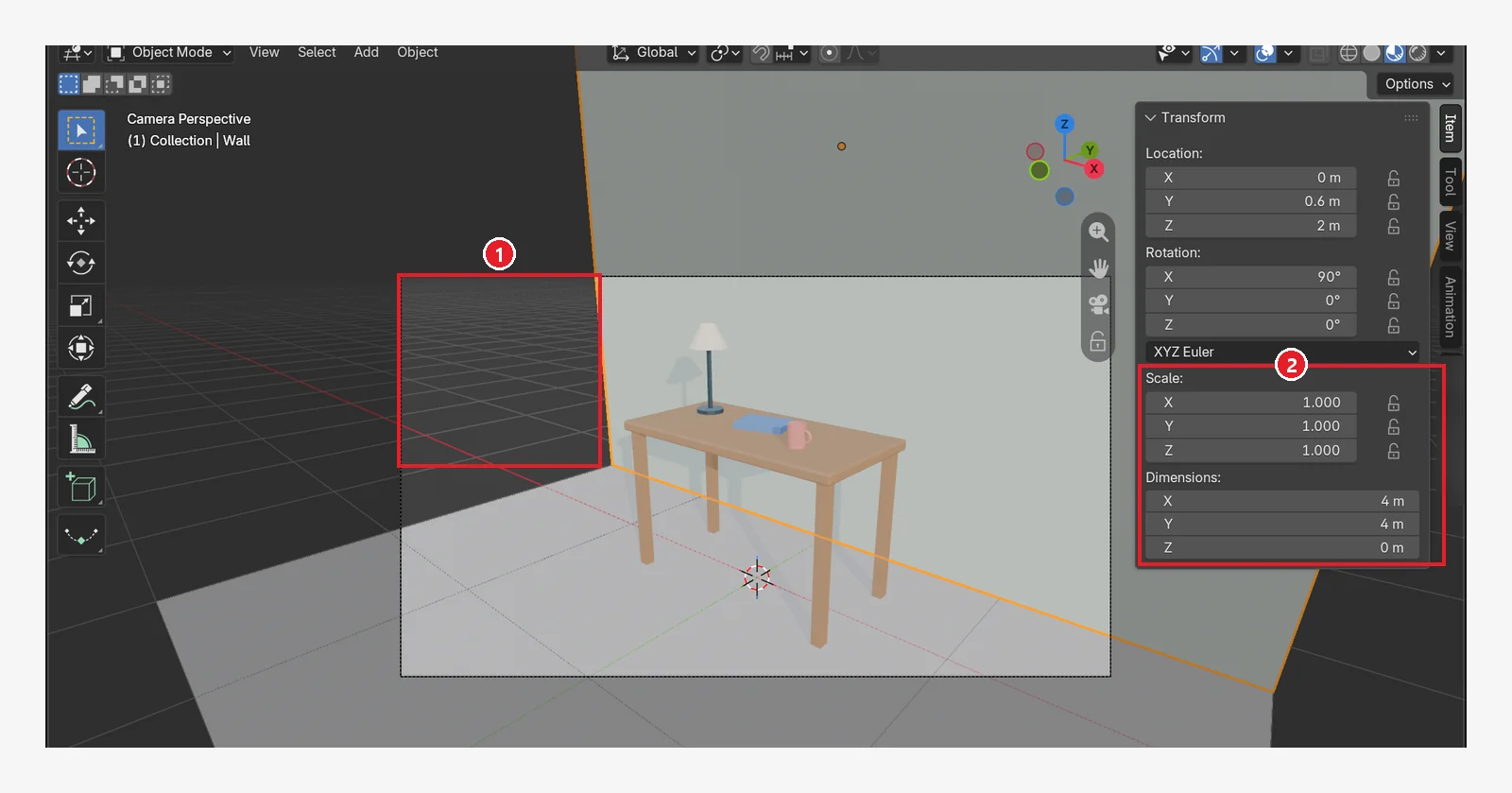 Figure 13-21. Before enlarging (camera view with
 Wall selected, Material Preview): ① at the top left of the camera frame (dashed line) the wall ends and the empty space behind shows ② Wall at Scale 1 / 1 / 1, Dimensions 4 m × 4 m (Blender screenshot)
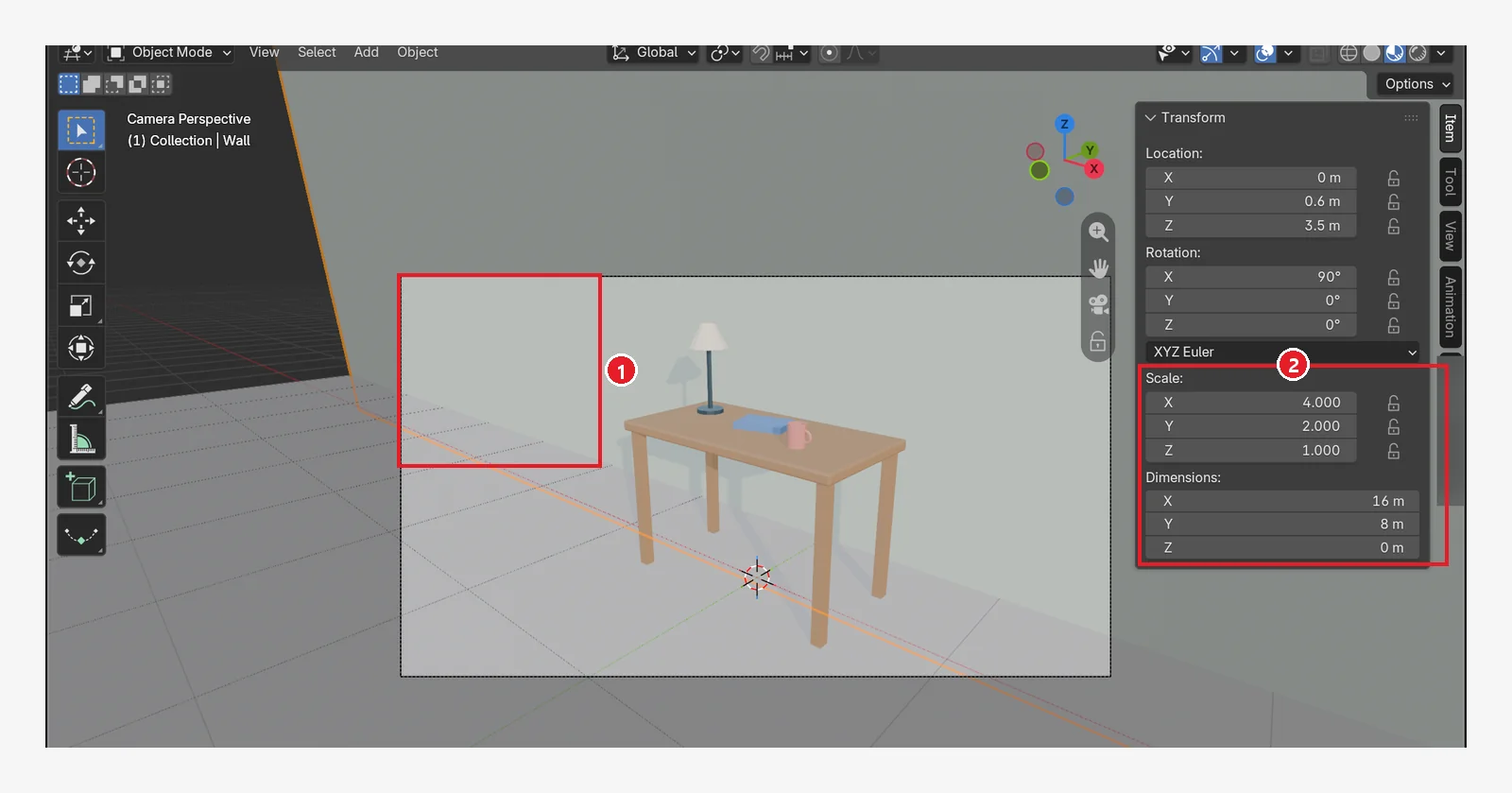 Figure 13-22. After steps 1 and 2: ① the same area is now filled by the wall ②
 Wall at Scale 4 / 2 / 1, Location Z 3.5 m, Dimensions 16 m × 8 m. The floor also becomes 16 m with Scale 4 and fills the bottom of the frame (Blender screenshot)
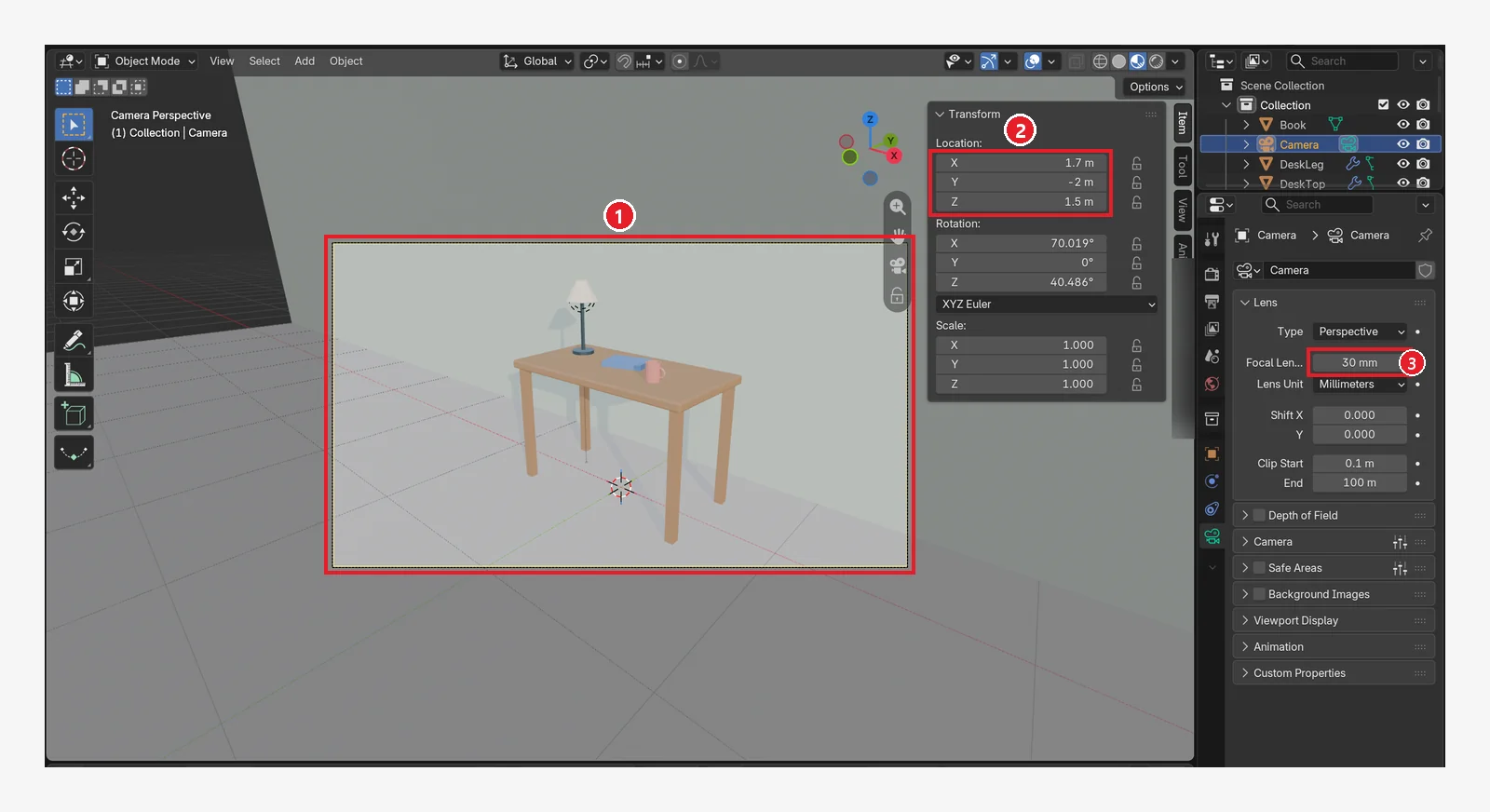 Figure 13-23. ① The camera frame — the whole desk and the lamp fit inside, and the enlarged floor and wall fill the frame ② camera Location 1.7 / −2 / 1.5 m ③ Focal Length 30 mm — the smaller the number, the wider the shot (chapter 10). This is Material Preview (Blender screenshot)
Enlarging the wall also affects the lighting in section 7. Section 7-2 shows what happens.
7. Lights
7-1. The lamp bulb: Point light
Add Shift+A ‣ Light ‣ Point and rename it LampBulb. Enter -0.4, 0.1, 1.11 (inside the shade) for Location. Change the values in the Properties editor Light tab (the bulb icon) (chapter 9). Enter a warm bulb color for Color (R 1.0, G 0.8, B 0.55), 15 for Power, and 0.02 for Radius. In section 8 you will raise Power to 40 W just before rendering.
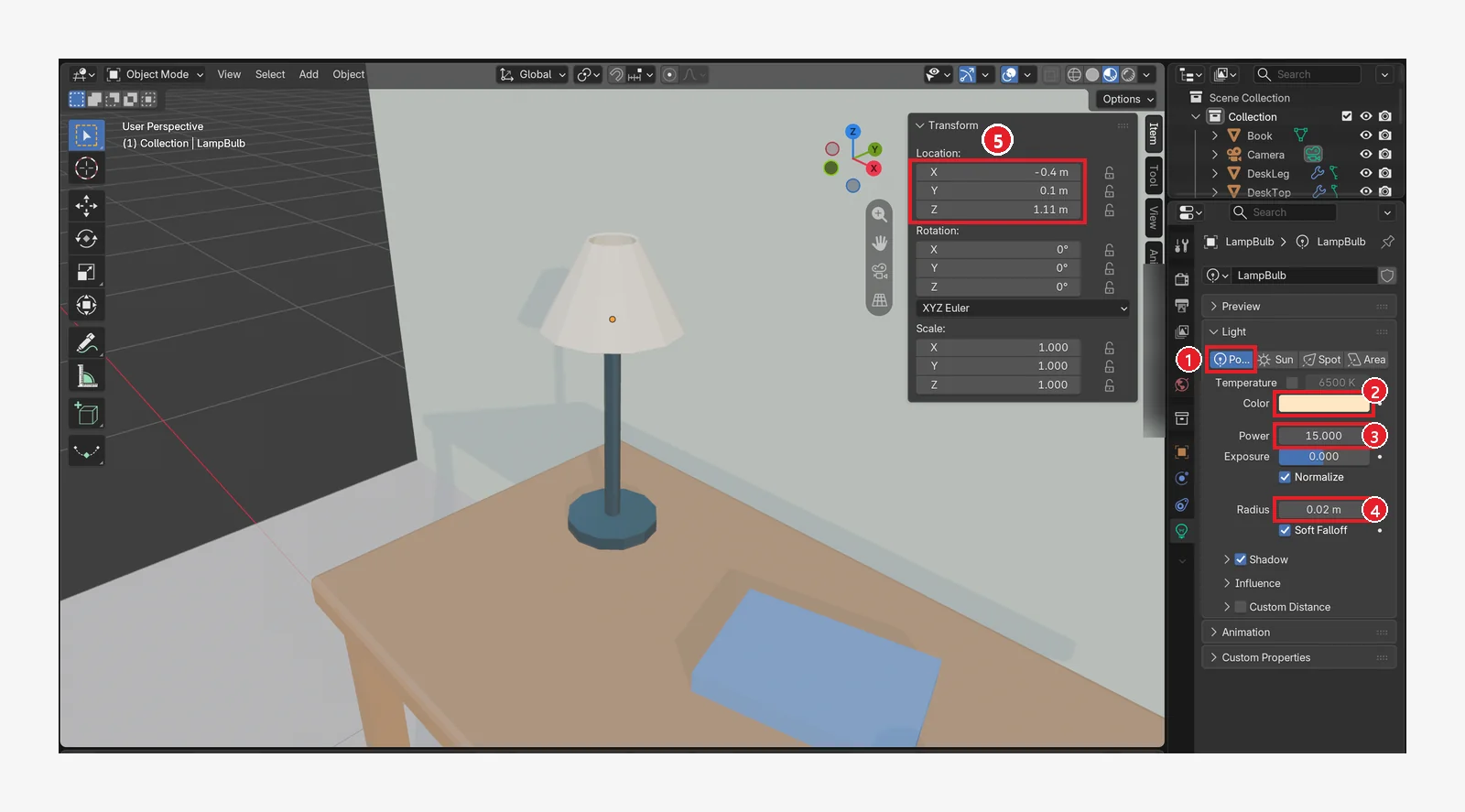 Figure 13-24. ① Type Point ② Color — a warm bulb color (R 1.0, G 0.8, B 0.55) ③ Power 15 W ④ Radius 0.02 m ⑤ Location −0.4 / 0.1 / 1.11 m (inside the shade). Power is raised to 40 W just before rendering in section 8 (Blender screenshot)
7-2. A failure case: when the scene is too dark
Switch the view mode to Rendered (chapter 9). The scene comes out almost black.
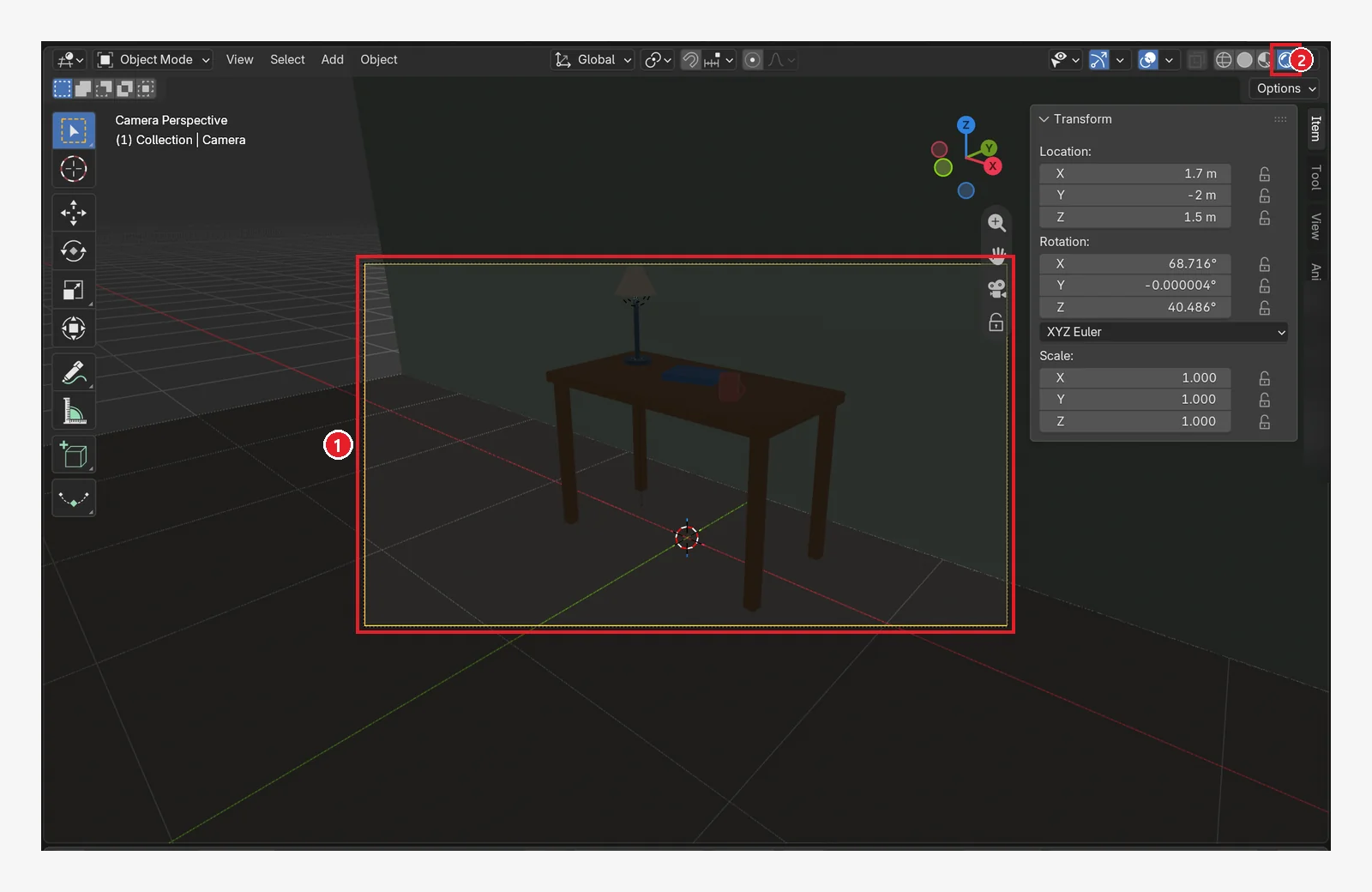 Figure 13-25. Failure: ① inside the camera frame is almost black ② Rendered view. The framing is a little different from Figure 13-23 (Blender screenshot)
Why it got dark: The light
Light, which was in the scene from the start, sits behind the wall (Y 1.01). When the wall was small, the light got out around its sides, but enlarging the wall in section 6-2 blocked it. If the scene suddenly gets dark after you enlarge or move objects, check where the lights are first.
7-3. The fix: switch to a Sun light
Select Light and change its type to Sun in the Light tab. Enter Strength 3 and Angle 5°, and enter X 50°, Y 0°, Z 30° for Rotation in the sidebar. For a Sun, only the direction matters, not the position, so it shines from the front even though it sits behind the wall (chapter 9).
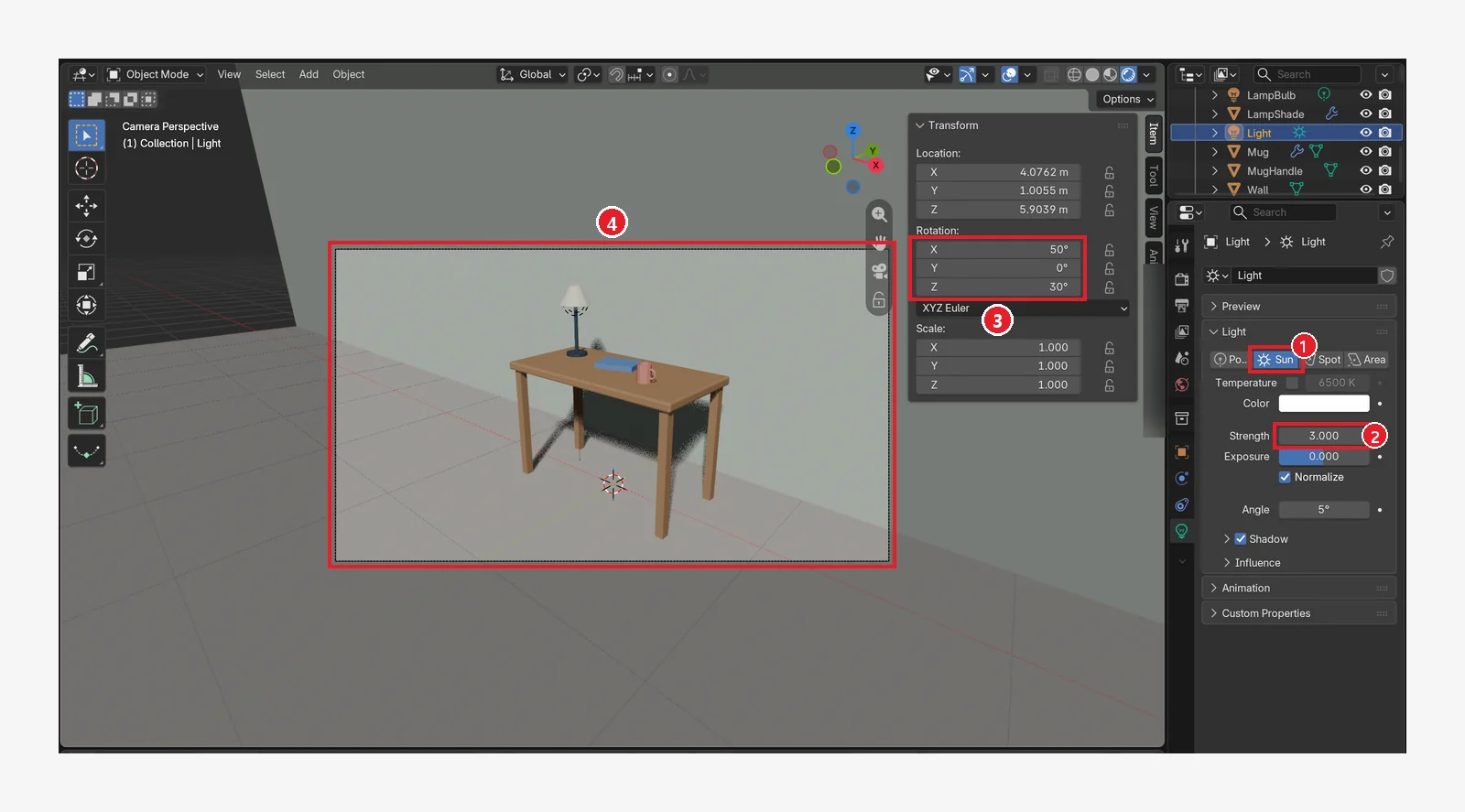 Figure 13-26. ① Type Sun ② Strength 3.000 ③ Rotation 50° / 0° / 30° ④ the desk and wall now have shadows. Because this is Rendered view, the shadow edges look grainy, but they are smooth in the
 F12 render (Figure 13-28) (Blender screenshot)
8. Render and save
- Select the bulb
LampBulband raise Power from 15 W to 40 W in the Light tab. The sunlight brightens the whole scene, so you raise the bulb's strength to keep its light under the shade from getting lost. The final render in Figure 13-28 uses 40 W. - In the Render tab, check that the engine is EEVEE (Render Samples 64, the default).
- In the Output tab, set 1280 × 720, 100% (chapter 11).
- Press
F12. The scene in the image took about 0.6 seconds (measured on my PC). - In the render window, save
desk-scene.pngwith Image ‣ Save As (Shift+Alt+S). - Save the .blend as well with
Ctrl+S.
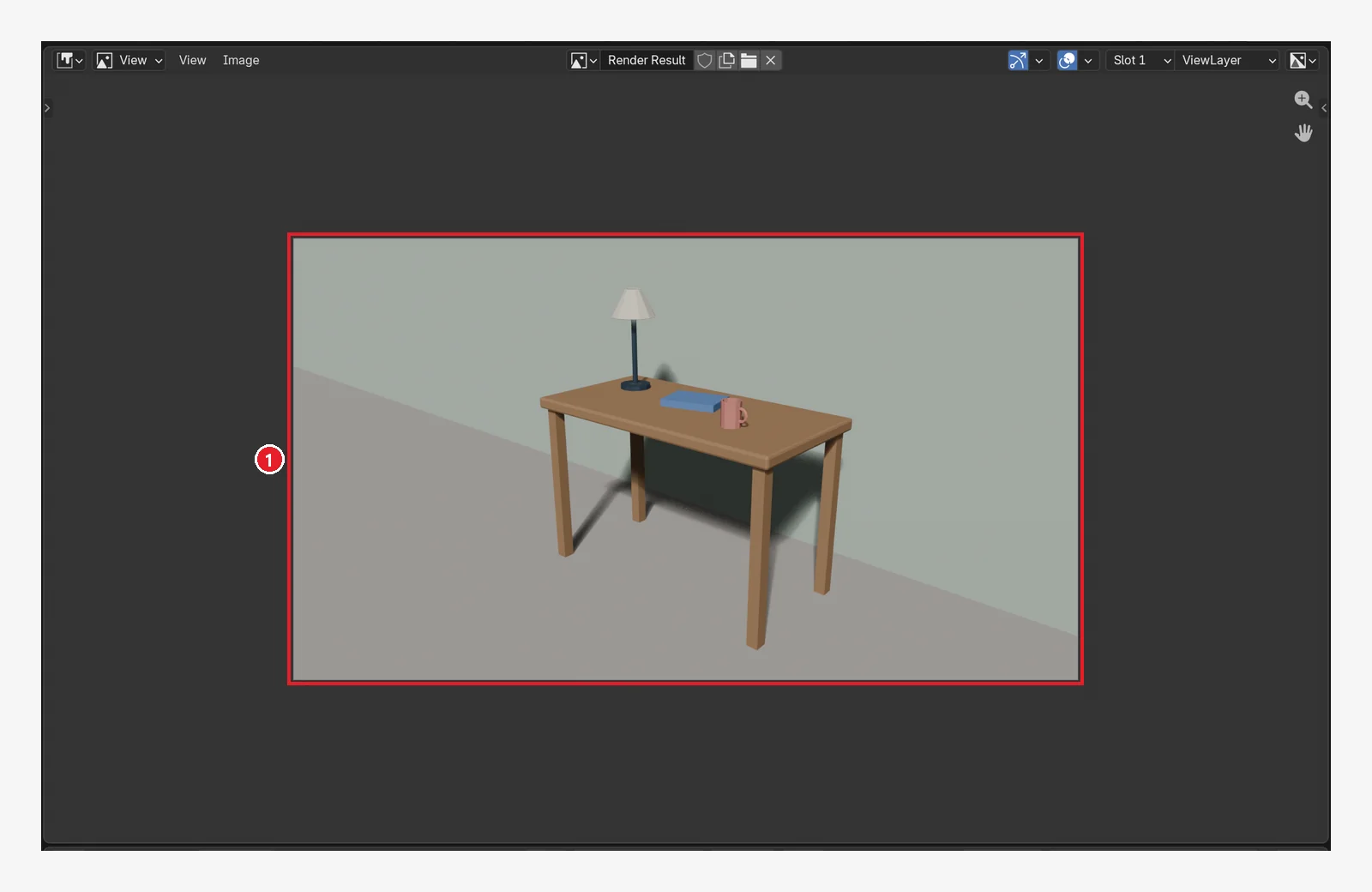 Figure 13-27. ① The 1280×720 EEVEE render result (Blender screenshot)
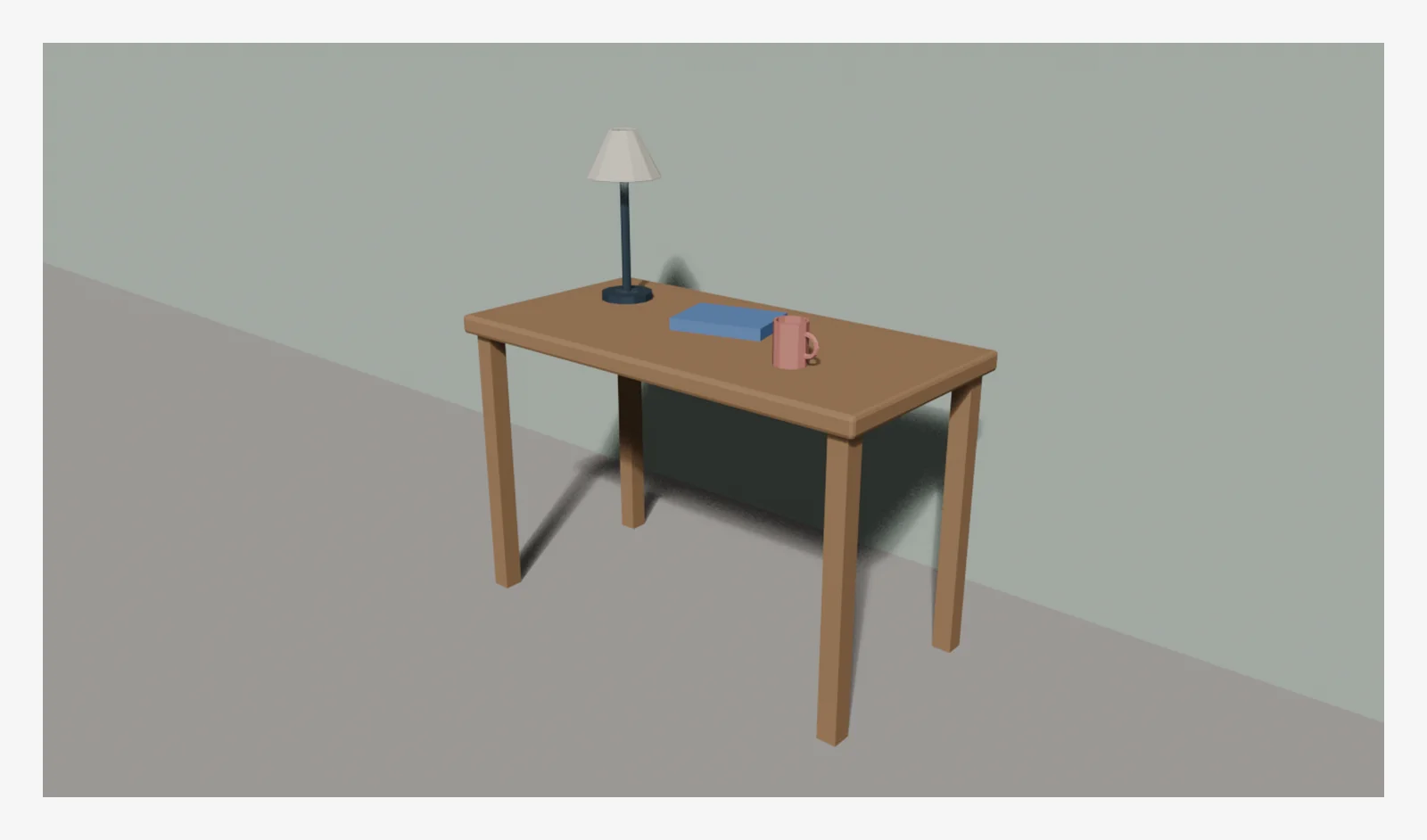 Figure 13-28. Finished — the saved PNG as it is (1280×720, EEVEE, 64 samples). You can see the Bevel on the desk-top edge, the mug handle, and the desk's shadow on the wall (Blender render)
9. Exercises (make it your own)
- Duplicate the mug with
Shift+D(chapter 4), put the second one on the desk, and change its color with a new material. (The duplicate shares the material. Click the number next to the material name to make a separate one, chapter 8, section 5-2.) - Select
DeskLeg, enter1.6for X and Y of Scale in the sidebar, and check that all four legs get thicker together (0.05 m × 1.6 = 0.08 m). The Dimensions field shows the size of all four legs together, so don't enter 0.08 there. If you do, the legs become as thin as needles. - Render with the lamp bulb Power at 15 W, 40 W, and 100 W, and compare.
- Change the camera Focal Length from 30 mm to 50 mm and write down what changes.
- As in chapter 12, put two keys on the camera position to make a 3-second video where the camera moves sideways, and export it as a video file with the method from chapter 11.
10. Common mistakes and fixes
| Symptom | Cause | Fix |
|---|---|---|
| The Bevel edge is thicker on one side | Scale not applied | Ctrl+A ‣ Scale (section 1-2) |
| Only one or two legs | Y not turned on under Mirror Axis, or no Mirror Object | Axis X and Y, Mirror Object = DeskTop |
| The top of the mug is closed | Top face not deleted in Edit Mode | Section 3-2 |
| Deleting part of the mug also deleted the desk | Another object was selected along with it in Edit Mode | Ctrl+Z, then select only one object in Object Mode and press Tab |
| The render is black | The light is behind the wall | Sections 7-2 and 7-3, switch to Sun |
| Grey empty areas show in the render | The floor and wall are too small, so the area outside them shows in the camera frame | Enlarge Floor and Wall (section 6-2) |
| The bulb's light doesn't come out of the shade | The bottom of the shade is closed | Add it again with Base Fill Type: Nothing (section 4-1) |
In one line
With exact numbers: desk top → Mirror legs → Edit Mode and Solidify mug → lamp → materials → camera → lights → F12 and save. Finishing one piece from start to end connects the skills from chapters 1 to 12 into one line. The next chapter, chapter 14, covers what to study after this series and a list of shortcuts.
References
- Blender 5.2 Manual: Mesh Primitives
- Blender 5.2 Manual: Bevel Modifier
- Blender 5.2 Manual: Mirror Modifier
- Blender 5.2 Manual: Solidify Modifier
- Blender 5.2 Manual: Light Objects
- Read next: What is the low-poly style? Cute shapes from few faces on this site
- Shortcuts: based on the default (Blender) keymap in Blender 5.2.1 (only shortcuts from earlier chapters are used)
- Image license: Blender program license blender.org/about/license. All images in this chapter are Blender screenshots and renders.