Blender for complete beginners, chapter 14: Where to go next, plus a shortcut appendix
An appendix chapter for after you finish the complete beginner series: paths for what to study next, plus the shortcuts and terms checked in chapters 1–13 and a checklist for when you get stuck, all in one place.
한국어English
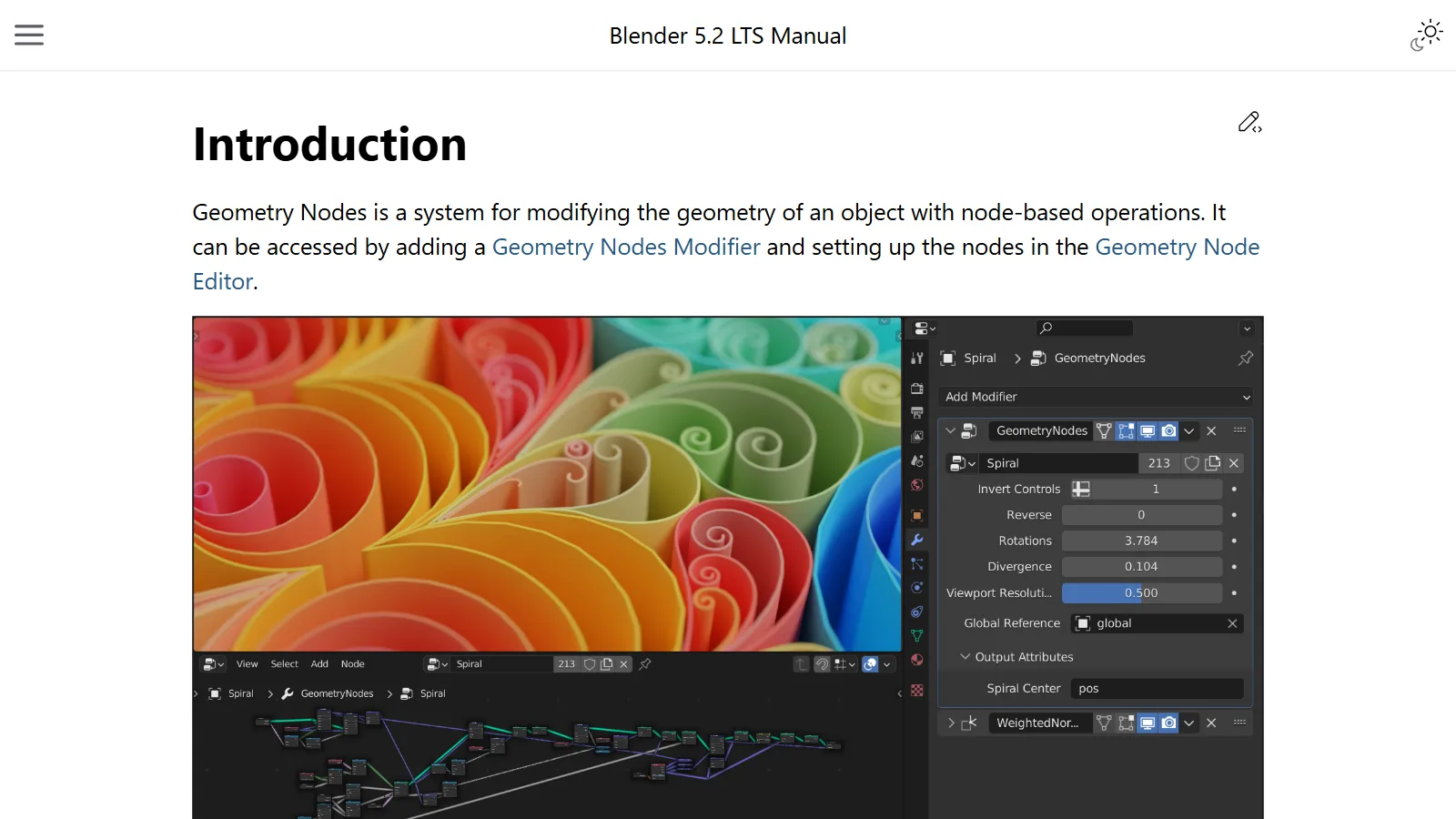
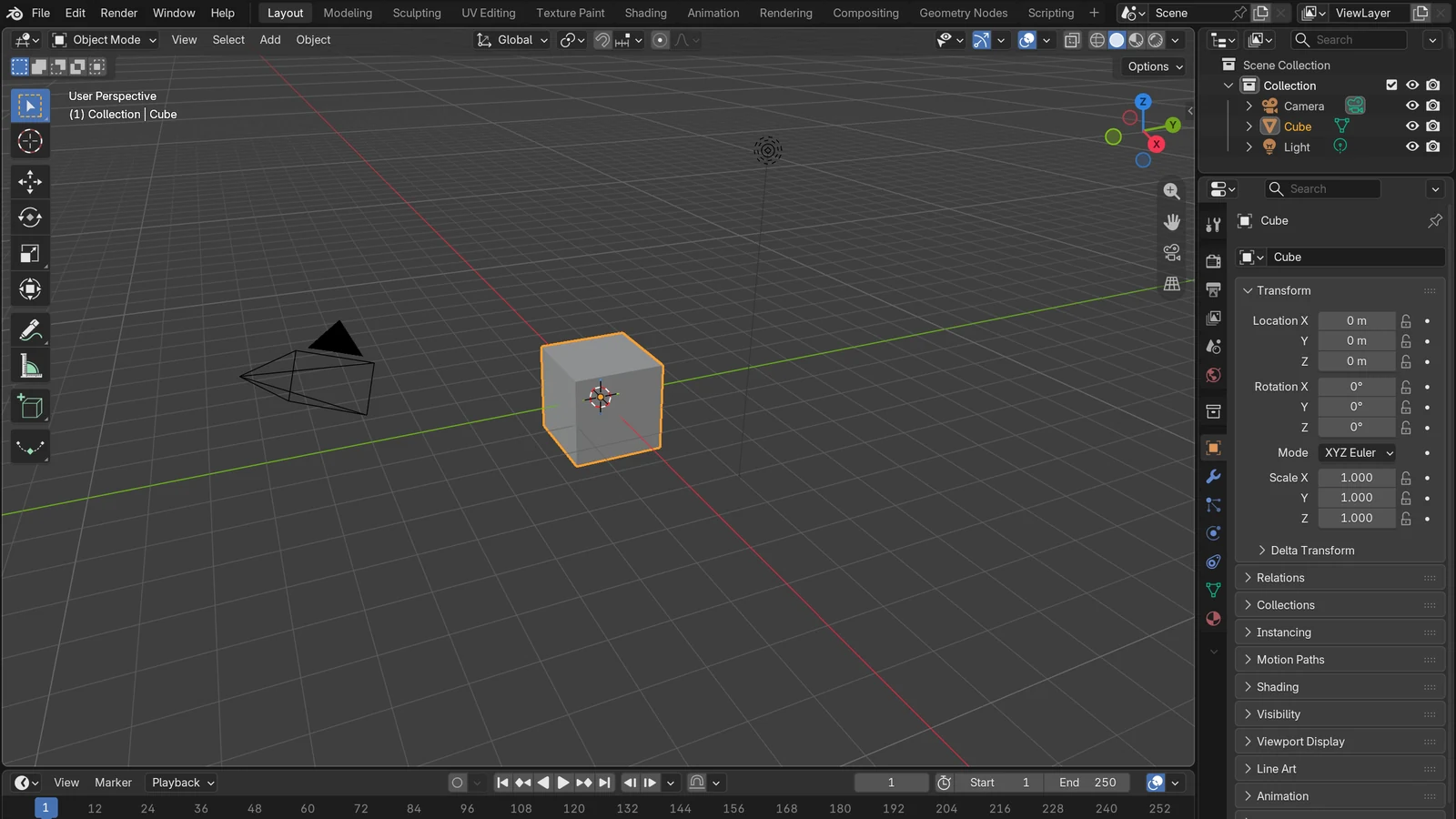
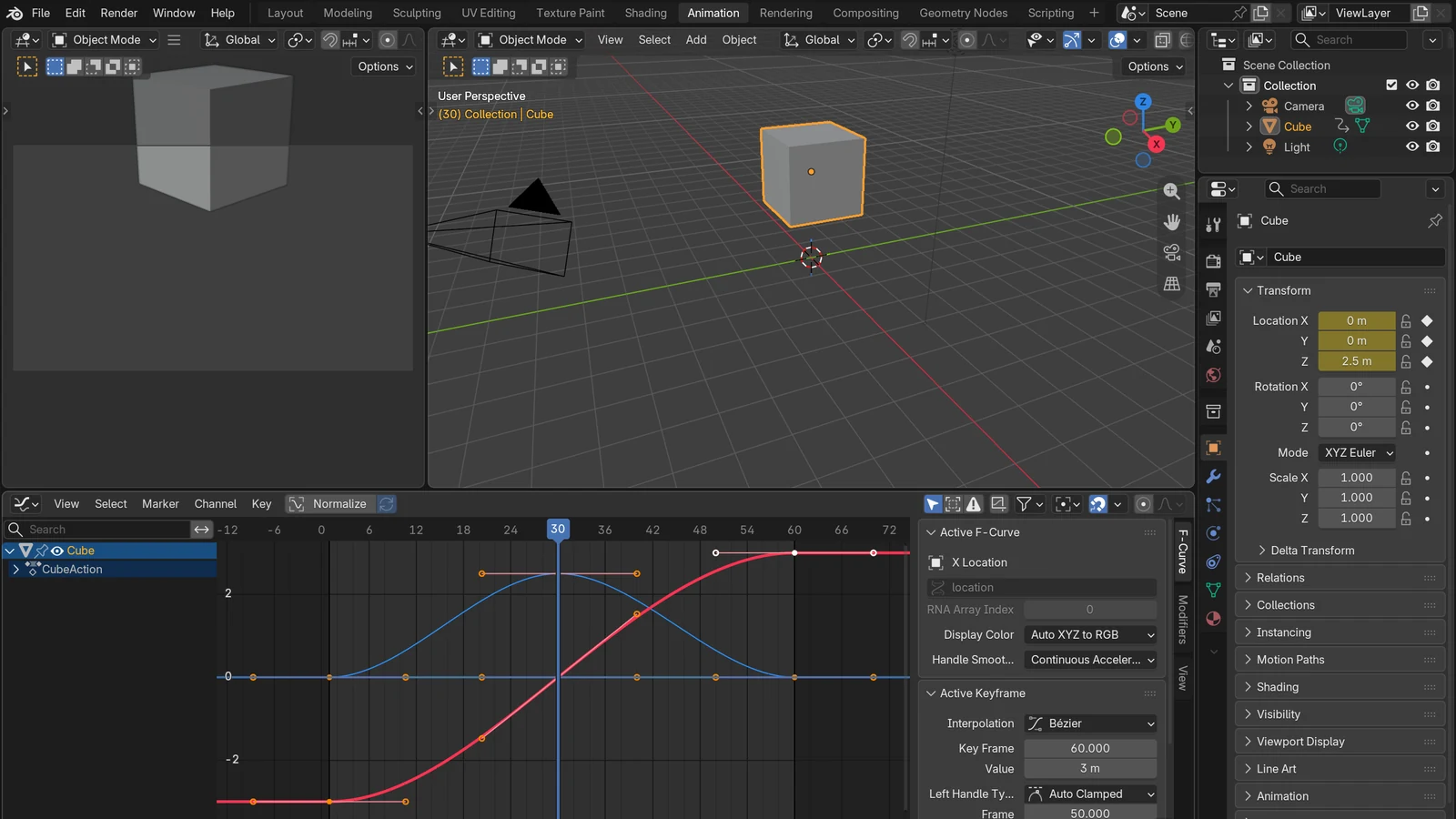
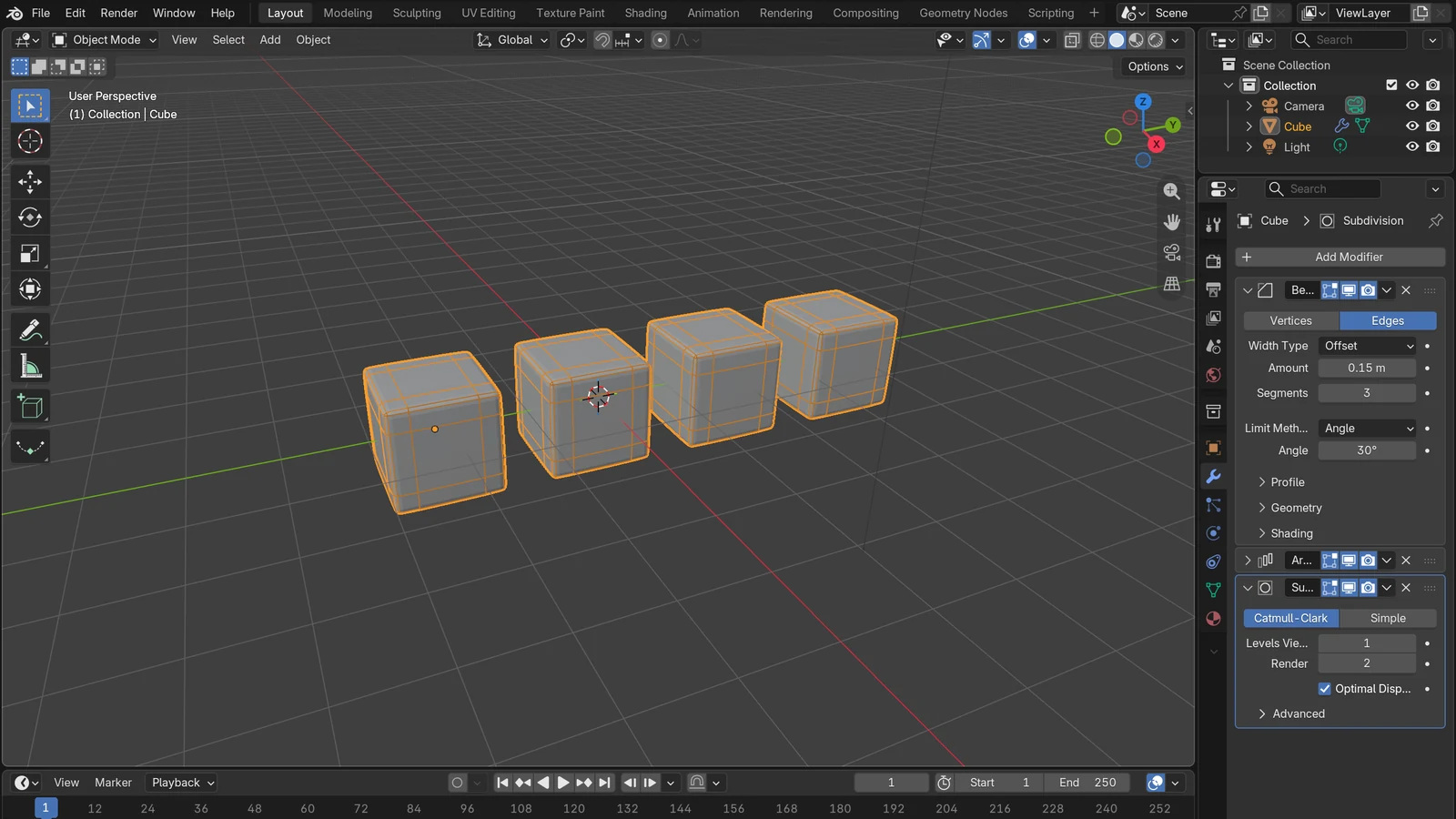
Blender for complete beginners, chapter 14 (wrap-up and appendix) · Based on: Blender 5.2 LTS (keys checked with the 5.2.1 default keymap) This post is the end of the series and its appendix. The images are one finished render from chapter 13 and two screenshots of the official site and manual.
What you will learn in this chapter
By the end of this chapter, you will be able to do the following.
- Look back at everything you have learned so far. (Section 1)
- Choose a path for what to study next. (Section 2)
- Know where to look things up yourself when you get stuck. (Section 3)
- Keep Appendix A (shortcuts), Appendix B (terms), and Appendix C (what to check when stuck) close at hand.
1. What you have learned so far
| Chapter | What you learned | Key point in one line |
|---|---|---|
| Chapter 1 | Getting ready and installing | Install the LTS from blender.org, check the version on the status bar |
| Chapter 2 | The first screen and views | Orbit with the middle button; if you get lost, numpad . or Home |
| Chapter 3 | Selecting, moving, rotating, scaling | G R S + axis X Y Z + a number |
| Chapter 4 | Adding, deleting, duplicating | Check Object Mode → Shift+A, undo with Ctrl+Z |
| Chapter 5 | Saving and recovery | Ctrl+S often; if you ruin it, .blend1; if Blender closed, File ‣ Recover |
| Chapter 6 | Edit Mode basics | Tab → points, lines, faces → E I Ctrl+R Ctrl+B |
| Chapter 7 | Modifiers | The original stays as is, order goes top to bottom, Apply to make it permanent |
| Chapter 8 | Materials and color | Base Color, Metallic, Roughness; check in Material Preview |
| Chapter 9 | Lights | Point, Sun, Spot, Area; check in Rendered view |
| Chapter 10 | Camera | Numpad 0, lens and distance; the ratio comes from the resolution |
| Chapter 11 | Rendering and saving | Size and path on the Output tab; for a still, F12 then Save As; for video, Ctrl+F12 |
| Chapter 12 | First animation | Pick a frame → change a value → I |
| Chapter 13 | Finishing a small project | Combine chapters 1–12 to build a desk props scene by the numbers and render it |
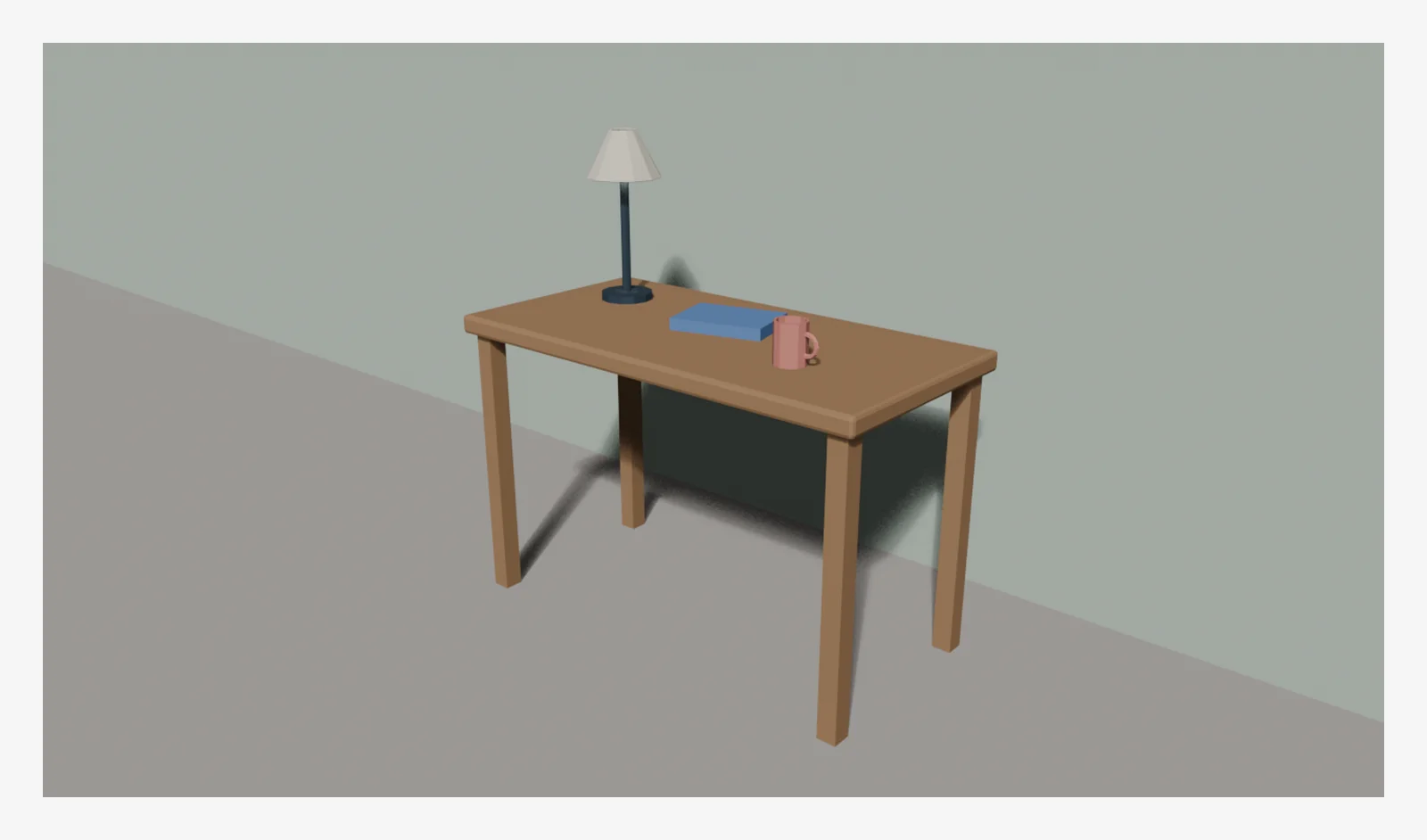 Figure 14-1. The first project made in chapter 13. A 1280×720 EEVEE render made only with the skills from chapters 1–12 (adding, Edit Mode, modifiers, materials, lights, camera, rendering) (Blender render)
2. Where to go next
You do not need to do it all at once. First decide what you want to make, then pick one path that leads there. The posts below are guides on this site (aztech3d.com).
2-1. When you want to make better shapes: modeling
| Order | What to study | Guide on this site |
|---|---|---|
| 1 | How faces connect | Polygons and topology: the points, lines, and faces that make up a 3D model |
| 2 | Cute shapes from few faces | What is the low-poly style? Cute shapes from few faces |
| 3 | Modifiers in more depth | What is a modifier? Changing shape without ruining the original |
| 4 | Making shapes with rules | Blender Geometry Nodes for beginners: making shapes with rules |
Suggested practice: make a cup, a chair, and a small house using only Edit Mode from chapter 6 and modifiers from chapter 7. If you get stuck on a shape, look it up in the Modeling section of the official manual.
2-2. When you want things to look nicer: materials and patterns
| Order | What to study | Guide on this site |
|---|---|---|
| 1 | How metal and roughness work | PBR materials: realism from metal and roughness |
| 2 | Making materials with nodes | Shader nodes and materials: how color and texture are decided |
| 3 | Putting images (textures) on objects | UV unwrapping: how images go onto 3D objects |
2-3. When you want to output pictures and videos: rendering
| Order | What to study | Guide on this site |
|---|---|---|
| 1 | Choosing a render engine | Fast EEVEE, accurate Cycles: how to choose a Blender render engine |
| 2 | Resolution, frames, samples | Blender render settings for beginners: resolution, frames, sample count, and quick previews |
If this is your first time rendering, follow chapter 11 of this series again first, then move on to the two posts above.
2-4. When you want things to move: animation
| Order | What to study | Guide on this site |
|---|---|---|
| 1 | Polishing motion in the Graph Editor | Blender keyframe animation for beginners: adding keys and the Graph Editor |
| 2 | Putting a skeleton in a character | Rigging for beginners: moving a character with bones (an armature) |
2-5. When you want less repeated work: extensions and automation
| Order | What to study | Guide on this site |
|---|---|---|
| 1 | Installing and managing add-ons | Installing and managing Blender add-ons and extensions |
| 2 | Automating with Python | Blender Python automation: turning repeated work into scripts |
| 3 | Connecting to AI tools | Connecting Blender and AI: getting 3D work done with MCP and scripts |
2-6. Example study plan (4 weeks)
| Week | What to do | Goal |
|---|---|---|
| Week 1 | Review chapters 2–5, practice views and selection for 10 minutes a day, Ctrl+S when you finish | Orbit and move smoothly with the mouse, and make saving a habit |
| Week 2 | Make a cup, a chair, and a house with chapters 6 and 7 | Get used to Edit Mode and modifiers |
| Week 3 | Set materials, lights, and camera with chapters 8–11, then render | Save one scene you like as a PNG |
| Week 4 | Add motion with chapter 12, and rebuild the chapter 13 desk scene from the start | A 3-second animation and one finished image |
(The plan is only an example. Opening Blender regularly, even for 10–30 minutes a day, matters most.)
3. Where to look things up when you get stuck
3-1. The official manual
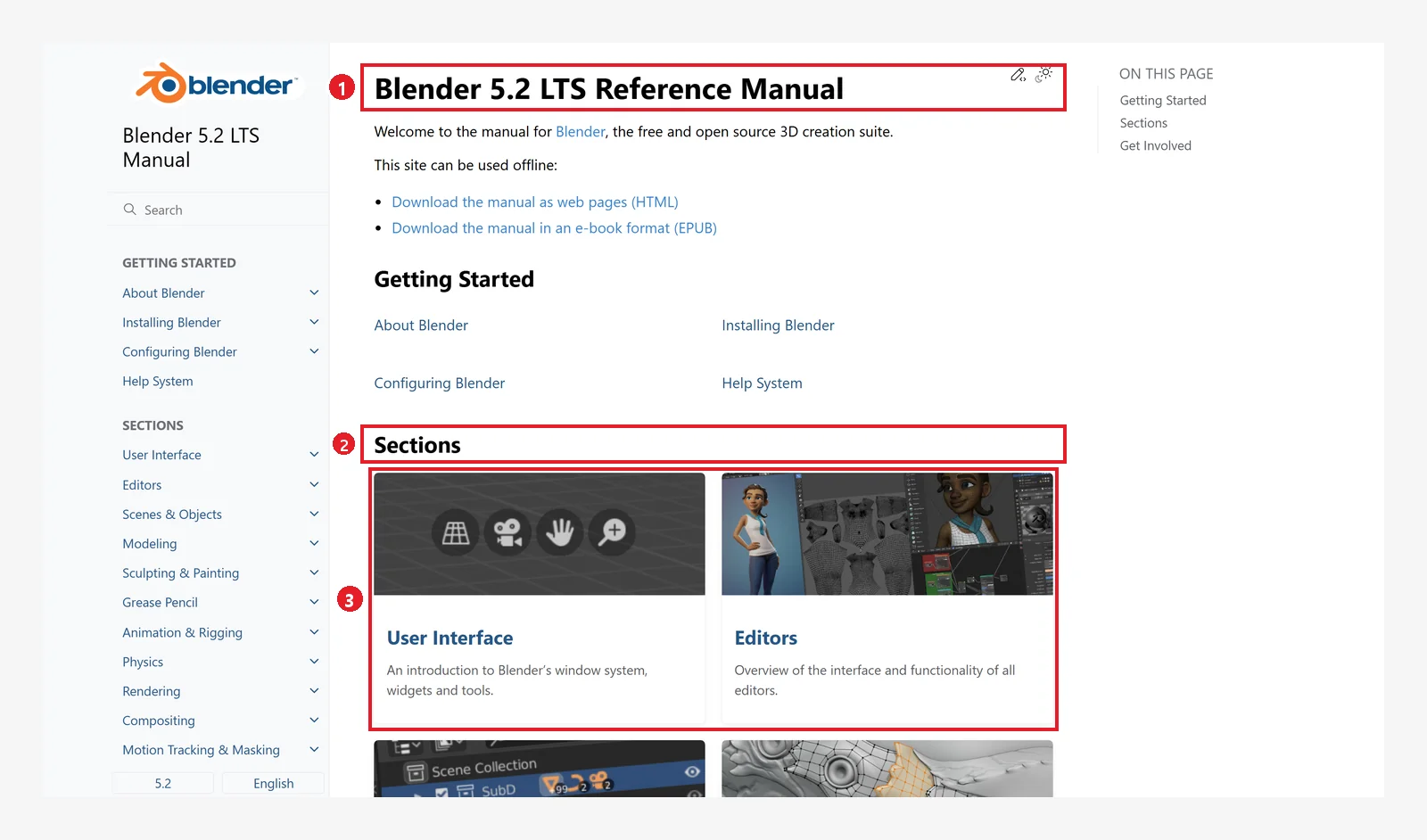 Figure 14-2. The home page of the official manual: ① Blender 5.2 LTS Reference Manual ② Sections ③ the first row of topic cards (User Interface, Editors). Below them come cards such as Scenes & Objects and Modeling… From the home page you can also download the manual as web pages (HTML) or an e-book (EPUB) (screenshot of the Blender 5.2 manual, CC BY-SA 4.0, numbers added)
- Every chapter of this series was based on this manual. If you type the menu name you are curious about into the search box in English, it usually comes up.
- Searching inside Blender: if you cannot remember a menu or button name, press
F3(menu search) and type a few letters in English. - The manual address contains a version number (
/manual/en/5.2/), so check the address so you are not confused by explanations for another version.
3-2. The official support page
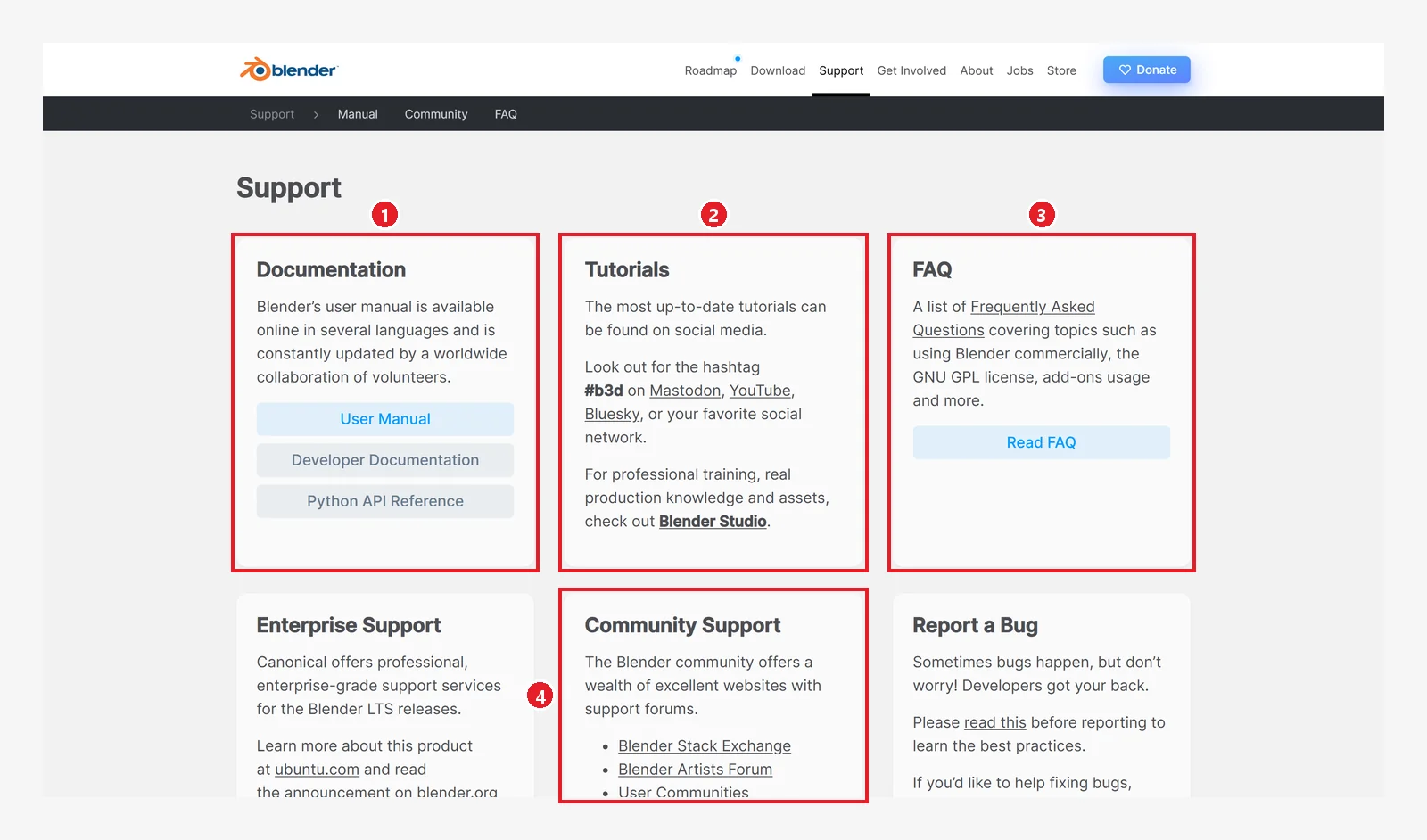 Figure 14-3. blender.org Support: ① Documentation — the user manual, developer documentation, Python API ② Tutorials — find the latest tutorials on social media with the #b3d hashtag; professional training material is on Blender Studio ③ FAQ — common questions such as commercial use, the GNU GPL, and add-ons ④ Community Support — Blender Stack Exchange, the Blender Artists forum, and more (blender.org screenshot, Blender Foundation – www.blender.org, CC BY-SA, numbers added)
3-3. Tips for asking questions
- Write down your version. It is the number at the right end of the status bar (chapter 1). Menus can differ between versions.
- Attach a screenshot. But hide parts that show personal information, such as folder names in file lists and the recent files list (chapter 2).
- Write three lines: what you did, what you expected, and what actually happened. You will get an answer faster.
Appendix A. Shortcuts
- The same key does different things depending on which area the mouse is over. Most of the tables below assume the mouse is over the 3D Viewport, in Object Mode.
- Numpad keys are on the number keypad on the right. They are different from the number row at the top (chapter 2).
A-1. Views (chapters 2 and 10)
| What it does | Key |
|---|---|
| Orbit the view | Drag with the middle button |
| Pan the view | Shift+drag with the middle button |
| Zoom in and out | Roll the wheel, Ctrl+drag with the middle button, numpad + / -, Ctrl+= / Ctrl+- |
| View from front / right / top | Numpad 1 / 3 / 7 (the opposite side is Ctrl+the same key) |
| Snap to the nearest axis direction | Alt+drag with the middle button |
| Switch perspective / orthographic | Numpad 5 |
| Camera view | Numpad 0 |
| Align the camera to the current view | Ctrl+Alt+numpad 0 |
| Make the selected object the camera | Ctrl+numpad 0 |
| Go to the selected object | Numpad . |
| View all | Home |
| Move the 3D cursor to the origin + view all | Shift+C |
| Pie menu for choosing a view | ` |
A-2. Screen (chapters 2, 6, and 8)
| What it does | Key |
|---|---|
| Show or hide the toolbar | T |
| Show or hide the sidebar | N |
| Pie menu for viewport shading | Z |
| Toggle Wireframe view | Shift+Z |
| Toggle X-ray | Alt+Z |
| Next / previous workspace | Ctrl+Page Down / Ctrl+Page Up |
| Menu search | F3 |
| Toggle a maximized area (not covered in the chapters) | Ctrl+Space |
A-3. Selection and transforms (chapters 3 and 7)
| What it does | Key |
|---|---|
| Select / select several | Left click / Shift+left click |
| Select all / deselect all / invert | A / Alt+A / Ctrl+I |
| Box select / circle select | B / C |
| Move / rotate / scale | G / R / S |
| Lock an axis while moving | X / Y / Z (to lock a plane, Shift+the same key) |
| Confirm / cancel while moving | Left click or Enter / right click or Esc |
| Reset location / rotation / scale | Alt+G / Alt+R / Alt+S |
| Apply menu for location, rotation, scale | Ctrl+A (over the 3D Viewport) |
A-4. Working with objects (chapters 4 and 7)
| What it does | Key |
|---|---|
| Add object menu | Shift+A |
| Move the 3D cursor | Shift+right click |
| Duplicate | Shift+D |
| Delete | X (confirmation window) / Delete (right away) |
| Hide / hide unselected / show all | H / Shift+H / Alt+H |
| Add a Subdivision level directly | Ctrl+0–5 |
| Undo / redo | Ctrl+Z / Shift+Ctrl+Z |
| Repeat last action | Shift+R |
| Adjust last operation panel | F9 |
A-5. Edit Mode (chapter 6)
| What it does | Key |
|---|---|
| Enter or leave Edit Mode | Tab |
| Vertex / edge / face select mode | 1 / 2 / 3 (number row at the top) |
| Extrude | E |
| Inset | I |
| Loop cut | Ctrl+R |
| Edge bevel / vertex bevel | Ctrl+B / Shift+Ctrl+B |
| Knife (not covered in the chapters) | K |
| Delete menu | X or Delete |
| Merge menu (not covered in the chapters) | M |
A-6. Animation (chapter 12)
| What it does | Key |
|---|---|
| Insert a keyframe | I |
| Insert a key by choosing its type (not covered in the chapters) | K |
| Delete keys on the current frame | Alt+I |
| Delete all keys | Menu Object ‣ Animation ‣ Clear Keyframes… (no default shortcut in the 3D Viewport) |
| Delete all keys of one property field (not covered in the chapters) | Hold the mouse over the property field and press Shift+Alt+I |
| Play / pause | Space |
| Stop playback and go back to the frame where playback started | Esc |
| One frame back / forward | ← / → |
| Go to first / last frame | Shift+← / Shift+→ |
| Go to previous / next keyframe | ↑ / ↓ |
| Move keys in the Dope Sheet | G (over the Dope Sheet) |
| Interpolation mode in the Graph Editor | T (over the Graph Editor) |
A-7. Files and rendering (chapters 5 and 11)
| What it does | Key |
|---|---|
| Save / save as | Ctrl+S / Shift+Ctrl+S |
| Open / recent files | Ctrl+O / Shift+Ctrl+O |
| New file | Ctrl+N |
| Render image / render animation | F12 / Ctrl+F12 |
| View render window / play rendered animation | F11 / Ctrl+F11 |
| Save the render result as an image | Shift+Alt+S (over the render window) |
| Preferences | Ctrl+, |
Appendix B. Terms
| Term | Meaning | Where it appeared |
|---|---|---|
| LTS | A long-term support version that gets bug fixes for two years | Chapter 1 |
| Splash screen | The welcome window that appears in the middle when you start Blender | Chapters 1 and 2 |
| Editor | Each area the screen is divided into (3D Viewport, Outliner, and so on) | Chapter 2 |
| Workspace | A layout of editors arranged for a task (Layout, Shading, and so on) | Chapter 2 |
| 3D Viewport | The largest area, where you look at the 3D scene | Chapter 2 |
| Outliner | The list of objects in the scene | Chapter 2 |
| Properties editor | The area with the settings of the selected object and scene | Chapter 2 |
| Perspective / orthographic | Far things look smaller / sizes look the same | Chapter 2 |
| Active object | The last object you selected. The settings area shows this object's values | Chapter 3 |
| Gizmo | A handle for controlling things that appears on screen | Chapters 2 and 3 |
| 3D cursor | The marker for where new objects appear | Chapter 4 |
| Mesh | A 3D shape made of points, lines, and faces | Chapters 4 and 7 |
| Object Mode / Edit Mode | Working on the whole object / on points, lines, and faces one by one | Chapter 6 |
| Extrude | A tool that pushes a face out to make new faces | Chapter 6 |
| Modifier | An effect that changes the shape while keeping the original | Chapter 7 |
| Apply | Making a modifier's result into the real shape | Chapter 7 |
| Material | Settings for how something looks, such as color and shine | Chapter 8 |
| Principled BSDF | The basic material that imitates many materials with a few values | Chapter 8 |
| World | The background and the light coming from the surroundings | Chapter 9 |
| Focal length | A value (mm) that sets how wide the lens captures. Small is wide, large is narrow | Chapter 10 |
| Resolution | The width and height of a picture in pixels. It sets the ratio of the camera frame | Chapter 10 |
| Frame / fps | One image of a video / the number of images shown per second | Chapters 2, 11, and 12 |
| Keyframe | A marker that records a property value at a certain frame | Chapter 12 |
| Interpolation | How the values between keys are filled in (Bézier, Linear, and so on) | Chapter 12 |
Appendix C. What to check when you are stuck
- Check where the mouse is. Shortcuts only work in the area the mouse is over.
- Check the current mode. Look at the upper left of the 3D Viewport to see whether it is Object Mode or Edit Mode. Add objects in Object Mode.
- Check what is selected. Look at the highlighted row in the Outliner, and check that the active object is the one you want.
- Check the viewport shading. Colors show in Material Preview, and light shows in Rendered view.
- Check that nothing is hidden. Look at the eye icons in the Outliner, or press
Alt+H. - If you made a mistake, press
Ctrl+Zfirst. You can press it several times. - If you still cannot work it out, search for the menu name with
F3, and find the same name in the official manual.
Closing words
If you have followed along this far, you have touched every basic tool in Blender at least once. The shortcuts may look like a lot at first, but if you open Blender for a few minutes every day and repeat orbit (middle button) → select (click) → move (G R S), your hands will remember before you do. Next, decide what you want to make, and pick one of the paths in section 2.
References
- Blender 5.2 Manual
- blender.org Support
- Shortcuts: based on the default (Blender) keymap of Blender 5.2.1
- Image licenses: blender.org screens are CC BY-SA according to the blender.org website notice, with the credit "Blender Foundation – www.blender.org." Manual screens are CC BY-SA 4.0. In both cases, red numbers and outlines were added.