What helps to know before solo game development: what you need without a degree and what AI fills in
When you make a game alone, which parts of programming, math (vectors and coordinates), art, sound, and game design do you really need, and which can AI and tools fill in? This guide answers with real game code and notes, including what AI cannot fill in, and points to the official learning material for each engine.
한국어English
ON THIS PAGE
- 011. The short answer by field
- 022. Degrees and majors
- 033. Programming: reading more than writing
- 044. Math: coordinates and vectors
- 055. Art: models and animation
- 066. Sound
- 077. Game design: writing rules as numbers
- 088. The order for official learning material
- 099. What AI does not fill in
- 10Exercises
- 11Common misconceptions and fixes
- 12Summary
- 13References
Based on: Godot 4.7.2 (English UI) and the official Godot 4.7 docs, Blender 5.2, Unity Learn, and the Epic Developer Community. Checked in November 2026. Figures are real Godot editor screens, official documentation pages, and screens from test games I made.
People often ask whether you need a computer science degree to make games. The short answer: no game engine asks for a degree or license before you download and use it. Godot and Blender are free for anyone. But "no degree needed" does not mean "nothing to learn." A game holds programming, math, art, sound, and game design. AI takes a big load off some of these, but not all of them.
This is part 2 of the solo development series. It goes through the five fields one by one and shows, with real game code and notes, how much you need to know, what AI and tools fill in, and what AI does not fill in. This guide explains what is worth knowing before you make a first game alone and the official material to learn it from. The map of the whole series is in A map of solo game development.
1. The short answer by field
| Field | How much you need | What AI and tools fill in | What AI does not fill in |
|---|---|---|---|
| Programming | Read code and find where a value lives | Writing and fixing code, finding the cause of errors | Deciding what to make, checking the result yourself |
| Math | What coordinates and vectors mean | Writing the formulas | The eye that spots strange movement on screen |
| Art | Basic use of a 3D program, the habit of keeping face counts low | Export scripts, repeated work | Deciding the look of the game, seeing when an image looks off |
| Sound | Checking whether you may use a sound (license) | Making simple sound effects | Choosing sounds that fit the feel of the game |
| Game design | Writing rules as one line and as numbers | Turning rules into code and checks | Judging fun and difficulty, the time to play it yourself |
The right-hand column is the core of this guide. As AI gets faster, the work that stays with you is "deciding" and "playing it yourself." These two stay with the maker no matter what they studied. What to give AI, what to check, and tool terms are covered in part 4, Splitting solo dev work with AI.
2. Degrees and majors
Game engines and 3D programs do not ask for a degree. Godot is a free, open-source engine under the MIT license, and Blender is free too. Most official docs and beginner courses are also free to read (section 8).
A major can help. Someone who studied computer science picks up code structure faster, and someone who studied art handles color and form faster. But for a first solo game, knowing a little of all five fields is more useful than one major. When you work alone, you end up touching every field yourself. This guide does not give figures such as how many developers hold degrees, because I did not find reliable official numbers.
3. Programming: reading more than writing
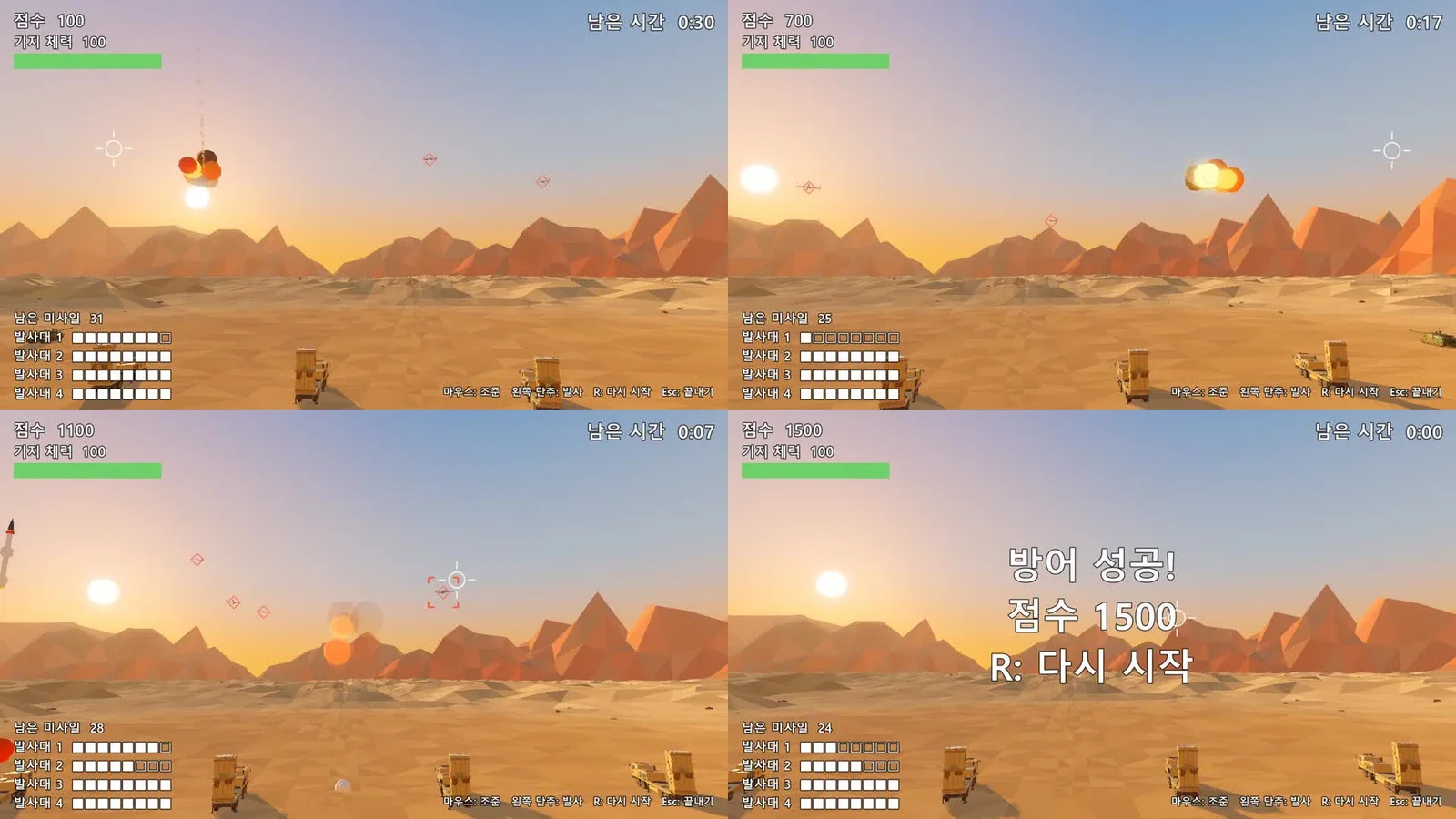
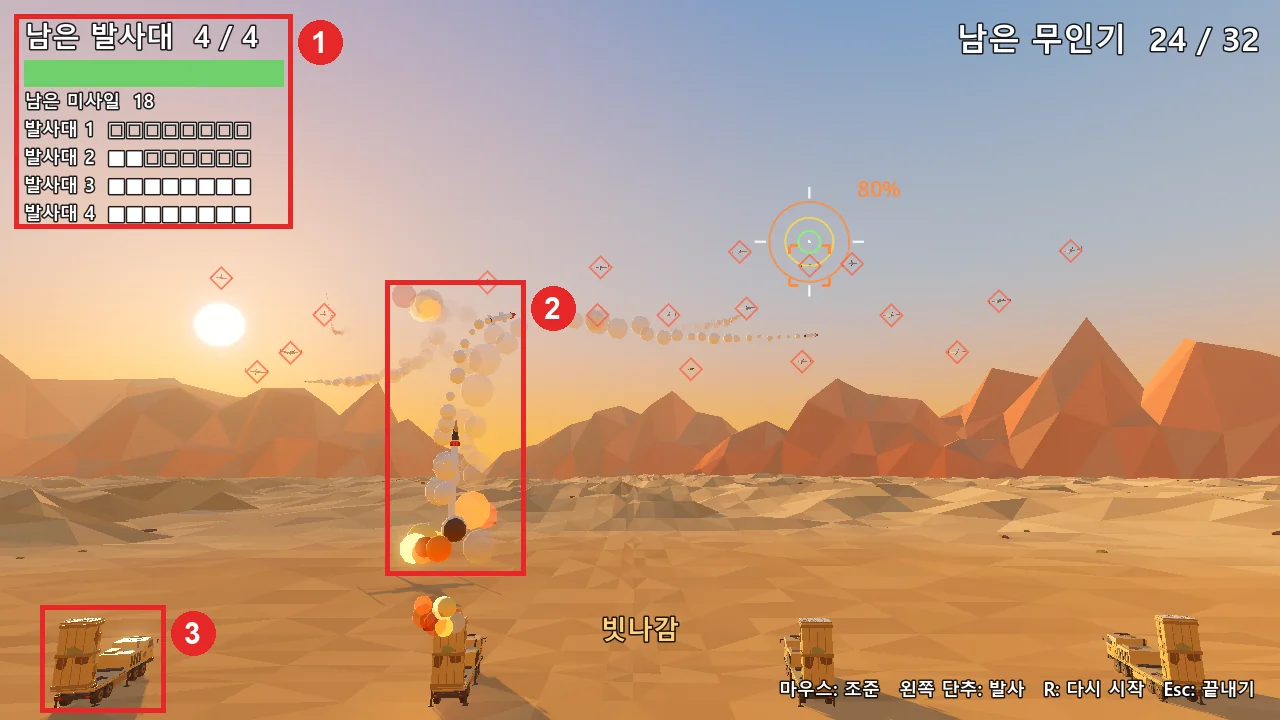
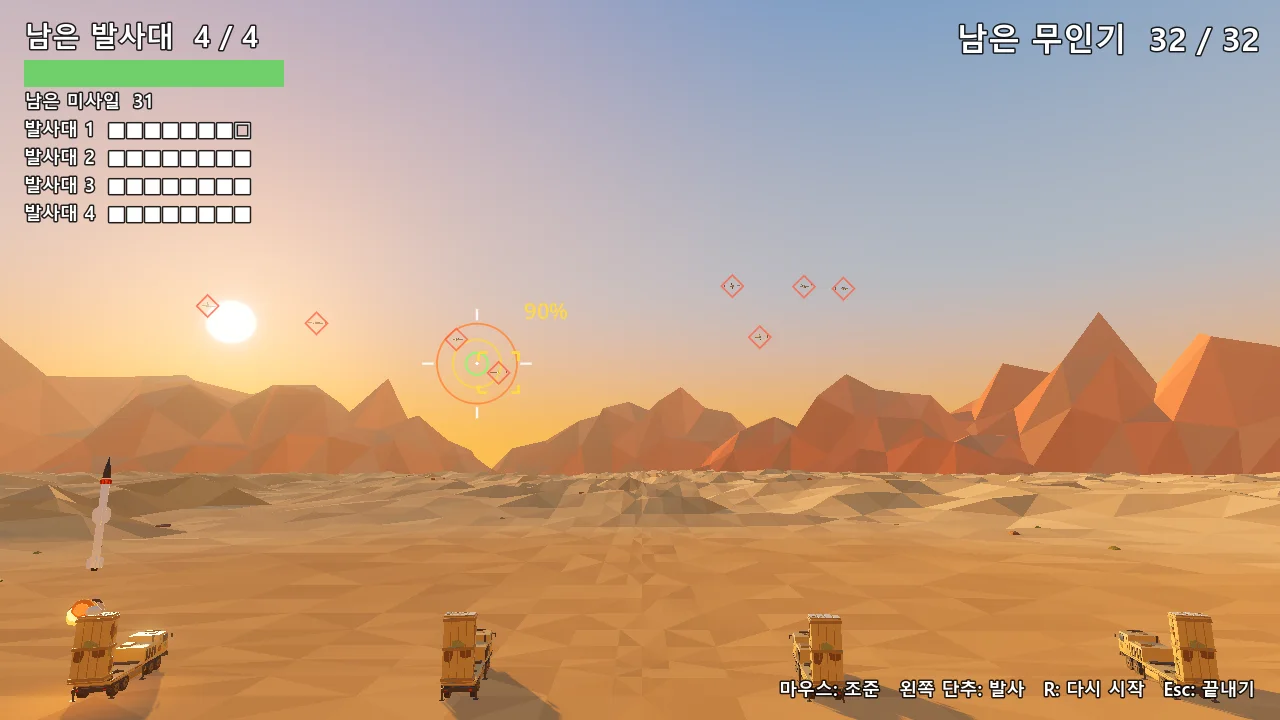
The biggest change that AI coding assistants brought is that you rarely need to write the first line yourself. In my notes, the AI wrote all the code for the air defense game. I still needed to know these four things.
| What to know | Meaning | When you use it |
|---|---|---|
| Variables and constants | Name tags on values. A constant does not change while the game runs | Finding where "32 drones" sits in the code |
| Conditions (if) | A fork: "if this, do that" | Checking that "a launcher is destroyed when hit" went in correctly |
| Functions | A named bundle of work | Finding the spot an error message points to |
| Error messages | The engine telling you where and why a problem happened | Showing them to the AI as they are and asking for a fix |
It is like driving. You can drive without knowing how to build a car, but you need to know what the warning lights on the dashboard mean. Even if you do not write the code, you need to read it to check what the AI made and to point out what to fix.
Godot uses GDScript and C#. GDScript is Godot's own language and looks a lot like Python. The official docs recommend starting with GDScript if you are new to programming, and point to a free app, "Learn GDScript From Zero," that you can practice with in your browser (Figure 1).
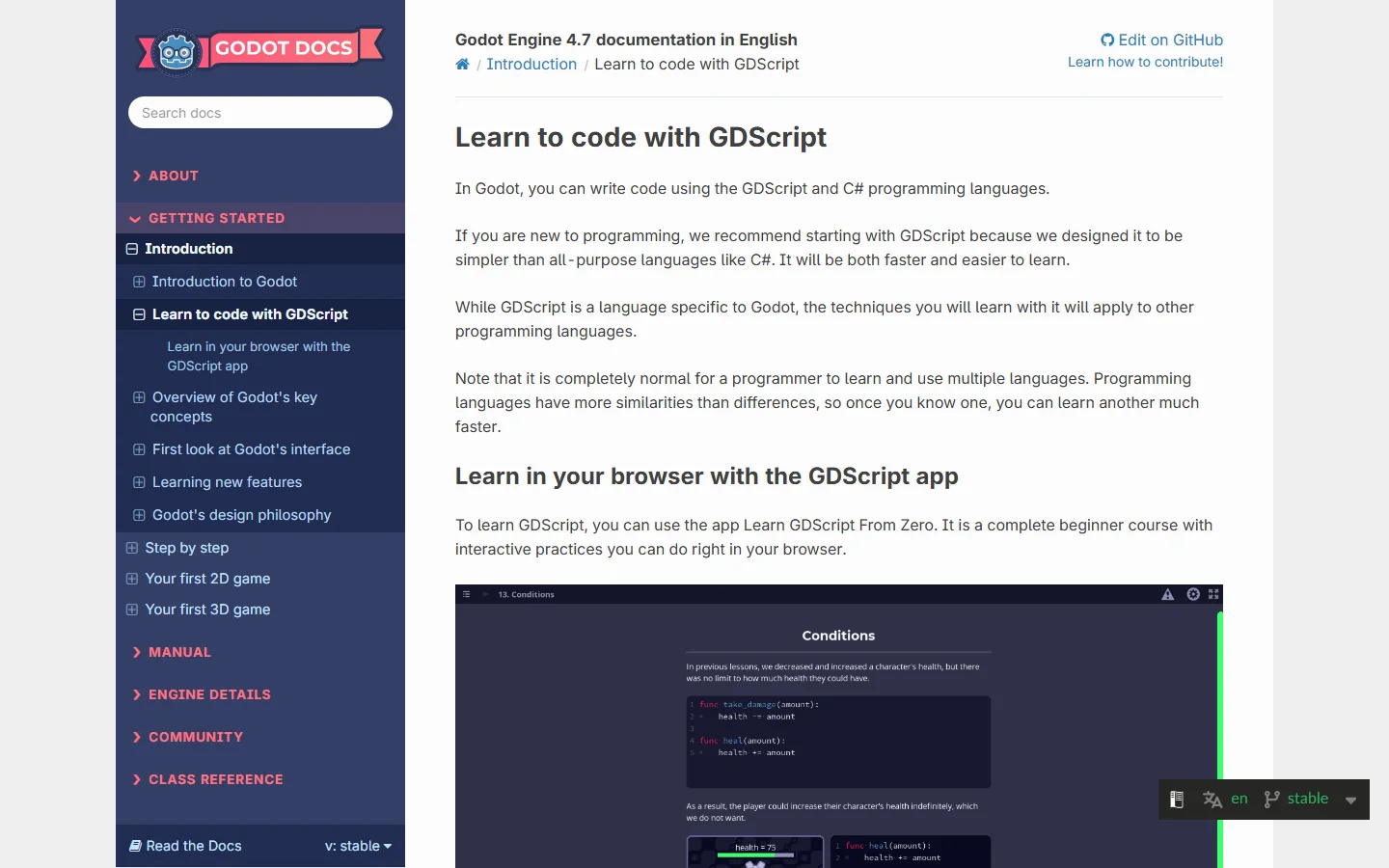 Figure 1. The GDScript page in the official Godot docs. The app further down lets you practice right in the browser (Godot docs screenshot, CC BY 3.0)
Try it: Open the page in Figure 1, click the "Learn GDScript From Zero" app, and do the first few lessons. Variables, functions, and conditions are enough to follow the main thread of code the AI writes.
4. Math: coordinates and vectors
The math used most in 3D games is coordinates and vectors. Coordinates are an address that says where an object is, written as three numbers (X, Y, Z). A vector is an arrow that has both a direction and a length. Like "300 m to the northeast," it holds which way and how far at once.
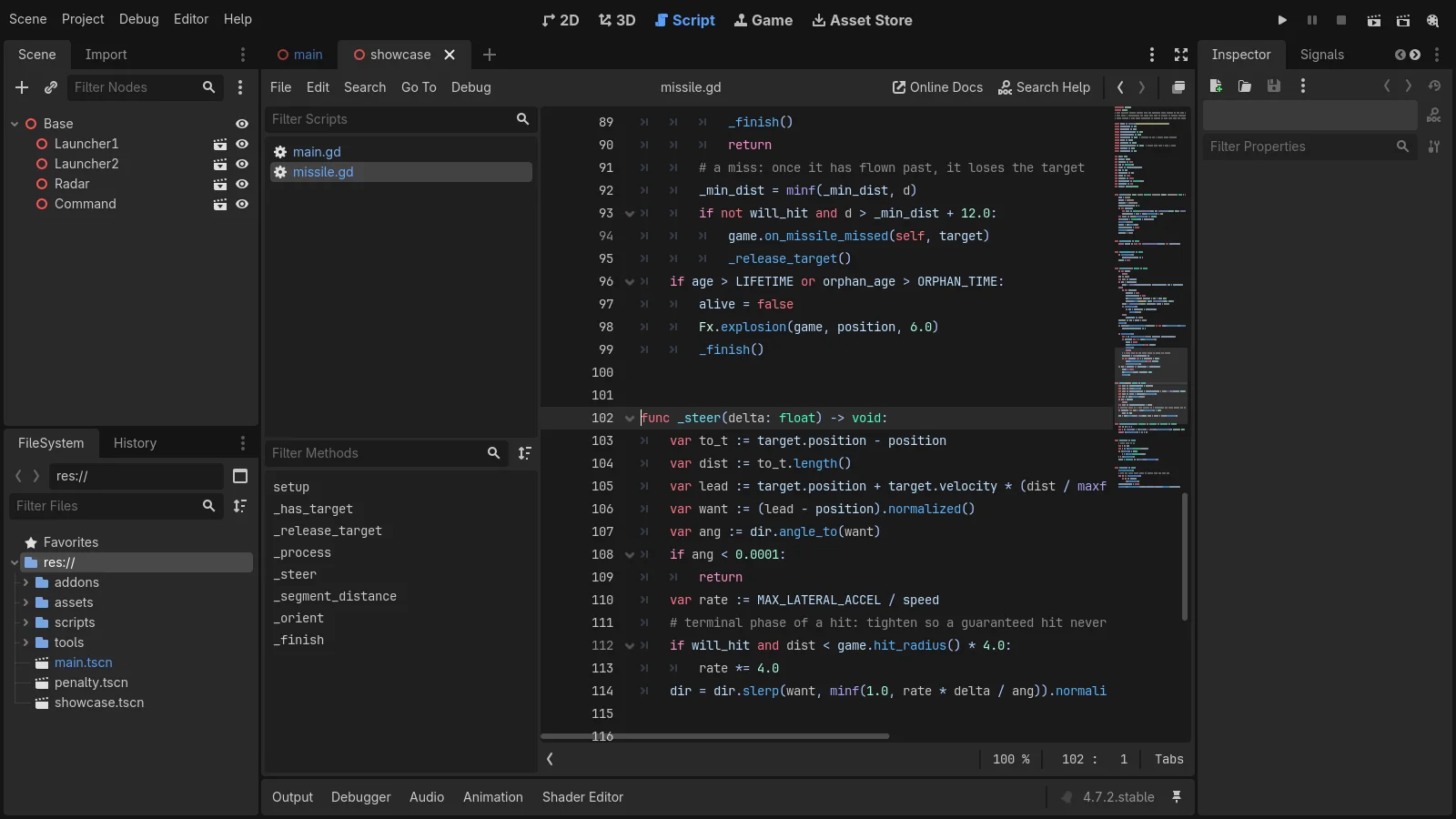 Figure 2. The code that makes a missile chase a drone in the air defense game (missile.gd, lines 102 to 114). The vector math fits in a few lines (Godot editor screenshot)
Figure 2 is missile code the AI wrote. It has almost no math symbols, but every line uses vectors.
| Line | Code | Meaning |
|---|---|---|
| 103 | target.position - position | The arrow from the missile to the drone (one position minus another) |
| 104 | to_t.length() | The length of that arrow, which is the distance left |
| 105 | target.velocity * (…) | The point ahead where the drone will be by then |
| 106 | .normalized() | Set the length to 1 so only the direction is left |
| 107 | dir.angle_to(want) | The angle between the current direction and the wanted direction |
You do not need to write these formulas yourself. The AI writes them. But you should know that "subtracting two positions gives a direction arrow" and "setting the length to 1 leaves only the direction." Then, when a missile flies the wrong way, you can tell the AI something specific, such as "the subtraction in the direction math looks reversed."
Know your axes too. In Blender, up is the Z axis. In Godot, up is the Y axis. So axis names change when you move a model. In my notes, the side that faced front (+Y) in Blender became −Z in Godot. Without knowing this, you might see a model lying on its side and have no idea why.
Try it: Open the "Vector math" page in the official Godot docs and read only the first few sections (coordinate systems, adding vectors, length, normalization). The page is a short introduction to linear algebra as it is used in game development, and it says that a good grasp of vectors is essential. Later sections such as the dot and cross product can wait for your first game.
5. Art: models and animation
A 3D game needs models. Here, AI fills in less than in other fields. My test games used Blender models I had already made for videos. The AI did not make the models. It wrote scripts that export the models to files the engine can read, and fixed the snags along the way.
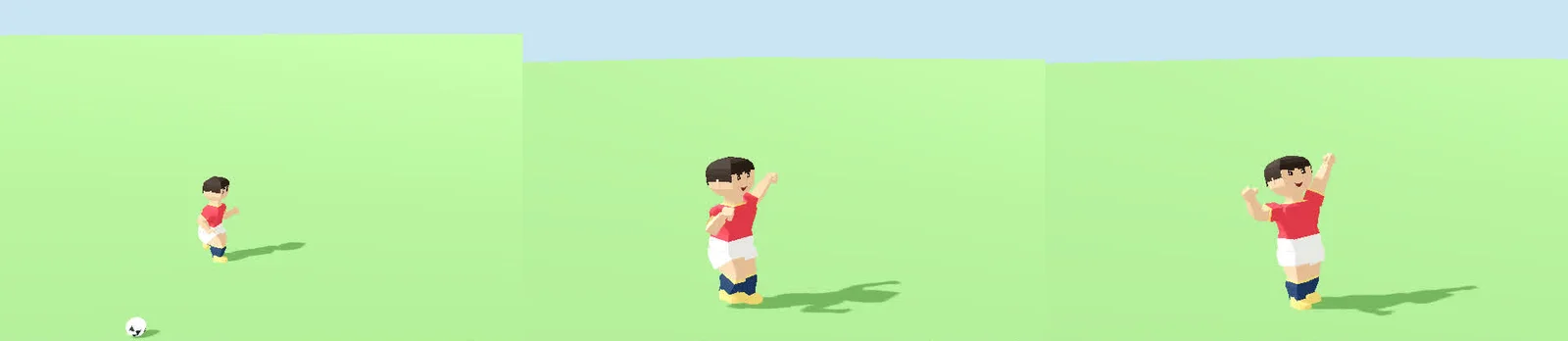 Figure 3. A character whose skeleton and animation were made in Blender, played back in Godot. From left: right after the kick, the start of the celebration, both arms up (Godot run screenshot)
The character in Figure 3 was made in Blender, including its skeleton (rig) and a 10-second animation. Rigging means putting a skeleton inside a model so it can move, like putting a wire frame inside a doll. When moved to Godot, the largest pose difference was 1.4 mm. Some things did not come over as they were.
| Snag | Symptom | What I needed to know |
|---|---|---|
| Material built from a node group | Character came in completely white | Game files cannot read every Blender material node |
| Bone animation and face animation | They came out separately, and only one played | An animation can be split into several tracks |
| No UV on the mesh | A warning on import | What a UV is (a flattened map of the model's surface) |
So on the art side, it helps to know basic Blender use, the habit of keeping face counts low, what materials and UVs are, and the basics of rigging. You can start with Blender for complete beginners, Low-poly style basics, UV unwrapping, and Rigging basics. If building a skeleton is hard, there are auto-rigging services such as Mixamo (Retargeting Mixamo animations with Auto-Rig Pro).
What the AI did not fill in was deciding the look. Which colors and shapes to use, and whether a screen looked off, were judged by a person. Rules for making models that go into a game are covered in part 5 of this series (Asset rules for games).
6. Sound
Sound got the least attention in my notes. The air defense game used six sound effects made in code, and the canyon flight game also used made-in-code sounds. With no recordings or music, the AI generated sounds like "boom" and "whoosh" in code. The games ran, but I did not tune whether the sounds fit the feel of the game.
Two things are worth knowing about sound in advance.
- Check that you may use a sound. Sound effects and music found online have copyright. Whether you may use them commercially or must credit the source differs for each sound. Fonts work the same way. For the web version of the canyon flight game, I added a cut-down file (424 KB) holding only Korean characters from a freely licensed font. Rights for AI-made output are covered in Copyright basics for AI-made images and text.
- Know that sound changes how a game feels. The same explosion feels like a toy with a light sound and heavy with a low, long one. Which feel is right is something a person decides by listening.
7. Game design: writing rules as numbers
Game design means setting the rules, goals, and difficulty of a game. It is the most underrated field in solo development, and the hardest one for AI to fill in.
AI is good at turning rules in words into code. So if you can write rules as one line and numbers, the work goes much faster. The one-line description of my air defense game was "At a desert base at sunset, aim with the mouse and fire missiles to protect 4 launchers from 32 incoming drones." When fixing things, saying it in numbers, like "make the spawn interval twice as fast," got results faster than "make it harder."
But the AI could not tell whether those numbers were fun. The probability values in the penalty shootout were a first draft set by the AI.
| Where you kick | Chance to miss the goal | Chance of a save when the keeper guesses the side |
|---|---|---|
| Low left or right | 5% | 60% |
| Low center | 0% | 90% |
| High left or right | 25% | 25% |
| High center | 10% | 70% |
The computer keeper dives to the center only 20% of the time, so with these values, a low kick to the center is the best choice. The computer also does not read the other player's habits. Noticing a balance problem like this and deciding whether to fix it is game design. With the air defense game too, automatic play could not tell the difficulty, and the rules only settled after I played five times myself. How to set the scope and rules of a game is the topic of part 3 (Setting the scope of your first game).
8. The order for official learning material
Try it: Open the official material in this order. All of it is free to read.
- Open "Step by step" in the official Godot docs. It covers nodes and scenes, your first script, reading player input, and signals (messages that nodes send each other).
- Follow "Your first 2D game." The official docs recommend starting with 2D rather than 3D if you are new to game development, because 3D game code is always more complex.
- Move on to "Your first 3D game" (Figure 4). It takes you through 3D coordinates, collisions, spawning enemies at set intervals, and a score and retry screen.
- If you want to make your own 3D models, read the Blender Manual together with Blender for complete beginners on this site.
- If you pick another engine, start the same way with Unity Learn (Unity's official learning site with free courses) or Learning on the Epic Developer Community (the official collection of Unreal Engine courses).
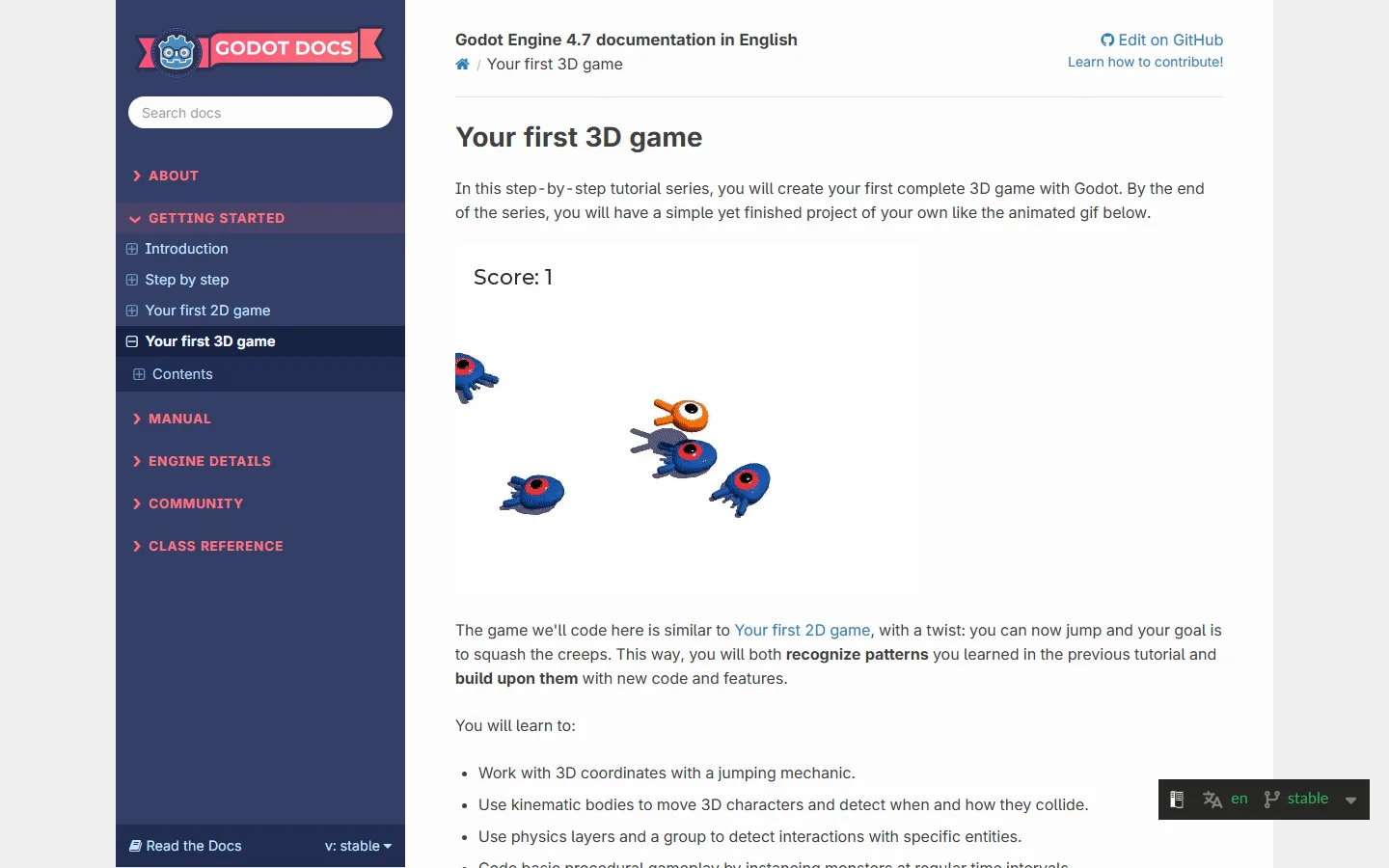 Figure 4. The first 3D game course in the official Godot docs. If you follow it to the end, you get a small game with a score and a retry screen (Godot docs screenshot, CC BY 3.0)
Once you finish one official course, you can use words like "node," "scene," and "signal" when you give work to an AI. When you and the AI use the same words, explanations get shorter and results match sooner. If you have not picked an engine yet, read Choosing a game engine in 2026 first.
9. What AI does not fill in
Putting together what came up in the five fields:
| Not filled in | Why |
|---|---|
| Deciding what to make | AI makes what it is asked to make, it does not choose what to make |
| Time spent playing | Fun and difficulty only come from a person playing. Automatic play could not tell |
| The feel of visuals and sound | It is a judgment of good or bad, not right or wrong |
| Checking rights | Whether you may use someone else's models, sounds, or fonts is read from the license, and a person is responsible |
| Deciding to release | When and where to put it out is up to the maker |
These five are less about knowledge from a major and more about habits: write a plan first, play it yourself, say what you felt as numbers, and note where your materials came from.
Exercises
- Write the game you want to make in one line. Include "who, with what, stops (or gets) what."
- Write five numbers the game needs (for example: enemy count, speed, health, time limit, spawn interval).
- Write which way the missile would fly if
lead - positionon line 106 in Figure 2 were changed toposition - lead. - Do the lessons in the Learn GDScript From Zero app up to the one on conditions.
Common misconceptions and fixes
| Symptom | Cause | Fix |
|---|---|---|
| You keep putting off starting because you have no degree | Engines and 3D programs do not ask for one | Follow one official first-game course to the end |
| You cannot read any of the code the AI wrote | You do not know what variables, conditions, and functions mean | Learn just the basics with a GDScript starter app |
| A model comes in lying on its side | Programs use different up axes | Know that Blender is Z-up and Godot is Y-up, and check the export settings |
| Asking for a fix does not change things the way you want | The request is vague, like "make it more fun" | Say the value to change as a number |
| The game runs but feels flat | Sound and feel were never tuned | Play it yourself and choose sounds and screen effects separately |
Summary
No degree needed. For code, reading. For coordinates and vectors, the meaning. For models, the basics. For sound, the rights. For design, numbers. Deciding and playing it yourself are what AI cannot do for you.
References
- Godot Engine 4.7 docs, Learn to code with GDScript: https://docs.godotengine.org/en/stable/getting_started/introduction/learn_to_code_with_gdscript.html
- Learn GDScript From Zero app: https://gdquest.github.io/learn-gdscript/
- Godot Engine 4.7 docs, Step by step: https://docs.godotengine.org/en/stable/getting_started/step_by_step/index.html
- Godot Engine 4.7 docs, Your first 2D game: https://docs.godotengine.org/en/stable/getting_started/first_2d_game/index.html
- Godot Engine 4.7 docs, Your first 3D game: https://docs.godotengine.org/en/stable/getting_started/first_3d_game/index.html
- Godot Engine 4.7 docs, Vector math: https://docs.godotengine.org/en/stable/tutorials/math/vector_math.html
- Blender 5.2 LTS Manual: https://docs.blender.org/manual/en/latest/
- Unity Learn: https://learn.unity.com/
- Epic Developer Community, Learning: https://dev.epicgames.com/community/unreal-engine/learning
- Figures: Godot editor and run screens and Blender renders (test games I made), Godot docs pages (CC BY 3.0)