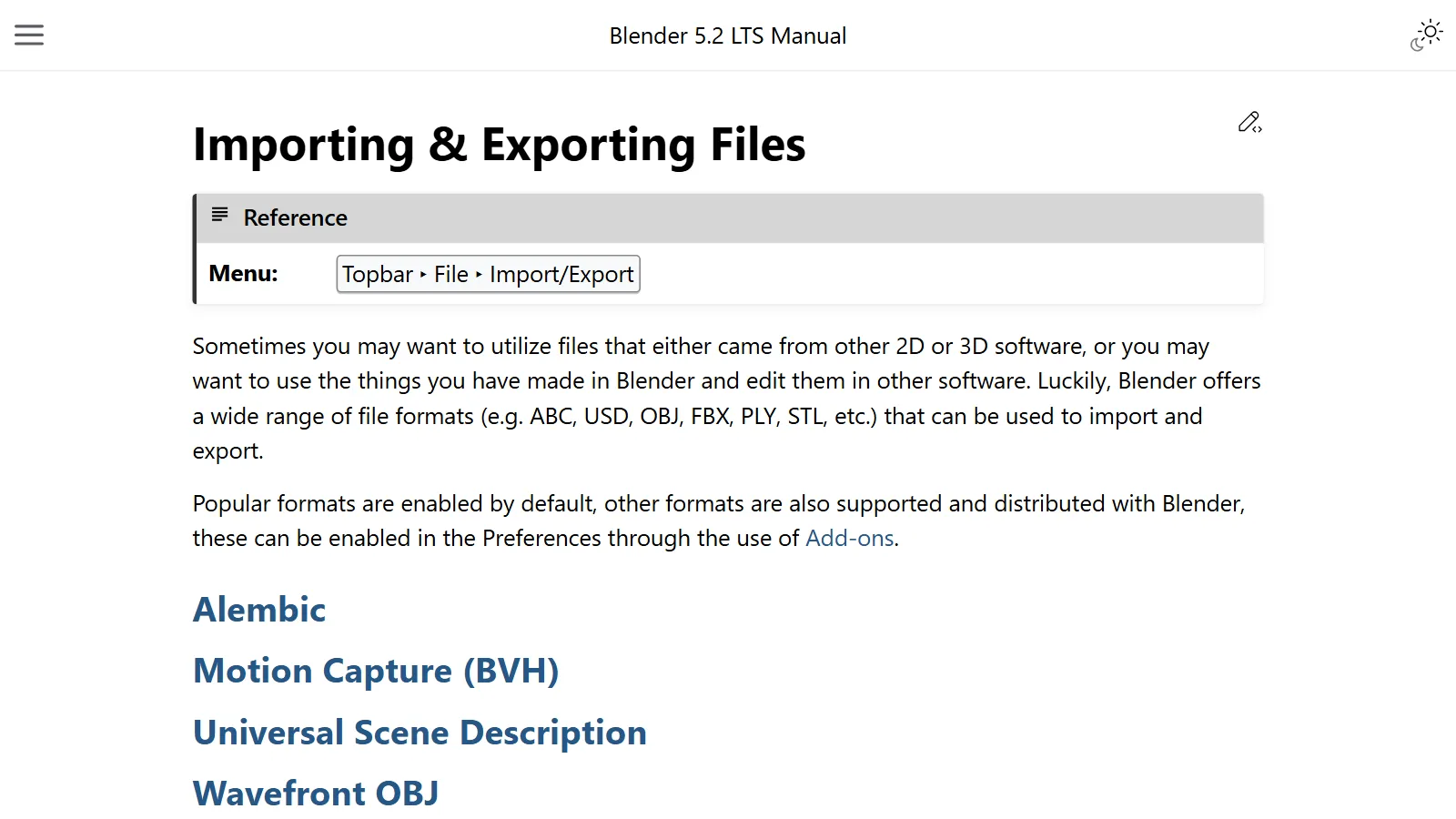
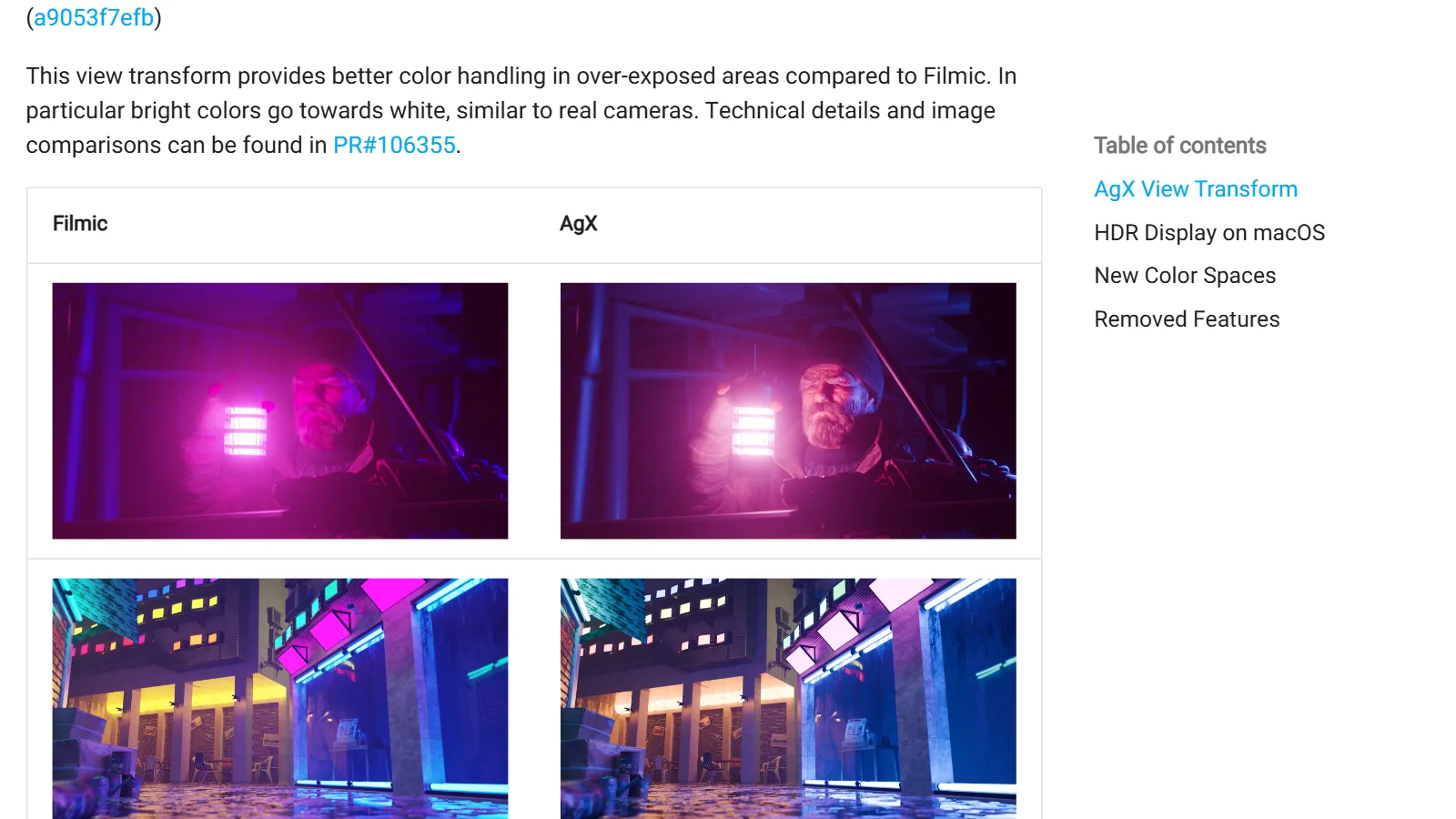
Choosing a game engine in 2026: Godot 4.7, Unity 6.6, and Unreal 5.8 for Blender users
What to look at when a Blender user picks a game engine for the first time. Godot, Unity, and Unreal are compared on latest version, pricing, language, and how to bring Blender files in, using official sources, with real screens of Godot and Unreal opened on an 8 GB laptop.
한국어English
ON THIS PAGE
- 011. The short answer by goal
- 022. The three engines at a glance
- 033. Godot: a light, free, open-source engine
- 044. Unity: a C# engine with lots of material
- 055. Unreal Engine: strong at realistic visuals
- 066. Moving Blender files into each engine
- 077. A starting path for Blender users
- 088. Common misconceptions
- 09Summary
- 10References
Based on: Godot 4.7.2 (screenshot, Korean interface), Unreal Engine 5.8 (screenshot, Korean interface), the official Unity 6.6 manual, and each company's official pricing and license pages. Checked in November 2026. The Godot and Unreal pictures are real screens from a laptop with an 8 GB graphics card, and the Unity picture is the official manual page. The red numbers and boxes were added to explain them.
When you make characters or props in Blender, you sooner or later ask: "How do I make this move and respond to a player?" The program that does that is a game engine. A game engine bundles 3D models, lights, sound, keyboard input, and physics, and runs them in real time. If Blender is the workshop that builds stage props, a game engine is the theater that puts on the show with them.
The three engines most people use today are Godot, Unity, and Unreal Engine. All three are free to start with, but they differ a lot in how they charge, what language you write in, and what computer they need. This guide compares the latest versions as of November 2026 and suggests a starting path for Blender users. Computer specs are covered separately in Computer specs for AI, Blender, and game engines.
1. The short answer by goal
| What you want to do | Engine to look at first | Why |
|---|---|---|
| Small 3D or 2D games as a hobby | Godot | Light install, costs nothing, easy language |
| Mobile games, an engine with lots of tutorials | Unity | Used for a long time, lots of material, uses C# |
| Realistic 3D visuals, video production | Unreal Engine | Advanced lighting and rendering built in |
| Starting light on one laptop | Godot | Runs from a single executable |
There is no single right answer. At first, the least confusing choice is the engine with the most examples close to what you want to make.
2. The three engines at a glance
| Item | Godot | Unity | Unreal Engine |
|---|---|---|---|
| Latest stable version | 4.7.2 (maintenance release, 2026-08-18) | 6.6 (6000.6.0f1, 2026-08-31) | 5.8 |
| Next version news | 4.8 beta 2 (2026-10-29) | — | — |
| Price | Free, open source (MIT license) | Personal is free (revenue and funding up to $200,000), paid seats above that | Engine is free; games pay a royalty above a revenue threshold |
| Main language | GDScript (similar to Python), C# | C# | C++, Blueprints (visual scripting with nodes) |
| Bringing in Blender files | glTF 2.0 recommended; direct .blend import also supported | Exchange formats such as FBX | Exchange formats such as FBX, glTF, and USD |
| Tried on my PC | Opens straight from one executable (about 173 MB) | Not installed for this guide | About 4.2 GB of memory with the default level open |
Open source means the engine's blueprints (source code) are public, so anyone can read and change them. A royalty is a fee paid to the engine company based on how much a game earns. The "Tried on my PC" row was measured on a laptop with an 8 GB graphics card, so it will differ on other computers.
3. Godot: a light, free, open-source engine
Godot's official license page calls it "free and open source software released under the permissive MIT license". Run the single downloaded file and the editor opens. Figure 1 shows an empty project with a cylinder, a box, ground, a sun, and a camera.
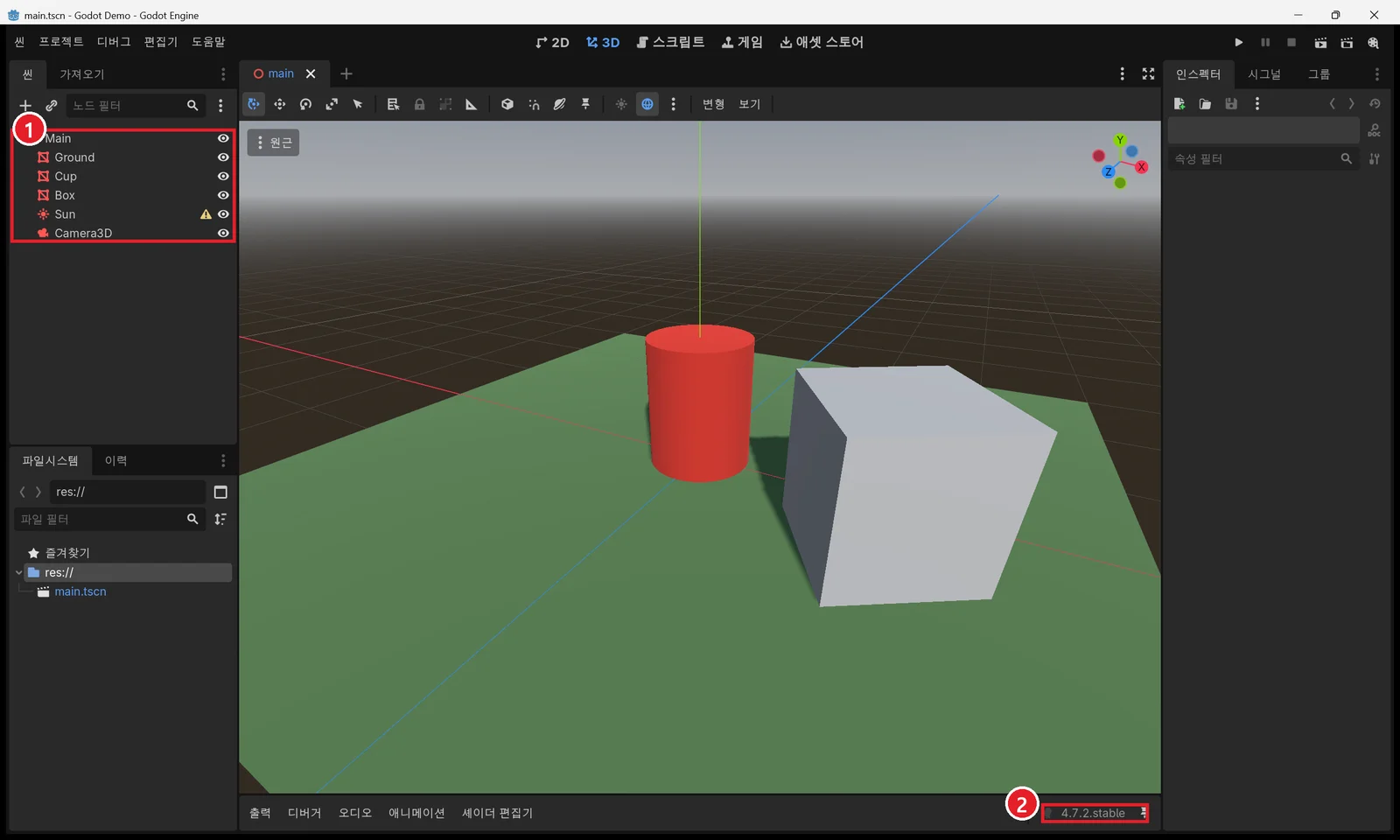 Figure 1. Godot 4.7.2 editor (Korean interface). ① Scene tree: the list of nodes that make up the scene ② Version 4.7.2.stable. The interface opened in Korean because it follows the computer's language (Godot screenshot)
Godot builds scenes as a tree of nodes (the scene tree, ① in Figure 1). An object, a light, and a camera are all nodes. It feels close to Blender's Outliner, so it is not strange for Blender users.
The official docs are clear about bringing Blender files in. The recommended format is glTF 2.0, and if you put a .blend file in the project, Godot calls Blender's glTF exporter in the background and imports it directly. For that, Blender 3.0 or later must be installed on the computer. Version 4.7 added features such as a rectangular area light (AreaLight3D) and a new asset store, and the next version, 4.8, is in beta testing. You can follow the steps for exporting a Blender model as glTF and bringing it into Godot, with screenshots, in From Blender to Godot 4.7 with glTF.
4. Unity: a C# engine with lots of material
The latest Unity is 6.6. The official release notes date 6000.6.0f1 to August 31, 2026, and the official manual calls 6.6 the latest release (Figure 2).
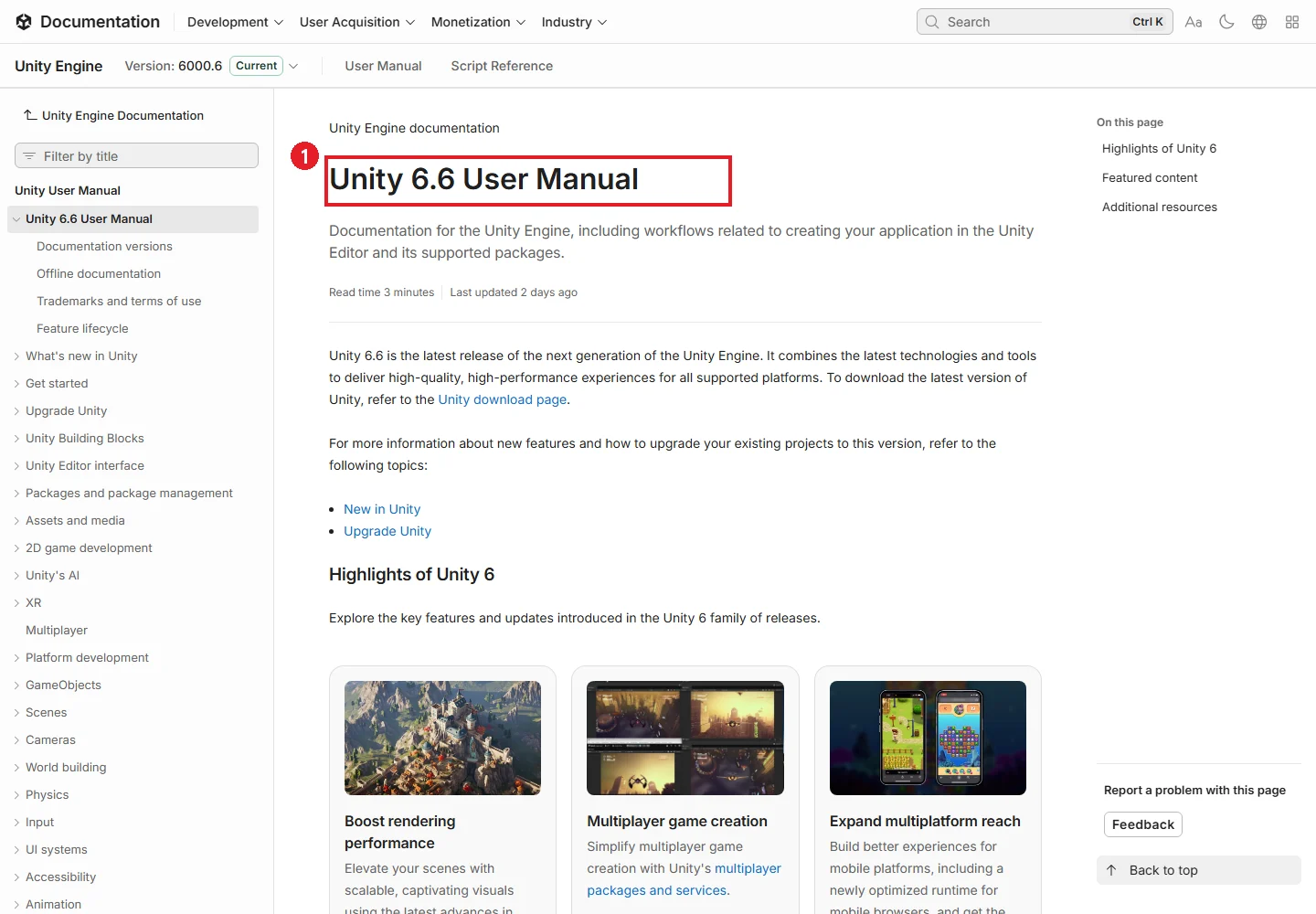 Figure 2. First page of the official Unity 6.6 manual. ① Version name (docs.unity.com screenshot)
According to the official pricing page, the plans are:
| Plan | Who | Price |
|---|---|---|
| Personal | Revenue and funding up to $200,000 | Free |
| Pro | Above $200,000 | $2,310 per seat per year (prepaid) or $210 per month |
| Enterprise | Annual revenue above $25 million | Custom quote |
These are the values in the 2026 price table on the official page. Check the official page again before you pay. The controversial install-based fee (the Runtime Fee) was canceled on September 12, 2024, according to the same page.
Unity uses C#. Because it has been used for so long, the large number of courses, examples, and assets is its biggest plus for beginners.
5. Unreal Engine: strong at realistic visuals
When you open a new Unreal Engine 5.8 project on its default level, you get a scene like Figure 3, with wide terrain, sky, clouds, and fog already in place. Under the Outliner it shows 138 actors (① in Figure 3). An actor is Unreal's name for each object placed in a level.
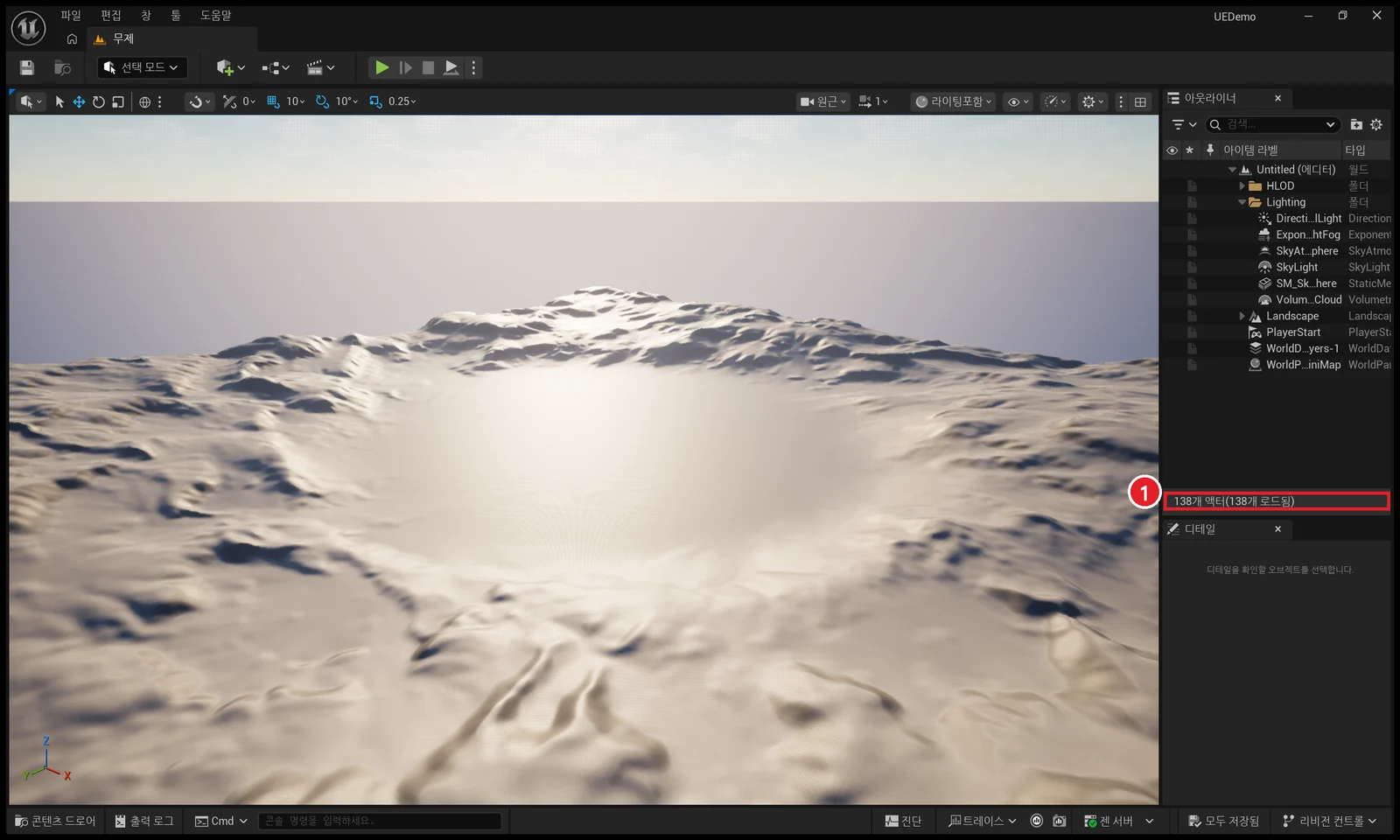 Figure 3. The default level in the Unreal Engine 5.8 editor (Korean interface). ① Number of actors in the level (Unreal Editor screenshot)
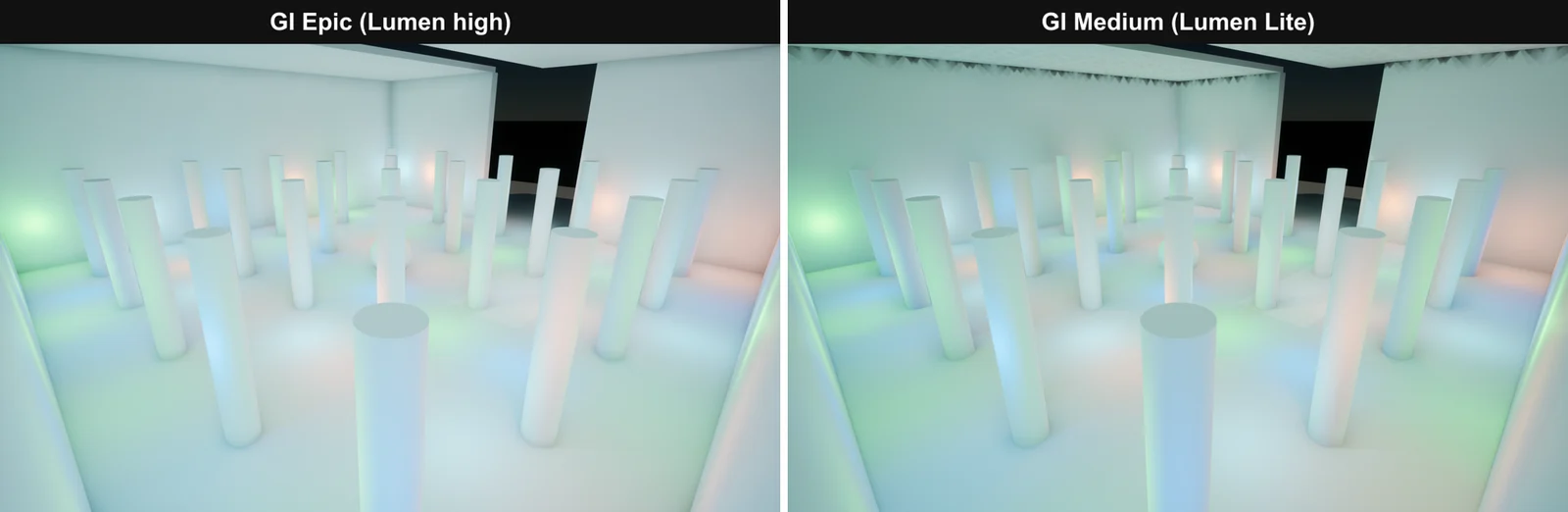
Three things stand out in the 5.8 release notes. MegaLights, which draws scenes with very many lights quickly, is now production ready. Lumen Lite, which computes indirect light quickly at medium quality, arrived in beta (the notes say it is twice as fast as Lumen high quality). And MCP Server, which lets AI tools connect to the editor, arrived as an experimental feature. You can try the MCP connection in Unreal Engine 5.8 MCP plugin.
The engine itself is free to use. For games, once one product's lifetime revenue passes $1 million, you pay a 5% royalty on the amount above that. Companies that use it for non-game work (video, architectural visualization, and so on) pay $1,850 per seat per year once their revenue over the past 12 months passes $1 million. These numbers come from Epic Games' 2024 announcement, so check the official license page before you rely on them.
Unreal uses C++ and Blueprints. Blueprints work like Blender's nodes, linking boxes with lines to build behavior, so you can start even if you have never written code. The trade-off is a heavy editor. On my PC (32 GB RAM, 8 GB graphics card), one editor with the default level open used about 4.2 GB of memory. On a laptop with 16 GB of RAM, it is better to close other programs while you work.
6. Moving Blender files into each engine
The first things you run into when you move a Blender model into an engine are usually the file format and the size. Here is what each engine's official documentation says.
| Item | Godot 4.7 | Unity 6.6 | Unreal Engine 5.8 |
|---|---|---|---|
| Format to use | glTF 2.0 (.glb, .gltf) recommended | FBX recommended | FBX, glTF (.gltf, .glb) |
| Engine length unit | 1 unit = 1 m | 1 unit = 1 m (FBX units are converted to meters on import) | Default unit cm (1 m = 100 units) |
Blender also uses 1 unit = 1 m by default. So a model made at real size in Blender shows the same numbers in Godot and Unity, and numbers in centimeters in Unreal (1 m becomes 100). If the numbers look 100 times bigger in Unreal, nothing is broken; the unit is different. On the other hand, if you change the units in Blender and then export, sizes can easily come out wrong in the engine. Think of the length unit as a ruler: it is the same stick, measured with a meter ruler or a centimeter ruler.
Two engines can also take a .blend file as is. Godot converts it to glTF in the background if Blender 3.0 or later is installed. Unity converts it to FBX in the background if Blender is installed, but its official documentation recommends exporting to FBX for real projects, because everyone working on the project would need Blender installed.
The up axis also differs. Blender uses Z as up, Godot uses a right-handed system with Y up, and Unreal uses a left-handed system with Z up. Blender's glTF exporter has +Y Up turned on by default, which matches engines that use Y as up. At first, export with the default settings, and look at the axis settings only if the model comes in lying down or turned around.
7. A starting path for Blender users
- Take one thing all the way through in Godot. Export a small prop from Blender as glTF (
.glb), put it in Godot, play its animation, and run the project. You will get a feel for what an engine does. For everything from exporting to running it in Godot, follow From Blender to Godot 4.7 with glTF. - Choose again based on what you want to make. For mobile games or lots of learning material, move to Unity. For realistic visuals or video, move to Unreal.
- Learn one file format well. glTF and FBX are both widely used across all three engines. The differences are in 3D file formats compared.
Whatever the engine, the same Blender habits help: keep sizes in real units, apply transforms (Ctrl+A), and keep the face count light. Why face count matters is explained in Polygons and topology.
8. Common misconceptions
| Misconception | Reality |
|---|---|
| Free engines cannot be used commercially | All three can be used commercially within their terms. The terms (revenue thresholds, royalties) differ by engine |
| The prettiest engine is always best | A heavy engine can struggle on a laptop just to open the editor |
| Once you choose an engine you are stuck | Models and textures move with glTF or FBX. What is hard to move is code and engine-specific setup |
| You have to learn C++ first | There are easier ways in, such as Godot's GDScript and Unreal's Blueprints |
Summary
Start light with Godot, choose Unity for lots of material and mobile, Unreal for realistic visuals, and check prices and version numbers on the official pages before you commit.
References
- Godot blog (4.7.2 maintenance release, 4.8 beta 2): https://godotengine.org/blog/
- Godot license: https://godotengine.org/license/
- Godot docs, available 3D scene formats: https://docs.godotengine.org/en/stable/tutorials/assets_pipeline/importing_3d_scenes/available_formats.html
- Godot docs, Introduction to 3D (1 unit = 1 m, Y up): https://docs.godotengine.org/en/stable/tutorials/3d/introduction_to_3d.html
- Unity 6.6 manual, Model file formats (FBX recommended, .blend needs Blender installed): https://docs.unity.com/en-us/engine/6000.6/manual/assets-and-media/asset-types/models/creating-dccassets/3d-formats
- Unity 6.6 scripting reference, ModelImporter.fileScale (FBX units to meters): https://docs.unity3d.com/6000.6/Documentation/ScriptReference/ModelImporter-fileScale.html
- Unreal Engine docs, coordinate system (left-handed, Z up): https://dev.epicgames.com/documentation/en-us/unreal-engine/coordinate-system-and-spaces-in-unreal-engine
- Unreal Engine docs, units of measurement (distance in cm by default): https://dev.epicgames.com/documentation/en-us/unreal-engine/units-of-measurement-in-unreal-engine
- Unreal Engine docs, importing glTF files: https://dev.epicgames.com/documentation/en-us/unreal-engine/importing-gltf-files-into-unreal-engine
- Unity 6000.6.0f1 release notes: https://unity.com/releases/editor/whats-new/6000.6.0f1
- Unity 6.6 manual: https://docs.unity.com/en-us/engine/6000.6/manual
- Unity pricing updates: https://unity.com/products/pricing-updates
- Unreal Engine 5.8 release notes: https://dev.epicgames.com/documentation/en-us/unreal-engine/unreal-engine-5-8-release-notes
- Unreal Engine license: https://www.unrealengine.com/en-US/license
- Epic Games, 2024 pricing announcement: https://www.unrealengine.com/en-US/blog/we-are-updating-unreal-engine-twinmotion-and-realitycapture-pricing-in-late-april
- Pictures: real Godot 4.7.2 and Unreal Engine 5.8 screens (example projects) and the official Unity manual page