Computer specs for AI, Blender, and game engines: how to choose a laptop, MacBook, or desktop
This guide compares the computer specs that Blender, three game engines, and AI need, and explains how to choose between a laptop, a MacBook, and a desktop.
한국어English
ON THIS PAGE
- 01Five parts and what they do
- 02Official specs by program
- 03Specs for AI
- 04Pros and cons of a MacBook (Apple Silicon)
- 05Differences between laptops and desktops
- 06Choosing a form: desktop, Windows laptop, or MacBook
- 07Recommended setups by use
- 08What to check before you buy
- 09Common misunderstandings
- 10Summary
- 11References
Based on: the system requirement pages for Blender 5.2 LTS, Unity 6.6, Godot 4.7, and Unreal Engine 5.8, and the product spec pages from NVIDIA and Apple. Checked in October 2026. Requirements and products for sale change often.
When you shop for a computer to learn 3D and AI, each program lists its own "recommended specs," so they are hard to compare at a glance. Put the requirements of the four programs side by side, and it comes down to three points.
- Match the heaviest program, and the rest will follow. Of the four, Unreal Engine asks for the most and Godot asks for the least.
- The first numbers to look at are the two kinds of memory. These are graphics card memory (VRAM) and regular memory (RAM). The recommended values overlap several times at 8 GB of VRAM and 32 GB of RAM.
- For AI, it depends on where it runs. AI that runs over the internet, such as Claude or ChatGPT, barely depends on your specs. VRAM only matters when you run a model on your own computer.
This guide covers what the five main parts do, each program's requirements and the parts that actually matter, the specs AI needs, the pros and cons of a MacBook, the differences between laptops and desktops, how to pick a form, and recommended setups by use. Prices change often, so this guide uses part tiers and conditions instead of amounts.
Five parts and what they do
If you compare a computer to a kitchen, the roles of the parts are easy to tell apart.
| Part | In the kitchen | What it does | Number to check on a spec sheet |
|---|---|---|---|
| CPU | Head chef | Decides the order and handles complex tasks | Number of cores |
| GPU (graphics card) | A prep team that chops hundreds of vegetables at once | Draws the screen, renders, runs AI calculations | Product tier |
| VRAM | The counter right in front of the prep team | Holds the scene and model the GPU is using now | GB |
| RAM | The work table for the whole kitchen | Holds the programs you have open and the files you have loaded | GB |
| Storage | The pantry | Keeps programs, projects, and model files | Type (SSD) and capacity |
If the counter is small, the prep team cannot fit all the ingredients on it, no matter how fast it is. That is why, for 3D and AI, you first check whether the VRAM is big enough to hold the job, before you check how fast the GPU is.
Official specs by program
The table below shows the values listed on each program's requirements page. "Not listed" means the page does not give a number.
| Item | Blender 5.2 LTS | Unity 6.6 | Godot 4.7 | Unreal Engine 5.8 |
|---|---|---|---|---|
| CPU | Minimum 4 cores, recommended 8 cores | 64-bit x64 or Arm64 | 4 cores or more recommended | Quad-core 2.5 GHz or faster recommended |
| Minimum RAM | 8 GB | 8 GB (minimum recommended) | 4 GB | Not listed for Windows, 16 GB for Mac |
| Recommended RAM | 32 GB | Not listed | 8 GB | 32 GB |
| Minimum GPU | 2 GB VRAM | A GPU that supports DX10, DX11, DX12, or Vulkan | Integrated graphics that support Vulkan 1.0 | DirectX 12 compatible graphics card |
| Recommended GPU | 8 GB VRAM | Not listed | Dedicated graphics card that supports Vulkan 1.2 | 8 GB VRAM or more |
| Storage space | Not listed | Fast read/write disk recommended | Minimum 200 MB, recommended 1.5 GB | Not listed (shown in the installer) |
| Windows | Minimum 8.1, recommended 11 | 10 (21H1) or later | 10 | Minimum 10 (22H2), recommended 11 |
| macOS | 13 or later, Apple Silicon only | 13 or later | 10.15 recommended | 14.5 or later, Apple Silicon |
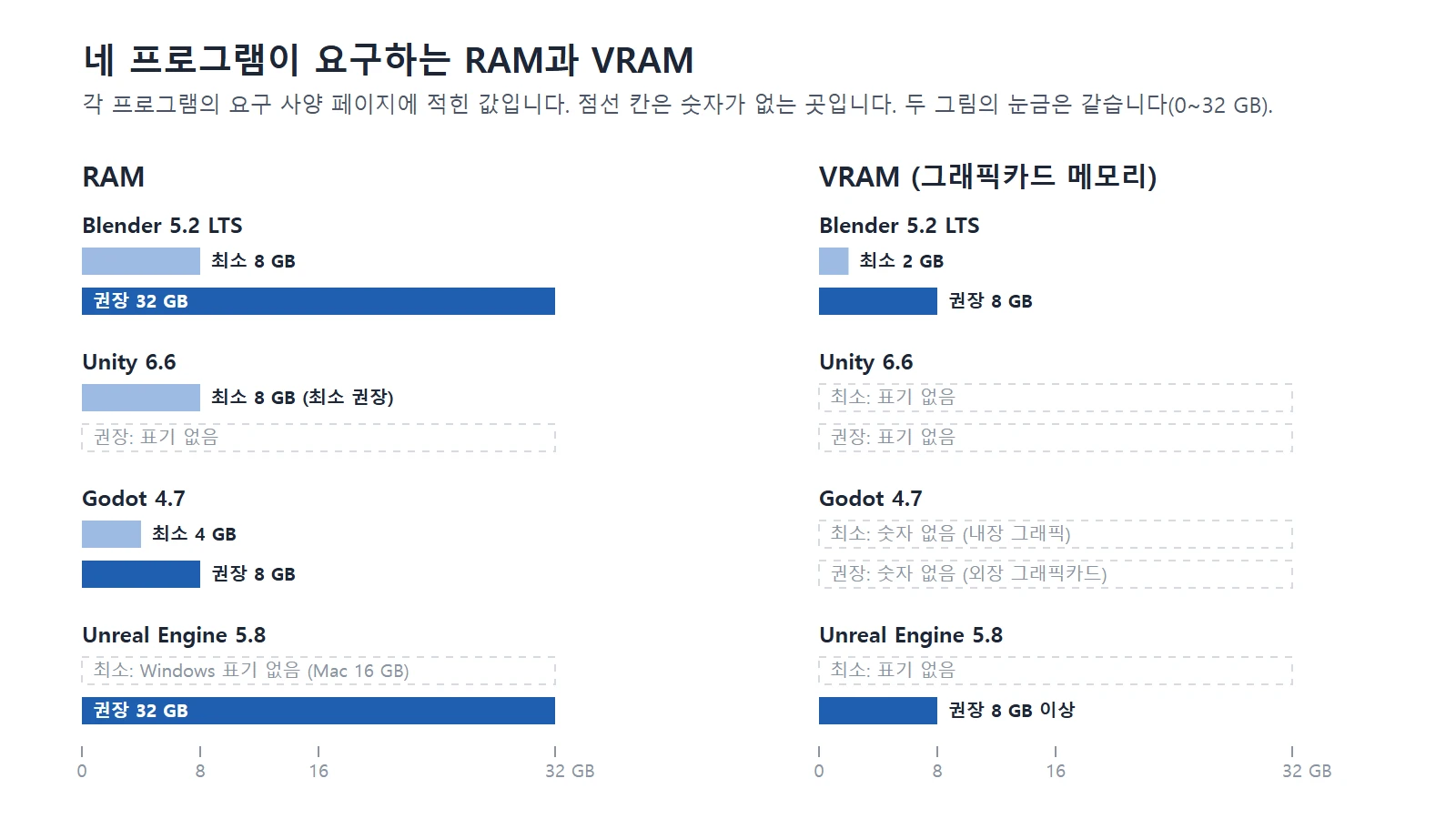 Minimum and recommended RAM and VRAM for the four programs. Both panels use the same scale (0 to 32 GB), and dashed cells are where the requirements page gives no number. (Chart, labels in Korean)
If you plan to try all four programs, aim for the highest cells: 32 GB of RAM and 8 GB of VRAM or more. If you only plan to use Godot, you can start with the computer you already have.
For the operating system, Windows 11 is recommended. Support for Windows 10 ended on October 14, 2025. Only personal devices enrolled separately in Extended Security Updates (ESU) get security updates until October 12, 2027. Devices that are not enrolled get none.
Blender: GPU and VRAM come first
In Blender, the part doing the work changes with the task.
- Modeling and moving around the viewport use the CPU and GPU together. The recommendation is 8 cores and 8 GB of VRAM.
- Cycles rendering gets faster when you give it to the GPU. In that case, the whole scene has to fit in VRAM.
- When VRAM is full, Blender tries to use regular memory (RAM) instead on NVIDIA and AMD graphics cards and on Apple Silicon. Rendering continues, but it slows down. The manual does not describe this behavior for Intel Arc graphics cards.
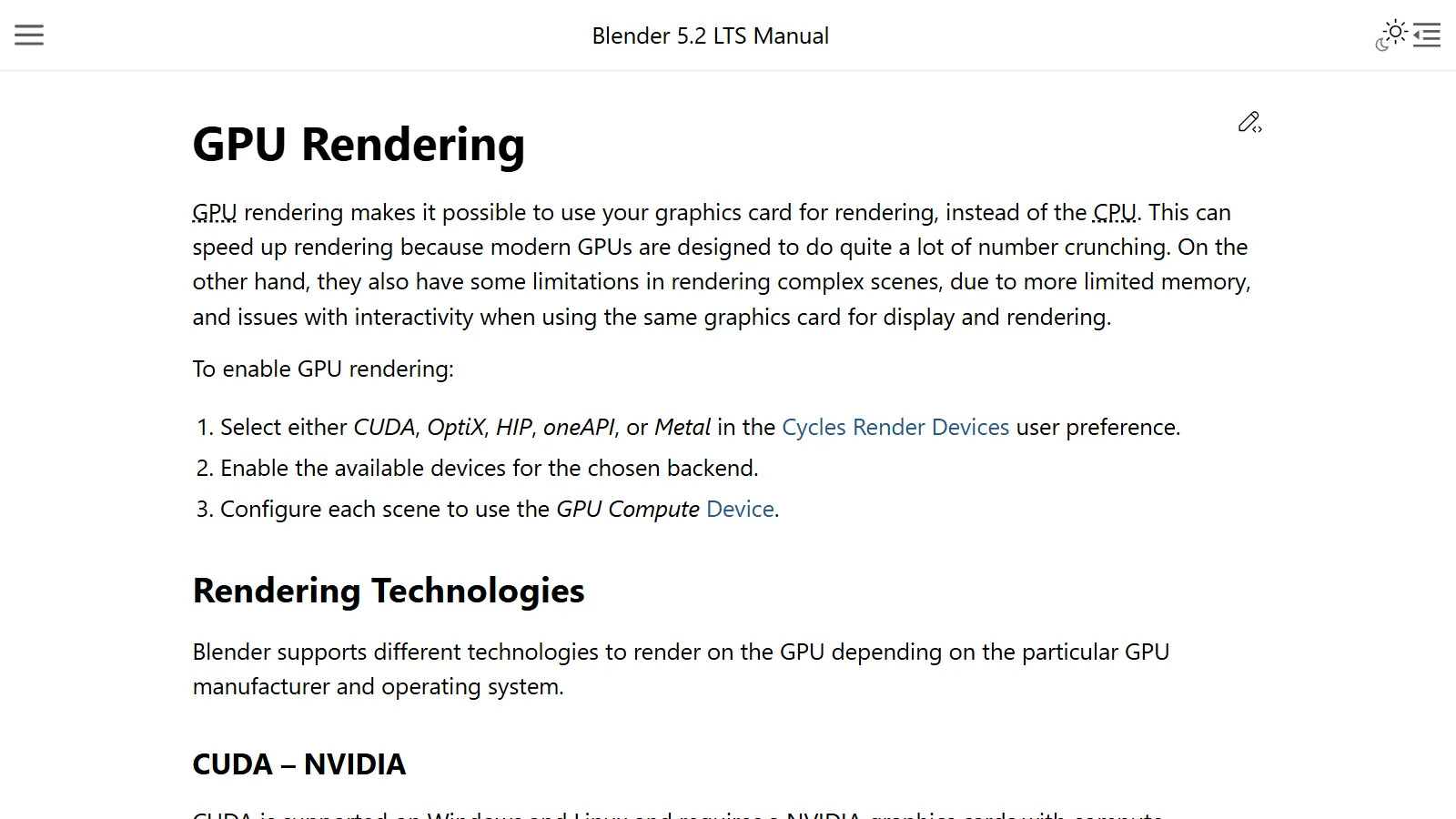
Blender uses a different path (backend) depending on the graphics card maker. NVIDIA cards use CUDA and OptiX, AMD cards use HIP, Intel Arc cards use oneAPI, and Apple Silicon Macs use Metal. Each path has its own supported card generations and driver conditions, so before you choose a card, check that it is on the list in the GPU Rendering page of the Blender manual.
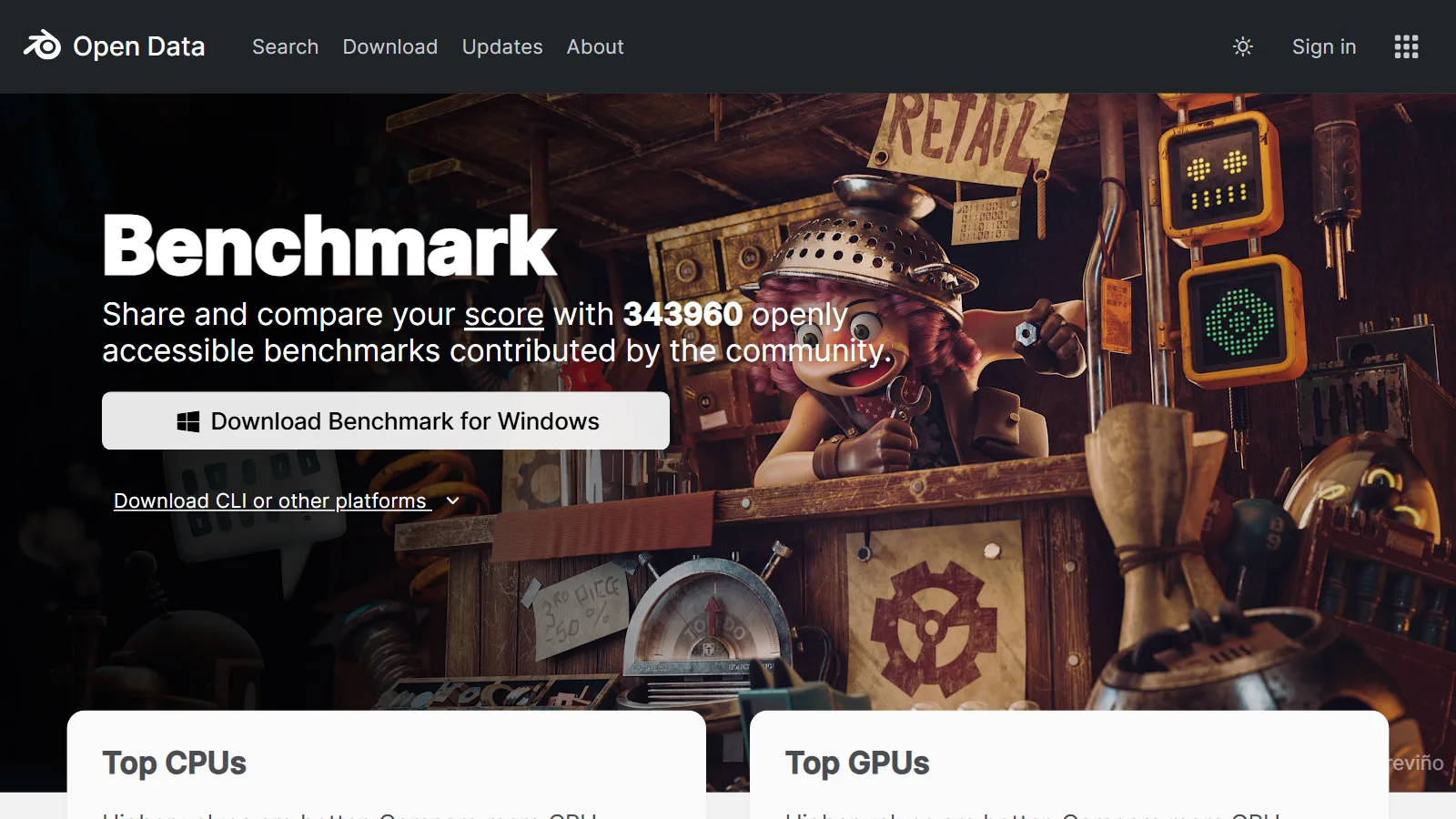
To compare rendering speed between cards, look at Blender Open Data, which is run by Blender. You can search scores measured by users on the same test scenes by device name.
Unity: a low bar, with the project setting the weight
The Unity editor asks for little. It recommends at least 8 GB of RAM and gives no VRAM number. Instead, it adds one condition: actual performance and visual quality depend on how complex your project is.
A small 2D game and a large 3D game weigh very differently, even in the same Unity. When you are starting out, think first about the size of the game you want to make, not the recommended spec sheet. For 2D or simple 3D practice, you can start at about Blender's minimum specs. If you plan to make realistic 3D scenes, following the Unreal Engine recommendations is the safer choice.
For storage, Unity recommends a disk with fast reads and writes. Read this as: keep the editor and projects on an SSD rather than an HDD.
Godot: the lightest engine of the four
Godot runs with a minimum of 4 GB of RAM and 200 MB of storage. Computers without a dedicated graphics card are included.
Godot has three ways to draw the screen (renderers), and each one needs a different level of graphics.
| Renderer | Good for | Minimum graphics |
|---|---|---|
| Forward+ | 3D for desktop | Integrated graphics that support Vulkan 1.0 |
| Mobile | Mobile devices | Integrated graphics that support Vulkan 1.0 |
| Compatibility | Older computers, the web | Integrated graphics that support OpenGL 3.3 |
The graphics card listed as a recommended example is the NVIDIA GeForce GTX 1050. It is several generations old, so any dedicated graphics card sold today is enough for Godot. If the screen is slow on an old laptop, try making the project with the Compatibility renderer.
Unreal Engine: heavy on GPU, RAM, and storage
Unreal Engine asks for the most of the four programs. The recommended specs are 32 GB of RAM, 8 GB of VRAM or more, and a DirectX 12 compatible graphics card.
Two of the main features of Unreal Engine 5 depend on the graphics card generation.
| Feature | What it does | What it needs on Windows |
|---|---|---|
| Lumen | Calculates in real time how light bounces off walls and spreads | NVIDIA RTX 2000 series, AMD RX 6000 series, Intel Arc A series, or a newer card |
| Nanite | Draws very dense models only as much as the screen needs | DirectX 12 and the latest drivers |
To try Lumen, you need a graphics card from a generation that supports ray tracing. Ray tracing is a way of calculating light by following rays.
The documentation gives no number for storage. The installer shows the space needed for the components you choose. For reference, the setup Epic describes as its standard computer for its own development has 256 GB of RAM, a graphics card with 16 GB of VRAM, and two SSDs of 2 TB and 4 TB. You do not need to copy this as a learner, but it shows how much RAM and storage this engine uses.
Specs for AI
For AI, the computer you need depends completely on "where the calculation happens."
Cloud AI: needs almost no specs
With services such as Claude and ChatGPT, the company's servers do the calculation. Your computer only sends the question, receives the answer, and shows it on screen. It is like ordering food for delivery: it does not matter if your own kitchen is small.
Take Claude Code, which you use in a terminal, as an example. Its requirements are 4 GB of RAM or more and an internet connection. It has no graphics card condition. With this approach, what matters is your internet connection and your plan, not your computer specs.
The same goes for having AI control Blender. The AI side is light, and the heavy side is Blender. In this case, choose a computer that meets Blender's specs.
Local AI: VRAM decides
Things change when you download an AI model and run it on your own computer. The model file must fit entirely in VRAM to run fast. The part that does not fit spills into RAM and is calculated by the CPU, and answers get slower by that much.
Here is a rough estimate based on the memory table for the Gemma 4 models released by Google. It uses the versions shrunk to 4 bits (Q4_0). The values are approximate and include a 20% margin for loading the model. They do not include room for the conversation or for the program itself.
| Model | Memory needed (4-bit, Google's table) | VRAM that fits it with room to spare (this guide's judgment) |
|---|---|---|
| Gemma 4 E4B | 4.5 GB | 8 GB |
| Gemma 4 12B | 6.7 GB | 12 GB (8 GB is tight) |
| Gemma 4 26B A4B | 14.4 GB | 24 GB (16 GB is tight) |
| Gemma 4 31B | 17.5 GB | 24 GB |
The third column is not a value set by Google. It lists one VRAM size larger than the second column, to leave room for the conversation.
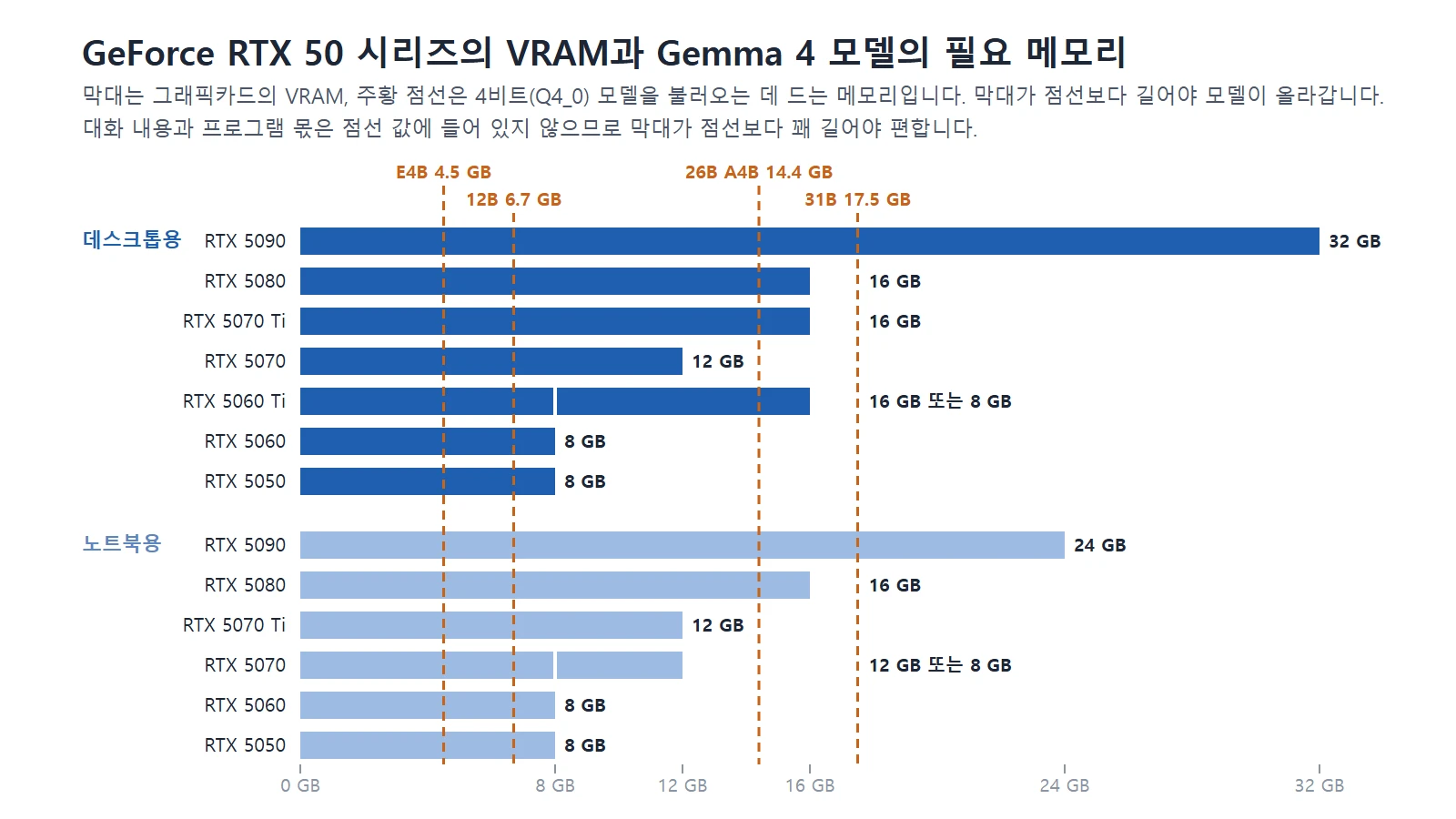 The bars are graphics card VRAM, and the orange dashed lines are the memory needed to load the 4-bit Gemma 4 models. A bar must be longer than a line for the model to fit. (Chart, labels in Korean)
If you use the same model in a less-shrunk 8-bit version, the memory needed doubles. This way of shrinking a model by storing its numbers with less precision is called quantization.
AI that makes images works the same way. ComfyUI, a widely used tool, supports NVIDIA, AMD, and Intel Arc graphics cards and Apple Silicon. The VRAM needed differs for each model you choose, so check that model's page before you download it.
If you plan to run local AI, check two more things.
- RAM: LM Studio, a program that runs models, recommends 16 GB of RAM or more and 4 GB of dedicated VRAM or more on Windows. Treat this as the starting line.
- Storage space: A single model file is several GB to tens of GB. Download a few and your drive fills up fast.
Pros and cons of a MacBook (Apple Silicon)
Apple Silicon Macs use unified memory, where the CPU and GPU share one pool of memory. It is a kitchen where the head chef and the prep team share one large work table. Unlike a Windows computer, memory is not split into "so many GB of RAM and so many GB of VRAM." One unified memory number covers both.
| Type | Details |
|---|---|
| Pro: large memory | The MacBook Pro sold today offers up to 128 GB of unified memory with the M5 Max chip. Among GeForce RTX 50 laptop graphics cards, the top model has 24 GB of VRAM. A MacBook has the advantage for loading large AI models |
| Pro: Blender support | Blender supports GPU rendering on Apple Silicon through the Metal path. Using every feature requires macOS 13 or later |
| Pro: Godot and Unity support | Both engines list Apple Silicon in their requirements |
| Con: NVIDIA-only features | CUDA and OptiX only run on NVIDIA graphics cards on Windows and Linux. AI tools or course examples built around these features cannot be followed as-is on a Mac |
| Con: Unreal Engine feature range | On Mac, Nanite has beta support on M2 or later, and Lumen with hardware ray tracing has experimental support on M2 or later. The recommended memory is 32 GB or more |
| Con: some Unity features | Some features of the older light baking system need Rosetta 2, a translation layer, to run |
| Note: memory is chosen at purchase | Unified memory is a configuration option you choose when you buy. Choosing a large amount from the start is the safer option |
Not all of the unified memory can go to an AI model. macOS and the other programs you have open use the same memory. On a 16 GB MacBook, plan for a model share smaller than that. LM Studio also recommends 16 GB of memory or more on a Mac.
Below are the memory configurations of the MacBooks sold today.
| Product | Chip | Unified memory | Good to know |
|---|---|---|---|
| MacBook Air 13 and 15 | M5 | 16 GB standard, 24 or 32 GB optional | Fanless design |
| MacBook Pro 14 | M5 | 16 GB standard, 24 or 32 GB optional | |
| MacBook Pro 14 and 16 | M5 Pro | 24 GB standard, 48 GB optional | No 32 GB configuration. 64 GB is optional with the 20-core GPU M5 Pro |
| MacBook Pro 14 and 16 | M5 Max | From 36 GB up to 128 GB | 48, 64, and 128 GB are optional with the 40-core GPU M5 Max |
The MacBook Air has no fan, so it is quiet. If you often run renders that last several hours, the MacBook Pro, which has a fan, is the recommended choice. This is not a measured speed comparison. It is a judgment drawn from the design: without a fan, the computer cannot push heat out with air.
Differences between laptops and desktops
A graphics card with the same name is a different part in a laptop and in a desktop. Copy the VRAM and power numbers from NVIDIA's comparison table, and the difference is easy to see.
| Name | Desktop VRAM | Laptop VRAM | Laptop power range |
|---|---|---|---|
| GeForce RTX 5090 | 32 GB | 24 GB | 95 to 150 W |
| GeForce RTX 5080 | 16 GB | 16 GB | 80 to 150 W |
| GeForce RTX 5070 Ti | 16 GB | 12 GB | 60 to 115 W |
| GeForce RTX 5070 | 12 GB | 12 GB or 8 GB | 50 to 100 W |
| GeForce RTX 5060 | 8 GB | 8 GB | 45 to 100 W |
| GeForce RTX 5050 | 8 GB | 8 GB | 35 to 100 W |
- The same name can come with different VRAM. The RTX 5070 Ti has 16 GB in the desktop version and 12 GB in the laptop version. Some laptop RTX 5070 products have 8 GB.
- Laptops have a wide power range. The same RTX 5060 can be in a laptop designed for 45 W or one designed for 100 W. Just as the same prep team works slower over a weak burner, a laptop designed for low power is slower even with a card of the same name.
So for a Windows laptop, check the VRAM capacity and graphics power (W) on the maker's spec sheet, along with the graphics card name. The other differences are below.
| Comparison | Laptop | Desktop |
|---|---|---|
| Long renders | Tends to hit heat and power limits | Has more cooling headroom, so it does better |
| What the price includes | Screen, keyboard, and battery come with the machine | If you buy only the computer, you need a monitor, keyboard, and mouse separately |
| Upgrading later | Depends on the product, and is often blocked | Easy to replace the graphics card, RAM, and storage separately |
| Carrying it around | Possible | Not possible |
Choosing a form: desktop, Windows laptop, or MacBook
To decide which of the three forms to buy, find your case in the table below.
| If this is you | Form that fits | What to check when buying |
|---|---|---|
| You only use it at a desk, and you do long renders, Unreal Engine, or local AI | Desktop | The graphics card's VRAM |
| You need to carry it, and you want to use Unreal Engine's Lumen and Nanite without limits or use tools that need CUDA or OptiX | Windows laptop with a dedicated graphics card (NVIDIA if you need CUDA or OptiX) | VRAM capacity and graphics power (W) |
| You carry it, and your work is mostly Blender, Godot, Unity, and cloud AI | MacBook or Windows laptop | Unified memory for a MacBook, VRAM for a Windows laptop |
| You want to carry it and load large local AI models | MacBook with a lot of unified memory | Unified memory capacity |
| You travel often and also do long renders | Split the work between a light laptop and a desktop | Plan heavy work around the desktop |
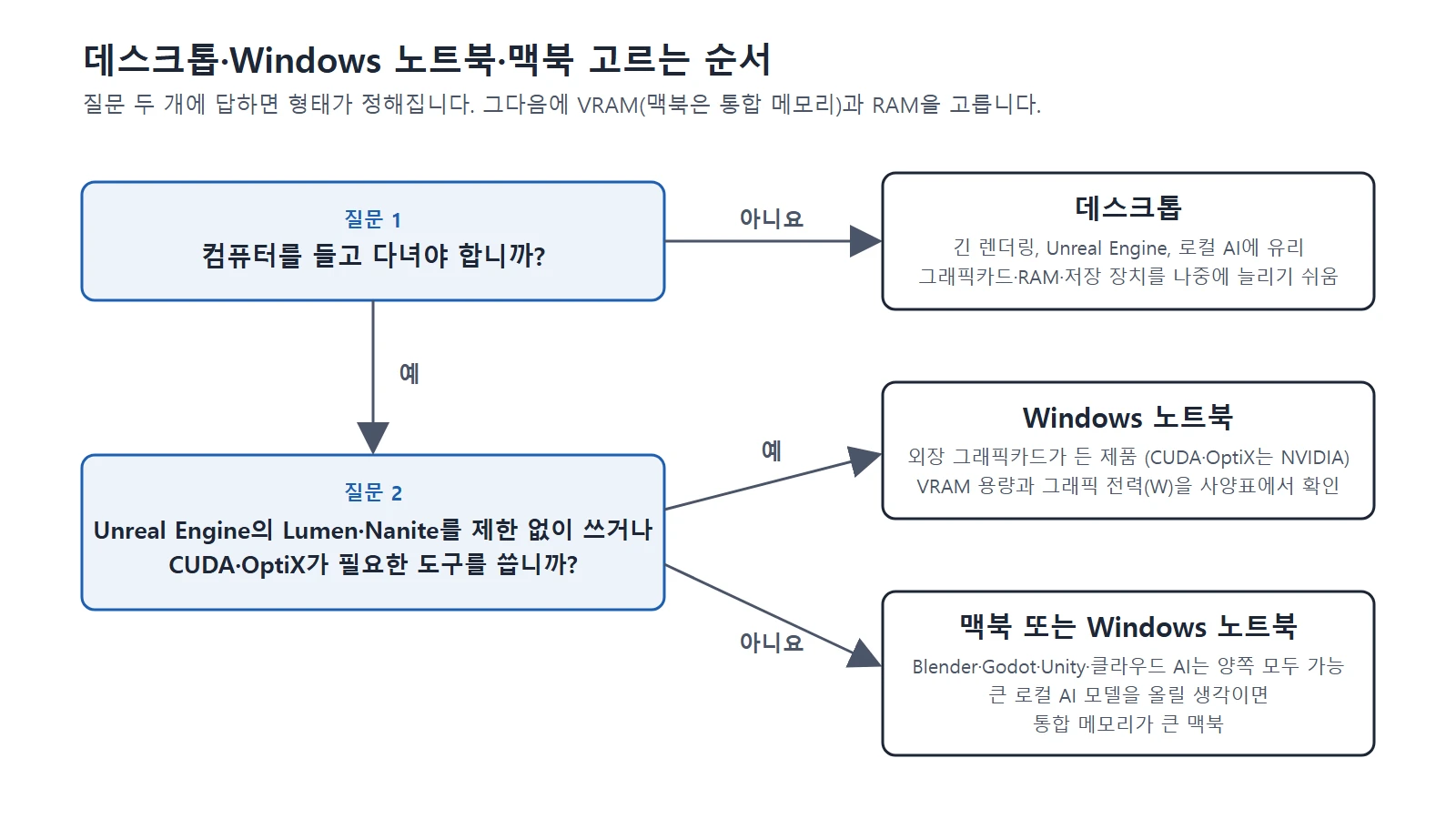 The order for choosing a form with two questions (Chart, labels in Korean)
Recommended setups by use
The table below is this guide's recommendation, based on the requirements above. The three tiers are defined by "what you want to do."
| Tier | What you want to do | CPU | RAM | VRAM | Storage |
|---|---|---|---|---|---|
| Starter | Blender modeling and short renders, Godot, Unity practice, cloud AI | 6 to 8 cores | 16 GB | 8 GB | NVMe SSD, 512 GB to 1 TB |
| Intermediate | Cycles GPU rendering, learning Unreal Engine, small local AI models | 8 cores or more | 32 GB | 8 GB or more (12 to 16 GB for headroom) | NVMe SSD, 1 TB or more |
| Serious | Long animation renders, large Unreal Engine projects, large local AI models | 8 cores or more (more helps CPU rendering) | 64 GB or more | 16 to 32 GB | NVMe SSD, 2 TB or more, with a separate work drive |
The reasons for each tier are split into values set by the programs and values set by this guide.
- Starter RAM 16 GB, VRAM 8 GB: The RAM is one step above the minimum for Blender and Unity (8 GB). It falls short of Blender's recommendation (32 GB), so it may not be enough for large scenes. The VRAM matches the recommendation for Blender and Unreal Engine (8 GB).
- Intermediate RAM 32 GB: This is the value that Blender and Unreal Engine both recommend.
- Intermediate VRAM: Unreal Engine recommends 8 GB or more, so an 8 GB card meets the recommendation. 12 to 16 GB is this guide's recommendation. That size fits a model such as Gemma 4 12B with room left for the conversation.
- Serious RAM 64 GB or more, VRAM 16 to 32 GB: This is this guide's recommendation, above what the programs recommend. It is based on keeping a large scene, a game engine, and AI tools open together, and on a model the size of Gemma 4 31B.
- CPU 6 to 8 cores and storage capacity: These are this guide's recommendations and are not in the requirement documents. The core count sits between Blender's minimum (4 cores) and recommendation (8 cores). The storage capacity is based on keeping several programs, projects, and AI model files together.
- 24 GB for a starter MacBook: This is the value given in the form table below for a MacBook that will also try Unreal Engine. It is this guide's judgment, set between the minimum (16 GB) and recommendation (32 GB) that Epic lists for Mac.
The CPU is listed by core count instead of product name. Find the core count in the cores item on Intel's and AMD's product spec sheets.
Here are the same tiers by computer form. Only products confirmed as currently sold on NVIDIA's and Apple's spec pages are listed.
| Tier | Desktop (NVIDIA examples) | Windows laptop (NVIDIA examples) | MacBook |
|---|---|---|---|
| Starter | RTX 5050 or 5060 (8 GB) | RTX 5050 or 5060 Laptop (8 GB) | MacBook Air M5, 16 GB unified memory. 24 GB or more if you also plan to try Unreal Engine |
| Intermediate | RTX 5070 (12 GB), RTX 5060 Ti or 5070 Ti (16 GB) | RTX 5070 Ti Laptop (12 GB), RTX 5080 Laptop (16 GB) | MacBook Pro M5 32 GB or M5 Pro 24 GB. To meet the Unreal Engine recommendation (32 GB or more), M5 32 GB or M5 Pro 48 GB |
| Serious | RTX 5080 (16 GB), RTX 5090 (32 GB) | RTX 5090 Laptop (24 GB). If you do many long renders, a desktop is recommended | MacBook Pro M5 Max, 36 GB or more unified memory |
Keep these points in mind when you use the table.
- The RTX 5060 Ti comes in two versions, 8 GB and 16 GB. If you are aiming for 12 to 16 GB, make sure it is the 16 GB product.
- AMD and Intel graphics cards also work. Blender supports AMD Radeon (RDNA1 generation or later) and Intel Arc (A and B series). However, AI tools have different support conditions for each graphics card maker, so first check that the tool you want to use supports your card.
- For used or previous-generation cards, the criteria are the same. Check the VRAM capacity, whether it is from a generation that supports ray tracing, and whether it is on the support list of the programs you want to use.
What to check before you buy
- Decide on the heaviest program. If you plan to use Unreal Engine, its recommended specs are the standard. If Godot and Blender modeling are all you need, the starter tier is enough.
- Decide where to run AI. If you only use cloud AI, you do not need higher specs for AI. If you plan to run local AI, first look up the memory needs of the model you want to run.
- Decide on the form. Find your case in the "Choosing a form" table above.
- Choose the VRAM (unified memory for a MacBook) first. It is the hardest part to upgrade later.
- Choose the RAM and storage. A desktop can be upgraded later, so if your budget is tight, leave these for later. For a laptop, check on the spec sheet whether it can be upgraded.
- For a laptop, check the graphics power (W) and VRAM on the maker's spec sheet.
- Open each program's requirements page again right before you buy. Conditions change when versions go up.
Common misunderstandings
- "If I meet the minimum specs, it will be comfortable to use." Minimum specs are the line where the program starts. The line for comfortable work is the recommended specs.
- "A MacBook is no good for 3D." Blender, Godot, and Unity support Apple Silicon. The limits are in some Unreal Engine features and in NVIDIA-only features.
- "With plenty of RAM, it is fine if VRAM runs short." On NVIDIA and AMD graphics cards and on Apple Silicon, Blender moves the overflow into RAM, but it gets slower. With local AI, the overflow is calculated by the CPU and also gets slower. One cannot replace the other.
Summary
| Remember | One-line summary |
|---|---|
| Program to plan around | Match the heaviest one (Unreal Engine), and the rest is covered |
| Godot | Minimum 4 GB of RAM, and you can start with integrated graphics |
| Local AI | Whether the model fits entirely in VRAM (unified memory for a MacBook) |
| Laptop | Check the graphics card name + VRAM + power (W) |
| Part to choose first | VRAM (unified memory for a MacBook), which is hard to upgrade later |
References
Requirements and products for sale change often, so open each page again before you buy.
- Blender, System Requirements — https://www.blender.org/download/requirements/
- Blender 5.2 LTS Manual, GPU Rendering — https://docs.blender.org/manual/en/latest/render/cycles/gpu_rendering.html
- Blender Open Data — https://opendata.blender.org/
- Unity 6.6 Manual, System requirements for Unity — https://docs.unity3d.com/Manual/system-requirements.html
- Godot Engine 4.7 documentation, System requirements — https://docs.godotengine.org/en/stable/about/system_requirements.html
- Epic Games, Hardware and Software Specifications for Unreal Engine (5.8) — https://dev.epicgames.com/documentation/en-us/unreal-engine/hardware-and-software-specifications-for-unreal-engine
- Epic Games, macOS Development Requirements for Unreal Engine (5.8) — https://dev.epicgames.com/documentation/en-us/unreal-engine/macos-development-requirements-for-unreal-engine
- Epic Games, Install Unreal Engine — https://dev.epicgames.com/documentation/en-us/unreal-engine/install-unreal-engine
- NVIDIA, GeForce graphics card comparison (desktop) — https://www.nvidia.com/en-us/geforce/graphics-cards/compare/
- NVIDIA, GeForce laptop GPU comparison — https://www.nvidia.com/en-us/geforce/laptops/compare/
- Apple, MacBook Air tech specs — https://www.apple.com/kr/macbook-air/specs/
- Apple, MacBook Air overview (fanless design) — https://www.apple.com/kr/macbook-air/
- Apple, MacBook Pro tech specs — https://www.apple.com/kr/macbook-pro/specs/
- Anthropic, Claude Code setup documentation (System requirements) — https://code.claude.com/docs/en/setup
- Google AI for Developers, Gemma 4 model overview (Inference Memory Requirements) — https://ai.google.dev/gemma/docs/core
- LM Studio Docs, System Requirements — https://lmstudio.ai/docs/app/system-requirements
- ComfyUI Docs, System Requirements — https://docs.comfy.org/installation/system_requirements
- Microsoft, Windows 10 end of support — https://www.microsoft.com/en-us/windows/end-of-support