Letting Claude Code work in Unreal Engine 5.8 with the MCP plugin: from enabling the experimental feature to placing three cubes
Enable the Unreal MCP plugin that arrived in Unreal Engine 5.8 as an experimental feature, connect Claude Code, get a summary of the level, and have it place three cubes. It also covers what to watch out for with an experimental feature and how to undo changes.
한국어English
ON THIS PAGE
Based on: Unreal Engine 5.8 (screenshots, Korean interface), the Unreal MCP plugin 1.0 (experimental), Claude Code 2.1.316, and Epic's official page "Unreal MCP in Unreal Editor". Checked in November 2026. All pictures are real screens from a laptop with an 8 GB graphics card. The red numbers and boxes were added to explain them. The editor in the pictures shows the Korean interface, so the English menu names are given in the text.
Unreal Engine 5.8 ships with an official plugin that lets AI connect straight to the editor. The release notes heading is "MCP Server (Experimental)", and the plugin's display name is Unreal MCP. The release notes say it "enables agentic AI systems to connect to the Unreal Editor".
MCP (Model Context Protocol) is a common standard for plugging tools into AI. Just as one plug shape lets any appliance use the same socket, any AI app that supports MCP connects to Unreal the same way. The full idea is in What is MCP?. If you have read this site's Blender MCP guide (Connecting the official Blender MCP to Claude Code), this is the same idea moved to Unreal.
This plugin is an experimental feature. The official page says to use caution when shipping with it, and notes that the server has no authentication layer, so it is not safe to expose it beyond your own computer. This guide therefore assumes you only follow along in a practice copy of a project.
By the end of this guide you will be able to:
- Enable the Unreal MCP and All Toolsets plugins.
- Start the MCP server automatically and check its address and port.
- Create the settings file Claude Code reads (
.mcp.json). - Get a level summary from Claude Code and have it place cubes.
- Undo what the AI changed and use the experimental feature safely.
1. How the pieces fit
| Piece | What it does | Restaurant comparison |
|---|---|---|
| Claude Code | Understands your request and decides which tool to use | The waiter taking orders |
| Unreal MCP server (inside the editor) | Turns the AI's tool requests into editor actions | The kitchen counter |
| Toolsets (All Toolsets) | The actual features, such as placing actors or moving the camera | The cooking tools |
| Unreal Editor | Actually changes the level | The kitchen |
According to the official page, Unreal MCP itself is only the server, and the actual tools come from toolset plugins. That is why you enable both plugins. The server opens only inside your computer at http://127.0.0.1:8000/mcp. 127.0.0.1 is the address that means "this computer itself".
2. Preparation: a practice project
Starting point: Unreal Engine 5.8 installed from the Epic Games Launcher.
Steps:
- Start Unreal Engine 5.8 from the launcher and create a new project. Give it a name that marks it as practice, such as
UEDemo. - If you want to test with a project you are already working on, copy the whole project folder first and use the copy.
The pictures in this guide were taken on the default open world level, with wide terrain already in place. Depending on the template and level you pick, the number of actors on your screen may differ from the pictures.
On a laptop with an 8 GB graphics card, close other heavy programs (Blender, games, and so on) before you start. On my PC, one editor with the default level open used about 4.2 GB of memory.
3. Enable two plugins
Starting point: the practice project open in the editor.
Steps:
- Choose Edit ‣ Plugins from the top menu (② in Figure 1).
- Type
Unreal MCPinto the search field of the Plugins window. Tick the checkbox on the Unreal MCP row (① in Figure 2). An Experimental tag sits next to the name (② in Figure 2). - Clear the search field, type
All Toolsets, and tick the All Toolsets row too (Figure 3). - Restart the editor when asked.
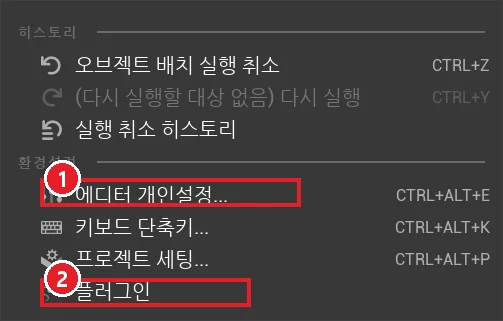 Figure 1. The Edit menu (Korean interface). ① Editor Preferences ② Plugins. The picture was taken after the AI placed the cubes, so an undo entry shows at the top (Unreal Editor screenshot)
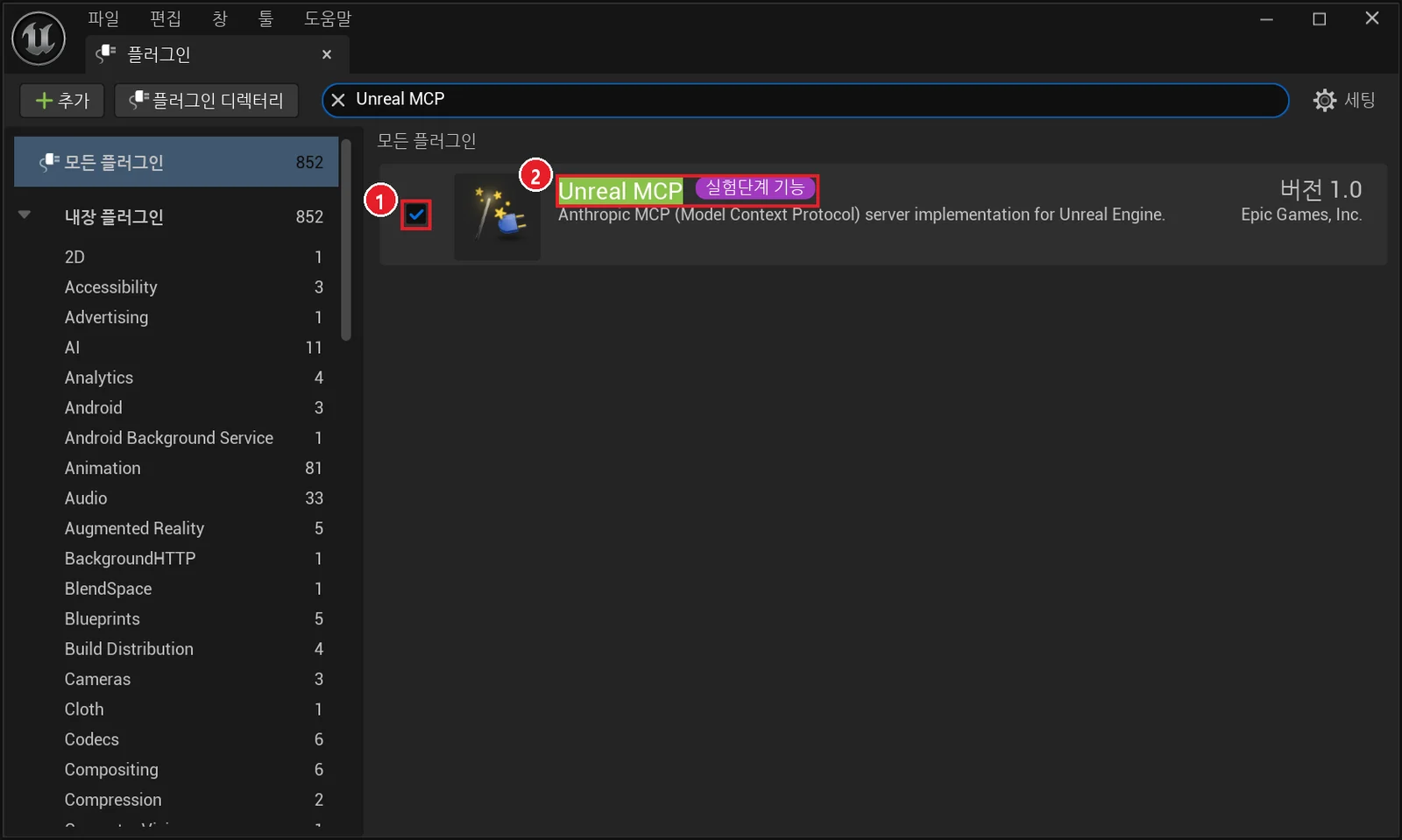 Figure 2. The Unreal MCP plugin (Korean interface). ① Enable checkbox ② Name and Experimental tag (Unreal Editor screenshot)
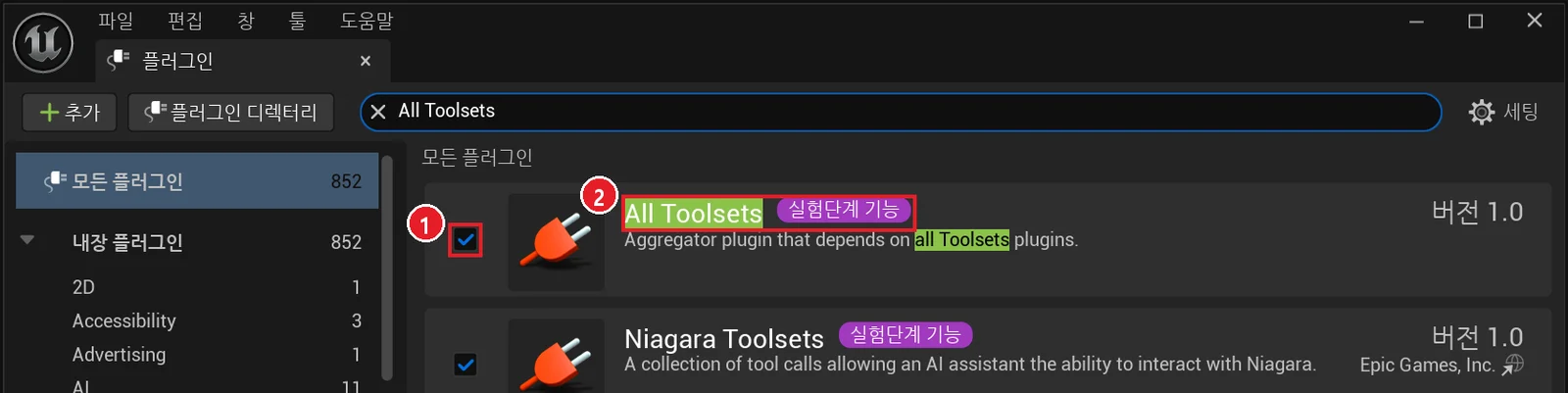 Figure 3. The All Toolsets plugin (Korean interface). ① Enable checkbox ② Name. Enabling All Toolsets turns on the toolset plugins it depends on (Unreal Editor screenshot)
All Toolsets turns on many toolset plugins at once. The official page says you can also enable only the toolsets you need. At first it is easier to understand if you turn them all on.
4. Start the MCP server
Starting point: the editor restarted with both plugins enabled.
Steps:
- Open Edit ‣ Editor Preferences (① in Figure 1).
- In the list on the left, choose Model Context Protocol under General (① in Figure 4).
- Check that Server URL Path is
/mcpand Server Port Number is8000(② in Figure 4). - Turn on Auto Start Server (③ in Figure 4). From now on the server starts every time the editor opens.
- To start it right now, type
ModelContextProtocol.StartServerinto the console field at the bottom of the editor (default key`) and pressEnter.
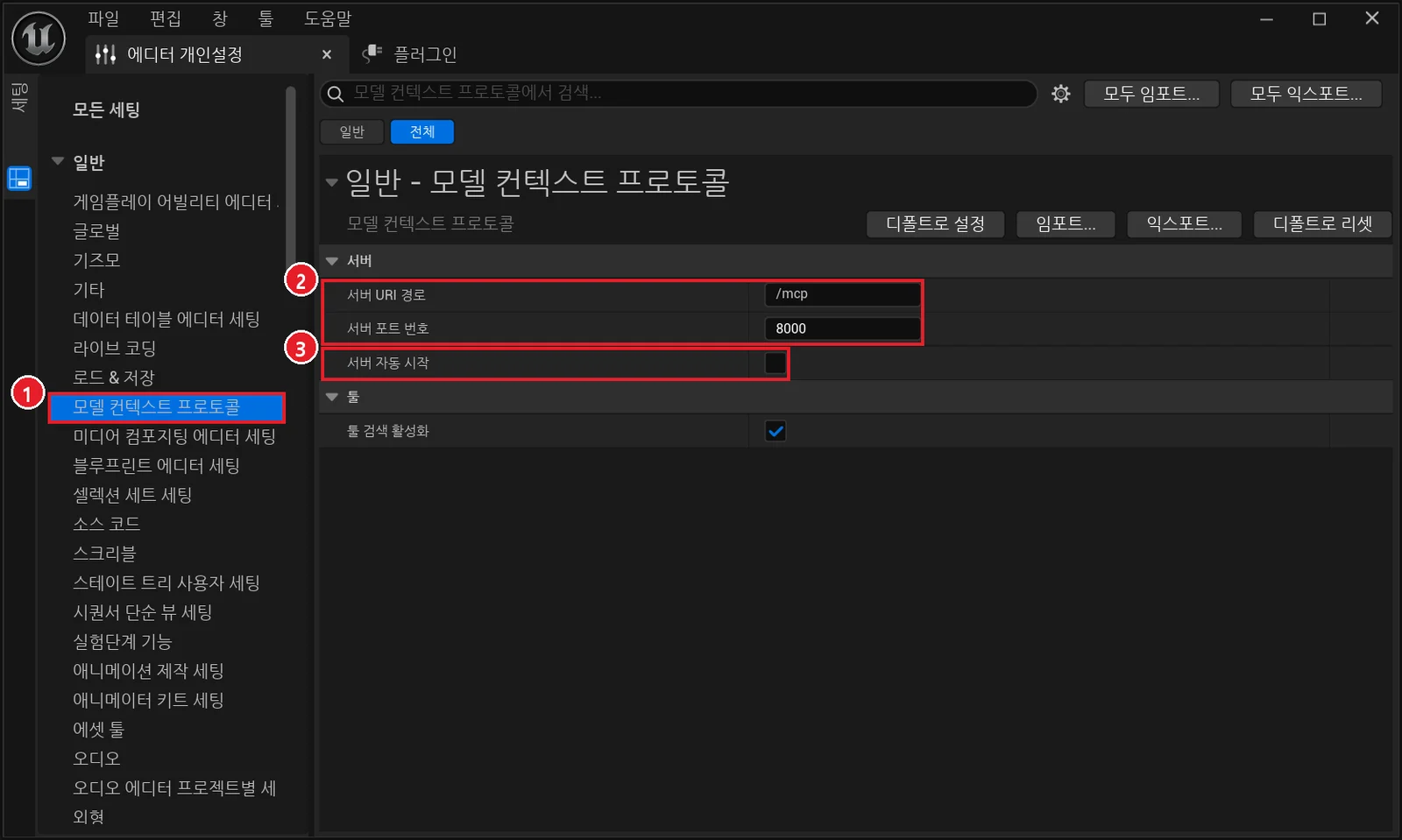 Figure 4. MCP server settings (Korean interface). ① Model Context Protocol ② Path /mcp and port 8000 ③ Auto Start Server. The picture shows the screen before auto start was turned on (Unreal Editor screenshot)
When the server starts, the Output Log shows this line:
LogModelContextProtocol: Starting MCP server on port 8000 (override with -ModelContextProtocolPort=N).
If another program already uses port 8000, change the port number in Figure 4. Leave Enable Tool Search below it turned on. With it on, the server does not show hundreds of tools at once. It offers three tools, list_toolsets, describe_toolset, and call_tool, and finds what it needs through them. It is like reading the index of a big toolbox instead of dumping everything on the floor, so the AI has less text to read.
5. Create the Claude Code settings file
Starting point: the editor with the server running.
Steps:
- Type the line below into the console field and press
Enter. According to the official page, this writes a.mcp.jsonfile in the project folder (where the.uprojectfile is).
ModelContextProtocol.GenerateClientConfig ClaudeCode
- Open
.mcp.jsonin the project folder with Notepad and check that it looks like this.
{ "mcpServers": { "unreal-mcp": { "type": "http", "url": "http://127.0.0.1:8000/mcp" } } }
Put Cursor, VSCode, Gemini, or Codex in place of ClaudeCode to write a settings file for another AI app, or All to write them all. A file you write by hand works the same if the content is the same. This server supports HTTP only (including SSE), not the command-line (stdio) connection method or WebSocket. SSE (Server-Sent Events) is an HTTP method where the server keeps the connection open and keeps sending updates.
If you have not installed Claude Code yet, see Claude Code basics first. You can also register the server with one command: run claude mcp add --transport http unreal-mcp http://127.0.0.1:8000/mcp in the project folder.
6. First request: a level summary
Starting point: the editor running, in the project folder that holds .mcp.json.
Steps:
- Make sure the editor is running first. The official page says that if the connection fails, start the AI app after the editor.
- Open a terminal, move to the project folder, and run
claude. If it asks whether to use this folder's MCP server, allow it. - Ask as below. For the first request, add do not change anything, so it only reads.
Using the unreal-mcp tools connected to the Unreal Editor, briefly summarize what kinds of actors are in the open level and how many of each. Don't change anything. (translated from Korean)
On my PC, the start of the answer Claude Code gave was:
The open level is a new, unsaved level (/Temp/Untitled_1), and 145 actors are loaded in memory right now.
I did not change the level; I only looked it up.
- LandscapeStreamingProxy (landscape pieces, 8×8): 64
- HLOD0_Instancing (automatically created HLOD actors): 64
- Lighting and environment: DirectionalLight, SkyLight, SkyAtmosphere, ExponentialHeightFog, VolumetricCloud, 1 each
- Actors the engine places automatically (WorldSettings, Brush, and so on): 9
Summary: it is the default open world template as is.
(translated from Korean)
The Outliner showed 138 (Figure 5), but the AI answered 145. The AI appears to have also counted engine actors that the Outliner does not show clearly, such as WorldSettings. When the AI's number and the screen's number differ, ask again what it counted.
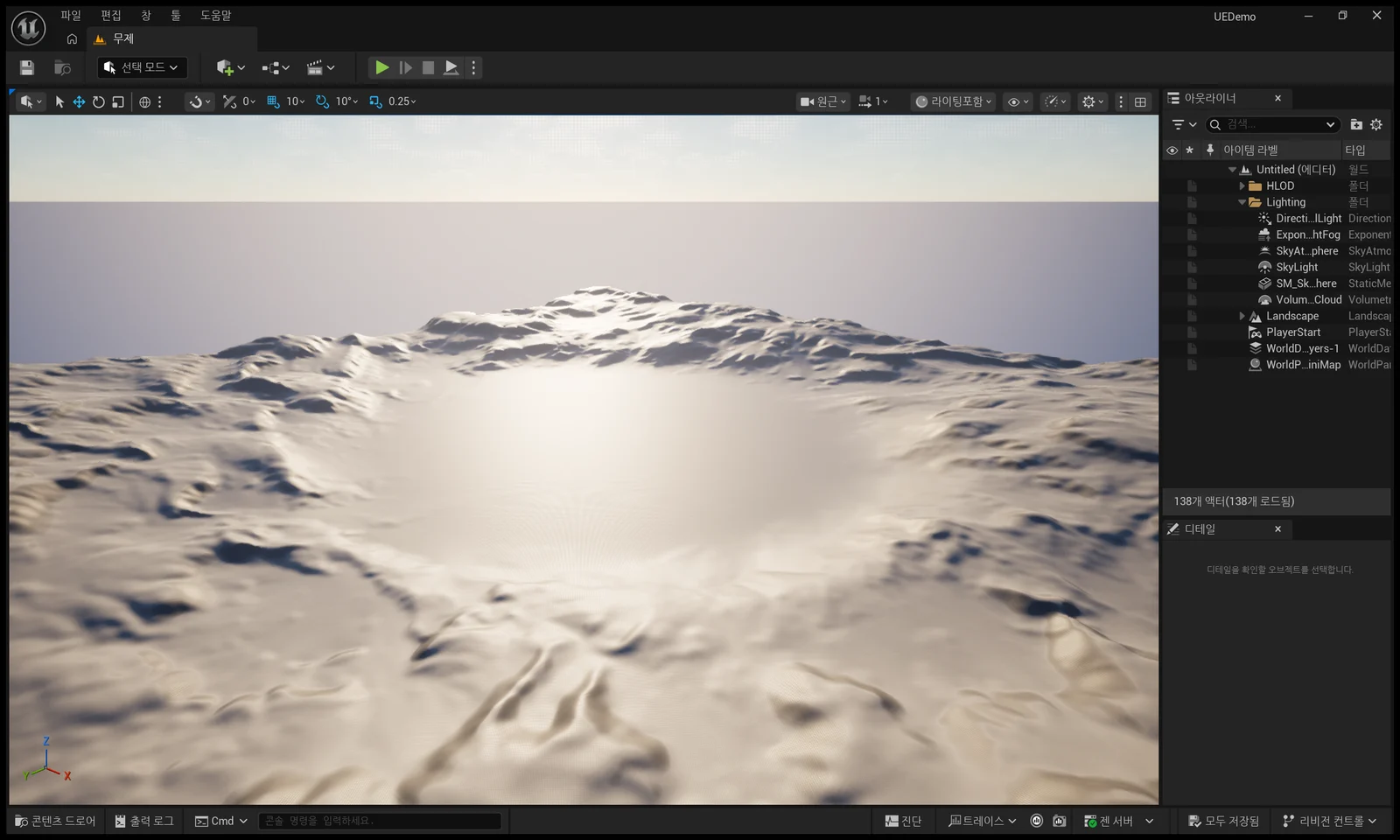 Figure 5. The level before giving the AI any work (Korean interface) (Unreal Editor screenshot)
7. Second request: place three cubes
Starting point: the Claude Code screen after the level summary.
Steps:
- Ask as below. Say what to place, where, how many, what to name them, and not to save.
Using the unreal-mcp tools, place three engine basic cubes (/Engine/BasicShapes/Cube) in a row 1 m apart on the ground in the middle of what the current level camera sees, name them AI_Cube_1 to 3, then move the viewport camera so all three cubes are clearly visible. Don't save the level. When you're done, tell me what you did in three lines. (translated from Korean)
- Look at the editor. Check that three cubes were placed, the camera moved, and AI_Cube_1 to 3 appear in the Outliner (Figure 6).
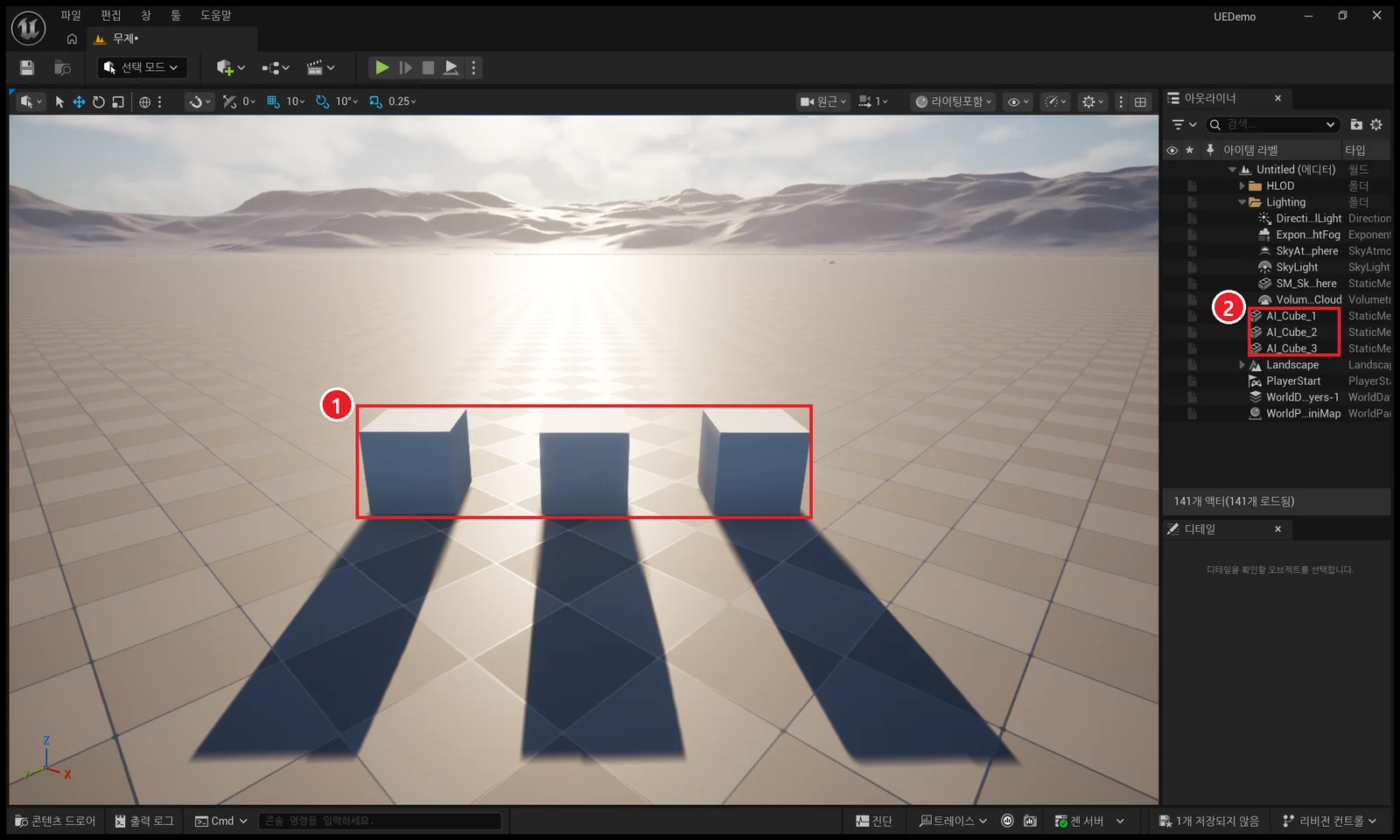 Figure 6. After the AI's changes (Korean interface). ① The three placed cubes ② AI_Cube_1 to 3 in the Outliner (Unreal Editor screenshot)
The answer on my PC said it placed the three cubes where the middle of the original camera view met the ground, left 1 m of space between the cubes (2 m between centers), and asked me to say so if I had meant the cubes to touch. It read "1 m apart" as the gap between cubes. The basic cube is 1 m on each side, so the centers ended up 2 m apart. When a request can be read two ways, spell it out, for example "1 m between centers".
8. Undo and safety checks
The cubes the AI placed go into the undo history just like your own edits. "Undo object placement" at the top of the Edit menu in Figure 1 is that record. If you do not like the result, press Ctrl+Z.
| Check | Why |
|---|---|
| Work in a practice copy of the project | It is experimental and may behave unexpectedly |
| Put "don't save" in requests, and save yourself after checking | So a person reviews the changed level before keeping it |
| Never open the server port beyond your computer | The server has no authentication (official page) |
| Make the first request read-only | To see what the AI sees first |
| Turn the server off when you are not using it | Console: ModelContextProtocol.StopServer |
General safety habits for handing a 3D program to AI are covered in more detail in Safety checks before letting AI work in Blender. They apply to Unreal as well.
When you get stuck
| Symptom | Cause | Fix |
|---|---|---|
| Claude Code cannot find the unreal-mcp tools | Claude Code started before the editor, or from another folder | Start the editor first, then run claude again in the folder with .mcp.json |
| No Starting MCP server line in the Output Log | Auto start is off | Turn on Auto Start Server as in section 4, or use StartServer in the console |
| Tools show up but can do almost nothing | All Toolsets (or the toolsets you need) is not enabled | Enable All Toolsets as in section 3 and restart the editor |
| The server does not start and reports a port error | Another program uses port 8000 | Change the port number in Figure 4 and update the address in .mcp.json to match |
| The editor becomes very slow | The heavy default level and other programs share memory | Close other programs and test in a light empty level |
| The AI saved the level | The request did not say not to save | Go back to the copy of the project, start over, and add "don't save" from the next request on |
Summary
Enable Unreal MCP + All Toolsets, turn on Auto Start Server (127.0.0.1:8000/mcp), run GenerateClientConfig ClaudeCode in the console, start the editor first and run claude in the project folder, and only work in a copy, with a person doing the saving.
References
- Epic Games, Unreal MCP in Unreal Editor: https://dev.epicgames.com/documentation/en-us/unreal-engine/unreal-mcp-in-unreal-editor
- Unreal Engine 5.8 release notes (MCP Server, Experimental): https://dev.epicgames.com/documentation/en-us/unreal-engine/unreal-engine-5-8-release-notes
- Claude Code docs, MCP: https://code.claude.com/docs/en/mcp
- Console commands:
ModelContextProtocol.StartServer,ModelContextProtocol.StopServer,ModelContextProtocol.GenerateClientConfig ClaudeCode - Shortcuts: undo
Ctrl+Z, console field` - Pictures: all real Unreal Engine 5.8 screens (practice project). The AI answers are excerpts of what Claude Code actually returned