Turning one character image into video with Wan 2.1: open-source image-to-video vs OpenAI
How the open-source video model Wan 2.1 turns one character image into a short clip, the official ComfyUI steps, and how much graphics card memory it needs. A table compares it with OpenAI, which has shut down its video service.
한국어English
ON THIS PAGE
- 011. Wan 2.1 at a glance
- 022. What image-to-video (I2V) means
- 033. Graphics card memory and time
- 044. Steps to turn a character image into video with ComfyUI
- 055. Which character image to use
- 066. Why you should not use photos of real people
- 077. Where OpenAI stands now
- 088. Wan 2.1 vs OpenAI
- 099. Versions after Wan 2.1
- 1010. If your graphics card has 8 GB
- 11Practice
- 12Common mistakes and fixes
- 13Summary
- 14Read next
- 15References
Based on: the official Wan 2.1 and 2.2 repositories and model cards, the official ComfyUI Wan 2.1 tutorial, OpenAI developer docs (deprecations, pricing, image generation guide), and the OpenAI usage policies. Checked in October 2026. All images are real screenshots of official pages. All time and memory figures come from official material.
Wan 2.1 is a video AI that anyone can download and run on their own computer. Give it one character image and a sentence like "waves and smiles", and it makes a clip a few seconds long in which that image moves. There is no usage fee, and your image never leaves your computer.
The next question is how this differs from the tools of OpenAI, the company behind ChatGPT. OpenAI shut down its video service Sora in 2026, and the OpenAI API (its developer docs and pricing page) no longer lists any model that makes video. What the API offers now stops at making and editing images.
This post explains what Wan 2.1 is, how one character image becomes a video, how much graphics card memory you need, why you should not use photos of real people, and how this compares with OpenAI. The basic idea behind AI video is covered in AI video generation basics.
1. Wan 2.1 at a glance
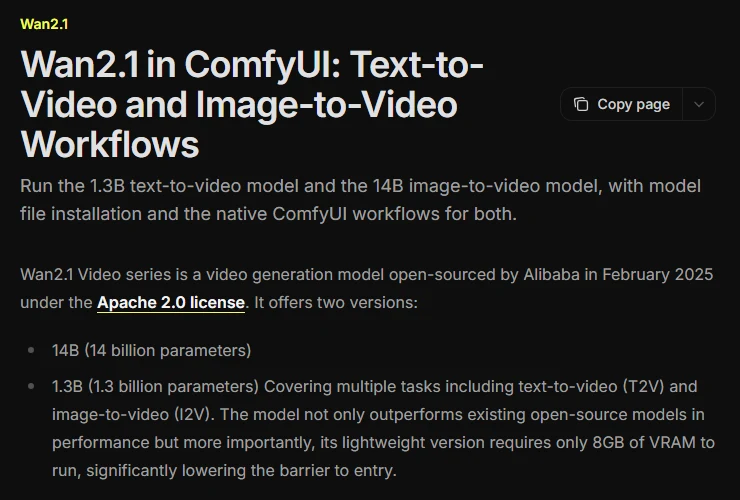 Figure 1. The first paragraph of the official ComfyUI tutorial, saying Alibaba released the model in February 2025 under the Apache 2.0 license (ComfyUI official docs screenshot)
Wan 2.1 is a video generation model. Alibaba's Wan team released its model files and code on February 25, 2025. Figure 1 is the first paragraph of the official ComfyUI tutorial, which says so.
| Item | Details |
|---|---|
| Made by | Alibaba's Wan team (GitHub Wan-Video, Hugging Face Wan-AI) |
| Released | Model and code on February 25, 2025; ComfyUI support on February 27 |
| License | Apache 2.0 (an open-source license that allows commercial use) |
| Model sizes | 1.3B (1.3 billion numbers) and 14B (14 billion numbers) |
| Image to video | Two 14B models: one for 480P, one for 720P |
| Text to video | 1.3B (480P), 14B (480P and 720P) |
| Other | Filling in between a first and last frame (FLF2V, 720P), video editing (VACE) |
The model size (1.3B, 14B) is the count of numbers inside the model. B stands for billion. More numbers means the model can draw more kinds of scenes, but it also uses more graphics card memory (section 3).
Apache 2.0 is a license that lets you use, change, and sell work made with the code and model. The Wan 2.1 repository adds a line saying the team claims no rights over the content you generate. The same paragraph also draws lines. You must not share content that breaks the law, harms people or groups, spreads personal information to cause harm, or spreads misinformation. You are responsible for how you use the model.
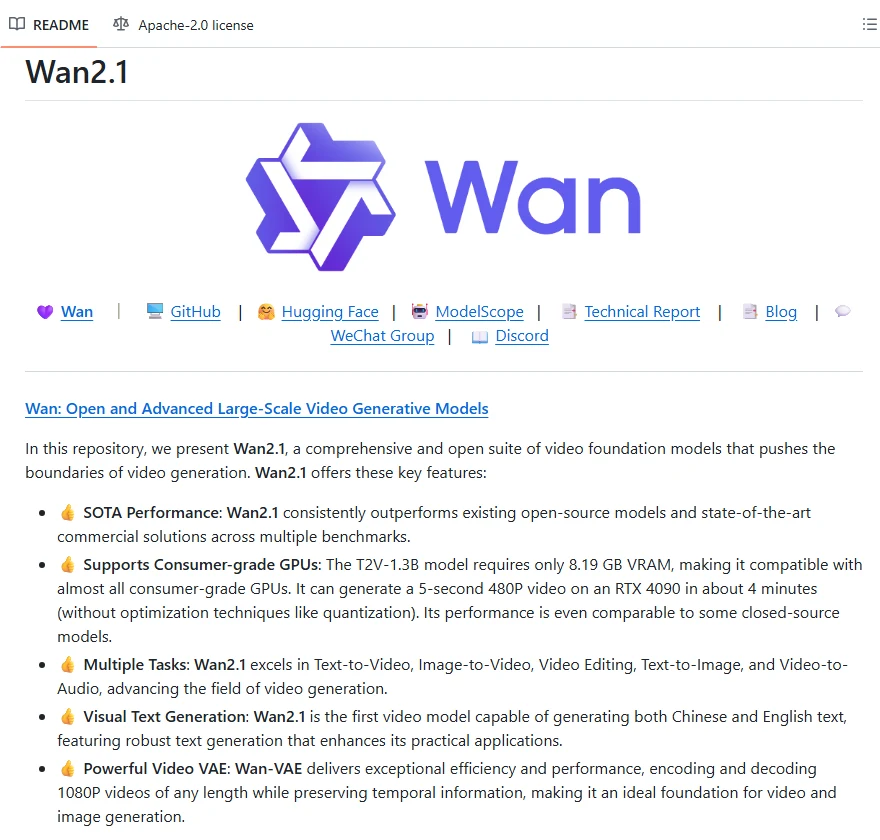 Figure 2. The feature list in the official Wan 2.1 repository. The second item is about graphics card memory (GitHub Wan-Video/Wan2.1 screenshot)
Figure 2 is the feature list on the first screen of the official repository. The second item says the T2V-1.3B model needs only 8.19 GB of VRAM and makes a 5-second 480P video on an RTX 4090 in about 4 minutes. These numbers are for the 1.3B text-to-video model. The only image-to-video models are 14B, which are much heavier. Section 3 covers this. The ComfyUI page in Figure 1 lists I2V under the 1.3B model, but the model table in the official Wan repository has only text-to-video and video editing (VACE) at 1.3B. This post follows the official repository.
2. What image-to-video (I2V) means
Image-to-video, or I2V, takes one image as the first frame and lets the AI draw the next few seconds of motion. It is like a flip book: you draw the first page, and the AI fills in the rest.
 Figure 3. The Hugging Face page of the 480P image-to-video model. The tags include Image-to-Video and License: apache-2.0 (Hugging Face screenshot)
Figure 3 is the Hugging Face page of the 480P image-to-video model. The tags under the name show Image-to-Video and the license. Hugging Face is a site where people share AI model files.
Wan 2.1 image-to-video takes three inputs.
- The first image becomes the first frame. It sets the character's face, clothes, and background.
- The prompt (a written instruction) says what moves and how.
- The size and length set the video's area and number of frames.
How you set size and length depends on the tool.
- Official command-line code (
generate.py): the size value means the area of the video, and the aspect ratio follows the input image. The official example code saves 81 frames at 16 frames per second (16 fps). 81 divided by 16 is about 5 seconds. That is where the "5-second video" in section 1 comes from. - ComfyUI (section 4): you set width and height yourself. The official workflow defaults are 768×768, a length of 33 frames, saved at 16 fps. Run it as is and you get a square clip of about 2 seconds.
3. Graphics card memory and time
The model runs fastest when all of it sits in graphics card memory (VRAM) while it draws. If VRAM is short, the model has to be moved in and out in pieces, which slows things down. More on this in What VRAM means: why graphics card memory matters.
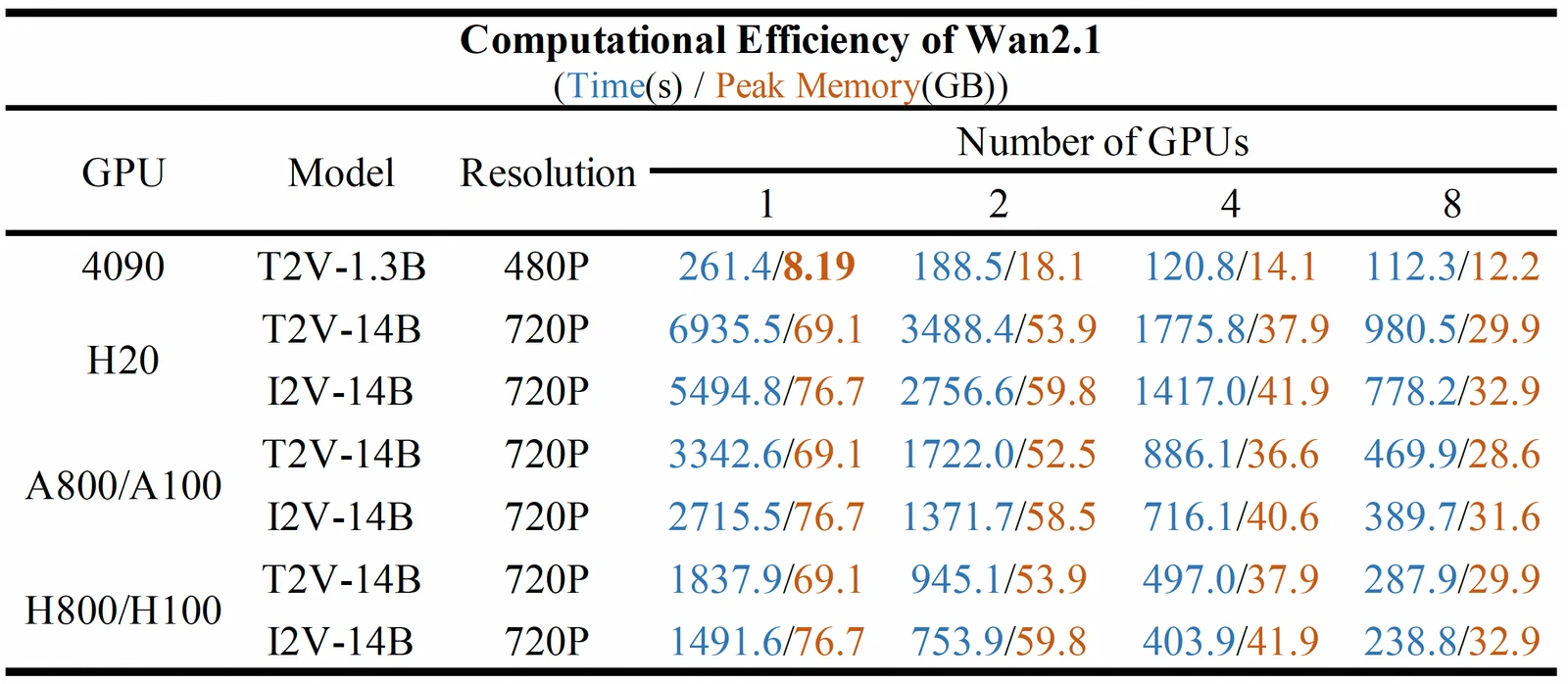 Figure 4. The efficiency table in the official Wan 2.1 repository. Each cell is "time (seconds) / peak memory (GB)" (official image from the GitHub Wan-Video/Wan2.1 repository)
The Wan team measured the numbers in Figure 4 themselves. The table is in the "Computational Efficiency on Different GPUs" section of the README. In each cell, the first number is the time in seconds and the second is the peak memory in GB.
| Case (official table) | Time | Peak memory |
|---|---|---|
| 1× RTX 4090, text-to-video 1.3B, 480P | 261.4 s (about 4 min) | 8.19 GB |
| 1× H100, image-to-video 14B, 720P | 1491.6 s (about 25 min) | 76.7 GB |
| 1× A100, image-to-video 14B, 720P | 2715.5 s (about 45 min) | 76.7 GB |
| 8× H100, image-to-video 14B, 720P | 238.8 s (about 4 min) | 32.9 GB per GPU |
The H100 and A100 are data center graphics cards. The single-GPU 14B numbers were measured with a setting that moves part of the model off the graphics card for a while (--offload_model True). Even so, it used 76.7 GB. Home graphics cards usually have 8 to 24 GB, so at 720P, the official code as written is hard to run for 14B image-to-video on a home computer. The official table has no 480P image-to-video figures.
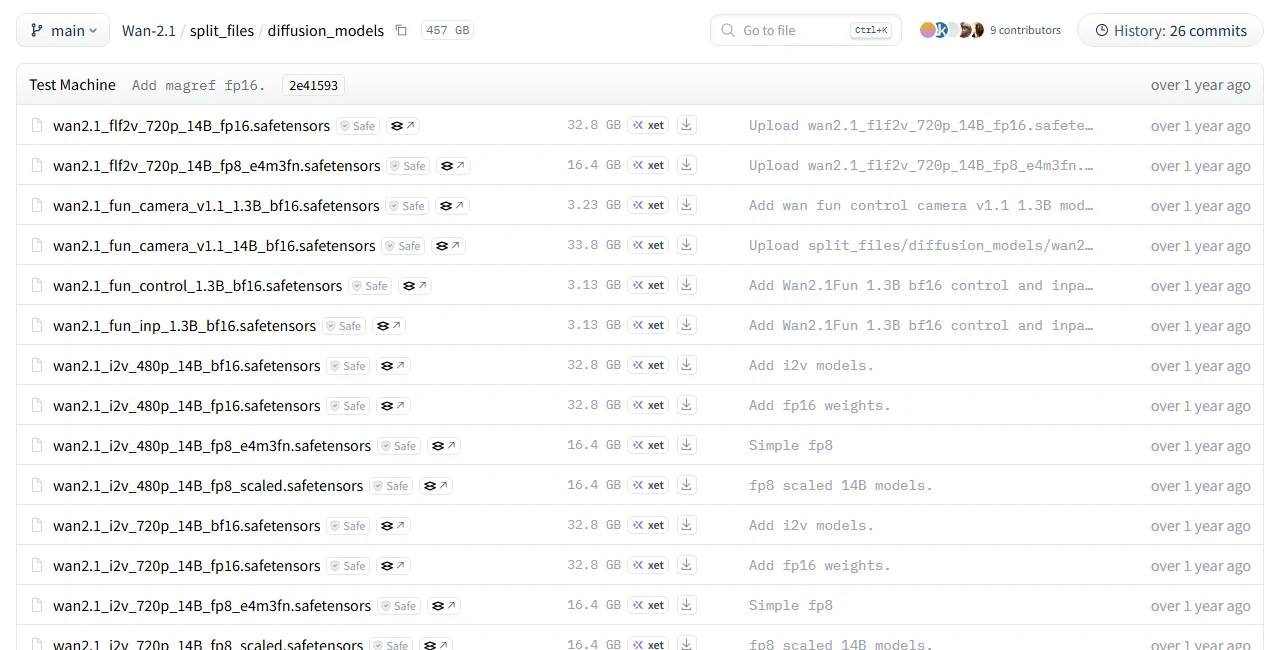 Figure 5. Wan 2.1 model files repackaged for ComfyUI. The same model is 32.8 GB as fp16 and 16.4 GB as fp8 (Hugging Face Comfy-Org screenshot)
The common way to run it at home is ComfyUI (explained in section 4). The model files for ComfyUI are packaged separately in the Comfy-Org/Wan-2.1 repository on Hugging Face, with the same model in versions of different sizes. Open the repository and go to Files and versions > split_files > diffusion_models (Figure 5). fp16 and fp8 in the file names are the precision used to store the numbers. fp8 is half the size and gives up a little accuracy.
Here are the files you need for 480P image-to-video, using the smallest versions.
| File | Job | Where to get it (under split_files) | Size |
|---|---|---|---|
wan2.1_i2v_480p_14B_fp8_scaled.safetensors | The main model that draws the video | diffusion_models | 16.40 GB |
umt5_xxl_fp8_e4m3fn_scaled.safetensors | Reads the prompt (text encoder) | text_encoders | 6.74 GB |
clip_vision_h.safetensors | Reads the first image (CLIP Vision) | clip_vision | 1.26 GB |
wan_2.1_vae.safetensors | Turns compressed images into real frames (VAE) | vae | 0.25 GB |
| Total | about 24.7 GB |
Click a file name, then click the download button to get it.
The official tutorial points to the fp16 main model (32.79 GB). With that, the total is about 41 GB. Check your free disk space first.
The official material gives no numbers for how long 14B image-to-video takes on an 8 GB graphics card.
4. Steps to turn a character image into video with ComfyUI
ComfyUI is a free program that runs AI image and video models by wiring boxes (nodes) together. Each box does one job, and its result flows along the wire to the next box. The Wan team announced ComfyUI support on February 27, 2025, and the ComfyUI docs have an official Wan 2.1 image-to-video tutorial.
The steps below follow that official tutorial.
Before you start: install ComfyUI, then download the four files from the section 3 table and put them in the right folders.
- Install ComfyUI using the method for your operating system from the official install guide. The Windows desktop version is covered there too.
- Download the four files from the "Where to get it" folders in the section 3 table.
- Put the main model in
ComfyUI/models/diffusion_models/. - Put the text encoder in
ComfyUI/models/text_encoders/. - Put the VAE in
ComfyUI/models/vae/. - Put CLIP Vision in
ComfyUI/models/clip_vision/.
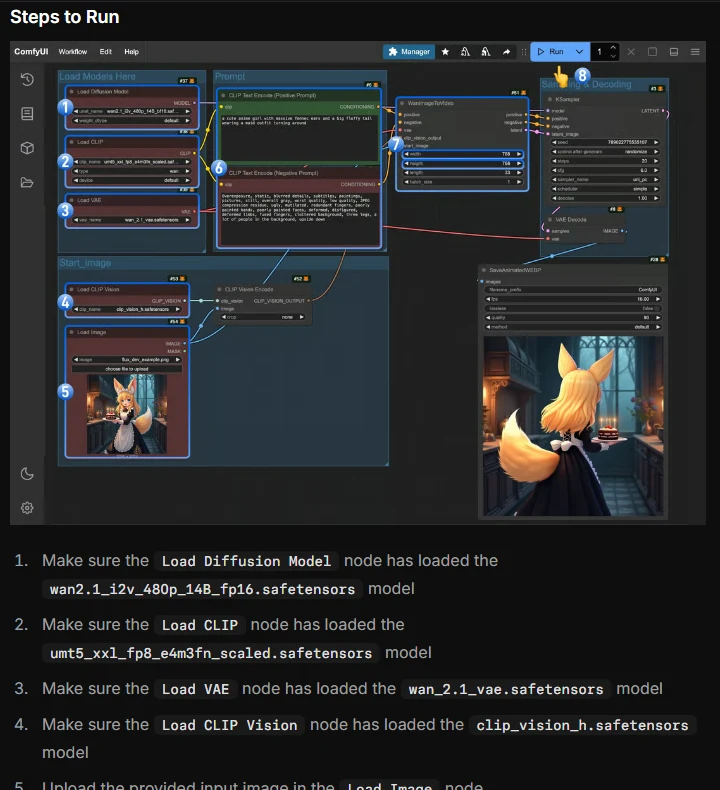 Figure 6. The workflow from the official tutorial. ① main model ② text encoder ③ VAE ④ CLIP Vision ⑤ first image ⑥ prompt ⑦ size and length ⑧ Run (ComfyUI official docs screenshot)
Follow along: on the official tutorial page, download the 480P workflow file under Wan2.1 Image-to-Video Workflow and drag it into the ComfyUI window. The boxes in Figure 6 appear. Now check them in order.
- ① Check that the Load Diffusion Model box has the main model selected.
- ② Check that the Load CLIP box has
umt5_xxl_fp8_e4m3fn_scaled.safetensorsselected. - ③ Check that the Load VAE box has
wan_2.1_vae.safetensorsselected. - ④ Check that the Load CLIP Vision box has
clip_vision_h.safetensorsselected. - ⑤ Upload your character image in the Load Image box.
- ⑥ Write the motion in the prompt box. The official tutorial marks this step as optional.
- ⑦ In the WanImageToVideo box, set the video size and length. width and height are the video's width and height, and the default is 768×768. For a tall video, make height larger than width. length is the number of frames. The default of 33 is about 2 seconds; change it to 81 for about 5 seconds.
- ⑧ Click Run. When it finishes, the video appears in the save box at bottom right.
If your file name differs from the tutorial (for example, you downloaded the fp8 version instead of fp16), pick your file from the list in ①. The bottom right of Figure 6 shows the official example result. The character from ⑤ on the left turns around.
5. Which character image to use
Use a fictional character you have the rights to. Two sources work well.
- A render of a 3D character you made: a Blender character rendered in the pose and lighting you want. You designed the face and clothes, so there are no rights issues.
- A fictional person made with AI: a person who does not exist, made with an image AI. Do not ask it to look like a real person. Also check how the terms of the service you used treat the output. Rights in AI output are covered in Copyright basics for AI-made images and text.
The image becomes the first frame, so pick an image in the pose and framing where the video should start. In ComfyUI, width and height set the video size, so crop the image to that ratio. For a tall video, make height larger and crop the image to a tall shape too. In the prompt, describe motion rather than looks, because the image already shows the looks. Example: "The character slowly turns her head and waves, the camera stays still."
6. Why you should not use photos of real people
Do not feed in a real person's photo to make them move. That goes for celebrities, people you know, and strangers in the street. It is technically possible, but it runs into laws and rules.
| Where it runs into trouble | What it says |
|---|---|
| Portrait and personality rights | A person's face and appearance belong to them. Making their face move and posting it without permission can make you liable for damages |
| Korea's Act on Special Cases Concerning the Punishment of Sexual Crimes, Article 14-2 | In Korea, making or spreading a video that sexually composites a person's face, body, or voice against their will (a deepfake) is a crime. Since an amendment that took effect in October 2024, even possessing or watching such a video is punishable |
| Wan 2.1 license | Forbids making and sharing content that breaks the law or harms people (section 1) |
| OpenAI usage policies | Forbid using someone's likeness, including their photorealistic image or voice, without their consent in ways that could confuse authenticity |
A deepfake is an AI composite of a real person's face or voice placed into another video. Viewers easily believe it is real, so the harm is large and the law treats it seriously.
A local AI has no service company filter. That means the person using it has to hold the line themselves. Even with your own photo, check that no one else appears in it before you publish a video.
7. Where OpenAI stands now
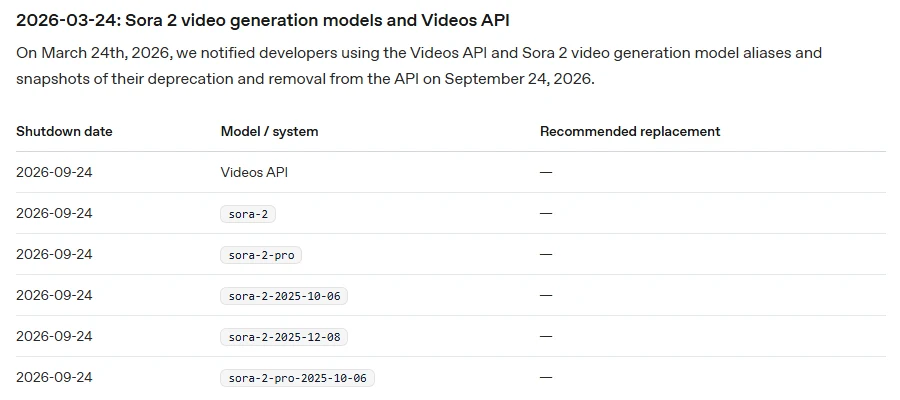 Figure 7. The deprecation notice in the OpenAI developer docs. The Sora 2 models and the Videos API all end on 2026-09-24, and the replacement column is empty (OpenAI developer docs screenshot)
Figure 7 is the Deprecations page in the OpenAI developer docs. In short:
- On March 24, 2026, OpenAI told developers it would remove the Sora 2 video models and the Videos API.
- The Sora web and app experiences ended on April 26, 2026 (OpenAI Help Center).
- The Videos API and the
sora-2andsora-2-promodels were removed from the API on September 24, 2026. The replacement column is empty.
The OpenAI API pricing page lists no video model either. What remains in the API is image models. The current names include gpt-image-2.5-sunburst (for precise editing), gpt-image-2.5-flare (for fast everyday use), and gpt-image-2. These models can make new images from reference images or edit part of an image. So with the OpenAI API you can make and refine the character image, but making it move needs another tool. Features inside the ChatGPT app are outside the scope of this post.
8. Wan 2.1 vs OpenAI
| Compared | Wan 2.1 image-to-video (your computer) | OpenAI API |
|---|---|---|
| Makes video | Yes. One image + prompt → about 5 seconds with length 81 (16 fps) | No. Sora 2 and the Videos API ended (2026-09-24) |
| Makes images | Not this model's job | Yes. gpt-image-2.5 and others, with reference image editing |
| Runs on | Your computer (or a rented GPU server) | OpenAI's servers |
| Cost | Model is free. Graphics card, power, and disk are on you | Pay per use. Image output $30 and image input $8 per 1M tokens (standard) |
| License and commercial use | Apache 2.0. No rights claimed over output, commercial use allowed | Follows OpenAI's terms of use and usage policies |
| Filtering | No service filter. You follow the license restrictions and the law yourself | All prompts and outputs are filtered under the content policy (moderation value auto or low) |
| Speed (official numbers) | 14B 720P: about 25 min on 1× H100, about 4 min on 8× (a different resolution from the 480P in section 4). No official numbers for home cards | Not applicable for video |
| What you need | Lots of VRAM, and about 25 to 41 GB of disk | Internet, an API key |
| Quality | The official repository says it beats existing open-source and commercial models on several benchmarks (the team's own claim) | No video product to compare |
The quality row is what the makers say. It is not a side-by-side test with the same image. The general differences between local and server AI are covered in Local AI vs cloud AI.
9. Versions after Wan 2.1
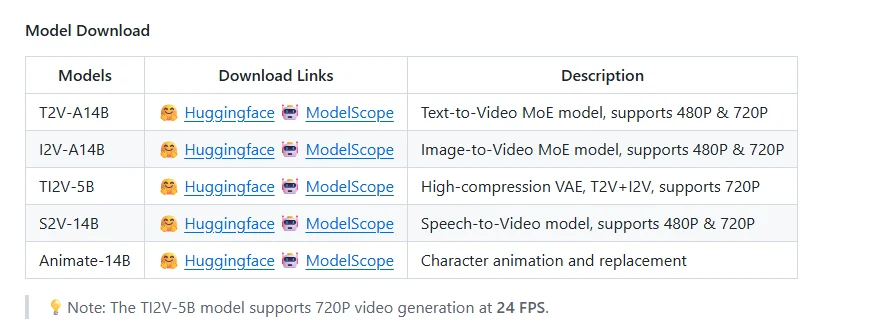 Figure 8. The model table in the official Wan 2.2 repository (GitHub Wan-Video/Wan2.2 screenshot)
Figure 8 is the model table in the README of the official Wan 2.2 repository. Wan 2.2 came out on July 28, 2025, under the same Apache 2.0 license.
- I2V-A14B is the image-to-video model, for 480P and 720P. It splits the work between two experts (MoE): one handles the overall layout in early steps and the other handles detail in later steps. It has 27B numbers in total and uses 14B at each step. The official single-GPU command says it needs at least 80 GB of VRAM.
- TI2V-5B is a 5B model that takes text, an image, or both. It makes 720P video at 24 frames per second and, per the official guide, runs on 24 GB of VRAM (RTX 4090) with offloading turned on.
- Animate-14B and Animate-2-14B (released August 7, 2026) put the motion from another video onto one character image. Give it a dance video, and your character does the same dance.
The Wan-AI account on Hugging Face has no model files with a version number after 2.2 (such as 2.5). In other words, higher-numbered Wan versions have not been released as downloadable models.
10. If your graphics card has 8 GB
If your home graphics card has 8 GB, these are your options.
- Try the fp8 version in ComfyUI. The main model is half the size of fp16. It is still 16.4 GB, more than 8 GB, and there are no official numbers for how long it takes on 8 GB. Run a short clip (length 33) first, then make it longer.
- Look at community speed-up tools. The official Wan 2.1 repository lists LightX2V, which says it can run Wan 2.1 and 2.2 even on an RTX 4060 (8 GB). It is not made by the official team.
- Rent a GPU server. Some services rent large graphics cards by the hour. Prices vary, so check the official price list first.
How to pick a graphics card is covered in Running AI on your own computer: graphics card and VRAM requirements.
Practice
- Open the Wan 2.1 repository and write down the names and resolutions of the two image-to-video models.
- Using the section 3 table, work out the disk space you need with the fp16 main model.
- Check your graphics card's VRAM and write down which of the three options in section 10 fits you.
- Pick a character image you want to animate, and check it against section 5 (your rights, starting pose, aspect ratio).
Common mistakes and fixes
| Symptom | Cause | Fix |
|---|---|---|
| The downloaded file does not show in the model box list | The file is in a different folder | Move it to the folder from "Before you start" in section 4 and refresh ComfyUI |
| An out-of-memory error appears right away | The main model is bigger than your VRAM | Switch to the fp8 version and close other programs |
| The video comes out square | width and height in WanImageToVideo are at the default (768×768) | Set width and height to the ratio you want, and crop the image to the same ratio |
| The video ends at about 2 seconds | length is at the default of 33 | Change length to 81 (about 5 seconds) |
| The character stays the same but barely moves | The prompt has no motion | Describe actions and camera, not looks |
| You cannot find a Sora model in the OpenAI API | Sora 2 and the Videos API ended on 2026-09-24 | Make the image with the OpenAI API and the motion with another tool |
Summary
Wan 2.1 = free open-source image-to-video (14B, about 5 seconds with length 81), but it needs a lot of VRAM and about 25 GB of files. OpenAI API = images only, for now. Do not use photos of real people; use your own characters.
Read next
- AI video generation basics: making video from text and images
- How AI image generation works, and how to write good prompts
- Local AI vs cloud AI: what is the difference?
- Running AI on your own computer: graphics card and VRAM requirements
- What VRAM means: why graphics card memory matters
- Copyright basics for AI-made images and text
References
- Official Wan 2.1 repository (README, license, efficiency table): https://github.com/Wan-Video/Wan2.1
- Wan 2.1 image-to-video 480P model card: https://huggingface.co/Wan-AI/Wan2.1-I2V-14B-480P
- Official ComfyUI Wan 2.1 tutorial: https://docs.comfy.org/tutorials/video/wan/wan-video
- Wan 2.1 model files for ComfyUI: https://huggingface.co/Comfy-Org/Wan-2.1
- Official ComfyUI install guide: https://docs.comfy.org/installation
- Official Wan 2.2 repository: https://github.com/Wan-Video/Wan2.2
- Wan 2.2 Animate-2 model card: https://huggingface.co/Wan-AI/Wan2.2-Animate-2-14B
- OpenAI deprecations: https://developers.openai.com/api/docs/deprecations
- OpenAI pricing: https://developers.openai.com/api/docs/pricing
- OpenAI image generation guide: https://developers.openai.com/api/docs/guides/image-generation
- OpenAI usage policies: https://openai.com/policies/usage-policies/
- OpenAI Help Center, Sora discontinuation: https://help.openai.com/en/articles/20001152-what-to-know-about-the-sora-discontinuation
- Korea Law Information Center, Act on Special Cases Concerning the Punishment of Sexual Crimes (in Korean): https://www.law.go.kr/%EB%B2%95%EB%A0%B9/%EC%84%B1%ED%8F%AD%EB%A0%A5%EB%B2%94%EC%A3%84%EC%9D%98%EC%B2%98%EB%B2%8C%EB%93%B1%EC%97%90%EA%B4%80%ED%95%9C%ED%8A%B9%EB%A1%80%EB%B2%95
- Images: all real screenshots of official pages. The efficiency table is an official image from the Wan 2.1 repository (Apache 2.0). The character in Figure 6 is the example image from the official ComfyUI tutorial