3D Printing from One Picture with Meshy AI and Claude Code: Printing a Fighter Jet Model and a Character
The real workflow for turning one reference picture into a 3D model with Meshy AI, checking and repairing it with Claude Code and Blender, and printing it on a 3D printer.
한국어English
ON THIS PAGE
- 011. The whole flow at a glance
- 022. What you need
- 033. Making a reference picture: what prints well
- 044. Making a 3D model with Meshy
- 055. Connecting Meshy to Claude Code
- 066. Printability check: Meshy models leak as they are
- 077. Repairing and making 3MF and STL
- 088. Slicer settings and printing
- 099. Repeated work: bundle it into one command
- 1010. Cost and time
- 1111. Common mistakes and fixes
- 1212. Wrapping up
This post contains affiliate links. If you buy through these links, AZTechnology earns a commission from the seller. Signing up and paying for a plan also counts as a purchase. (Affiliate and content policy)
Based on: the Meshy web interface (Meshy 7.1), the official Meshy API and MCP docs, the official Claude Code docs, and Blender 5.2, checked in October 2026. Prints were made in a single color on a Bambu Lab H2C.
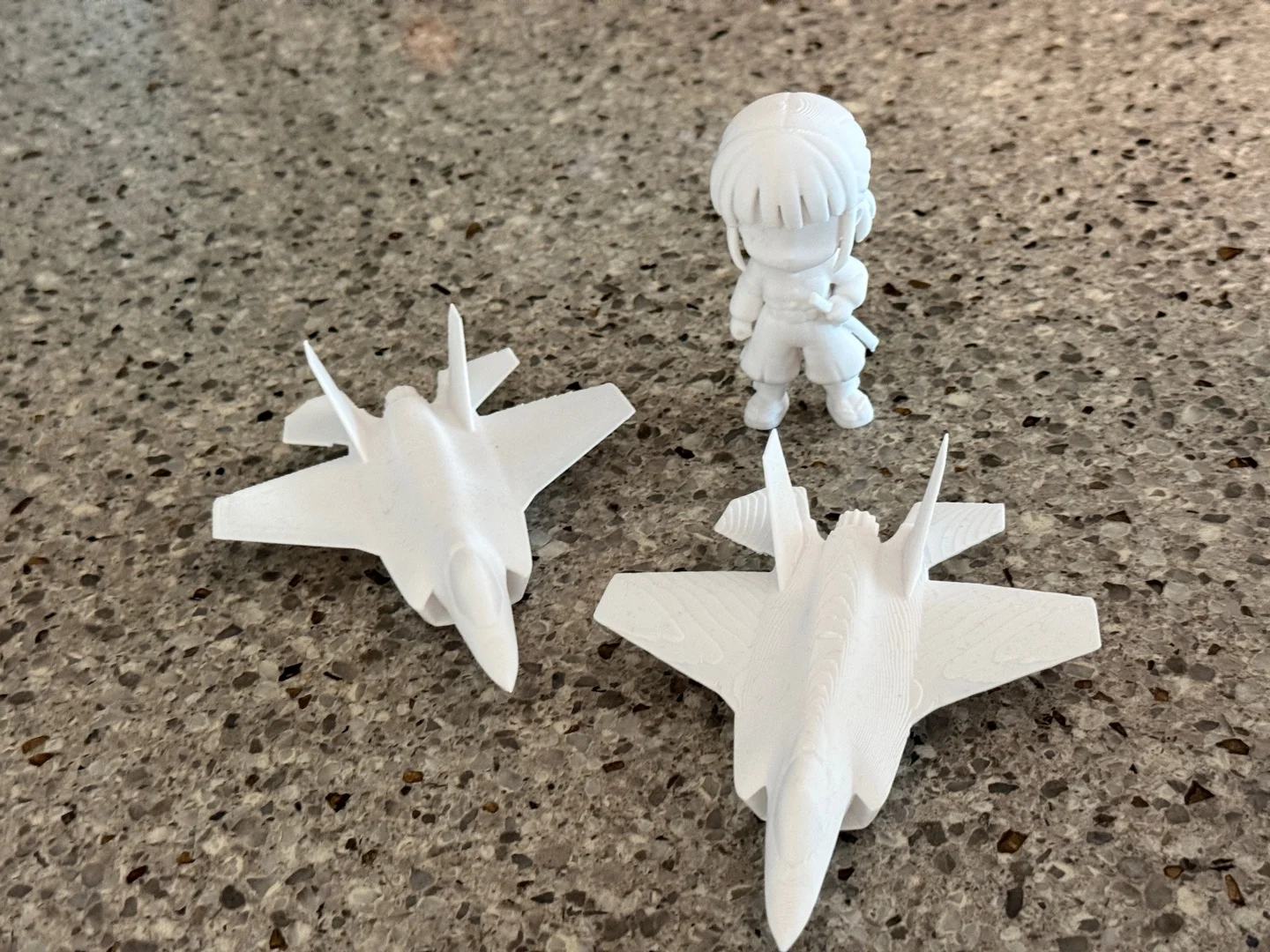 The printed fighter jet models and the 3D character. The two in front are the jet models, the one behind is the 3D character (photo of the real prints). The jets are the same file printed once, then printed again with the model laid on the build plate in a different direction (lying flat and standing up).
Having a 3D printer does nothing for you if you have no model to print. Making a model yourself means learning a 3D program first. This guide is a record of skipping that step. I put one reference picture into Meshy AI(affiliate link) to make a 3D model, handed checking and repair to Claude Code, and got files ready for the printer. The jet models and the 3D character in the photo above came out that way, and both printed well.
It is not a one-button job, though. The models Meshy made had holes that made them hard to print as they were, and thin areas such as the wings needed a separate look. This guide goes through the order step by step, including which parts are automatic and where a person has to check.
By the end of this guide you will be able to:
- Know what makes a reference picture suitable for 3D printing.
- Make an untextured 3D model from one picture in Meshy.
- Connect Meshy to Claude Code and ask it in plain words to generate, download, and check.
- Fill a model's holes in Blender, scale it in mm, and make 3MF and STL files.
- Read the check numbers and choose slicer settings (supports, brim, walls).
1. The whole flow at a glance
There are seven steps. Meshy turns the picture into 3D; Claude Code does the rest of the checking, repair, and tidying by driving Blender. A person looks at the picture and the results along the way and only decides "continue" or "redo".
| Step | What happens | Who | Credits |
|---|---|---|---|
| 1 | Prepare a reference picture | You (or an image generation AI) | 0 |
| 2 | Check the picture | You | 0 |
| 3 | Picture → 3D model | Meshy | 20 |
| 4 | Import into Blender, scale, preview | Claude Code | 0 |
| 5 | Printability check | Meshy (free check) + Claude Code | 0 |
| 6 | Repair and make 3MF and STL | Claude Code + Blender | 0 |
| 7 | Write print notes from the check numbers | Claude Code | 0 |
With Meshy alone, the model with holes stays as it is; with Claude Code alone, there is no model to fix. That is why you use both.
2. What you need
| Item | Use | Notes |
|---|---|---|
| Meshy account | Picture → 3D model | The free plan gives 100 credits a month. The API and MCP that connect to Claude Code start from the Pro plan (section 5) |
| Claude Code | Generation requests, checks, running Blender, writing notes | Install: Installing Claude Code for the first time |
| Blender | Checking, repairing, exporting the model | Free. Install: Blender for beginners, part 1 |
| 3D printer and slicer | The actual print | This guide uses a Bambu Lab H2C and Bambu Studio |
| One reference picture | The source to turn into 3D | White background, one object |
| Node.js | The npx install command in section 5 | Needed to use the npx command. Install from the official site (nodejs.org) |
Meshy(affiliate link) is a web service that makes 3D models from text or pictures. When you log in, you see a home screen like the one below.
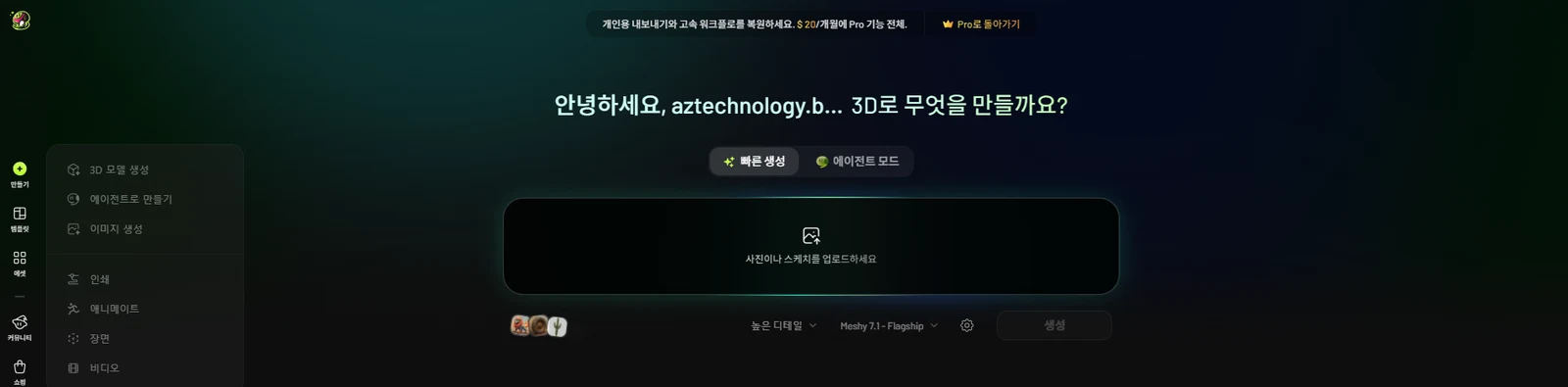 The Meshy home screen. Drag a picture into the middle box, choose the model (Meshy 7.1) below, then click generate (Meshy screenshot, labels in Korean)
Follow along: After signing up for Meshy, check on the home screen that the quick generation option is selected. The box in the middle that asks you to upload a photo or sketch is where the picture goes. The menu on the left also has a Print item. If you only want to try it on the web, you can upload the picture from section 3 on this screen and test right away. (The screenshot shows Meshy's Korean interface; the English labels on your screen may be worded differently.)
Claude Code is an AI work assistant made by Anthropic. You give it tasks in plain words in a terminal (a window of text), and it reads files and runs programs. The way Meshy is plugged into it is MCP (Model Context Protocol). MCP is like a power strip for plugging tools into an AI. Once the Meshy plug is in the strip, Claude Code can directly call "make 3D from a picture", "check task status", "download a file", and "check printability".
3. Making a reference picture: what prints well
Meshy copies the shape it sees in the picture. So if the picture contains a shape the printer can't print, the 3D model will have a shape it can't print too. Pictures that followed these rules gave good results.
- White background, no shadow, one object only.
- A 3/4 angle, turned slightly from the front, so the front and side are both visible.
- Antennas, rods, and thin props sticking out of the body are removed or attached to the body.
- Thin areas such as wingtips and tail tips are drawn a little thicker.
- For a character, draw the hair as solid masses and the feet wide and flat.
- If you print in one color, draw the eyes and mouth as carved, raised shapes, not colors. Eyes drawn only in color disappear from the 3D model.
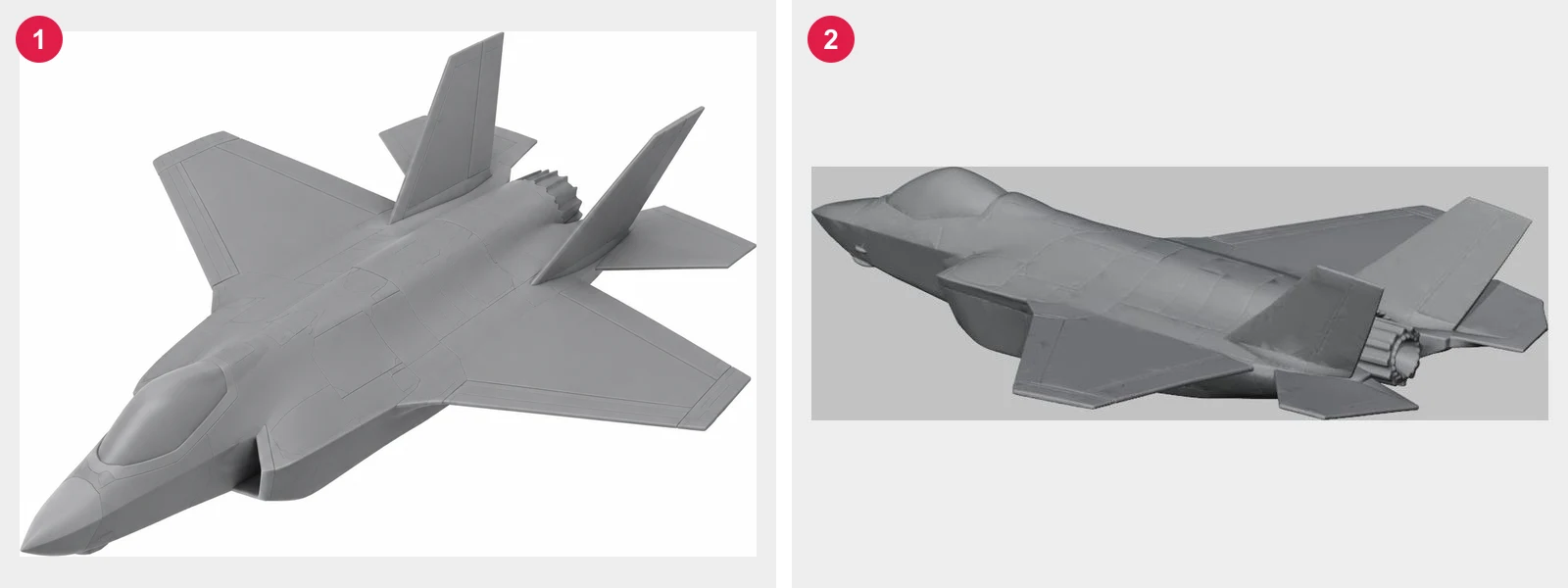 ① The reference picture (AI-generated image, input for the 3D conversion) ② A Blender preview of the 3D model Meshy made, seen from the front left, below. Even the underside, which the picture doesn't show, was created (Blender render)
Follow along: I made the jet model picture by ordering it from an image generation AI in English. The main points of the prompt were: "a realistic-proportion stealth fighter model, landing gear retracted, wing and tail edges slightly thicker, no antennas, missiles, or pilot, no markings, text, or numbers, matte gray plastic, 3/4 view from the front left, above, pure white background, no shadow." At first it came out as a cute, squashed chibi shape, so I asked for it to look "more like the real aircraft" and used the second picture (picture ①).
Words in the prompt such as "thicker", "attached", and "no" reduce the repair work later.
4. Making a 3D model with Meshy
Use Meshy's Image to 3D feature (picture → 3D). It works in the web interface, or you can ask Claude Code to do it. Either way, the values to set are the same.
| Setting | Value chosen | Why |
|---|---|---|
| Model | Meshy 7 (7.1 in the current interface and API docs) | The work in this guide was done with Meshy 7. The official docs say to use 7.1 in place of 7 |
| Texture (color) | Off | Printing in one color needs no color data. It also uses fewer credits |
| Remesh | On, triangles | Printer files (STL) are saved as triangles anyway |
| Triangle count | 200,000 | Explained below |
| Formats | GLB, STL, 3MF | GLB is downloaded and repaired in Blender. STL and 3MF are a backup for when you want to open the unrepaired shape in the slicer right away. 3MF is only made if you choose it |
Why 200,000 triangles: The surface of a 3D model is many small triangles joined together. More pieces make curves smoother but make the file bigger. When printing 80 mm with a 0.4 mm nozzle, bumps smaller than 0.2 mm won't show in the print anyway. 200,000 holds all the detail that will show in the print, and the STL file is around 10 MB, which is easy to handle. According to the official docs, this value can be set from 100 to 300,000.
Follow along: In Claude Code, ask in plain words like this.
Run Meshy image-to-3d with the reference picture jet.png.
No texture, 200000 triangles, formats glb, stl, 3mf. Tell me how many credits it costs first.
Claude Code calls the Meshy MCP "make 3D from a picture" tool, gets a task number, checks the status until it finishes, and downloads the GLB file into the folder. The real job took 20 credits and about 90 seconds. The official price list also says 20 credits for an untextured model and 30 credits with texture.
The result is picture ② above. Even the belly and engines, which the picture didn't show, were made convincingly. However, the belly came out lower than the wings, and this later increased the amount of support material.
5. Connecting Meshy to Claude Code
You can make 3D models with the web interface alone. The reason to add Claude Code is to hand off the repeated work after generation (downloading, checking, running Blender, collecting numbers) in one go.
Before you start: On Meshy's pricing page, the API and "MCP & Skill for AI Agent" are listed under the Pro plan, and the free plan does not list the API. According to Meshy's docs, tasks called through MCP use credits at the same rate as tasks called through the API. You can compare plans on the Meshy(affiliate link) pricing page.
Follow along:
- Create an API key on the API Keys page of Meshy's Developer Platform. An API key is a secret string that tells Meshy a request comes from your account. Keep it out of sight of others. A key typed on the command line stays in the terminal history, so if you share the computer, clear the history after installing.
- In a terminal, run the install command from Meshy's official docs. Put the key from step 1 in place of
msy_YOUR_API_KEY.
npx add-mcp @meshy-ai/meshy-mcp-server --env MESHY_API_KEY=msy_YOUR_API_KEY
- This command finds the AI tools installed on your computer and sets up Meshy for them. If you want to add it directly with Claude Code's own command, use the form
claude mcp add --env MESHY_API_KEY=msy_YOUR_API_KEY --transport stdio meshy -- npx -y @meshy-ai/meshy-mcp-server(the part after--is the command that starts the server). - Start Claude Code and type
/mcp. If meshy shows as connected in the list, you're done. - Ask, "How many Meshy credits do I have left?" If it shows your remaining credits, the connection works.
Once connected, these are the Meshy tools Claude Code can call that matter for 3D printing.
| What the tool does | Credits |
|---|---|
| Make 3D from a picture | 20 (no texture) |
| Check task status, download a model | 0 |
| Printability check (holes, non-manifold, volume) | 0 |
| Printability repair | 10 |
| Find and open an installed slicer | 0 (works only on your own computer) |
| Check remaining credits | 0 |
6. Printability check: Meshy models leak as they are
A 3D printer needs a watertight model, closed tight inside and out, to tell the inside from the outside and fill it. Just as a balloon with one pinhole loses its air, a hole in the surface makes the slicer calculate the inside wrongly.
First, three terms that come up together.
- An open edge is an edge with a face on only one side. The rim of a hole is made of these.
- A non-manifold edge is an edge shared by three or more faces. You can't decide which side is inside and which is outside.
- A degenerate face is a squashed triangle with almost zero area.
Follow along: Ask Claude Code, "Check the model you just made with Meshy's printability check." For the Blender side, ask it to first run the script made from the instructions in section 7 without repair (scaling and preview only). The results were:
| Check | Jet model | 3D character |
|---|---|---|
| Meshy printability check | Watertight: no. 2 holes, 90 non-manifold edges, 59,096 degenerate faces | Watertight: no. 8 holes, 305 non-manifold edges, 27,185 degenerate faces |
| Blender check (after merging overlapping vertices) | 60 open edges, 26 non-manifold, 1 piece | 200 open edges, 99 non-manifold, 2 pieces |
Neither model passed as a print file as it was. So don't skip the repair in the next step.
How to choose the size: Meshy models have no mm units. Size standing objects such as characters by height, and flat objects such as planes and cars by longest side. I learned this difference while working on the jet. So make sure the instructions in section 7 say to size flat objects by their longest side. I set the character to 80 mm tall and the jet to 120 mm long.
7. Repairing and making 3MF and STL
Repair happens in Blender. Claude Code starts Blender with no window and runs a script (a small program that moves Blender through set steps). The order is:
- Delete squashed triangles and loose vertices.
- Fill open holes. If that works, you're done.
- If open areas still remain, rebuild the surface with a voxel remesh.
- Reduce the triangles added by the remesh back to 200,000.
- Delete small pieces separated from the main body.
- Cut 0.3 mm off the bottom to make it flat, and save as 3MF and STL.
A voxel remesh rebuilds the model out of tiny cubes (voxels) and then wraps a new skin around the outside. Instead of darning a sock with holes, it is like knitting a new sock on the same form. I used a block size of 0.12 mm. It is smaller than the line width the printer can draw, so the shape change doesn't show in the print. Since this happens inside Blender, it costs no credits. I decided to use Meshy's paid repair (10 credits) only if the Blender repair ruined the shape, and I didn't use it this time.
You don't have this script yet. The first time, give Claude Code the instructions below as they are. Change only the Blender location, file name, and size to your own.
Follow along (first time only):
Write and run a Python script (print_prep.py) that makes 3D printing files with Blender.

- Blender location: C:\Program Files\Blender Foundation\Blender 5.2\blender.exe
- Run with no window: blender.exe -b --python script.py -- options
- Input: jet.glb downloaded from Meshy. Put the results in an out folder inside the same folder.
- Convert all save and render paths to absolute paths.

Steps:
1. Import the GLB and join it into one object.
2. Scale it in mm. Standing objects by height, flat objects such as planes by longest side.
   Take the size and the basis as options (for example --height-mm 80, --longest-mm 120).
3. Merge overlapping vertices.
4. Delete squashed faces and loose vertices, and fill holes.
5. If open edges or non-manifold edges still remain,
   do a voxel remesh (0.12 mm) and reduce to 200,000 triangles.
6. Delete small pieces separated from the main body.
7. Cut 0.3 mm off the bottom to make it flat.
8. Save as 3MF and STL (units: mm).
9. Report the check numbers as a table: watertight, piece count, size, triangle count,
   share of walls thinner than 0.8 mm and 0.4 mm, share of overhangs over 45 degrees, bottom contact area.
10. Save previews from five directions (front, side, back, 3/4, top) as jpg.

Also add an option (--no-repair) that runs only steps 1-3 and 9-10, without repair.
Claude Code writes and runs the script itself from these instructions. Once made, the script is reused as it is next time. The core of the repair in step 5 is a few lines that add Blender's Remesh modifier in Voxel mode.
mod = ob.modifiers.new("voxel", "REMESH")
mod.mode = "VOXEL"
mod.voxel_size = 0.12          # 0.12 mm, since the model is already scaled in mm
# after applying, if there are more than 200,000 triangles, reduce with Decimate
From then on, ask in one line, such as "Repair jet.glb and make 3MF and STL with the longest side at 120 mm. Show the check numbers after repair as a table too."
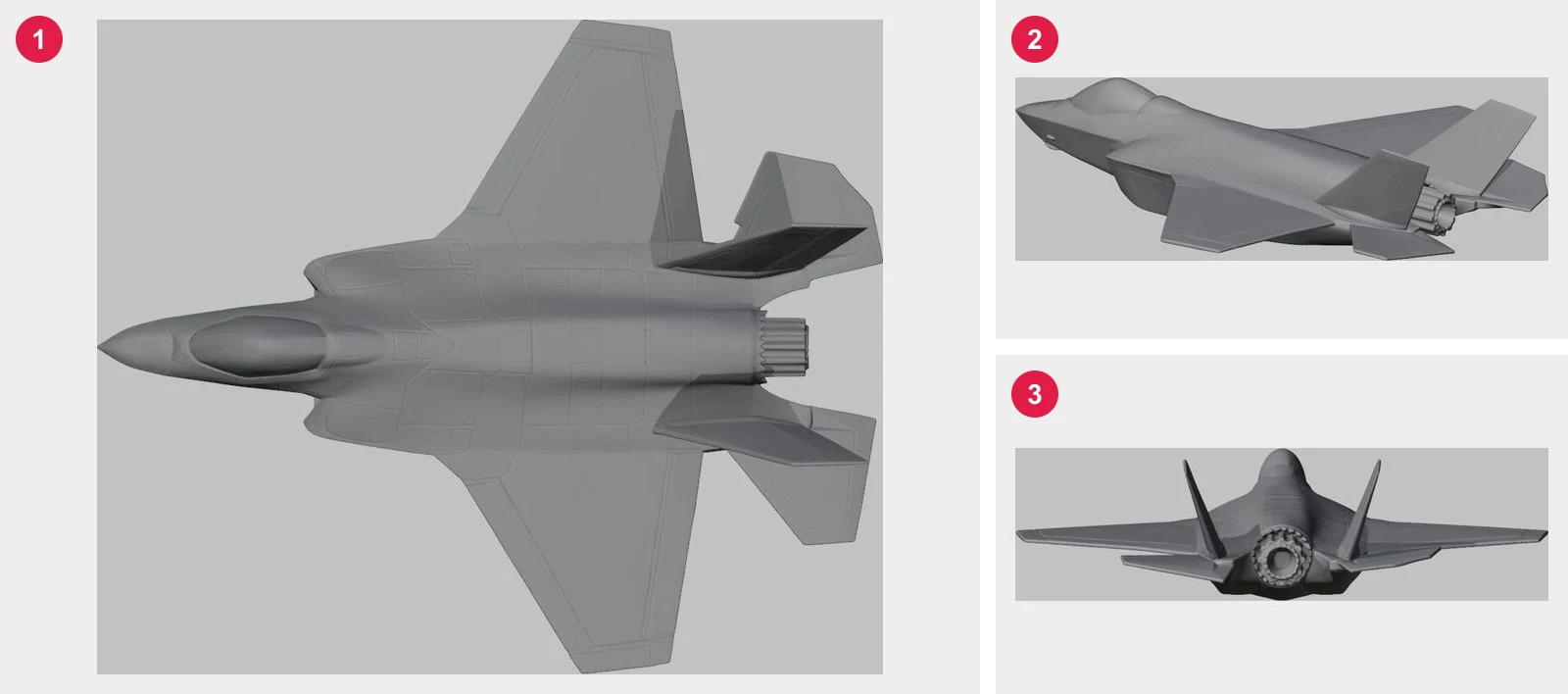 Previews after repair. ① From above ② At an angle from below ③ From the tail (Blender render)
Follow along: Open the five previews. For flat objects, always look at the top view (picture ①) too. From the side alone, it is hard to tell whether the wing shape is right.
I repaired the 3D character with the same instructions, scaled to 80 mm tall. Before repair, the Meshy check found 8 holes and 305 non-manifold edges; after repair it became one watertight piece, with 4 small pieces deleted.
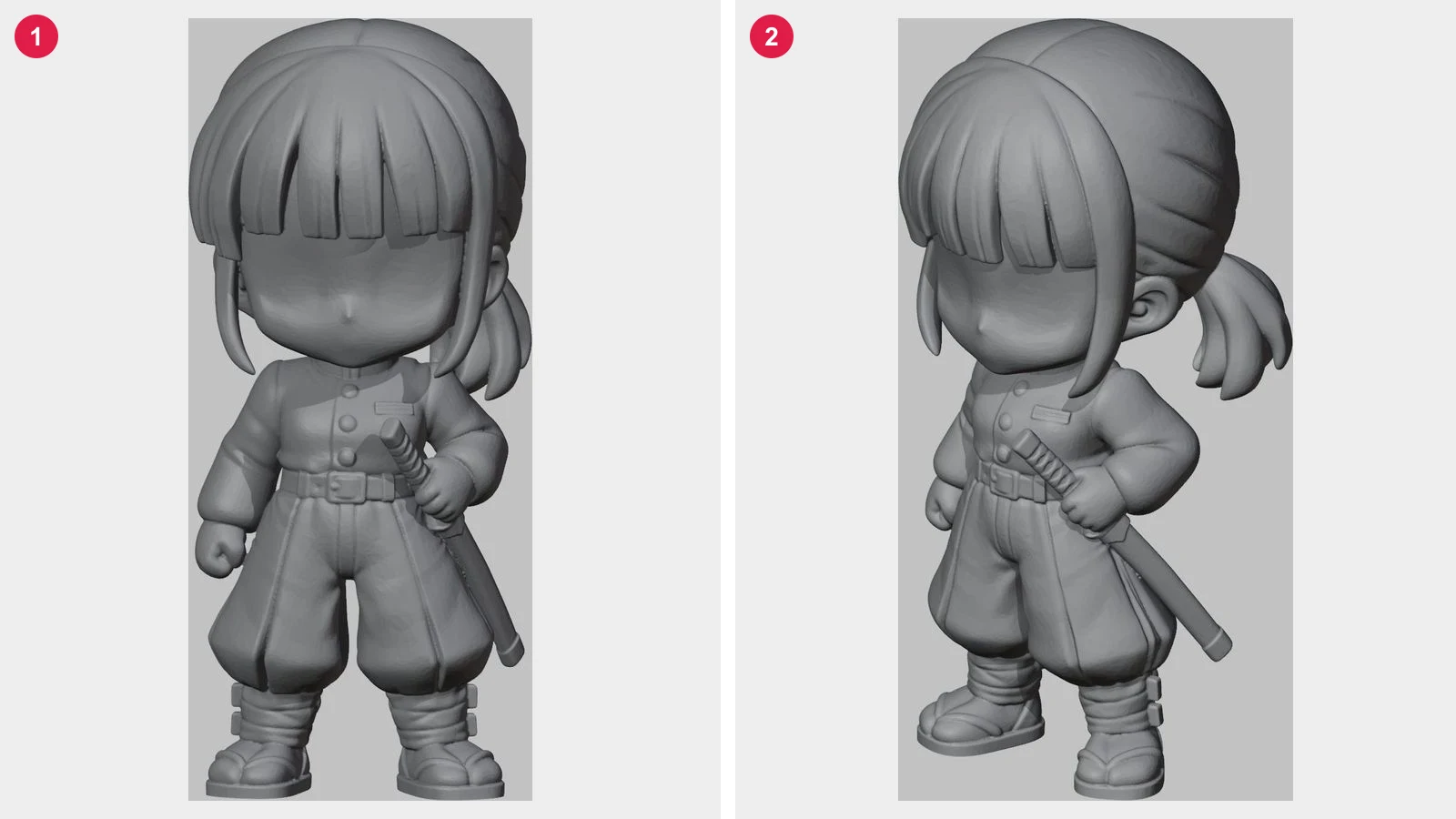 The repaired 3D character (80 mm tall). ① From the front ② At an angle from the front. It was made without texture, so the face has no eyes or mouth (Blender render)
Follow along: For a standing character, look under the chin and at the soles in the front and angled previews. A big head leaves the underside of the chin hanging in the air and needs support, and small soles need a brim.
The numbers after repair:
| Item | Jet model | 3D character | Pass mark |
|---|---|---|---|
| Watertight | Yes (0 open edges, 0 non-manifold) | Yes (0 open edges, 0 non-manifold) | 0, 0 |
| Piece count | 1 | 1 (4 small pieces removed) | 1 |
| Size (mm) | 120.0 × 99.8 × 30.6 | 35.4 × 36.5 × 80.0 | Same as the set size |
| Triangle count | 199,678 | 199,678 | Around 200,000 |
| Walls thinner than 0.8 mm | 7.4% | 0.09% | Under 1% |
| Walls thinner than 0.4 mm | 0.03% | Not recorded | Under 0.5% |
| Faces floating at over 45 degrees (overhang) | 30.1% | 9.2% | Record only |
| Bottom contact area | 141 mm² | 201 mm² | Record only |
| File size | 3MF 2.5 MB, STL 10.0 MB | 3MF 2.5 MB, STL 10.0 MB |
The jet went over the pass mark with 7.4% thin walls. That is because the edges of the wings and tail fins are 0.4 to 0.8 mm thin. But only 0.03% was thinner than 0.4 mm, so I judged it printable and went ahead. A real-proportion plane can't avoid thin wings, so looking at it with a two-level standard like this is how you tell whether it can be printed.
8. Slicer settings and printing
A slicer is a program that cuts a 3D model into thin layers and makes the path the printer will follow.
Follow along: Open Bambu Studio and load the 3MF file. The units are saved in mm, so there is no need to rescale. Then choose settings by looking at the numbers in section 7. The recommended values written in the print notes are below.
| Item | Jet model | 3D character | Link to the numbers |
|---|---|---|---|
| Nozzle | 0.4 mm | 0.4 mm | |
| Layer height | 0.12 to 0.16 mm | 0.16 mm | Stair-stepping on the top of the wings, face and hair detail |
| Material | PLA | PLA | |
| Wall generator | Arachne | Not set | 7.4% thin walls → fills thin edges with a single wall line |
| Walls / infill | 3 walls / 15% gyroid | 3 walls / 15% gyroid | |
| Support | Tree, everywhere | Tree, everywhere | Overhang 30.1%, 9.2% |
| Brim | 5 mm | 5 mm | Small bottom area |
| Orientation | Belly down | Feet down |
A brim is a thin border around the first layer. It widens the bottom area and holds the model so it doesn't come loose during printing. A tree support is a support that branches as it grows upward to hold floating parts; you remove it after printing.
Check the slice result on screen yourself. I also tried automatic slicing with Bambu Studio's command line through Claude Code, but on the H2C it stopped with a nozzle assignment error. So Claude Code made the files only, and a person checked the slice and printed. The photo at the top is the result printed that way.
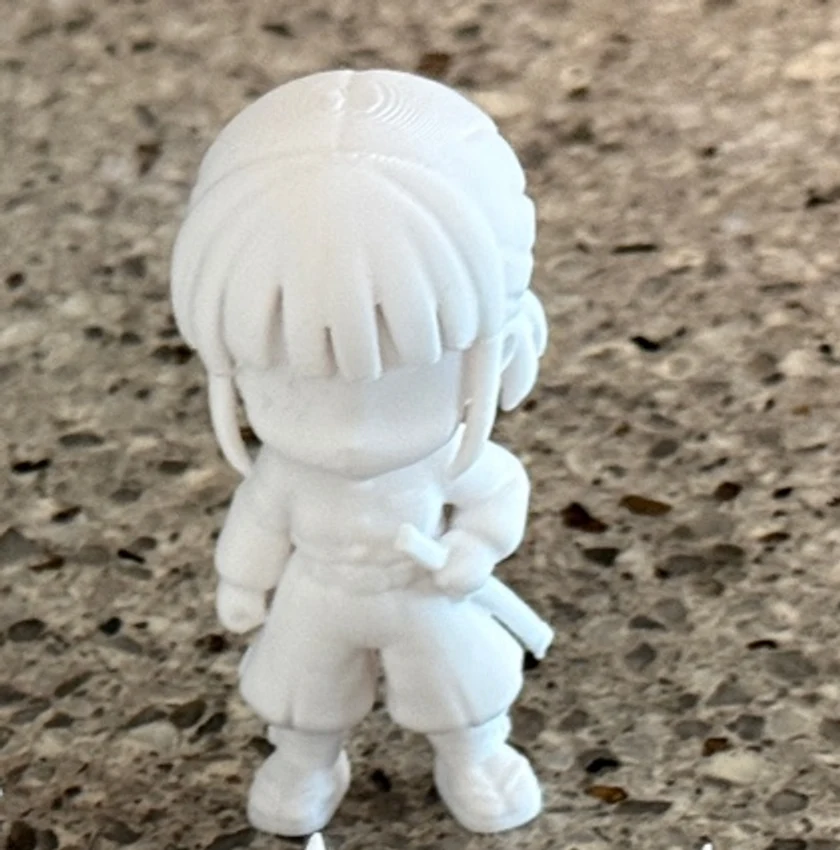 A close-up of the printed 3D character. The hair strands and clothing folds came through, and the face is plain, as in the preview (photo of the real print)
Follow along: When the print is done, remove the supports slowly and check that no thin parts broke. A character printed in one color, as in the photo above, comes out with a plain face, so if you need eyes and a mouth, order them as carved shapes at the picture stage, following the rules in section 3.
9. Repeated work: bundle it into one command
Once you have done the steps, you can bundle them into a Claude Code custom command. According to the official docs, one md file in the .claude/commands/ folder, or one .claude/skills/<name>/SKILL.md file, becomes a /name command. Text you add after the command when you call it goes into the $ARGUMENTS spot in the file.
Follow along: For this work I made a /mascot command. Below is a version adapted to be easy to use on your own computer. Create a .claude/commands/mascot.md file in your working folder and put in the content below. Change the folder name (prints) and the repair script name (print_prep.py, the one Claude Code made in section 7) to match yours.
---
description: Make 3D printing files from one picture
argument-hint: <name> <picture path> [size mm]
---
Input: $ARGUMENTS

Follow the steps below exactly. Keep all files in the prints/<name>/ folder.
If no size is given, use 80mm height. Flat objects such as planes and cars use the longest side.

1. Copy the picture to prints/<name>/ref/, show it to me, and ask whether to continue.
2. Run Meshy image-to-3d (no texture, 200000 triangles, glb).
   Tell me the credit cost first, and run it only after I confirm.
3. Download the GLB and run Meshy's printability check (free).
4. Use print_prep.py to scale, repair, and make 3MF and STL.
5. Look at the previews yourself and check the pass marks below.
   - Watertight: yes, piece count: 1, size: same as the set value
   - Walls thinner than 0.8mm under 1%, walls thinner than 0.4mm under 0.5%
   - If they are over, note where and ask whether to make it bigger
6. Look at overhang and bottom area, and write print notes with recommended support and brim settings.
7. Report the results as a table. Always stop and ask before any step that uses credits.
The official docs recommend the skill format for new commands. Putting the same content in .claude/skills/mascot/SKILL.md makes the same /mascot command.
From then on, one line runs the same procedure (for example, a rabbit picture at 80 mm tall).
/mascot rabbit C:\pictures\rabbit.png 80
It is a good idea to write it so that it always stops and asks before steps that use credits. Because it is a tool you instruct in words, credits can be spent for nothing if it misunderstands you once.
10. Cost and time
| Item | This job | Notes |
|---|---|---|
| 3D generation (no texture) | 20 credits per model | Two models, 40 credits |
| Generation time | About 90 seconds | Meshy 7 |
| Meshy printability check | 0 | |
| Blender repair and export | 0 | Blender is free |
| Meshy printability repair | Not used | 10 credits if used |
To choose a plan, compare these two.
| Plan | Credits per month | Differences relevant to this guide |
|---|---|---|
| Free | 100 | No API or MCP. Download limit: 10 Meshy 6 Lite models per month. Results are CC BY 4.0 (credit required) |
| Pro | 1,000 | API and MCP included, unlimited model downloads, private license for all results |
Prices are shown on the pricing page in the currency of the country you visit from. Prices and credits change often, so check the pricing page yourself on Meshy(affiliate link) before you pay.
CC BY 4.0, which applies to free plan results, is a public license meaning "you may use it, even commercially, if you give credit." If you plan to sell the models you make, read this condition first.
11. Common mistakes and fixes
| Symptom | Cause | Fix |
|---|---|---|
| The slicer says the model has holes | Put the Meshy result in without repair | Use the 3MF from the section 7 repair |
| The plane model is much smaller than expected | Scaled by height | Scale flat objects by their longest side |
| The character's face has no eyes or mouth | Eyes drawn only in color disappear from an untextured model | Order the eyes and mouth as carved shapes at the picture stage |
| A thin prop sticking out of the body breaks when removing supports | It is thin and floating in the air | Attach the prop to the body at the picture stage |
| Wingtips get holes or turn mushy | Walls are thinner than 0.8 mm | Turn on Arachne walls or make it bigger (for example 120 → 160 mm) |
| The underside of the wings is rough from support marks | The belly sits lower than the wings, so the wings float | You can also print it standing on its tail. It tips over easily, so widen the brim |
| Command-line auto slicing stops with an error | Nozzle assignment error on the H2C | Slice in the Bambu Studio window |
12. Wrapping up
There are two key points to this method: order the picture so it prints well, and don't trust an AI-made model; check it with numbers. Meshy turns one picture into a 3D model in 90 seconds, and Claude Code takes on the tedious checking and repair afterwards. You pick the picture, look at the previews, and press print on the printer.
If this is your first time, try putting one picture that follows the rules in section 3 into the Meshy web interface on the free plan. The free plan has 100 credits a month, so you can see first how the models turn out. However, the comparison table on the pricing page lists the free plan's download limit only as "10 Meshy 6 Lite", and does not say whether models made with Meshy 7 (7.1), as in this guide, can be downloaded for free. To follow this guide all the way to print files and hand repeated work to Claude Code, you need the Pro plan, which has unlimited downloads and includes the API and MCP.
Get started with Meshy(affiliate link)
Affiliate links: if you buy through these links, AZTechnology earns a commission.
Sources
- Meshy pricing page (credits per plan, API and MCP availability, license): https://www.meshy.ai/pricing
- Meshy API pricing (credits per task): https://docs.meshy.ai/en/api/pricing
- Meshy API Image to 3D (models, triangle count range, formats): https://docs.meshy.ai/en/api/image-to-3d
- Meshy AI Integration (MCP install command, API key, tool list): https://docs.meshy.ai/en/api/ai
- Claude Code MCP docs (
claude mcp add,/mcp): https://code.claude.com/docs/en/mcp - Claude Code skills docs (making custom commands): https://code.claude.com/docs/en/skills
- Pictures: the print photos, Meshy screenshots, and Blender renders are my own; the jet reference picture is an input image made with an image generation AI.
More: a book on building low-poly war animations with Claude Code and Blender — https://azblender.gumroad.com/l/lowpoly_war_animation