Using Higgsfield from Claude Code: connect over MCP, get a quote first, submit one job at a time, and keep a log
Compare the MCP and CLI ways of connecting Higgsfield to Claude Code, then follow the real order we used for one scene of a sponsored video: checking the connection, uploading files, making a style frame, getting a quote, submitting the video, waiting for the result, and keeping a credit ledger.
한국어English
ON THIS PAGE
- 011. MCP and CLI: two ways to connect
- 022. Connecting
- 033. Checking the connection
- 044. Handing over one scene, step by step
- 055. Write the credit safeguards down as rules
- 06Higgsfield rules
- 076. Keeping a ledger for every generation
- 087. Web or MCP: when to use which
- 09Practice
- 10Common mistakes and fixes
- 11In one line
- 12Read next
- 13References
Based on: the official Claude Code MCP docs, the Higgsfield MCP and CLI help pages (checked on November 4, 2026), and our work log from October 2026. Images are official help pages, one frame from a Claude Code terminal recording, and stills from a video we made. The plan and remaining-credit cells in the terminal image are blurred. The terminal text is in Korean. AZTechnology was once paid by Higgsfield to make a sponsored video. That sponsorship has ended, and this post was written without any request or review from Higgsfield. The result stills and work log here come from making that sponsored video.
Once Higgsfield is connected to Claude Code, you can make images and videos by chatting, without opening the website. Uploading a Blender render, making a style frame, asking the price, submitting the video, and downloading and checking the result all happen in one terminal. With several scenes, repeating the same steps is easy too.
There is one thing to watch. Anything made through an agent always takes credits, whatever your plan. Because you give instructions in plain language, one misunderstanding can spend credits for nothing. So this post covers safeguards for your credits along with how to connect.
After this post you can:
- Connect Higgsfield to Claude Code over MCP or the CLI.
- Check the connection by asking in chat.
- Have Claude Code get a quote first and submit one job at a time.
- Log the cost and job number for every generation.
Before you start: Claude Code must be installed (Claude Code installation). You need a Higgsfield account and credits. Read Reading Higgsfield pricing and credits first for prices. If MCP is new to you, start with What is MCP.
1. MCP and CLI: two ways to connect
MCP is an open protocol that lets an AI agent call the features of an outside service. In restaurant terms, it hands the whole menu to the customer (the agent), who can pick any dish and any option. CLI and Skills are set meals for orders you place often. There is less to choose, but the order is short and the results are consistent.
Higgsfield offers both.
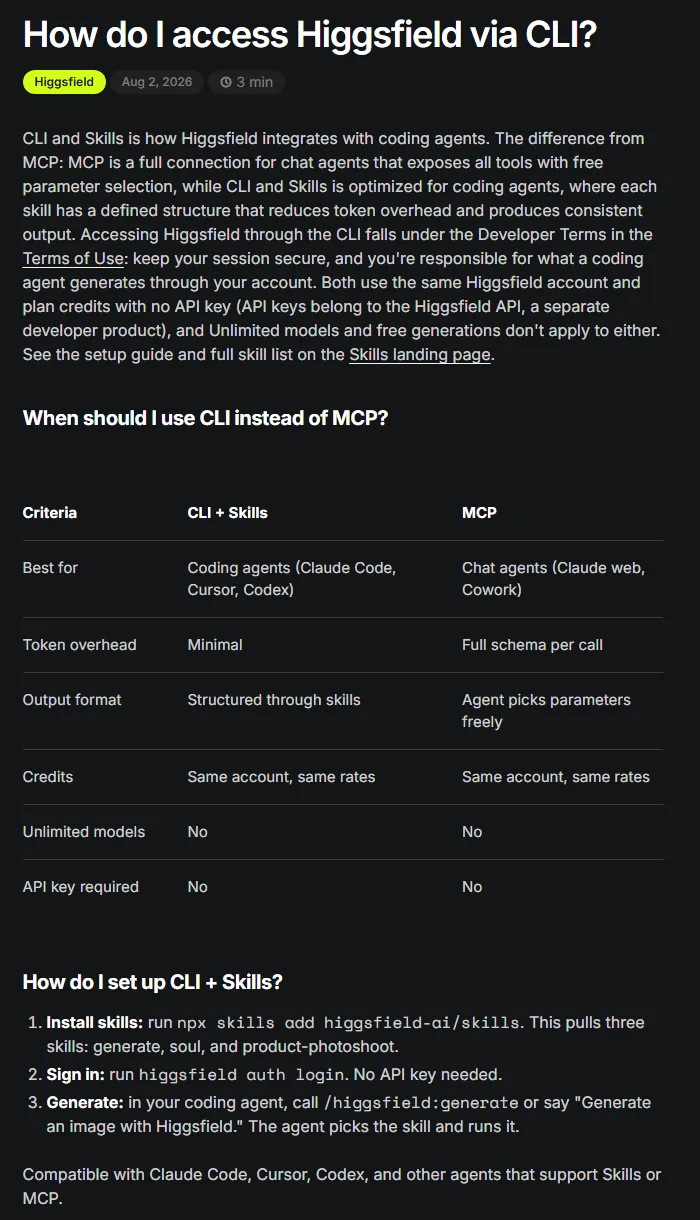 The official help table comparing CLI and MCP, and the three CLI setup steps (Higgsfield help page screenshot)
| Compare | CLI + Skills | MCP |
|---|---|---|
| Best for | Coding agents (Claude Code, Cursor, Codex) | Chat agents (Claude on the web and others) |
| Token use | Low | The full tool description on each call |
| Output | Shaped by the skill | The agent picks options freely |
| Credits | Same account, same rates | Same account, same rates |
| Unlimited models | No | No |
| API key | Not needed | Not needed |
By that table, the CLI fits coding agents such as Claude Code. For the sponsored video, we attached MCP to Claude Code instead. We had to set options such as the video edit mode, resolution, sound and quoting ourselves for each scene. We did not use the CLI for this work.
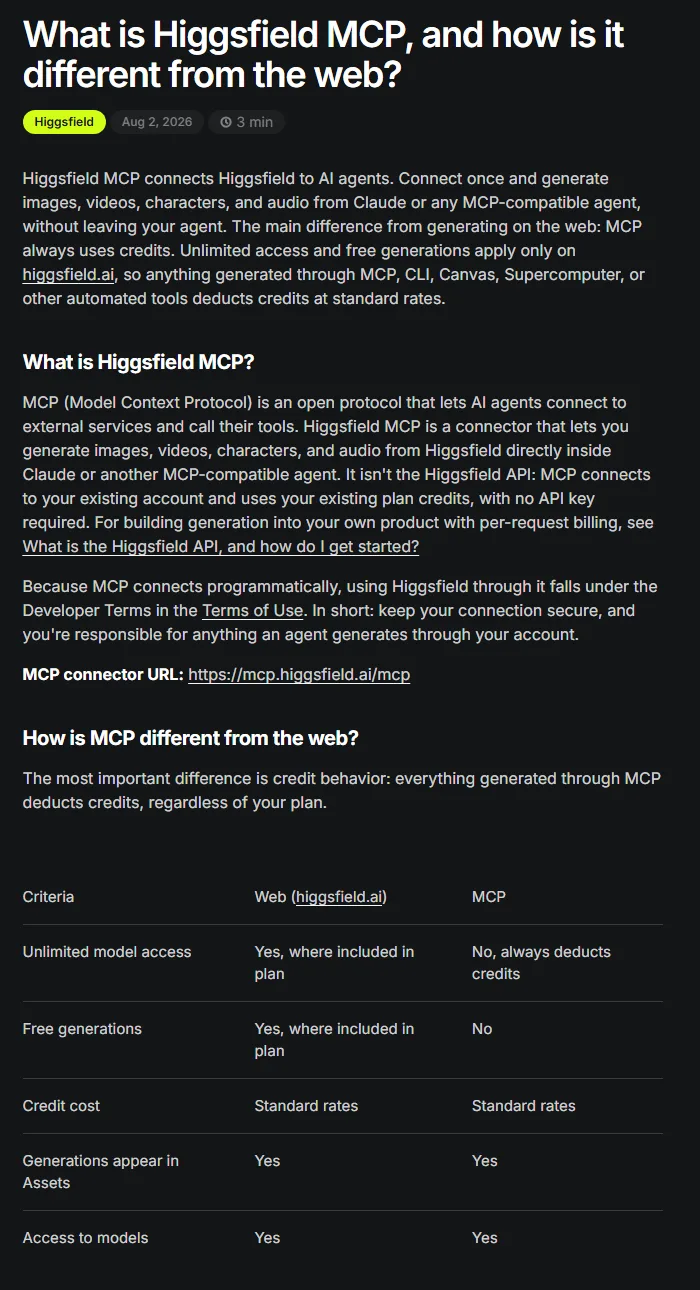 The official help table comparing the web and MCP. In the MCP column, Unlimited model access says "No, always deducts credits" (Higgsfield help page screenshot)
The table above also sums up how MCP differs from the web. Models and prices are the same, and only the web gets unlimited models and free generations. Results made over MCP also land in your Assets list on the website, tagged as MCP.
2. Connecting
Pick one of three ways. The server address is https://mcp.higgsfield.ai/mcp in every case, and you log in through the browser with no API key (OAuth).
A. Add it as a claude.ai connector (the way we used)
If you use Claude Code logged in with a claude.ai account, connectors you add on claude.ai show up in Claude Code automatically.
- In a browser, open the connector settings on claude.ai (
claude.ai/customize/connectors). - Add Higgsfield and log in with your Higgsfield account when asked.
- In Claude Code, type
/mcp. Higgsfield should appear in the list as a server from claude.ai.
On Team and Enterprise plans, only admins can add connectors.
B. Add it to Claude Code directly
Run the command below in a terminal. It is Claude Code's standard form for adding a remote MCP server, with the Higgsfield server address filled in. We used way A for our work, so we did not run this command.
claude mcp add --transport http higgsfield https://mcp.higgsfield.ai/mcp
Open Claude Code, type /mcp, choose Higgsfield, and log in through the browser. To use it in every project, add --scope user. The default is local, which applies to the current project only.
C. Use the CLI and Skills
- Run
npx skills add higgsfield-ai/skills. Three skills are installed (generate, soul, product-photoshoot). - Log in with
higgsfield auth login. - In Claude Code, call
/higgsfield:generateor say something like "Generate an image with Higgsfield."
3. Checking the connection
Once connected, ask for the status before you make anything. Checking the status and the balance costs no credits.
Do this: Send something like this to Claude Code.
Check the Higgsfield MCP connection. Don't generate anything; just read my account and remaining credits.
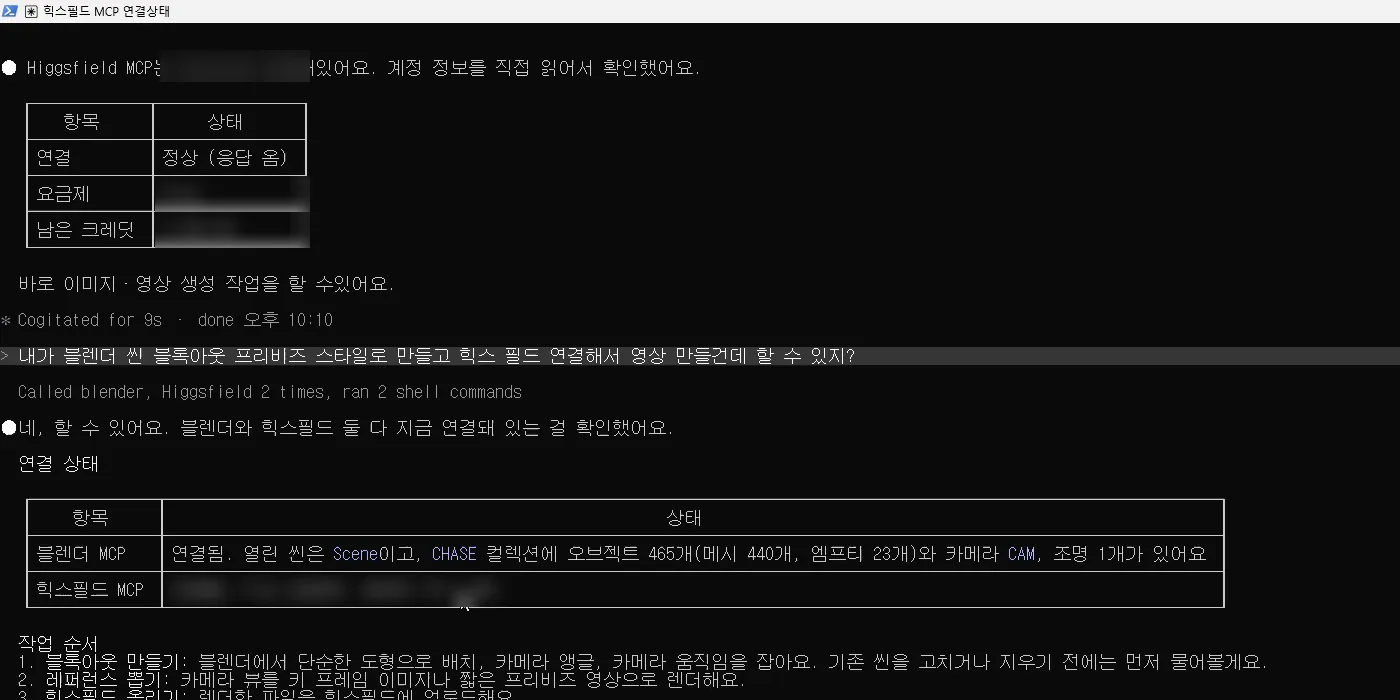 Checking the connection in Claude Code while recording the sponsored video. The plan and remaining-credit cells are blurred (one frame from a Claude Code terminal recording)
The image shows Blender MCP and Higgsfield MCP attached together. For the second question, Claude Code read the Blender scene (object count, camera, light) and the Higgsfield account separately and answered with a table. Once you see this table, you can go from blockout to conversion in one conversation. Attaching Blender is covered in Claude Code and the Blender MCP.
4. Handing over one scene, step by step
Below is the actual order in which we ran one car chase scene through Claude Code. The tool calls are copied in order from the session log.
| Step | What Claude Code called | Result | Credits |
|---|---|---|---|
| 1 | media_upload (source MP4, still at 1.5 s) | Two files uploaded | 0 |
| 2 | generate_image (gpt_image_2_5, "Edit Image 1…") | One style frame | 1.5 |
| 3 | A person approved "submit" after seeing the estimated price (about 76) | ||
| 4 | Pre-submission check script | 24 fps source, one style frame, per-scene cap, balance floor, approval record all passed | 0 |
| 5 | generate_video (seedance_2_5, video_edit, 720p, get_cost: true) | Quote of 76 credits, nothing generated | 0 |
| 6 | generate_video (same values, submitted) | Job number, pending | 76 |
| 7 | jobs_wait (job number) | Done after about 6 minutes | 0 |
| 8 | Download → frozen frame check | 4 frozen frames | 0 |
| 9 | Fill frozen frames in editing | 0 frozen frames | 0 |
Step 5 is the key. Adding get_cost: true to the same tool returns only the price without generating anything. It is the same as reading the number on the Generate button on the web. The person approved based on the estimated price, and right before submitting, Claude Code checked once more that the real quote matched before moving to step 6.
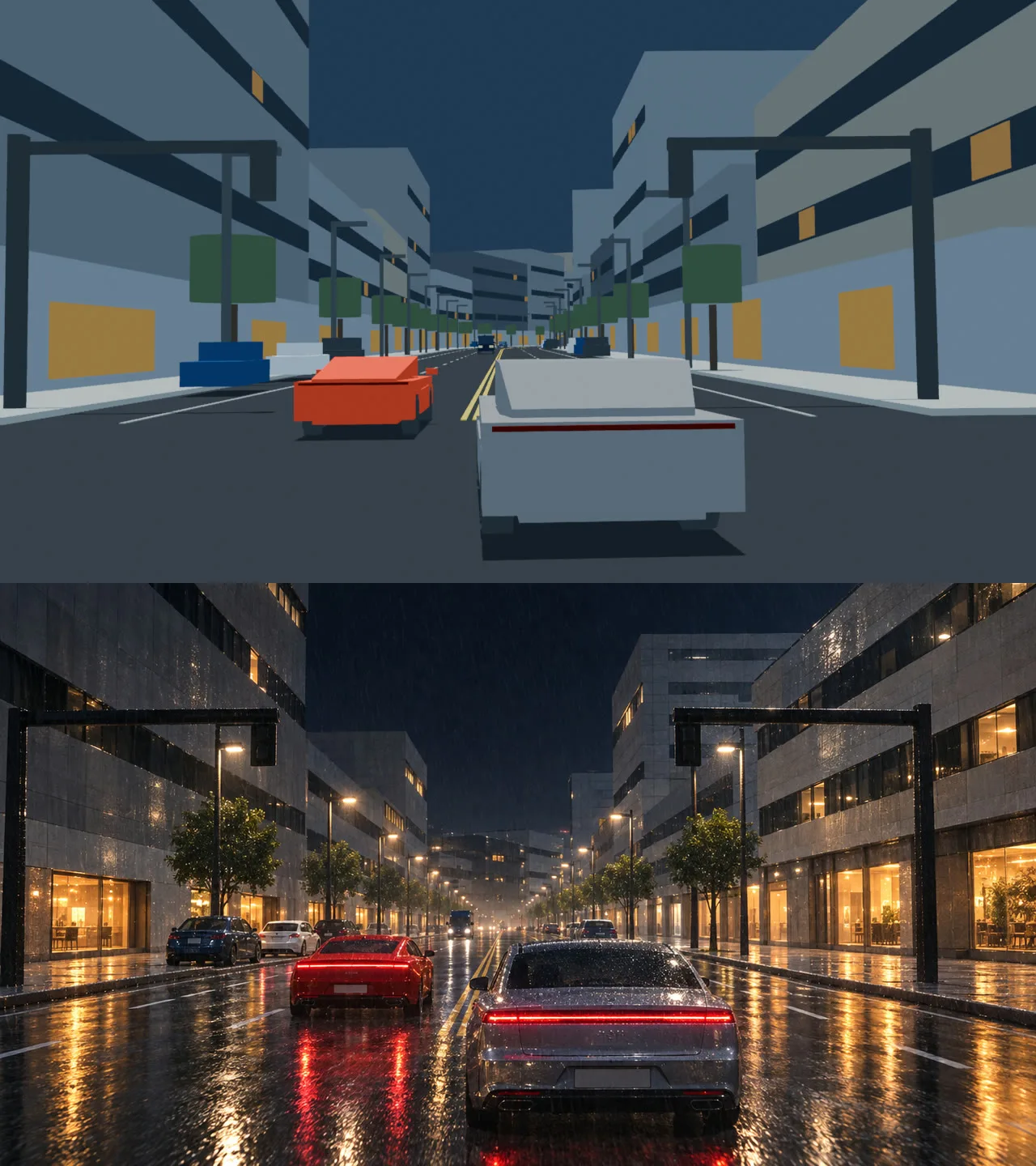 Top, the blockout still uploaded in step 1. Bottom, the style frame made in step 2 (Blender render; bottom is a Higgsfield result)
 Stills at 1.5 s and about 7.5 s from the result video received in step 6 (Higgsfield result, sponsored video material)
Do this: When you try this with your own scene, do not ask for everything at once. Send it in stages as below. These requests are rewritten from our work; we did not run this exact text. The answers and call order will differ a little each time.
1) Upload source.mp4 and still.png to Higgsfield and just tell me the result. Don't generate anything.
2) Turn still.png into one live-action style frame with GPT Image 2.5. Tell me the price first and make it only after I approve.
3) Get only a quote (get_cost) for converting source.mp4 with Seedance 2.5 video edit, 720p, sound on. Don't submit.
4) (After seeing the price) Submit. When it's done, download the result to this folder and log the job number and actual charge in the ledger.
5. Write the credit safeguards down as rules
A tool you instruct in plain language accepts "try again" far too easily. So we wrote the following into the project folder's rules file (CLAUDE.md) before handing over the work. Claude Code reads this file first in every session.
| Safeguard | The value we set |
|---|---|
| Quote first | Get the price with get_cost before submitting and write it in the log file |
| One job at a time | Submit the next job only after reviewing the result |
| Per-scene cap | Up to three paid 720p videos per scene |
| Balance floor | Stop and report if remaining credits drop below 800 |
| Human approval | Generate video only after a person says "submit" |
| Pre-submission check | A script checks for a 24 fps source, one style frame, and the balance and quote |
Do this: Add a few lines like these to CLAUDE.md in your work folder.
## Higgsfield rules
- Before making any image or video, give me the price with get_cost and wait for my approval.
- Submit only one job at a time.
- If remaining credits drop below ○○, stop and ask.
- For each generation, log the date, model, settings, quote, actual charge and job number on one line in cost.md.
6. Keeping a ledger for every generation
For every generation, we kept the fields below in the log file.
| Field | Example |
|---|---|
| Date, scene, stage | 10-04, car chase, 720p |
| Model and settings | seedance_2_5, video_edit, draft off |
| Source | File name and sha256 (file fingerprint) |
| Quote | 76 |
| Actual charge | 76 (checked in the transaction history) |
| Remaining credits | The balance lookup value |
| Job number | Used to find it in the web library |
sha256 is a long fingerprint calculated from a file's contents. When you fix a file and resubmit it under the same name, it tells you which version you sent. We checked the actual charges with the Higgsfield MCP transaction history (transactions) and balance lookups. At the end, we looked up the balance and compared it with the ledger's calculated value, and the difference was 0.
7. Web or MCP: when to use which
| When | Choose |
|---|---|
| Trying a few things on a plan with unlimited models | The web (unlimited works only there) |
| Many scenes where you repeat the same steps | Claude Code + MCP |
| One flow from Blender render to conversion and checks | Claude Code + Blender MCP + Higgsfield MCP |
| Repeating a fixed format (such as product photos) with few tokens | Claude Code + CLI and Skills |
| Recording the generation screen to show in a video | The web (MCP returns only the result, so the process is not on screen) |
Using Higgsfield over MCP or the CLI falls under the Developer Terms in the terms of use. Everything an agent makes with your account is your responsibility. Use the connection only in folders and sessions you trust, and when you are done, you can clear the login from the /mcp menu.
Practice
- Attach Higgsfield in one of the three ways from section 2 and check that it appears in the
/mcplist. - Ask for the connection status with the request in section 3. Compare with the balance on the website to confirm no credits were used.
- Add the four Higgsfield rule lines from section 5 to
CLAUDE.mdin your work folder, then ask for the price of one image. Check that Claude Code stops and waits for approval before making it.
Common mistakes and fixes
| Symptom | Cause | Fix |
|---|---|---|
Higgsfield is not in the /mcp list | The connector was added to a different account, or you have not logged in yet | Check which claude.ai account Claude Code is logged in with, and log in again |
| An unlimited model still took credits | Unlimited does not apply to MCP or CLI generations | Make unlimited items on the website |
| You only asked for a price, but it generated anyway | The request did not say "don't make it" | Ask for get_cost only, and put an approval step in the rules file |
| The same scene was submitted several times | Several jobs were handed over at once | One job at a time, with a per-scene cap |
| You cannot tell which version you submitted | Files were overwritten without a log | Log the sha256 and job number for every generation |
| The result does not show up on the website | You are looking at a different list in the library | Look for items tagged MCP in Assets on the website |
In one line
Connect with a connector, claude mcp add, or the CLI, and before making anything always go quote (get_cost) → human approval → one submission → ledger entry.
Higgsfield posts: Higgsfield introduction · Reading pricing and credits · Blockout to live-action video
Read next
References
- Claude Code Docs: Connect Claude Code to tools via MCP
- Higgsfield help: What is Higgsfield MCP, and how is it different from the web?
- Higgsfield help: How do I access Higgsfield via CLI?
- Higgsfield MCP page
- Higgsfield Terms of Use
- Image license: images 1 and 2 are Higgsfield help pages. Image 3 is a frame from AZTechnology's Claude Code work recording. Images 4 and 5 are a Blender blockout made by AZTechnology and Higgsfield results.