Claude Code hooks: blocking risky agent commands with a PreToolUse guard
Build a small Python script that Claude Code runs just before an AI agent uses a tool, and use it to block five things: deleting lock files, wrapping Blender in timeout, factory-startup installs, running Blender without the lock script, and reading secret files. Real test output included.
한국어English
ON THIS PAGE
- 011. What a PreToolUse hook does
- 022. Five rules and why they exist
- 033. Write the hook script
- 044. Register it in settings.json
- 055. Test first: what to block and what to let through
- 066. What the agent sees when a command is blocked
- 077. What a hook cannot stop
- 08Practice
- 09Common mistakes and fixes
- 10Summary
- 11Read next
- 12References
Based on: the Claude Code docs "Hooks reference" and "Automate actions with hooks", and Python 3.14 on Windows 11. Checked on November 5, 2026. Figures 1 and 2 show the real output of this guide's example scripts, redrawn as a terminal window. Figure 3 is a screenshot of the official docs.
When you hand work to an AI agent such as Claude Code, the agent runs terminal commands by itself. That is handy, but it raises a worry. You can write "never delete this file" or "only run this program this way" in your instructions, and during a long task the agent will still forget now and then. With several agents running at once, it forgets more often.
A hook is a command of yours that Claude Code runs automatically at a set moment. A PreToolUse hook runs right before the agent uses a tool (running a command, reading a file and so on). Think of a security guard at a building entrance. The guard looks at each person (each command) and turns away anyone on the no-entry list. The agent may forget the rules; the guard does not.
This guide takes five blocking rules we really use in a setup where several AI agents share Blender rendering, and turns them into a smaller example anyone can build.
By the end of this guide you can:
- Explain when a PreToolUse hook runs and what it receives.
- Write a Python hook script that checks a command and blocks it.
- Register the hook in
.claude/settings.json. - Test the hook first with commands that should be blocked and commands that should pass.
- Know what a hook cannot stop.
Before you start: you need Claude Code installed. See Getting started with Claude Code. The example is written in Python. On Windows run it with
py; on macOS and Linux usepython3.
1. What a PreToolUse hook does
The official docs describe hooks as user-defined shell commands that Claude Code runs at specific points in its lifecycle (Figure 3). There are many such points; this guide uses only PreToolUse.
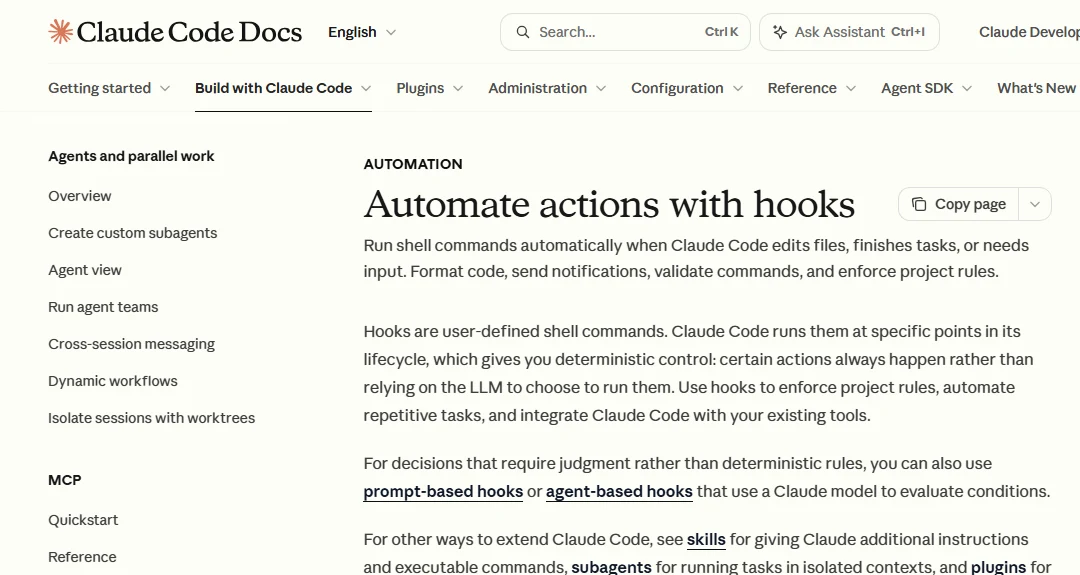 Figure 3. The first screen of the official hooks guide (screenshot of the official docs)
The flow goes like this.
- The agent is about to run a command, for example
rm -f locks/blender.lock. - Claude Code turns it into JSON and passes it to your hook script on standard input (stdin).
tool_nameholds the tool name (Bashand so on), andtool_inputholds the command or the file path. - If the hook ends without printing anything, the command goes on to the normal permission check.
- If the hook prints a "deny" decision, the command does not run, and the reason the hook wrote is shown to the agent.
Step 4 matters. The agent reads the reason and looks for another way. So the reason should say not only "don't" but also "do this instead."
2. Five rules and why they exist
These five are things we actually block in a setup where several agents share Blender. The rules on running several copies at once and on installing add-ons came after real problems. The others were added to protect the same lock and our secrets.
| # | What it blocks | Why | Do this instead |
|---|---|---|---|
| 1 | Deleting lock files | A lock means "Blender is in use right now." Delete it and another agent starts more Blender processes on the same graphics card | Let the lock script free stale locks by itself |
| 2 | Wrapping Blender in timeout | When time runs out and the process is killed, the lock is left behind | Run long jobs in the background |
| 3 | Using --factory-startup to install add-ons or change preferences | This option starts Blender without reading the user's startup file, so you install or change things in a state that differs from your usual setup | Back up the preferences file first (so you can roll back a bad change) and run without the option |
| 4 | Running Blender without a window and without the lock script | If it skips the lock, nobody knows how many copies are running | Run it only through a lock script such as run_blender.sh |
| 5 | Reading or copying secret files (.env, api.txt) | API keys end up in the conversation log | Let the program read its keys by itself while it runs |
Rules 1, 2 and 4 rest on numbers we measured. Once, Blender ran with no limit, up to 10 copies at once, and a render that took 50 seconds on its own took 33 minutes. With 4 copies a single job still took about 20 minutes. Since then Blender goes through a lock script and only 2 copies run at once by default. The rules above keep that lock from breaking.
A lock is like the "occupied" sign on a bathroom door. Rip the sign off and two people walk in at once. Leave without removing it (a forced kill) and nobody can get in. Rules 1 and 2 stop these two cases.
In the table and the example, run_blender.sh is a sample name for a launch script that counts running Blender copies and takes the lock. If you have no such script, leave out rules 2 and 4.
3. Write the hook script
Starting point: start in an empty project folder. Create a .claude/hooks/ folder inside it.
Follow along: create .claude/hooks/guard.py and paste the code below. Each rule is a pair: a text pattern to look for (a regular expression) and the reason for the denial.
import json
import re
import sys

SEP = r"[^\n;|&]*"  # stay inside one shell command

RULES = [
    # 1. deleting lock files
    (re.compile(r"\b(rm|del|Remove-Item)\b" + SEP + r"(locks[\\/]|\.lock\b)", re.I),
     "Do not delete lock files. The lock script frees stale locks by itself."),
    # 2. wrapping Blender in timeout
    (re.compile(r"(^|[;&|(]\s*)timeout\s" + SEP + r"(blender|run_blender\.sh)", re.I),
     "Do not wrap Blender in timeout. Use a background run instead."),
    # 3. --factory-startup together with add-on or preference changes
    (re.compile(r"--factory-startup" + SEP + r"(addon|install|userpref|preferences)"
                r"|(addon|install|userpref|preferences)" + SEP + r"--factory-startup", re.I),
     "Do not use --factory-startup when installing add-ons or changing preferences."),
    # 4. running Blender in the background without the lock script
    (re.compile(r"(^|[;&|(]\s*|\s)[\"']?([\w:.\\/ -]*[\\/])?blender(\.exe)?[\"']?\s+(-b\b|--background\b|-P\b|--python\b)", re.I),
     "Run Blender only through run_blender.sh."),
    # 5. reading or copying secret files with a shell command
    (re.compile(r"\b(cat|type|head|tail|less|more|Get-Content|cp|copy|base64)\b" + SEP
                + r"(api\.txt|\.env(\.(?!example\b)[\w.-]+)?)(?![\w.-])", re.I),
     "Do not read or copy secret files (.env, api.txt)."),
]

SECRET_PATH = re.compile(r"(^|[\\/])(api\.txt|\.env(\.(?!example\b)[\w.-]+)?)$", re.I)


def deny(reason):
    print(json.dumps({
        "hookSpecificOutput": {
            "hookEventName": "PreToolUse",
            "permissionDecision": "deny",
            "permissionDecisionReason": "[guard] " + reason,
        }
    }))
    sys.exit(0)


def main():
    try:
        data = json.load(sys.stdin)
    except Exception:
        return
    tool = data.get("tool_name", "")
    inp = data.get("tool_input") or {}
    if tool in ("Bash", "PowerShell"):
        cmd = inp.get("command", "") or ""
        for pattern, reason in RULES:
            if pattern.search(cmd):
                if reason.startswith("Run Blender only") and "run_blender.sh" in cmd:
                    continue
                deny(reason)
    elif tool == "Read":
        if SECRET_PATH.search(inp.get("file_path", "") or ""):
            deny("Do not read secret files (.env, api.txt).")


if __name__ == "__main__":
    main()
A few points.
SEPstops the search at;,|,&and line breaks. That way a command likels locks; rm notes.txtis not read as one command that joins "locks" from the first part with "rm" from the second.- Rule 5 leaves
.env.examplealone. It is a sample file with no secrets, so reading it is fine. If you block things that need no blocking, the agent cannot get its work done. - To deny, the script prints JSON and exits with code 0. There is another way: exit with code 2 and write the reason to standard error (stderr). Use one or the other.
- If the script cannot read its input, it does nothing and exits. Section 7 covers the weak side of that choice.
4. Register it in settings.json
Follow along: add the following to .claude/settings.json in your project folder. If the file already exists, add only the "hooks" part.
{
  "hooks": {
    "PreToolUse": [
      {
        "matcher": "Bash|PowerShell|Read",
        "hooks": [
          {
            "type": "command",
            "command": "py \"$CLAUDE_PROJECT_DIR/.claude/hooks/guard.py\"",
            "timeout": 10
          }
        ]
      }
    ]
  }
}
| Field | Meaning |
|---|---|
matcher | Which tools the hook applies to. `Bash |
command | The command to run. $CLAUDE_PROJECT_DIR is the project folder where the session started. On macOS and Linux use python3 instead of py |
timeout | How many seconds the hook may take. A regex check finishes quickly, so 10 seconds is plenty |
The settings can live in three places. To share the same rules with your team, use the project's .claude/settings.json.
| File | Applies to | Shared |
|---|---|---|
~/.claude/settings.json | All your projects | No |
.claude/settings.json | This project | Can be committed to the repository |
.claude/settings.local.json | This project, just you | No |
Hooks set in these files also run when a subagent (a helper agent that takes part of the work) uses a tool. That is why hooks are so useful when several agents run at once.
5. Test first: what to block and what to let through
Before you trust the registered hook with real work, test it. A wrong hook fails in two directions: it lets through what it should block, or it blocks normal work. A test list catches both.
Follow along: create test_guard.py in the same folder as guard.py (.claude/hooks/) and paste the code below as it is.
"""Self-test for guard.py: py test_guard.py"""
import json
import pathlib
import subprocess
import sys

GUARD = pathlib.Path(__file__).with_name("guard.py")

CASES = [
    # (tool, input, should_deny)
    ("Bash", {"command": "ls renders"}, False),
    ("Bash", {"command": "bash run_blender.sh -b scene.blend -P build.py"}, False),
    ("Bash", {"command": "cat .env.example"}, False),
    ("Bash", {"command": "rm -f locks/blender.lock"}, True),
    ("Bash", {"command": "timeout 600 bash run_blender.sh -b scene.blend"}, True),
    ("Bash", {"command": "bash run_blender.sh -b --factory-startup --python install_addon.py"}, True),
    ("Bash", {"command": "blender -b scene.blend -P build.py"}, True),
    ("PowerShell", {"command": r'& "C:\Program Files\Blender Foundation\Blender 5.2\blender.exe" --background scene.blend'}, True),
    ("Bash", {"command": "cat .env.local"}, True),
    ("Read", {"file_path": r"C:\work\project\api.txt"}, True),
    ("Read", {"file_path": r"C:\work\project\.env.example"}, False),
]


def run(tool, inp):
    payload = json.dumps({"tool_name": tool, "tool_input": inp})
    out = subprocess.run([sys.executable, str(GUARD)], input=payload,
                         capture_output=True, text=True, encoding="utf-8")
    return '"deny"' in out.stdout


fails = 0
for tool, inp, want in CASES:
    got = run(tool, inp)
    mark = "OK  " if got == want else "FAIL"
    fails += got != want
    print(f"{mark} deny={got!s:5} {tool}: {list(inp.values())[0]}")
print("fails:", fails)
sys.exit(1 if fails else 0)
The script has three parts.
CASES: the test list. Each line is (tool name, input, should it be blocked).Truein the last slot means it must be blocked;Falsemeans it must pass.run(): turns one case into the same kind of JSON that Claude Code sends, feeds it toguard.pyon standard input, and runs it. If the output contains"deny", the case counts as blocked.- The loop at the end: prints
OKwhen the result matches what you expected andFAILwhen it does not, then counts the failures (fails).
Follow along: in the terminal, move into the .claude/hooks/ folder and run py -B test_guard.py. -B stops Python from writing a cache folder. You are done when all eleven lines say OK and the last line says fails: 0, as in Figure 2.
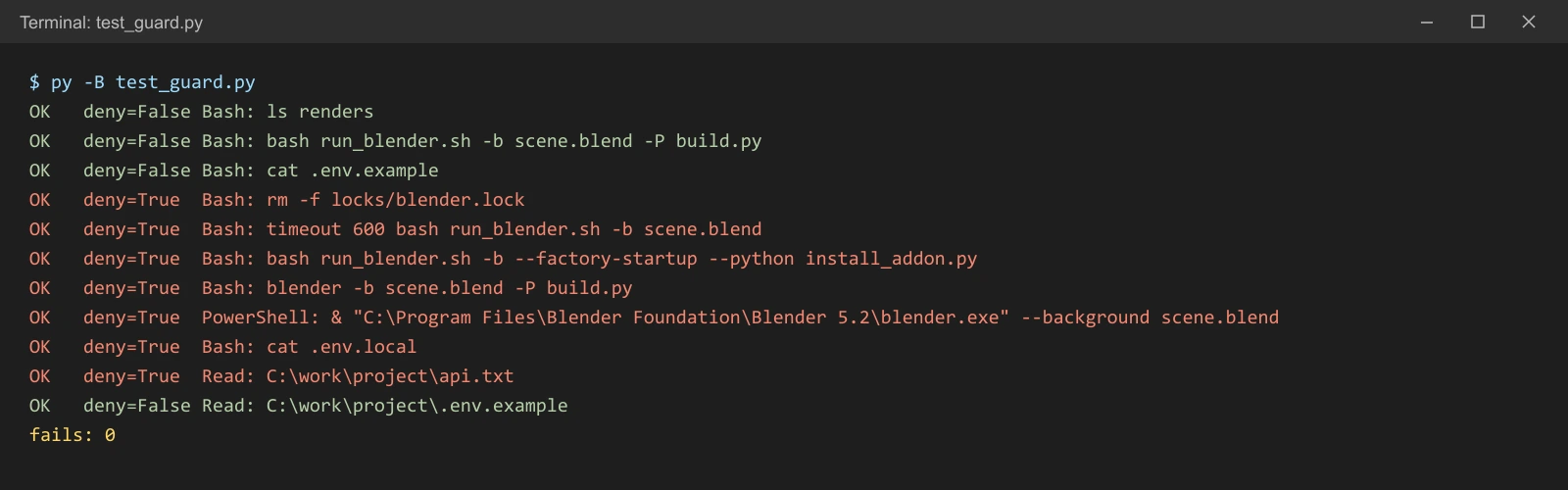 Figure 2. Test results for the example hook. The 4 cases that should pass show deny=False, the 7 that should be blocked show deny=True, and 0 cases fail (real output)
The hook in our real setup has 29 such cases, and we rerun them every time a rule changes. When you add a rule, add one case it must block and one similar case it must not block. For example, if you add rm -f locks/blender.lock (block), also add something like grep -rn timeout run_blender.sh (pass), which only searches for the word "timeout" inside the lock script.
6. What the agent sees when a command is blocked
Run the hook on its own and you can see the denial output yourself.
Follow along: save the line below as sample_payload.json, then run py -B guard.py < sample_payload.json. Windows PowerShell does not accept <, so there run cmd /c "py -B guard.py < sample_payload.json".
{"tool_name": "Bash", "tool_input": {"command": "timeout 600 bash run_blender.sh -b scene.blend"}}
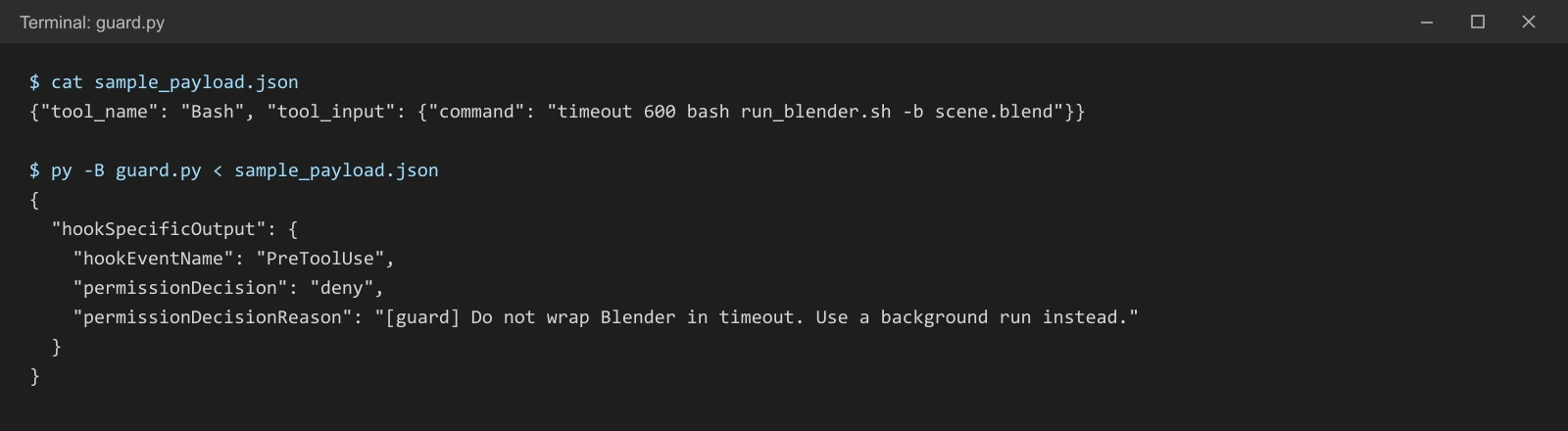 Figure 1. A command caught by rule 2 and the hook's denial output (real output from a Bash shell. The JSON actually prints on one line; the figure breaks it into lines for readability)
Inside Claude Code the reason reaches the agent like a tool error. In our setup it showed up as PreToolUse:Bash hook error: [guard] …. Putting [guard] in front of every reason tells both the agent and you which safeguard did the blocking.
Keep reasons short and include what to do instead.
| Weak reason | Better reason |
|---|---|
| "Forbidden command" | "Don't wrap Blender in timeout. Run long jobs in the background." |
| "Security violation" | "Don't read secret files. Let the program read them while it runs." |
7. What a hook cannot stop
Hooks are handy, but they are not magic. Keep four things in mind.
① It only looks at text. A hook does not run the command; it only looks at the text. So it can block the wrong thing. While testing this guide's example, we ran a command that passed a JSON line through echo. That JSON contained the text rm -f locks/…, and the hook in our real setup blocked the whole command. We switched to saving the test input to a file and passing that (section 6). The other way round, a command written differently (for example, stored in a variable and then run) can slip through.
② Silence is not approval. When a hook ends with no output, the call goes on to the normal permission check. Use hooks only to block, and leave approval to the permission settings.
③ A broken hook leaves the door open. By default, a PreToolUse hook that times out or fails does not block the call. If Python is missing or the path is wrong, every command walks straight through. This guide's example also exits quietly when it cannot read its input. If the hook really must block, look at the "onFailure": "block" setting. The official docs say it works from Claude Code v2.1.295 onward.
④ For hard rules, add permission settings too. For a firm allow or deny, permission settings fit better than a hook. Things that must never be opened, such as secret files, also go in a deny list in .claude/settings.json, for example "permissions": { "deny": ["Read(**/.env)"] }. That gives you two layers.
Hooks are useful beyond PreToolUse. A UserPromptSubmit hook, for instance, runs every time the user sends a message and adds its output for the agent to see. In our setup, when a long conversation fills 60% and then 70% of the context, this hook adds a reminder: "don't start new work, write the handoff notes."
Practice
- Write down three commands an AI must never run in your project. Add one line of "do this instead" for each.
- Add a rule to
RULESin section 3 that blocks the first command from question 1. - Add one case that rule must block and one similar case it must not block to
test_guard.py, and check that you getfails: 0. - Guess whether
ls locks && rm notes.txtwill be blocked or pass, write it down, then add it to the test list to check.
Common mistakes and fixes
| Symptom | Cause | Fix |
|---|---|---|
| The hook never runs | Wrong tool name in matcher, or the settings file is in another place | Check the tool names (Bash, Read) and the file locations in section 4 |
| Every command goes through | The Python command name (py, python3) or the script path is wrong, so the hook fails | Run it by hand as in section 6; use onFailure if needed |
| Normal commands get blocked | The regex is too broad, or other text in the command matches | Add must-pass cases to the test list and narrow the regex |
| The agent keeps retrying the same command | The reason has no "instead" | Add one "do this instead" sentence to the reason |
| Non-English reasons show up garbled | Output encoding | Add sys.stdout.reconfigure(encoding="utf-8") at the top of the script |
Summary
Each rule = a text pattern + what to do instead → check blocks and passes with a test list → register in settings.json → put hard rules in the permission settings too. For a checklist to go through before handing Blender to AI, see the first link below.
Read next
- Safety checks before handing Blender to AI
- Getting started with Claude Code
- Subagents and multi-agent systems
References
- Claude Code Docs: Hooks reference
- Claude Code Docs: Automate actions with hooks
- Blender 5.2 Manual: Command Line Arguments
- Image license: Figures 1 and 2 are output from running this guide's example, by AZTechnology. Figure 3 is a screenshot of the official Claude Code docs.