Keeping a multi-week Claude Code project on track: RESUME files, handoffs and context limits
A long Claude Code chat gets summarized or cut as it grows, so for work that runs for weeks we split it into sessions with a short 'current summary' in a RESUME file, a /handoff command, and a status line and hook that report context usage. We follow the real records of our working folder and an example we ran ourselves.
한국어English
ON THIS PAGE
- 011. What happens when the context window fills up
- 022. The three kinds of files a new session reads
- 03Session start
- 04Context rules
- 05Current summary (<date> handoff)
- 06History: <date> <what was done>
- 073. A `/handoff` command to end the day
- 084. A status line and a hook for 60% and 70%
- 095. How to continue in a new session
- 106. Other habits for long work
- 11Exercises
- 12Common mistakes and fixes
- 13Summary
- 14Read next
- 15References
Based on: the Claude Code docs (Status line, Hooks reference, Commands, Context window) and Node.js 24 on Windows 11 with Git Bash installed. Checked on November 5, 2026. Figure 1 is a chart drawn from our working folder's git history. Figure 2 shows the real output of this guide's example scripts, laid out as a terminal window.
For a job that ends in a day or two, one Claude Code chat is enough. Work that runs for weeks is different. As a chat grows, Claude Code summarizes the earlier part to make room, and any decision lost in that summary has to be explained again the next day. Open a new chat and you start from zero.
This guide shares the method we use in a working folder where Blender video work has run on Claude Code for weeks. Keep the memory in files, not in the chat. Any chat can end at any time, and a new chat reads a few files and picks up right away.
By the end of this guide you can:
- Tell what happens when the context window fills up.
- Set up the three kinds of files a new session reads first (CLAUDE.md, RESUME, handoff notes).
- Make a
/handoffcommand to run at the end of a day. - Show context usage in the status line and add a hook that tells Claude at 60% and 70%.
- Decide how much a new session reads before it starts.
Before you start: Claude Code must be installed. Setup is in Getting started with Claude Code. The examples in section 4 use Node.js. If
node -vprints a version in a command prompt, you are ready. On Windows, also install Git for Windows (Git Bash). The status line and hook in section 4 are written to run in Git Bash.
1. What happens when the context window fills up
The context window is how much text Claude can see at once in one chat. Think of it as the size of a desk. The chat, the files Claude reads, and command output all pile up on it. When the desk is full, the oldest papers have to be cleared. The idea is explained in What tokens and context windows mean.
Claude Code has three commands for the desk.
| Command | What it does | What stays |
|---|---|---|
/compact | Summarizes the chat so far to free space. Also runs on its own as the window fills | The summary, the CLAUDE.md at the project root (reloaded from disk), and up to five files read or edited most recently |
/clear | Starts a new chat with empty context | Project memory (CLAUDE.md and so on). The old chat can be reopened with /resume |
/context | Shows what fills the context right now as a colored grid | Nothing changes |
The point of the table: you do not choose what survives a summary. You can add focus notes after /compact, but weeks of decisions rarely fit in one summary. CLAUDE.md, on the other hand, is reloaded from disk even after compaction. So anything that must last goes in a file, not in the chat.
2. The three kinds of files a new session reads
Here, files are kept in three layers. A new session reads from the top only as far as it needs.
| File | What it holds | Length | Comparison |
|---|---|---|---|
CLAUDE.md | Rules that do not change, and "what to read when a session starts" | Short (ours is 60 lines) | The notice on the office wall |
The "current summary" in RESUME.md | Where work stopped, files to look at, the next step, what a person must decide | 30 lines or fewer | A sticky note on the desk |
Handoff notes reports/<date>_handoff_<area>.md | Everything done that day, output paths, blockers | Can be long | The work diary |
The reason for three layers is to cut how much a new session reads. A new session reads the wall notice and the sticky note and starts working. It opens the diary only when it needs the details.
2-1. Add a "session start" section to CLAUDE.md
Starting point: open the project folder you want to continue. If there is no CLAUDE.md at the top of the folder, create one.
Follow along:
- Open
CLAUDE.mdat the top of the project folder in Notepad. - Paste this section at the top and save.
## Session start
1. Read only the "Current summary" section at the top of RESUME.md. Open the history below it only when needed.
2. Start from "Files to look at" and "Next step" in the summary.
3. Do not read large files (over 2,000 lines) in full. Search for the part you need, or ask a subagent for a summary.

## Context rules
- From 60% context usage, start no new work and only finish the current step.
- At 70%, write the handoff with /handoff and continue in a new session.
Keep CLAUDE.md short. Ours once grew to 13 KB (121 lines) with tables and background. On October 11 we moved the detailed tables to other documents and cut it to 5 KB (60 lines). A file that loads every time takes desk space before any work begins.
2-2. Make a "current summary" in RESUME.md
Follow along:
- Create
RESUME.mdat the top of the project folder. - Paste the template below and fill it in with the current state.
# <project name> resume

## Current summary (<date> handoff)

**One line:** <one sentence on how far you got and where you stopped>

| Item | Content |
|---|---|
| Files to look at | <path to the output or comparison image> |
| Next step | <the one thing the new session does first> |
| Needs a decision | <what is waiting for a person> |
| Lesson | <one line that prevents the same mistake> |
| Handoff | reports/<date>_handoff_<area>.md |

## History: <date> <what was done>
- (move old summaries down here)
There are two rules. First, the current summary stays at 30 lines or fewer. When it goes over, move the oldest parts down to the history section. Second, you rewrite the summary instead of adding to it. If you only add, the summary turns back into a diary.
2-3. What happens if you keep adding
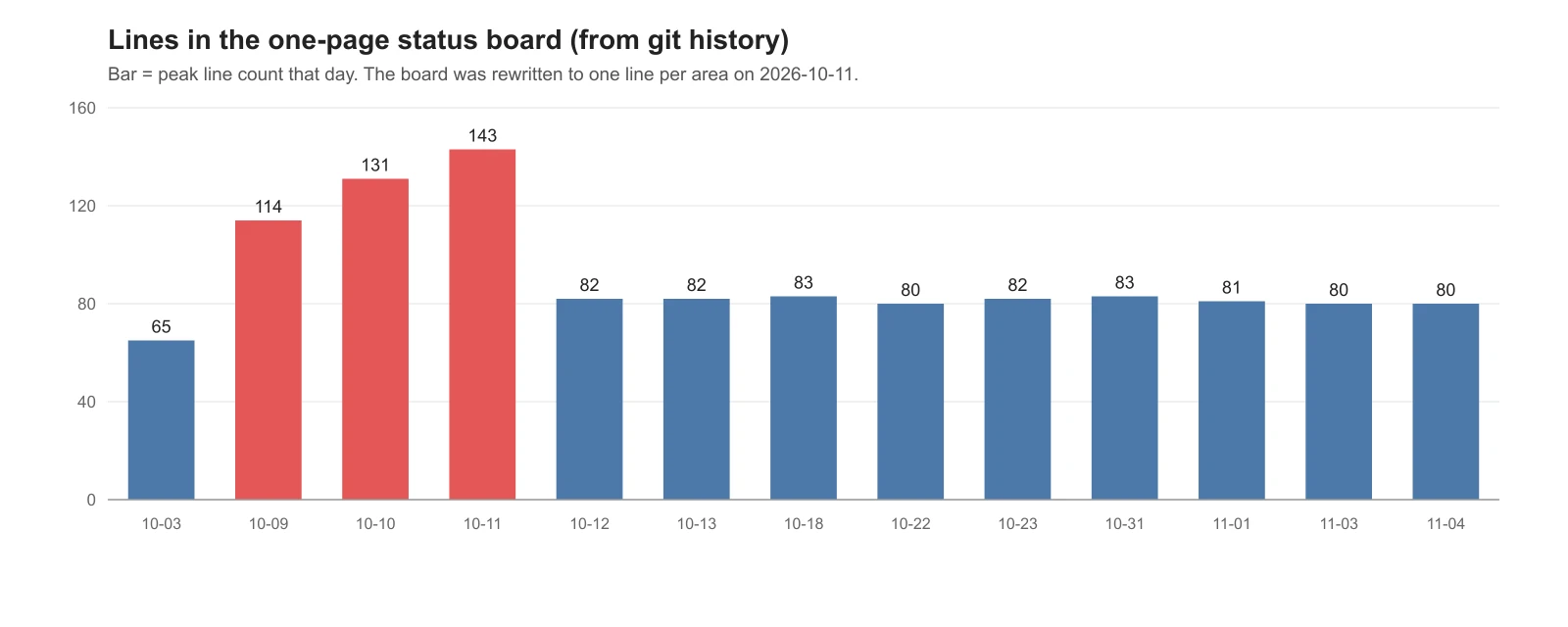
Figure 1. Line count of the one-page status board that tracks progress by area. Only days with commits, peak count for each day (chart, from the working folder's git history)
Our folder has a one-page status board with the current state of each area. At first we added a line whenever there was news. As Figure 1 shows, it went from 65 to 143 lines in about a week, and new sessions could no longer read all of it. On October 11 we changed the rule: one line per area, and you rewrite that line. Older progress goes to the handoff notes and the RESUME files. Since then the board has stayed around 80 lines for nearly a month.
The RESUME current summary works the same way. That is why it has a 30-line limit.
3. A /handoff command to end the day
Writing a handoff by hand every time means some fields get skipped. Turn the steps into one command. Claude Code uses a file at .claude/commands/<name>.md as the command /<name>. The docs suggest skills (.claude/skills/<name>/SKILL.md) for new commands, but command files still work. Here we use a command file because it is a single file.
Follow along:
- Create a
.claude\commandsfolder inside the project folder. - Create
handoff.mdin it, paste the following and save.
---
description: Write today's handoff
---
Sum up what this session did today so the next session can continue right away.

1. Rewrite the "Current summary" section at the top of RESUME.md (30 lines or fewer) to match the current state.
   - Fields: one line, files to look at, next step, needs a decision, lesson, handoff note path
   - Rewrite, do not append. If it goes over 30 lines, move the oldest parts to the "History" section below.
2. Write today's work in detail in reports/<today's date>_handoff_<area>.md.
   - What was done, output file paths, what is left, blockers and why, questions for me
3. Report results only if they are in files. Do not write numbers or results that exist only in memory.
4. Finally, report to me in three lines: what got done today, what I should check, what comes next.
- Open Claude Code again and type
/in the input box. If/handoffis in the list, it worked.
Rule 3 ("only if they are in files") is there on purpose. At the end of a long chat, the summarized memory and the real files can disagree. If a wrong number gets into the handoff, the next session takes it as fact.
Our folder collected 80 handoff notes from September 30 to November 5. A new session opens only yesterday's one, and only when it needs to.
4. A status line and a hook for 60% and 70%
The hard part of a handoff is knowing when. When you are deep in work, you forget how full the context is. So we add two things.
- Status line: a line that always shows at the bottom of Claude Code. Like the fuel gauge in a car, it shows context usage.
- UserPromptSubmit hook: a script Claude Code runs every time you send a message. Like a low-fuel warning light, it attaches a short note for Claude when usage passes a line.
A file links the two. The status line script writes the context % to ~/.claude/ctx/<session ID>.json, and the hook reads that file. The hook's input does not include context usage, but the status line's input does.
60% and 70% are lines our folder chose. They are not official recommendations. We set 70% so that there is still room to write and check the handoff after it starts. Change them to fit your work.
4-1. Make the status line script
Starting point: continue in the project folder you set up through section 2.
Follow along:
- Type
%USERPROFILE%\.claudein the File Explorer address bar and pressEnter. Your Claude Code user settings folder opens. - Create
statusline.mjsin it, paste the code below as is, and save.
// Status line: show the model and context usage, and save the context % per session to a file.
import fs from "node:fs";
import path from "node:path";
import os from "node:os";

let input = "";
process.stdin.on("data", (chunk) => (input += chunk));
process.stdin.on("end", () => {
  let data = {};
  try { data = JSON.parse(input.replace(/^\uFEFF/, "")); } catch {}
  const model = data.model?.display_name ?? "Claude";
  const pct = data.context_window?.used_percentage;

  // save one file per session so another script (the hook) can read it
  if (data.session_id && typeof pct === "number") {
    try {
      const dir = path.join(os.homedir(), ".claude", "ctx");
      fs.mkdirSync(dir, { recursive: true });
      fs.writeFileSync(path.join(dir, `${data.session_id}.json`), JSON.stringify({ ctx: pct, t: Date.now() }));
    } catch {}
  }

  const shown = typeof pct === "number" ? `${Math.round(pct)}%` : "?";
  console.log(`[${model}] context ${shown}`);
});
- Open
settings.jsonin the same folder, or create it. Add thestatusLinefield below and save. Replace<your user name>with your Windows user folder name.
{
  "statusLine": {
    "type": "command",
    "command": "node \"C:/Users/<your user name>/.claude/statusline.mjs\""
  }
}
If settings.json already has other fields, add only "statusLine": {…} inside the outer { }, separated by a comma. Write the path with forward slashes (/), not backslashes (\). On Windows, Claude Code runs this command through Git Bash when Git Bash is installed, and Git Bash strips backslashes, which breaks the path.
The status line redraws when a session opens, each time Claude replies, and when /compact finishes. At the very start of a session there is no usage value yet, so it may show context ?. Usage counts input-side tokens only (the chat, files read, and cache).
4-2. Make the context watch hook
Follow along:
- Create a
.claude\hooksfolder inside the project folder. - Create
ctx_watch.mjsin it, paste the code below as is, and save.
// UserPromptSubmit hook: on every prompt, read this session's context % and tell Claude when it passes a line.
import fs from "node:fs";
import path from "node:path";
import os from "node:os";

const WARN = 60;     // stop starting new work
const HANDOFF = 70;  // hand off and move to a new session

let input = "";
process.stdin.on("data", (chunk) => (input += chunk));
process.stdin.on("end", () => {
  try {
    const data = JSON.parse(input.replace(/^\uFEFF/, "") || "{}");
    const sid = String(data.session_id || "");
    if (!sid || /[\\/.]/.test(sid)) return;
    const file = path.join(os.homedir(), ".claude", "ctx", `${sid}.json`);
    if (!fs.existsSync(file)) return;
    const pct = JSON.parse(fs.readFileSync(file, "utf8")).ctx;
    if (typeof pct !== "number" || pct < WARN) return;

    const text = pct >= HANDOFF
      ? `Context usage in this session is ${Math.round(pct)}%. In this project, from ${HANDOFF}% no new work starts: the current step is finished, then /handoff writes the handoff notes and work continues in a new session.`
      : `Context usage in this session is ${Math.round(pct)}%. In this project, from ${WARN}% no new work starts and only the current step is finished.`;
    process.stdout.write(JSON.stringify({
      hookSpecificOutput: { hookEventName: "UserPromptSubmit", additionalContext: text },
    }));
  } catch {
    // if anything fails, do nothing (never block the prompt)
  }
});
- Open
.claude\settings.jsonin the project folder, or create it. Add the following and save.
{
  "hooks": {
    "UserPromptSubmit": [
      {
        "hooks": [
          {
            "type": "command",
            "command": "node \"$CLAUDE_PROJECT_DIR/.claude/hooks/ctx_watch.mjs\"",
            "timeout": 5
          }
        ]
      }
    ]
  }
}
Three things in the hook script are worth a look.
- The note states facts, not orders. The docs recommend writing hook text as plain facts, like "The deployment target is production". Text that looks like a system command can make Claude treat it as an injected instruction and ask you about it. So the note says "In this project, from 70% …" instead of "Stop now".
- If it cannot read something, it stays quiet. This hook runs on every message, and Claude waits until it finishes. An error must not block the chat, so every failure is swallowed in
catch. Thetimeoutis also short at 5 seconds (the default for this hook is 30 seconds). - The hook only reports. It cannot end a session or start a new one. You run
/clearand start the new session yourself.
4-3. Test first
Before you attach them to Claude Code, run the scripts on their own. Feed a fake input JSON and check the output.
Follow along:
- Open Git Bash and
cdto the user settings folder that holdsstatusline.mjs(~/.claude). - Run these two lines in turn. Repeat with
65in the first line changed to42and then74.
echo '{"session_id":"demo-session","model":{"display_name":"Opus"},"context_window":{"used_percentage":65}}' | node statusline.mjs
echo '{"session_id":"demo-session","prompt":"hi"}' | node "/c/<project folder>/.claude/hooks/ctx_watch.mjs"
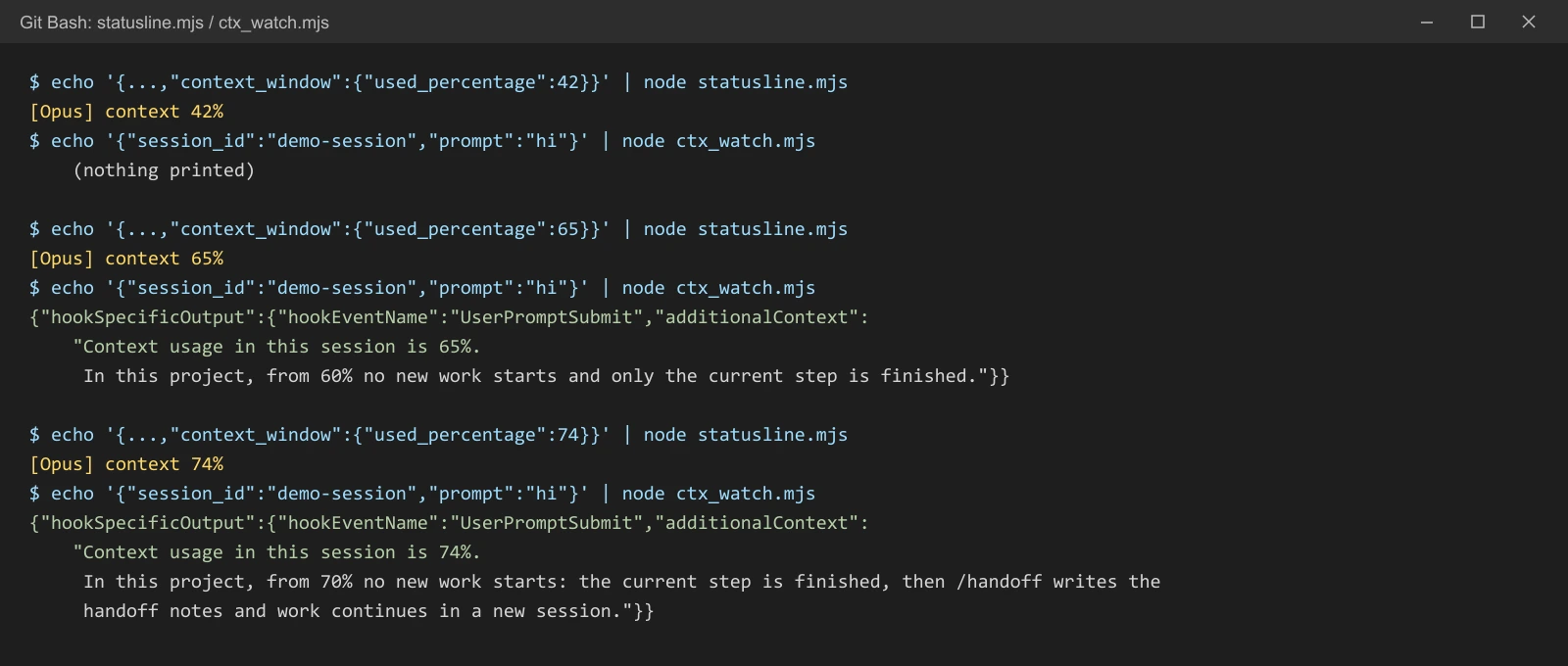
Figure 2. The status line script and the hook run at 42%, 65% and 74%. The figure shortens the first command's input JSON and splits the hook's JSON output over lines for reading; the real output is one line (run output of the English scripts above, Git Bash)
You should see three things, as in Figure 2. At 42% only the status line text appears and the hook prints nothing. At 65% you get the 60% note, and at 74% the /handoff note. When the test is done, you can delete ~/.claude/ctx/demo-session.json.
If the test looks right, open Claude Code. When [model name] context N% shows at the bottom, the status line is working.
5. How to continue in a new session
When the hook reports 70%, move over in this order.
Follow along:
- Finish only the current step (editing one file, running one test).
- Run
/handoff. Claude rewrites the RESUME current summary and the handoff notes, then reports in three lines. - Open RESUME.md yourself and check that "Next step" holds a single thing.
- Run
/clear. The old chat is not deleted; it stays in the/resumelist. - In the new chat, send "Continue from the RESUME current summary." Thanks to the "session start" section in CLAUDE.md, Claude reads only the summary and starts.
Here we go one step further. Work is split into "lanes" by area, and each lane has one card (what to read, the flow, what it hands over). A new session starts with /lane <lane name> and reads only that card and that lane's RESUME summary. With several areas, this stops a new session from filling its desk with other areas' records.
6. Other habits for long work
| Habit | Why |
|---|---|
| Agents report "full text in a file, a 10-line summary in the chat" | Long subagent reports pasted into the chat fill the context fast |
| Files over 2,000 lines are not read directly; a subagent summarizes them | A subagent reads in its own context window and returns only the summary |
| One agent does not get endless rounds | In our character work, after one agent ran more than six rounds in a row, the amount done per round dropped; it came back when we switched to a new agent that read the how-to doc and the score file (one record, October 11) |
| Status boards and summaries are rewritten, not appended | The 143-line status board in section 2-3 |
How to split work among subagents is in Subagents and multi-agent systems.
Exercises
- Pick one of your projects and write its RESUME current summary in 15 lines or fewer. Check that "Next step" holds a single thing.
- Run
/contextand write down the largest block in your current context. - Change
WARNinctx_watch.mjsto50and run the test in section 4-3 again. See how the output changes at 42% and 65%. - Run
/handoffat the end of a day, and the next day note whether a new session could continue from the RESUME alone.
Common mistakes and fixes
| Symptom | Cause | Fix |
|---|---|---|
| The status line does not show | A comma or quote error in settings.json, or a path with backslashes | Check the JSON syntax and write the path with slashes, like C:/Users/… |
The status line keeps showing context ? | No value yet at the start of a session | Look again after Claude replies once |
| Nothing happens past 70% | The status line is off, so no context file is written | Check that a session ID file appears in ~/.claude/ctx/ |
Testing in PowerShell prints only context ? | PowerShell adds a BOM (an invisible marker character) to the start of the text it pipes | Strip it before parsing with replace(/^\uFEFF/, ""), as in the example |
| A new session does not know yesterday's work | RESUME was not rewritten, or CLAUDE.md has no "session start" section | Recheck sections 2-1 and 3 |
| The summary grew long again | Only appending | Move the oldest parts to history past 30 lines |
Summary
Memory in files (CLAUDE.md → RESUME current summary → handoff notes), context on a gauge (status line), and a warning light for when to move (stop at 60%, hand off at 70%). The first guide below explains why a long chat loses track of earlier parts.
Read next
- What tokens and context windows mean
- Subagents and multi-agent systems: splitting work among several AIs
- Getting started with Claude Code
References
- Claude Code Docs: Customize your status line
- Claude Code Docs: Hooks reference
- Claude Code Docs: Commands
- Claude Code Docs: Explore the context window
- Claude Code Docs: Extend Claude with skills
- Image license: Figures 1 and 2 were made by AZTechnology from the working folder's records and this guide's examples.