When Blender MCP won't connect: checking the add-on, port, timeout, and uv in order
When the official Blender MCP will not talk to your AI app, check one link at a time: the add-on inside Blender, the port, the server status in the AI app, how long the server takes to start, and uv. Each step comes with a real error screen.
한국어English
ON THIS PAGE
- 011. The checking order at a glance
- 022. Inside Blender: the add-on status line
- 033. Blender's port: one PowerShell line
- 044. The AI app side: reading the server status
- 055. Timeouts: when the server starts slowly
- 066. Checking uv and timing the server start
- 077. Reading the error text in the AI's answer
- 08Practice
- 09Common mistakes and fixes
- 10In one line
- 11Read next
- 12References
Based on: Blender 5.2 LTS (screenshots from 5.2.1, English UI), Blender Lab MCP add-on and server 1.0.3, Claude Code 2.1.318 and its official MCP docs, Windows 11 PowerShell. Checked in November 2026. All figures are real Blender and PowerShell screens.
Blender MCP is a path with three links. The AI app starts the server, the server calls the add-on inside Blender, and the add-on does the work in Blender. When nothing connects, first find which of the three links is broken. It is like checking for water: the tap in the house, the meter, then the pipe outside.
This guide checks one link at a time, from the Blender side out to the AI app. Each link comes with a real error screen and the fixed screen.
After this guide you will be able to:
- Read the add-on's status line and confirm the server is on. (Section 2)
- Check with one PowerShell line that Blender's port is open. (Section 3)
- Read the server status in the AI app and fix a timeout. (Sections 4–5)
- Check that uv exists and measure how long the server takes to start. (Section 6)
- Read the error text returned to the AI and tell which link failed. (Section 7)
If you have not installed it yet, follow Installing the official Blender MCP first.
1. The checking order at a glance
| Step | Where to look | When it is fine | Section |
|---|---|---|---|
| 1 | MCP add-on in Blender Preferences | Server is running | 2 |
| 2 | Port check in PowerShell | True | 3 |
| 3 | MCP server status in the AI app | Connected | 4 |
| 4 | Server start time | Shorter than the app's wait time | 5 |
| 5 | uv and the server folder | uv path shows and the server starts | 6 |
| 6 | Error text in the AI's answer | No error | 7 |
If one step is not fine, skip the later ones. If you are stuck at step 1, fix step 1 and try again.
2. Inside Blender: the add-on status line
Starting point: Blender is open. Any file will do.
Steps:
- Open Edit > Preferences.
- Click Add-ons on the left.
- Type
mcpin the search box at the top. - Click the arrow on the left of the MCP row to expand it.
- Read the status line at the bottom.
The status line shows one of three things.
| Status line | Meaning | What to do |
|---|---|---|
| Server is running | The add-on is ready to answer | Go to Section 3 |
| Server is stopped | The server is off | Click Start MCP Bridge Server |
| Server is stopped plus a warning line | It tried to start and failed | Read the warning and fix it as below |
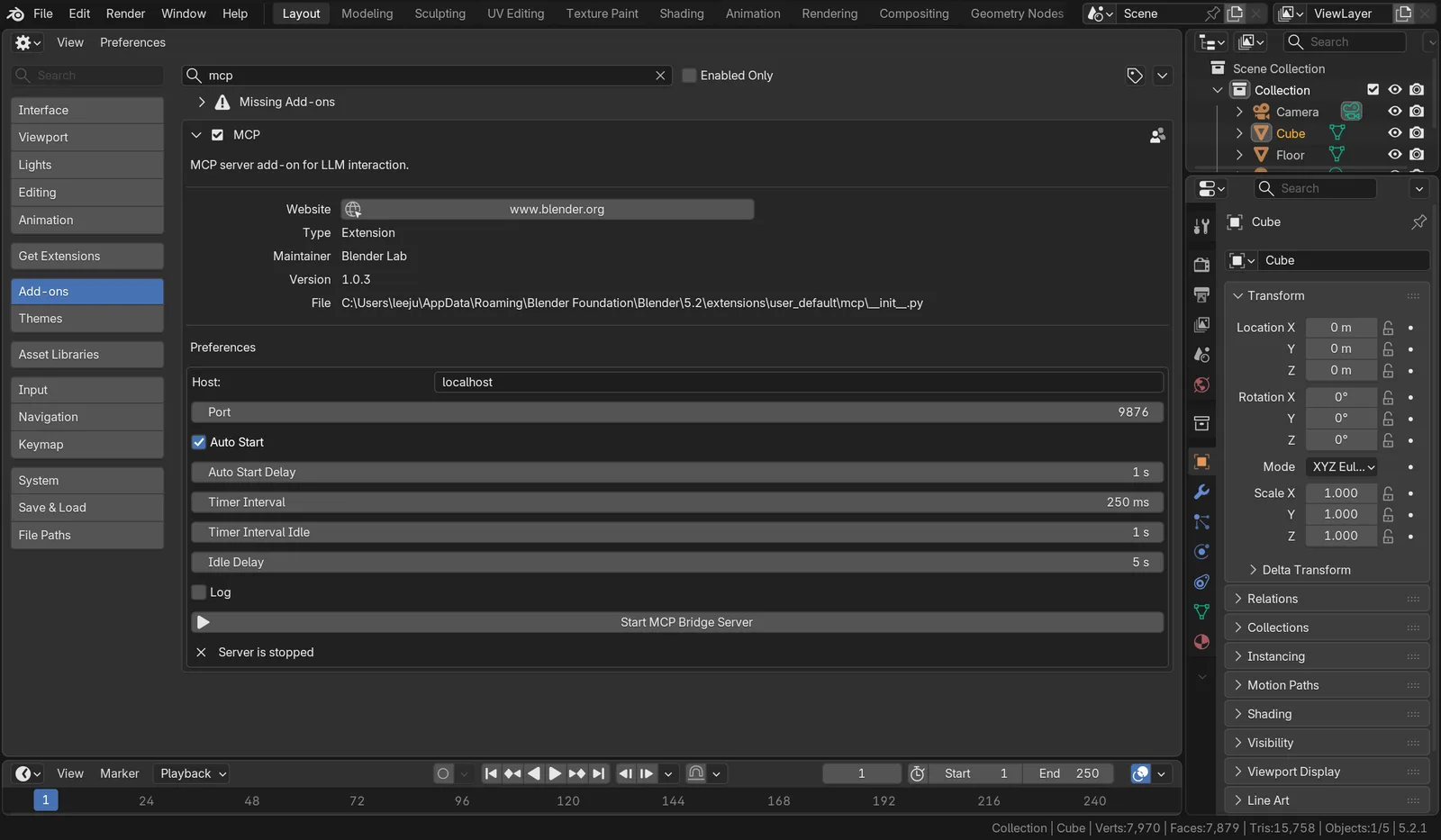 Figure 1. The server is stopped. The Start MCP Bridge Server button and the Server is stopped line at the bottom, Port 9876 in the middle. The Missing Add-ons row at the top of the figure does not affect MCP and may not appear on your screen (Blender screenshot)
With Auto Start on, the server starts by itself one second after Blender opens. If it still says Server is stopped, it tried and failed. A failure adds one more warning line under the status line.
The most common warning appears when online access is turned off.
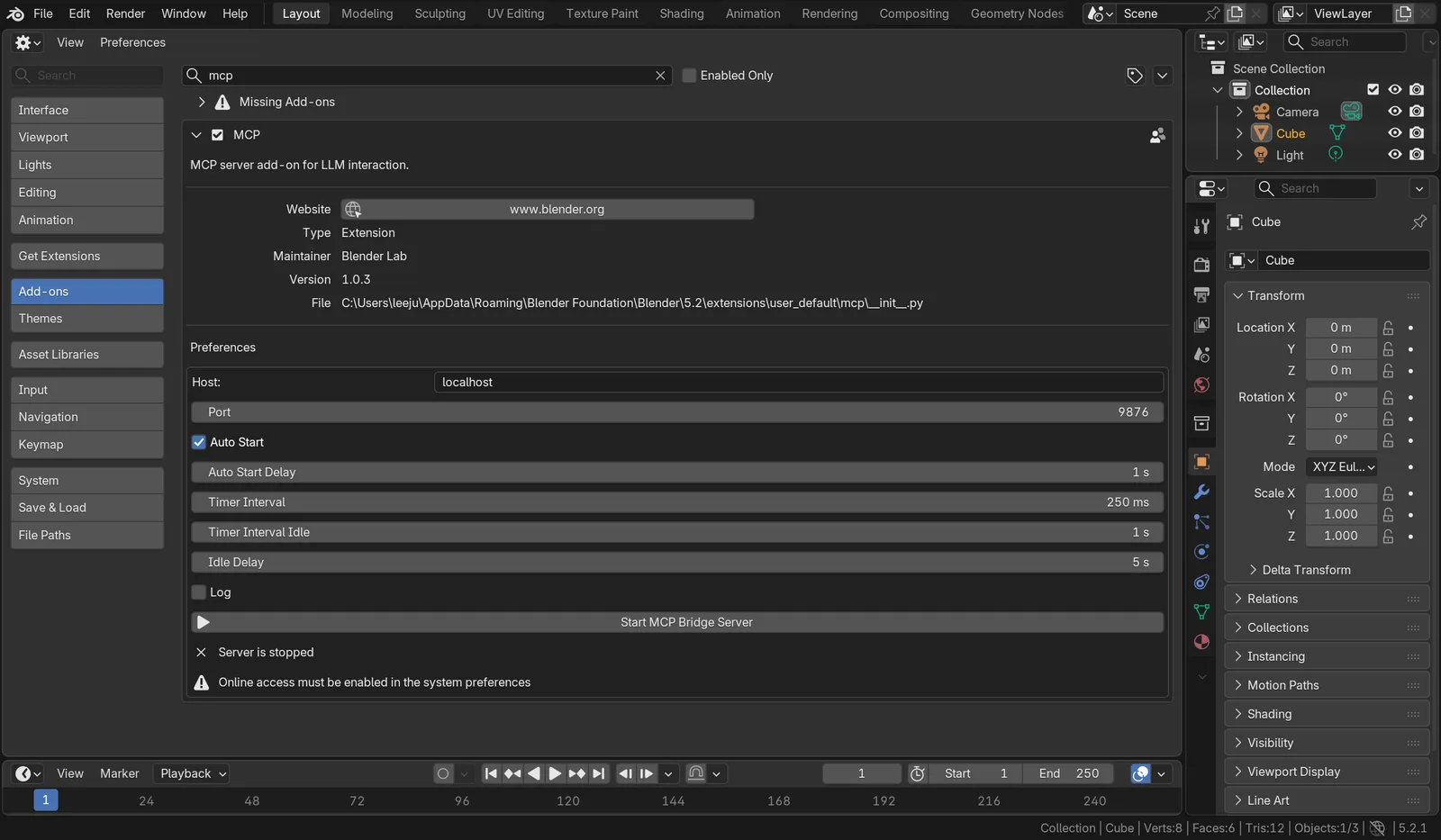 Figure 2. The MCP add-on in a Blender with online access off. The warning "Online access must be enabled in the system preferences" under Server is stopped (Blender screenshot)
The add-on only uses connections inside your own PC, not the internet. Even so, Blender's rules require the online access setting to be on before the server starts.
Steps (when you see the warning in Figure 2):
- Click System on the left of Preferences.
- Turn on Allow Online Access in the Network group.
- Go back to Add-ons > MCP and click Start MCP Bridge Server.
- Check that the status line changes to Server is running.
You get the same warning if Blender was started with --offline-mode from a shortcut or command. Remove that option from the shortcut's Target box.
If the add-on is not in the list at all, check your Blender version first. The official add-on only installs on Blender 5.1 or later (Help > About shows the version).
3. Blender's port: one PowerShell line
Starting point: continue after seeing Server is running in Section 2.
Even when the add-on says it is running, you can check that it really answers on its number (port). Think of a port as an extension number inside your PC. The official add-on's default port is 9876.
Steps:
- Open PowerShell from the Start menu.
- Type the command below and press
Enter.
Test-NetConnection 127.0.0.1 -Port 9876 -InformationLevel Quiet
- If the last line is
True, Blender is answering on that port. If it isFalse, nothing is answering.
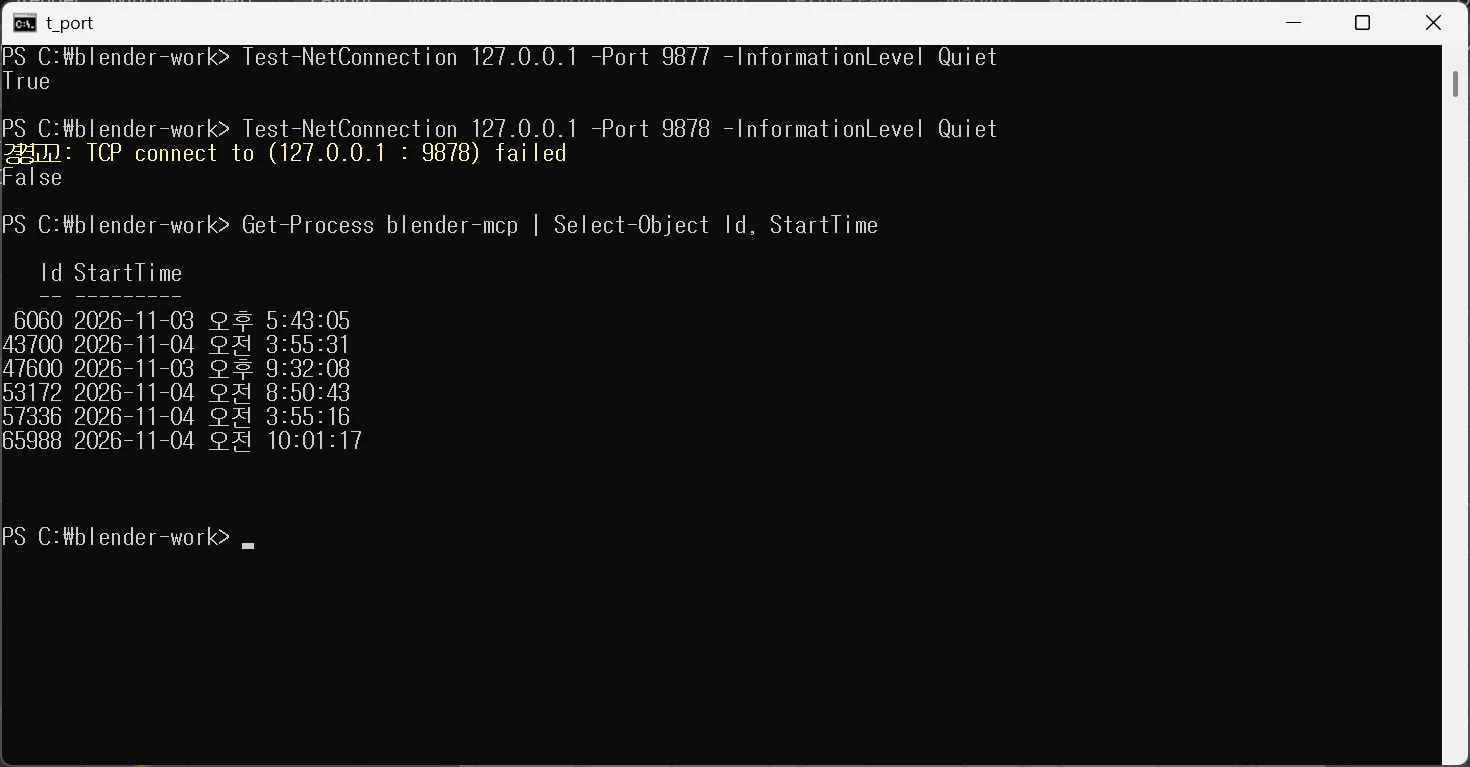 Figure 3. Port check results. The figure compares a Blender started on port 9877 (True) with an empty port 9878 (False); the warning prefix and AM/PM marks are in Korean (terminal screenshot)
127.0.0.1 means "this PC itself". You can type localhost instead, but it tries the IPv6 address first and may print an extra warning. Only the last line matters.
| Result | Meaning | What to do |
|---|---|---|
| Section 2 running + Section 3 True | The Blender side is fine | Go to Section 4 |
| Section 2 running + Section 3 False | The number you checked differs from the Port box | Read the Port value in Figure 1 again and check that number |
| Section 2 stopped + Section 3 True | Another program is using the port | Close the other Blender or the community MCP and check again |
How to change ports, and how to fix a clash with the community MCP, is in the port section of the official vs. community comparison. If you change the port, tell the server on the AI app side as well. The official server reads the port from an environment variable named BLENDER_MCP_PORT.
Get-Process blender-mcp at the bottom of Figure 3 lists the MCP server programs running right now. Each AI app starts its own server when a conversation begins, so you may see several. Even with several left over, as in Figure 3, new connections still work. To clean up, close all AI apps and restart the computer.
4. The AI app side: reading the server status
Starting point: continue after seeing True in Section 3. This section uses Claude Code. For other apps, see the table at the end.
Steps:
- Type the command below in PowerShell. Replace
blenderwith the server name you registered.
claude mcp get blender
- Read the
Status:line.
| Status line | Meaning |
|---|---|
| Connected | The AI app started the MCP server and talked to it |
| Failed to connect + an Issue line | The server did not start, or did not answer in time. The Issue line says why |
| Pending approval | A project-scope server not yet approved. Run claude once in that folder to approve it |
Good to know: Connected only means the link between the AI app and the server works. The server calls Blender only when the AI actually uses a tool. So you can see Connected even when Blender is closed. That is why Sections 2 and 3 come first.
Where other apps show server status:
| App | Where to look | Guide |
|---|---|---|
| Claude Code | claude mcp list, claude mcp get <name>, /mcp in a chat | Adding it to Claude Code |
| Codex | codex mcp list, /mcp in a chat | Working in Blender with Codex |
| Antigravity CLI | agy mcp list, /mcp in a chat | Connecting Blender MCP to agy |
| Kimi Code CLI | /mcp in a chat | Working in Blender with Kimi Code CLI |
5. Timeouts: when the server starts slowly
Starting point: continue when Section 4 showed Failed to connect with "timed out".
An AI app waits for the MCP server to start only for a set time. In Claude Code the default is 30 seconds (MCP_TIMEOUT in the official docs). If the server starts later than that, the app treats it as a failed connection. It is like a restaurant that cancels your booking when no table is free within 30 minutes.
Figure 4 shows the same error on purpose. With the wait set to 5 seconds it failed; with 90 seconds it connected.
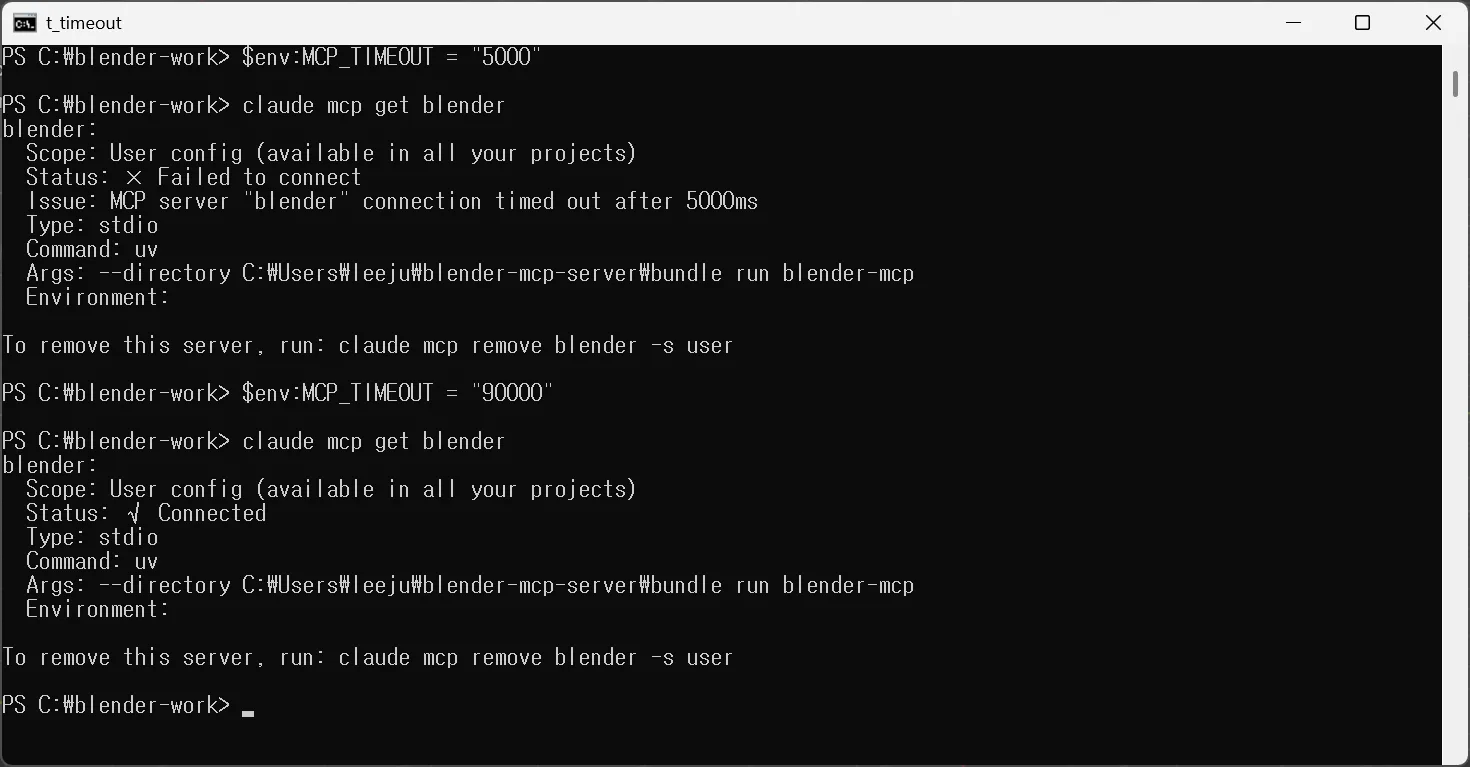 Figure 4. Results with different wait times. At 5 seconds, Failed to connect and timed out after 5000ms on the Issue line; at 90 seconds, Connected (terminal screenshot)
Steps (raising the wait time in Claude Code):
- Run this line in PowerShell first. The number is in milliseconds;
90000is 90 seconds.
$env:MCP_TIMEOUT = "90000"
- Run
claudein the same window. - In the chat, check with
/mcpthat the Blender server is connected.
This setting only lasts in that PowerShell window. Set it again in a new window.
Other apps have a wait-time setting too, with different names and defaults.
| App | Setting | Unit | Default |
|---|---|---|---|
| Claude Code | Environment variable MCP_TIMEOUT | Milliseconds | 30 seconds (30000) |
| Codex | startup_timeout_sec in config.toml | Seconds | 10 seconds |
| Kimi Code CLI | startupTimeoutMs in mcp.json | Milliseconds | see the app guide |
| Antigravity CLI | timeoutSeconds in mcp_config.json | Seconds | see the app guide |
Codex has the shortest default, 10 seconds. On a PC where the server takes 16 to 26 seconds to start, as in Section 6, Claude Code may connect while only Codex fails. If you use Codex, add one line, startup_timeout_sec = 30, under the Blender server entry in config.toml (a line such as [mcp_servers.blender]) to raise it to 30 seconds.
Before raising the time, measure in Section 6 why the server is slow.
6. Checking uv and timing the server start
Starting point: continue in the same PowerShell window as Section 5.
The official server usually starts through a tool called uv. uv runs a Python program together with the parts it needs, like a kitchen helper who fetches the ingredients and serves the dish. If uv is missing or cannot be found, the server never starts.
Steps:
- Find where uv is.
where.exe uv
uv --version
- If you see a path and a version number, uv is there. If it says it cannot be found, install uv and open a new PowerShell window. The install command is in Section 5 of Installing the official Blender MCP.
- Measure how long the server takes to start. Change the folder path to where you downloaded the server.
Measure-Command { uv --directory C:\blender_mcp\mcp run blender-mcp --help } | Select-Object TotalSeconds
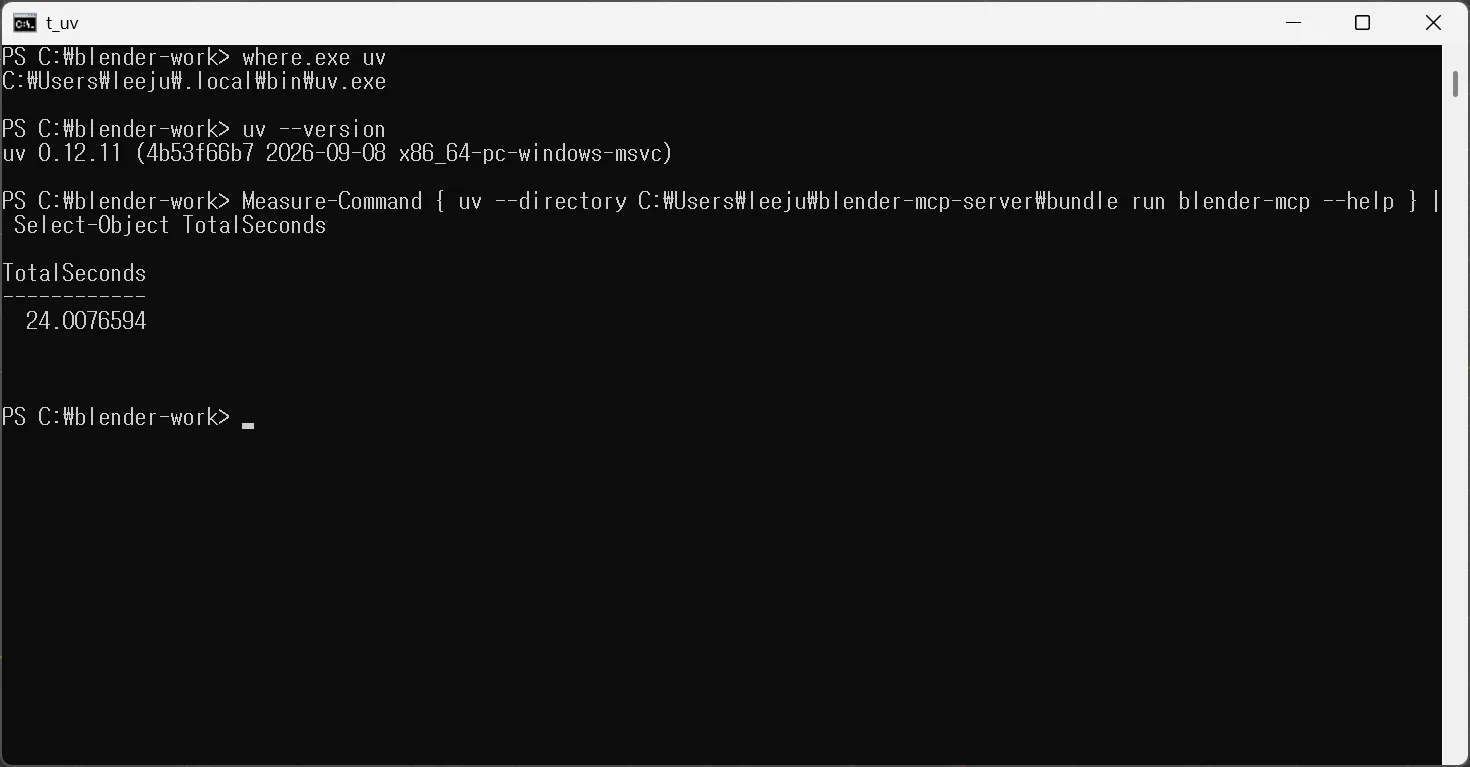 Figure 5. uv's location and version, and the server start time. TotalSeconds 24.0 at the bottom is how many seconds the server took to show its help once. The figure shows a server downloaded under the user folder (terminal screenshot)
--help starts the server, shows its usage, and exits. So this time is close to "how long the server takes to start". On my PC the same measurement varied between 16 and 26 seconds. That is quite close to Claude Code's default wait of 30 seconds. In fact, on my PC the Blender server once failed to connect with "connection timed out after 30000ms" when Claude Code started.
| Measured time | Meaning | What to do |
|---|---|---|
| A few seconds | Normal | Not a timeout; check the other links |
| Close to the app's wait time | May fail sometimes | Give a generous wait time as in Section 5 |
| Very long only the first time | uv is downloading parts for the first time | Run uv sync once in the server folder |
| Ends with an error | Parts were not fully installed | Run uv sync --reinstall in the server folder |
Why the first run is slow, and how to pre-install with uv sync, is in Section 3 of Adding the official Blender MCP to Claude Code.
7. Reading the error text in the AI's answer
If Sections 1–6 are all fine and the AI still could not do the job, look at the error text in its answer. The official server returns fixed sentences, so it is easy to tell which link failed.
Below is the tool result we got after pointing the server at a port Blender was not answering on and asking "Tell me which objects are in the open Blender scene."
Error executing tool get_objects_summary: Cannot connect to Blender at localhost:9878. Ensure Blender is running with the MCP addon enabled and the server started.
With this result the AI answered that it could not connect to Blender and could not get the list, then asked us to check that Blender was open and the add-on server was started.
| Start of the error | Which link | What to do |
|---|---|---|
| Cannot connect to Blender at localhost:9876 | Blender side (Sections 2–3) | Open Blender and confirm Server is running. Match the port if it differs |
| Blender connection timed out | Blender answered too slowly | Check whether Blender is rendering or has a dialog open. Try again when it is done |
| Empty response from Blender | The connection dropped midway | Check whether Blender closed or froze |
| Blender executable not found … BLENDER_PATH | The server tried to start a separate Blender and could not find it | See below |
The last row is a bit special. The official server also has tools that start Blender separately without a window to read a file, instead of using the open Blender (their names end in _for_cli). These tools look for the Blender program in an environment variable named BLENDER_PATH, or else by the name blender. On Windows that name usually is not found, so you get this error. If you want the AI to work in your open Blender, just tell it "do it in the open Blender".
The add-on handles requests when Blender is idle. While a render is running or a file dialog is open, requests wait. So if you start a heavy render and ask for something else, the answer comes late.
Practice
- Write down the status line from Section 2 and the port check from Section 3. Check that they agree (running means True).
- Close Blender and run the command from Section 3 to see
False. Then open Blender, run it again, and check that it becomesTrue. - Run
Measure-Commandfrom Section 6 three times and write down the times. Check that the longest is shorter than your AI app's wait time.
Common mistakes and fixes
| Symptom | Cause | Fix |
|---|---|---|
| MCP is not in Add-ons | Blender is older than 5.1 | Upgrade to 5.1 or later and install again |
| "Online access must be enabled…" under the status line | Online access is off | Turn on System > Network > Allow Online Access and start the server |
| Server is running, but the port check says False | The number you checked differs from the Port box | Check again with the Port box number |
claude mcp get says Connected, but the AI says it cannot connect | Connected only covers the app-to-server link | Check the Blender side in Sections 2–3 |
| "connection timed out after 30000ms" | The server did not start within 30 seconds | Pre-install with uv sync, raise MCP_TIMEOUT |
| Claude Code connects but only Codex fails at server start | Codex's startup_timeout_sec defaults to 10 seconds | Add startup_timeout_sec = 30 to the server entry in config.toml |
uv cannot be found | uv is missing, or the window was not reopened after installing | Install uv and open a new PowerShell window |
| The AI talks about the wrong file | More than one Blender is open | Keep only one Blender open and try again |
| Blender does not show up in claude.ai or ChatGPT in the browser | Web apps cannot start a server on your PC | Use the Claude desktop app or a terminal app. For ChatGPT, see Using Blender MCP with ChatGPT |
In one line
Blender status line (running) → port check (True) → app server status (Connected) → server start time vs. wait time → error text, one link at a time from the front. Once connected, give it a first job with Ten first prompts for Blender MCP.
Read next
- Installing the official Blender MCP
- Adding the official Blender MCP to Claude Code
- The official Blender MCP vs. the community MCP for Blender
- Safety check before handing Blender to AI
- Connecting MCP servers
- Ten first prompts for Blender MCP
- Choosing an AI tool for Blender MCP
References
- Blender Lab, MCP Server: https://www.blender.org/lab/mcp-server/
- Blender Lab, blender_mcp repository: https://projects.blender.org/lab/blender_mcp
- Claude Code MCP docs (server status, timeouts): https://code.claude.com/docs/en/mcp
- Claude Code environment variables (MCP_TIMEOUT): https://code.claude.com/docs/en/env-vars
- Blender 5.2 Manual, System preferences (online access): https://docs.blender.org/manual/en/5.2/editors/preferences/system.html
- Blender 5.2 Manual, command line arguments (--offline-mode): https://docs.blender.org/manual/en/5.2/advanced/command_line/arguments.html
- Microsoft, Test-NetConnection: https://learn.microsoft.com/powershell/module/nettcpip/test-netconnection
- uv installation: https://docs.astral.sh/uv/getting-started/installation/
- Figures: all real Blender 5.2.1 screens and Windows PowerShell screens