Exporting a Godot game for the web browser: export templates, file size, fonts, and what to check before you upload
From the real web (HTML5) export of a small flying game made in Godot 4.7.2: preparing export templates, the web-only renderer, thread settings, a file size of nearly 40 MB and how compression shrinks it, embedding a font so non-Latin text does not turn into boxes, and testing in a browser on your own PC.
한국어English
ON THIS PAGE
- 011. What exporting to the web means
- 022. Preparing export templates
- 033. Renderer and thread settings
- 044. Exporting and the files you get
- 055. Making it smaller: server compression
- 066. Embedding a font for non-Latin text
- 077. Testing in a browser on your PC
- 088. What to check before you upload
- 09Exercises
- 10Common mistakes and fixes
- 11Summary
- 12References
Based on: Godot 4.7.2 stable (Windows) and the Godot 4.7 docs (exporting for the web, fonts). Checked on November 4, 2026. Figures 1 and 3 are real screenshots of the exported web build running. They were taken in Chromium run without a window (software rendering), so shadows and colors may look slightly different from a normal browser using a graphics card. Figure 2 is a chart of the exported file sizes. The game's text is in Korean.
When you finish a game you want friends to try it. Sending an .exe means they have to download it, run it and click through security warnings. Export it for the web and you only send a link; they open the game straight in the browser.
This guide is based on exporting a small flying game, "Canyon Run", made with Godot 4.7.2, to the web. A first web export has a few surprises. The renderer changes, the files come to nearly 40 MB, and non-Latin text such as Korean can turn into boxes. Let's go through them one at a time.
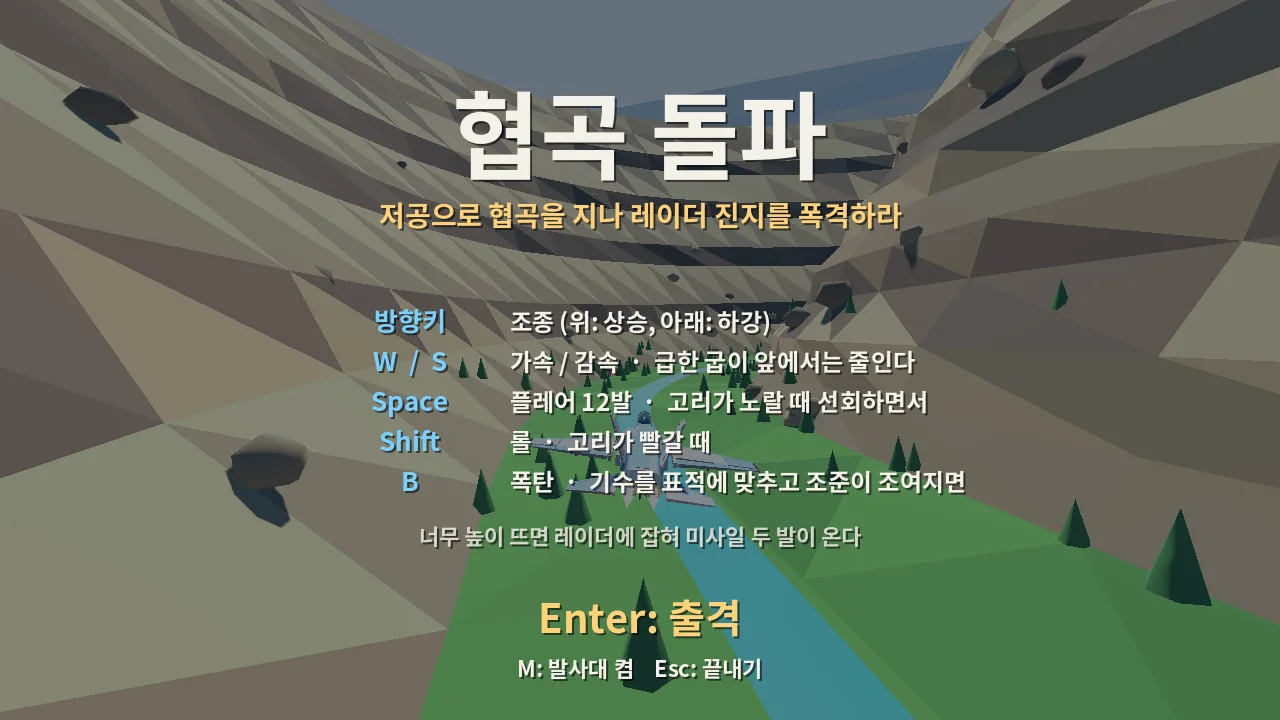 Figure 1. The web build opened in a browser (Chromium). The Korean title and controls show correctly with the embedded font (browser screenshot)
By the end of this guide you can:
- Prepare the export templates needed for a web export.
- Check the renderer and thread settings the web build uses.
- Tell what each of the five kinds of exported files does.
- Embed a font so non-Latin text shows on the web.
- Run a small local server and test in a browser.
1. What exporting to the web means
When you export a Godot game for the web, the engine itself becomes WebAssembly (wasm for short) and runs inside the browser. WebAssembly is a program format that browsers can run fast. It is like moving your home kitchen (Windows) into a food truck (the browser): the dishes (the game) stay the same, but some things change to fit the truck.
| What changes | Desktop build | Web build |
|---|---|---|
| Renderer | Forward+ and others | Compatibility only (WebGL 2.0) |
| Threads | Many | One by default since 4.3 |
| System fonts | Can be borrowed | Not available |
| Files | One executable | Several: html, js, wasm, pck and more |
| How to open | Double-click | Through a web server in a browser |
The sections below take these rows one by one.
2. Preparing export templates
Export templates are prebuilt versions of the engine for each platform. Exporting means attaching your game data to a template. It is like putting your food (the game) into an empty lunch box (the template). Without a template, the export button is blocked.
Follow along (based on the official docs):
- In the Godot editor, open Editor > Manage Export Templates.
- Download and install the templates for your exact version (for example 4.7.2.stable). The editor and template versions must match exactly.
The template bundle includes Windows, macOS, Linux, Android, iOS and web builds, so it is large. The bundle we downloaded for Canyon Run was 1.2 GB. Extracting only the Windows and web templates into the template folder (%APPDATA%\Godot\export_templates\4.7.2.stable\) was enough to export to those two platforms. If you have the disk space, downloading from the editor window is easiest.
3. Renderer and thread settings
The renderer is the engine's painter that turns a 3D scene into a picture. Godot has three painters, Forward+, Mobile and Compatibility, and only Compatibility works on the web. The docs say the web platform uses WebGL 2.0 and does not support Forward+ or Mobile.
A project that uses Forward+ on desktop can still export to the web: set a separate web renderer in the project settings. Canyon Run's project.godot has these lines:
renderer/rendering_method="forward_plus"
renderer/rendering_method.web="gl_compatibility"
The first line is for desktop, the second for the web. A different painter means the picture changes a little. Shadows, glow and fog can look different from the desktop build, so always open the web build and look at it separately.
Threads are the number of workers running at once inside a program. Since Godot 4.3 the web build defaults to one worker (single-threaded). To use several (Thread Support on), the server hosting the game must send these two response headers, and the page needs a secure connection (https):
Cross-Origin-Opener-Policy: same-origin
Cross-Origin-Embedder-Policy: require-corp
If you upload somewhere you cannot change server settings, keep the default (off). Canyon Run was exported with it off (variant/thread_support=false).
4. Exporting and the files you get
Follow along (editor steps based on the official docs):
- Open Project > Export….
- Choose Web under Add… to create a web preset.
- Set Export Path to a path ending in
index.html. The web build creates several files, so point it into a new empty folder. - Click Export Project.
You can do the same from the command line. Canyon Run was exported like this, without the editor window. "Web" is the preset name from step 2.
Godot_v4.7.2-stable_win64_console.exe --headless --path game\topgun_flight --export-release "Web"
The folder then holds these files:
| File | What it does | Size |
|---|---|---|
index.html | The web page that starts the game | 5 KB |
index.js | Start-up script that loads the engine | 0.28 MB |
index.wasm | The engine itself (WebAssembly) | 39.5 MB |
index.pck | Your game data (scenes, models, sounds, fonts) | 2.84 MB |
index.png and others | Boot splash, icons, audio scripts | about 0.05 MB together |
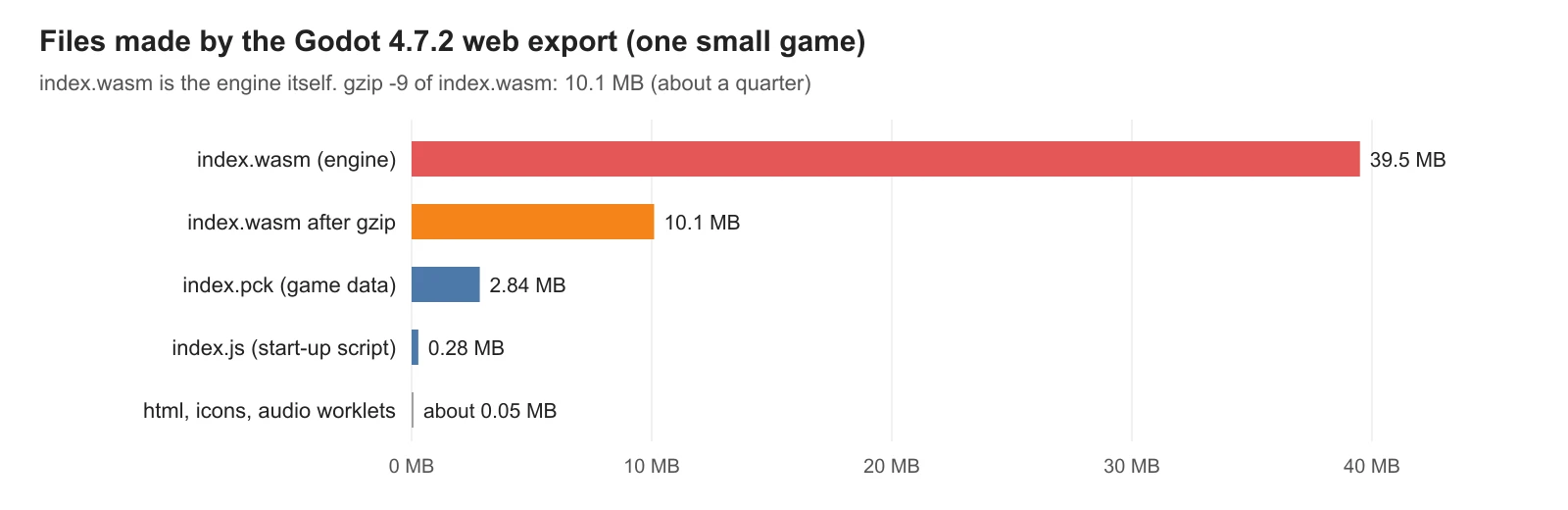 Figure 2. File sizes of the Canyon Run web build. The engine (wasm) takes most of the space (chart)
The thing to notice is that the game data is 2.84 MB but the engine is 39.5 MB. Even a tiny game makes a web build of nearly 40 MB, because the whole engine travels with it.
5. Making it smaller: server compression
Server compression shrinks this a lot. The docs say gzip makes the WebAssembly file about a quarter of its size. Compressing Canyon Run's index.wasm with gzip at maximum level took it from 39.5 MB to 10.1 MB, almost exactly a quarter. index.pck only went from 2.84 MB to 2.77 MB, because images and sounds are already compressed.
Compression is not something you do to the files; the host has to do it. Like vacuum-packing moving boxes, the server sends them shrunk and the browser unpacks them. The hosting section of the docs says GitHub Pages compresses on the fly, while itch.io does not. Keep this in mind when you choose where to upload. Without compression, every first-time player downloads nearly 40 MB.
6. Embedding a font for non-Latin text
The most common surprise in a web build is text turning into boxes (□), for example Korean, Japanese or Chinese. Here is why:
- Godot's default font does not include these characters.
- On desktop the engine borrows the operating system's fonts to show them. The docs say this fallback lets you show CJK characters and emoji without loading a custom font.
- But loading system fonts is only supported on Windows, macOS, Linux, Android and iOS. The web is not on that list.
That is why text that looked fine on desktop breaks only on the web. With no neighbor (the operating system) to borrow from, you have to put the font inside the game.
Canyon Run took the free font Noto Sans KR Bold and kept only the 2,350 most common Korean characters, making a 424 KB font file. A full Korean font is several megabytes, so keeping only the characters you use keeps index.pck small. Noto Sans KR uses the OFL (SIL Open Font License), which allows embedding it in a game you distribute. For other fonts, check that the license allows that first.
After adding the font, set it as the default font in Project Settings or in your theme so every label uses it. That is why the title and controls in Figure 1 show correctly in the browser.
7. Testing in a browser on your PC
Double-clicking the exported index.html does not start the game. A web build has to be opened through a web server. When a browser opens files straight from your disk, security rules stop it from loading files like wasm. It is like a shop that only hands over goods through the till (the server).
Follow along:
-
If Node.js is installed, open a terminal in the export folder and run the command below. A small test server starts.
npx http-server -p 4310 -c-1-p 4310is the port number in the address, and-c-1stops the browser from caching old files, so a fresh export shows up right away. -
Open
http://127.0.0.1:4310/index.htmlin the browser. -
The first load takes a while because of the nearly 40 MB download. If you see a title screen like Figure 1, it worked.
There are other ways to serve it. The docs explain that a web preset marked Runnable lets you test in the browser with the remote-run button at the top right of the editor. When you share the game publicly, use proper hosting (itch.io, GitHub Pages and so on) instead of a test server.
Open the browser's developer tools (F12) and the Console tab shows lines the engine prints at start-up. In the setup used for Figures 1 and 3 (Chromium without a window), Canyon Run printed these:
Godot Engine v4.7.2.stable.official
OpenGL API OpenGL ES 3.0 (WebGL 2.0 (OpenGL ES 3.0 Chromium)) - Compatibility
Build configuration: Emscripten 4.0.20, single-threaded, no GDExtension support.
The second line confirms the Compatibility renderer and the third the single thread (section 3). When nothing shows up, the cause is usually printed here in red, so look here first.
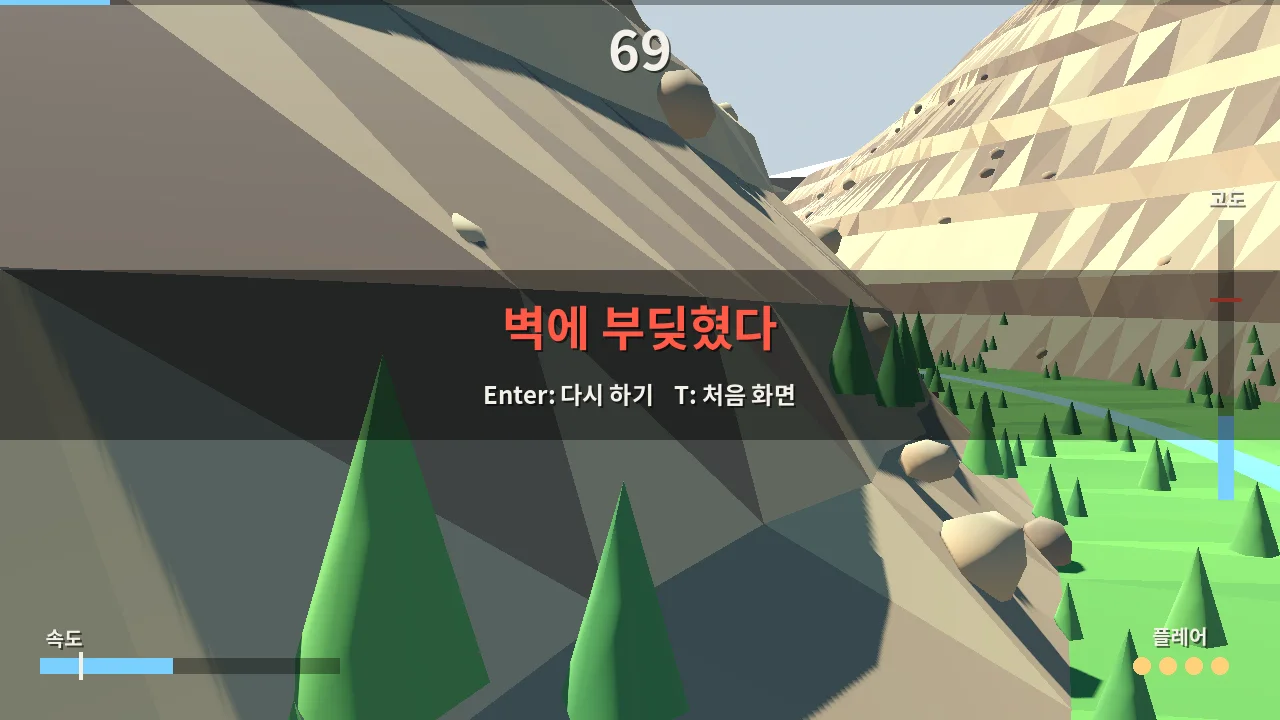 Figure 3. After pressing
Enter on the title screen and not steering. The failure message and the speed and altitude bars show in the web build too (browser screenshot)
8. What to check before you upload
| Check | Why |
|---|---|
| Play one full round in the web build | The renderer is different, so looks and speed differ from desktop |
| All text shows | System fonts cannot be borrowed (section 6) |
| First download size | Nearly 40 MB uncompressed. Check whether the host compresses (section 5) |
| Try once on a slow PC or laptop | Canyon Run's web build was reported to stutter |
| Sound | Browsers often block sound until the player presses something. Asking for a key on the title screen feels natural |
Canyon Run's web build showed its Korean text correctly but stuttered more than the desktop build. We have not measured the cause yet. Likely suspects are the renderer change, shadows drawn far into the distance, and on-screen displays redrawn every frame, so the next step is a lighter web-only setting with shorter shadow distance and fewer effects. If a game is meant for the web, plan a light scene from the start. Keeping the first game small is covered in Scoping your first game.
Exercises
- Open your project's
project.godotin Notepad and note how manyrendering_methodlines there are, and whether one is for the web. - In your web export folder, find the largest and second-largest files.
- Put some non-Latin text in a label, export to the web, and compare how it looks before and after embedding a font.
Common mistakes and fixes
| Symptom | Cause | Fix |
|---|---|---|
| Export Project button does nothing | No export templates, or wrong version | Install matching templates in Manage Export Templates |
| Opening index.html shows nothing | Opened the file directly | Start a small web server and use an http:// address (section 7) |
| Text shows as boxes | The web cannot borrow system fonts | Embed a font and set it as the default (section 6) |
| Looks different from desktop | The web uses the Compatibility renderer | Check the web build separately and adjust effects (section 3) |
| Game will not start after turning on threads | The server does not send COOP and COEP headers | Turn threads off, or host where those headers are sent (section 3) |
| First load takes too long | 40 MB downloaded without compression | Host somewhere that compresses (section 5) |
Summary
Templates must match the editor version, the web uses Compatibility and a single thread, the engine alone is 40 MB so host where files are compressed, embed your font in the game, and test with a small local server.
Moving Blender models into Godot is covered in Blender to Godot with glTF, and the whole solo-dev flow in Solo game dev map.
References
- Godot 4.7 docs, Exporting for the Web (renderer, threads and COOP/COEP, exported files, compression, hosting): https://docs.godotengine.org/en/stable/tutorials/export/exporting_for_web.html
- Godot 4.7 docs, Using fonts (system font fallback, supported platforms): https://docs.godotengine.org/en/stable/tutorials/ui/gui_using_fonts.html
- Godot 4.7 docs, Exporting projects (export templates): https://docs.godotengine.org/en/stable/tutorials/export/exporting_projects.html
- Noto Sans KR (SIL Open Font License): https://fonts.google.com/noto/specimen/Noto+Sans+KR
- Image license: Figures 1 and 3 are browser screenshots of our own game. Figure 2 is a chart of the exported file sizes.