Checking AI narration with faster-whisper: make SRT subtitles and compare them with the script
Transcribe 60 seconds of Korean AI narration with faster-whisper's small and medium models, write an SRT subtitle file, and compare each line with the script to find words the voice may have read wrong. Real results and timings included.
한국어English
Based on: faster-whisper 1.2.1 (Windows, CPU), the official README, and the YouTube Help page on subtitle file formats. Checked on November 4, 2026. Figures 1 and 2 are charts made from results we ran ourselves, Figure 3 is a made-up example of the file format, and Figure 4 is a screenshot of the official page. The example narration is in Korean and belongs to a video not yet released, so its script text is not shown.
AI voices make narration much faster than recording it yourself, but one job is left: checking that the AI read the script correctly. It sometimes reads a number oddly, or says a word so that it sounds like a different word. Listening to ten minutes of narration from start to finish just to catch these is hard.
In this guide you turn the narration into text with faster-whisper, a free speech-to-text tool, then compare it with the script line by line and only listen to the lines that look wrong. The result is also a ready-made subtitle file (SRT) you can upload to YouTube. The example is the first 60 seconds of a Korean narration made with an AI voice.
By the end of this guide you can:
- Transcribe an audio file with faster-whisper and write an SRT subtitle file.
- Tell the difference in accuracy and speed between the small and medium models.
- Compare the transcript with the script to find misread words.
- Fix misread lines on the script side.
1. Why check with a transcript
Transcription (speech-to-text) means listening to sound and writing it down. It is like a dictation test. The teacher (the AI voice) reads a sentence, the student (the transcription tool) writes it down, and we mark it against the answer sheet (the script).
This works because mistakes show up as text differences. If the transcript says a different word than the script, the voice may not have said that word clearly. Instead of listening to all ten minutes, you only listen to the few places where the text differs.
The transcription tool also makes mistakes, though. A different word does not always mean the voice was wrong. So the order is always: use the text to find suspects, then use your ears to decide.
2. faster-whisper: a faster way to run Whisper
Whisper is a speech-recognition model released by OpenAI. faster-whisper is a version rebuilt on an inference engine called CTranslate2. Its README says it is up to 4 times faster than the original for the same accuracy, and uses less memory (Figure 4). Think of the same recipe cooked with better kitchen tools: the taste (accuracy) stays, the time drops.
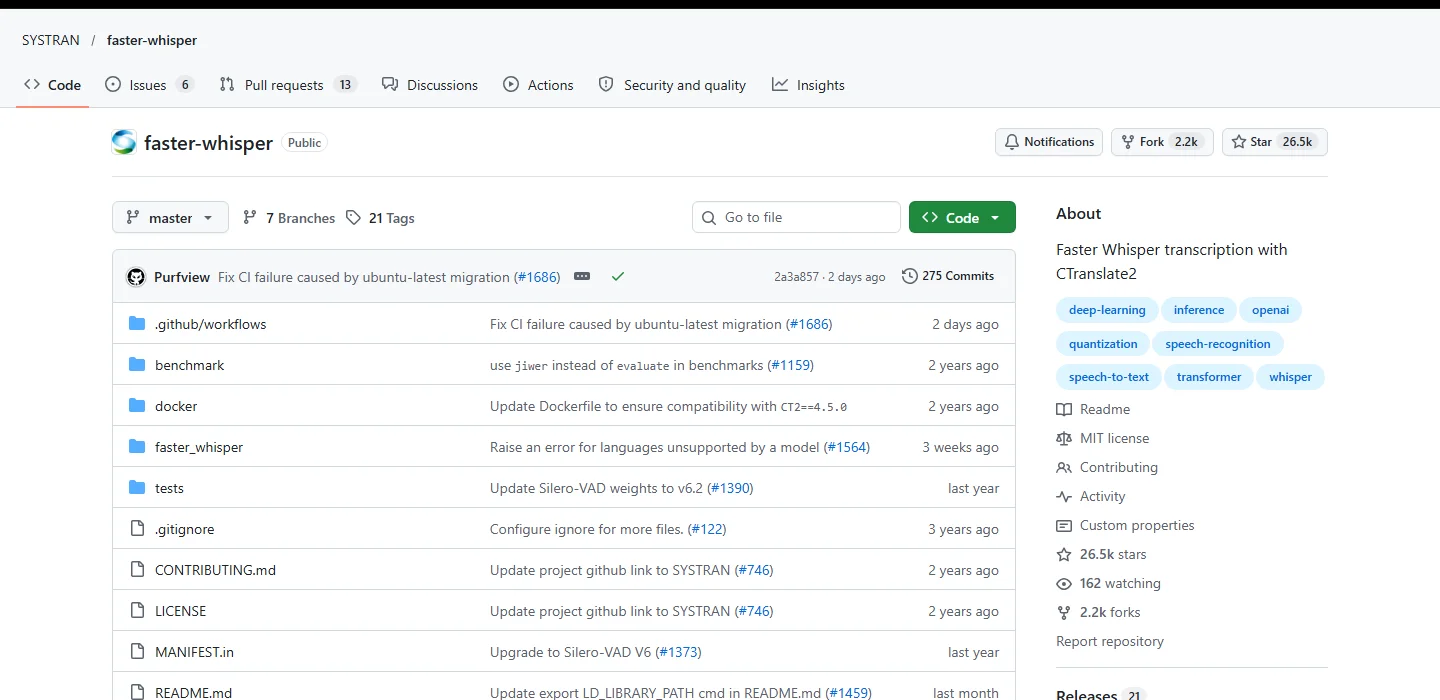 Figure 4. The official faster-whisper repository (GitHub screenshot)
| Item | Details |
|---|---|
| Price | Free (open source, MIT license) |
| Install | pip install faster-whisper in Python |
| Runs on | CPU or NVIDIA GPU. The GPU needs cuBLAS for CUDA 12 and cuDNN 9 installed separately |
| Model sizes | tiny, base, small, medium, large-v3 and more. Bigger is more accurate and slower |
| Output | Start time, end time and text for each segment. Per-word times are also available |
Having a GPU is not enough without those libraries. My PC has an NVIDIA graphics card, but the GPU run failed with an error saying the cuBLAS file (cublas64_12.dll) could not be found, so all tests below ran on the CPU. On a CPU, compute_type="int8" makes it faster by using smaller numbers. It is like rounding numbers for mental math: very slightly less precise, but quicker.
3. The transcription script
Before you start: on a PC with Python, run pip install faster-whisper in a terminal. The free tool ffmpeg is handy for cutting audio.
Follow along:
-
Cut the first 60 seconds of the narration into a test file. Running a long file first means a long wait for results.
ffmpeg -i narration.mp3 -t 60 -ac 1 -ar 16000 clip60.wav-t 60keeps 60 seconds,-ac 1makes it mono, and-ar 16000sets 16,000 samples per second. Whisper works with 16 kHz audio, so matching it first keeps things simple. -
Save the following as
fw.py. It takes a model name, an audio file and an output name, and writes an SRT file.import sys, time from faster_whisper import WhisperModel size, src, out = sys.argv[1], sys.argv[2], sys.argv[3] t0 = time.time() model = WhisperModel(size, device="cpu", compute_type="int8") t1 = time.time() segments, info = model.transcribe(src, language="ko", word_timestamps=True) segments = list(segments) t2 = time.time() def ts(s): h, m, sec = int(s // 3600), int(s % 3600 // 60), s % 60 return f"{h:02d}:{m:02d}:{int(sec):02d},{int(round((sec - int(sec)) * 1000)):03d}" with open(out + ".srt", "w", encoding="utf-8") as f: for i, s in enumerate(segments, 1): f.write(f"{i}\n{ts(s.start)} --> {ts(s.end)}\n{s.text.strip()}\n\n") print(size, "load", round(t1 - t0, 1), "transcribe", round(t2 - t1, 1)) -
Run the small model first.
python fw.py small clip60.wav narration_small -
Run the same file again with the medium model.
python fw.py medium clip60.wav narration_medium
The first run downloads the model, so it takes longer. Later runs reuse the downloaded file.
language="ko" tells it the audio is Korean; use the code for your language. Without it, Whisper guesses the language from the start of the audio, and short files can be guessed wrong. word_timestamps=True asks for a time for every word. Subtitles only use segment times, but word times are useful later if you want to cut video exactly at the end of a word.
4. Results: small vs medium
Figure 1 checks both results against the script line by line and lists only how many places differ in meaning or spelling, and what kind of mistake each was. Differences only in how numbers are written (a digit vs. the word) or in spacing are not counted.
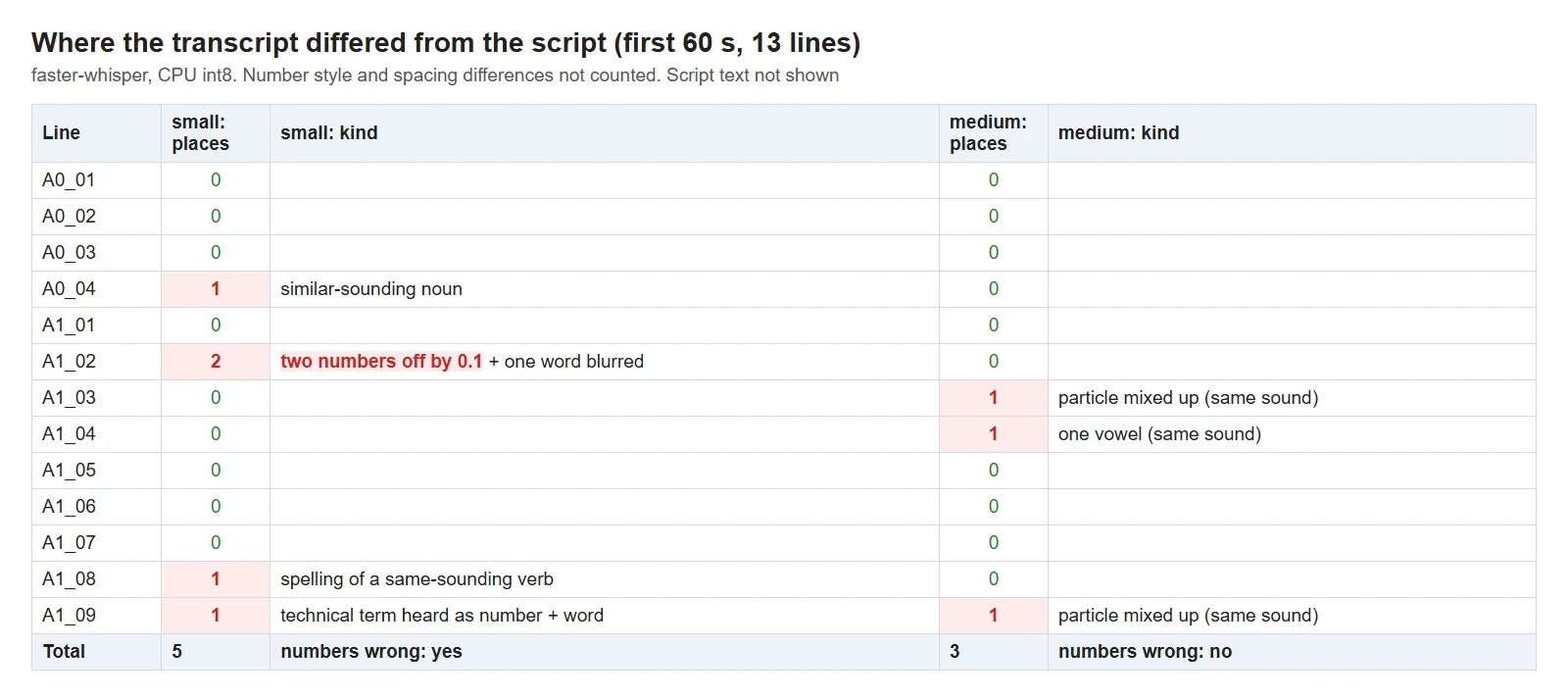 Figure 1. How many places and what kind of differences, per line, in the first 60 seconds (13 lines). Red cells are differences (chart)
| Model | Words that differ | Numbers | What stands out |
|---|---|---|---|
| small | 5 places | Wrong (two decimal numbers off by 0.1) | A different noun with a similar sound, a technical term split into a number and a word, a different spelling of the same sound |
| medium | 3 places | All correct | Two Korean particles swapped (they sound the same) twice, one vowel that sounds the same |
The two models tell us something. Every one of the five places small got wrong, medium got right. So small's mistakes were transcription mistakes, not the voice's. Getting numbers wrong is the dangerous part: if you check a script with small, you might doubt a number that was read correctly, or put a wrong number into your subtitles.
The three places medium wrote differently are sounds that are nearly identical in Korean. The voice probably did nothing wrong; the sound alone just cannot separate them. Listen once and move on.
5. Time taken
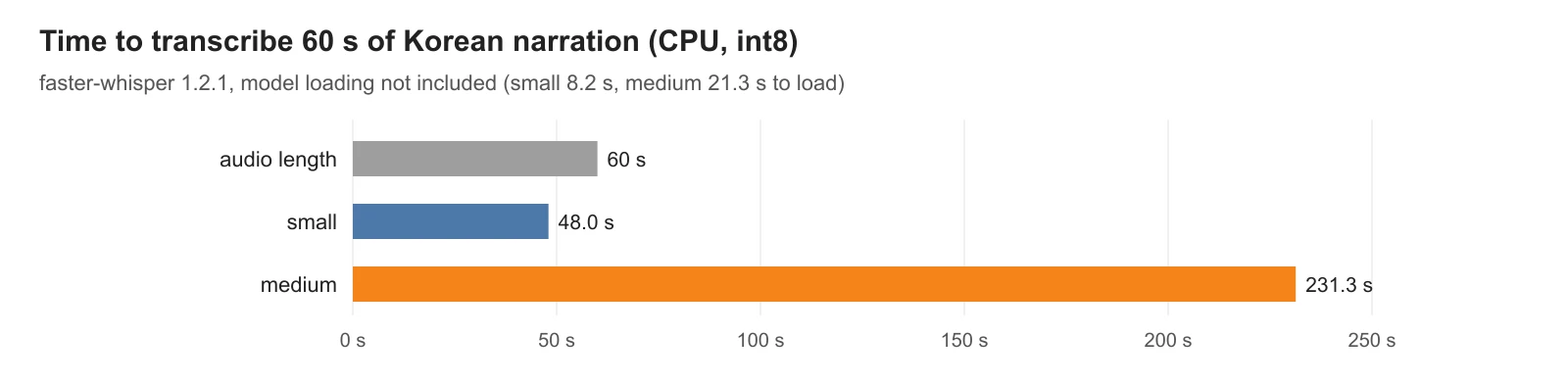 Figure 2. Time to transcribe 60 seconds of audio. Measured on my PC (Intel Core i9-14900HX, CPU int8), not counting model loading (chart)
On my PC, small transcribed 60 seconds of audio in 48.0 seconds and medium in 231.3 seconds. Medium is about 4.8 times slower. Loading the model took another 8.2 seconds for small and 21.3 seconds for medium.
At that rate, a 10-minute narration takes close to 40 minutes with medium on a CPU. You can do other work while it runs, so for checks where accuracy matters, use medium. Use small only for a quick rough look. Timing depends on the CPU, the audio length and the speaking speed, so the best estimate is to time a short file on your own PC first.
6. Reading an SRT file
Open narration_medium.srt in Notepad and it has the same shape as Figure 3. Figure 3 is an example made with made-up sentences to show the format.
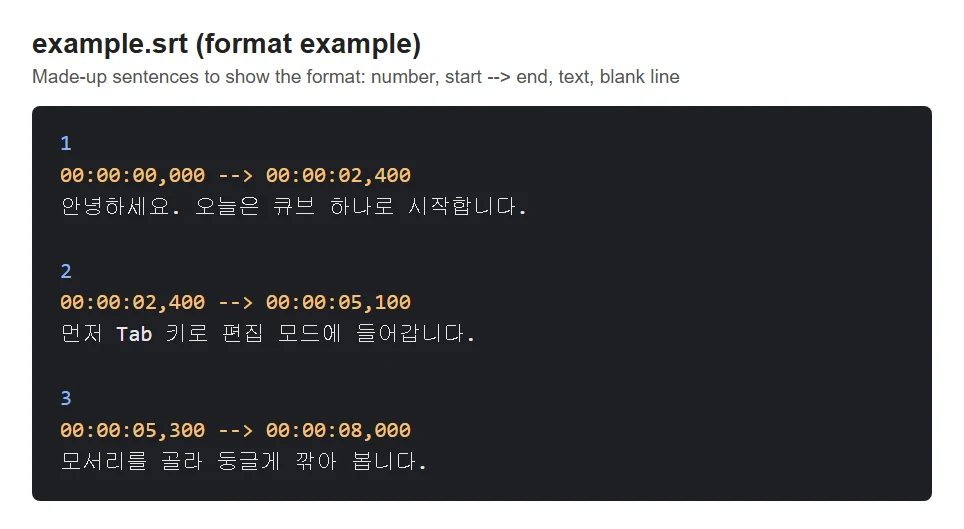 Figure 3. The shape of an SRT file: three cues of made-up example sentences (chart)
SRT (SubRip) is the simplest subtitle format. Like a cinema timetable, it only says what starts when and ends when.
| Line | Example | Meaning |
|---|---|---|
| 1 | 1 | Cue number |
| 2 | 00:00:00,000 --> 00:00:02,400 | Start --> end. Hours:minutes:seconds,milliseconds |
| 3 | (text) | What appears on screen |
| 4 | (blank line) | End of the cue |
YouTube Help lists SubRip (.srt) as a basic supported format. Styling is ignored, and the file must be saved as UTF-8. The script above saves with encoding="utf-8", so non-English text does not break. When you edit and save in Notepad, check that the encoding is UTF-8.
If you upload the transcript as it is, the subtitle text will differ slightly from the script (like the swapped particles in Figure 1). Fix the text against the script before uploading: keep the timing from the transcript and the words from the script.
7. Fixing misread lines
Once the text has found the suspects, listen to only those lines and decide. If the voice really did read a line wrong, the thing to change is the text you send to the AI voice. When we transcribed all 105 lines of the same narration with medium, 7 lines were remade. The kinds of mistakes and the fixes:
| Kind of mistake | What we changed in the voice text | Result |
|---|---|---|
| Two joined words heard as one unrelated word | Put a space between them | Fixed first try |
| Two words blurred into one lump | Added one particle | Fixed first try |
| Ran into the word before and sounded like another verb | Added a comma and a word before it | Fixed first try |
| A foreign proper name heard as a similar Korean word | Added the country and a type word | Fixed on the second try |
| A number and its unit blurred together | Added a space and a word after it | Second version kept after listening |
| Vowel stretched after a comma | Removed the comma | Sounded like another word, so the first version was kept |
| Letters with the same sound | Added a space | No change, so the first version was kept |
Of the 7 lines, 3 were fixed on the first try, 2 used the second version, and 2 did not improve, so the first version was kept.
Three tips:
- Add a space or a comma to make word boundaries clear. It stops sounds from blurring into a different word.
- Add one word or particle to make the meaning clear. The on-screen subtitle keeps the script; only the voice text changes.
- If a fix makes it worse, go back. In the sixth row, removing the comma made it sound like a different word. Try at most twice per line, and if it still is not right, listen and judge whether it is good enough.
How to write numbers the way they should be spoken, and how to plan script length, are in Planning AI narration length.
Exercises
- Record 30 seconds of your own voice, transcribe it with small and medium, and count how many words differ between the two.
- Run the same file without
language=...and check which language it picked. - Make the end time of the second cue in your SRT 0.5 seconds later, and check that it does not overlap the next cue.
Common mistakes and fixes
| Symptom | Cause | Fix |
|---|---|---|
| Error when running on the GPU | cuBLAS for CUDA 12 or cuDNN 9 missing | Install the libraries, or run with device="cpu", compute_type="int8" |
| Subtitle text is garbled | File is not UTF-8 | Save as UTF-8 in Notepad's Save As dialog |
| Numbers differ from the script | Small-model mistake, or just a different way of writing numbers | Re-run with medium or larger; don't count digit-vs-word differences as errors |
| The first run takes very long | Downloading the model | Wait. Later runs are faster |
| Subtitle times drift after long silences | Long silent parts blur segment boundaries | Re-run with vad_filter=True to skip silence |
Summary
Transcribe with faster-whisper medium to get an SRT, listen only to lines whose text differs from the script, and fix misread lines by changing only the voice text with a space, a comma or one extra word.
Next, Planning AI narration length shows how to match the real speaking length while you write the script.
References
- faster-whisper official repository (README, install, GPU requirements, int8 example, word_timestamps, vad_filter): https://github.com/SYSTRAN/faster-whisper
- YouTube Help, supported subtitle and closed caption files: https://support.google.com/youtube/answer/2734698
- Read next: Planning AI narration length, Video codec basics, Blender Video Sequencer basics
- Image license: Figures 1 and 2 are charts of our own results, Figure 3 is a made-up format example, and Figure 4 is part of an official page, shown for explanation.