Blender LTS or the regular release: how the 4-month cycle and 2-year support work
Learn from the official documents how Blender ships a new version every four months and picks one per year as an LTS fixed for two years, which of 5.2 LTS and the coming 5.3 to choose now, and how settings stay separate when you install both.
한국어English
Based on: the blender.org download and LTS pages, the release cycle page of the Blender Developer Handbook, and the Blender 5.2 manual. Checked in November 2026. The pictures are real screenshots of the official pages and of Blender 5.2.1. The red numbers and boxes were added to explain them.
When you go to blender.org to download Blender, some version names end in LTS and some do not. Tutorials use different versions, so it is easy to wonder which one to install. The short answer: LTS for beginners and long projects, the newest regular release if you want new features right away.
This guide explains how often Blender ships new versions, what LTS promises, what to pick now, and how settings are kept apart when you install two versions.
1. What you can download now
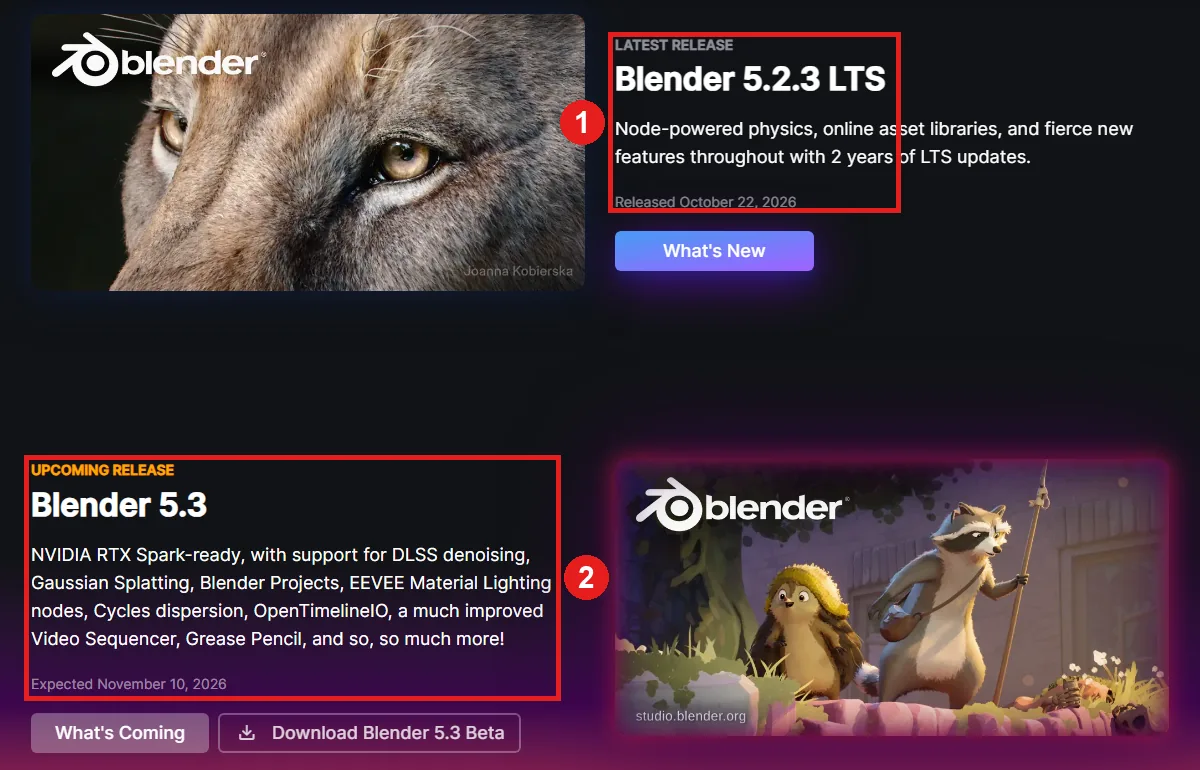 Figure 1. The blender.org download page. ① Latest release 5.2.3 LTS ② Upcoming 5.3 (expected November 10, in beta now) (blender.org screenshot)
Figure 1 is the download page when this was checked. The stable release is Blender 5.2.3 LTS (October 22), and Blender 5.3 is listed as upcoming, expected on November 10. The first line of the 5.3 release notes reads "currently in Beta until November 4, 2026". You can already get the beta with the beta button, but beta is still the bug-fixing phase (table in section 2), so use a stable release for important work.
Read version numbers in three parts. In 5.2.3, 5.2 is the version, and the last 3 is the third corrective release of that version. Corrective releases only fix bugs and do not change features.
2. A new version every four months
Blender targets a new version every four months and ships three stable releases a year. Each version goes through these phases.
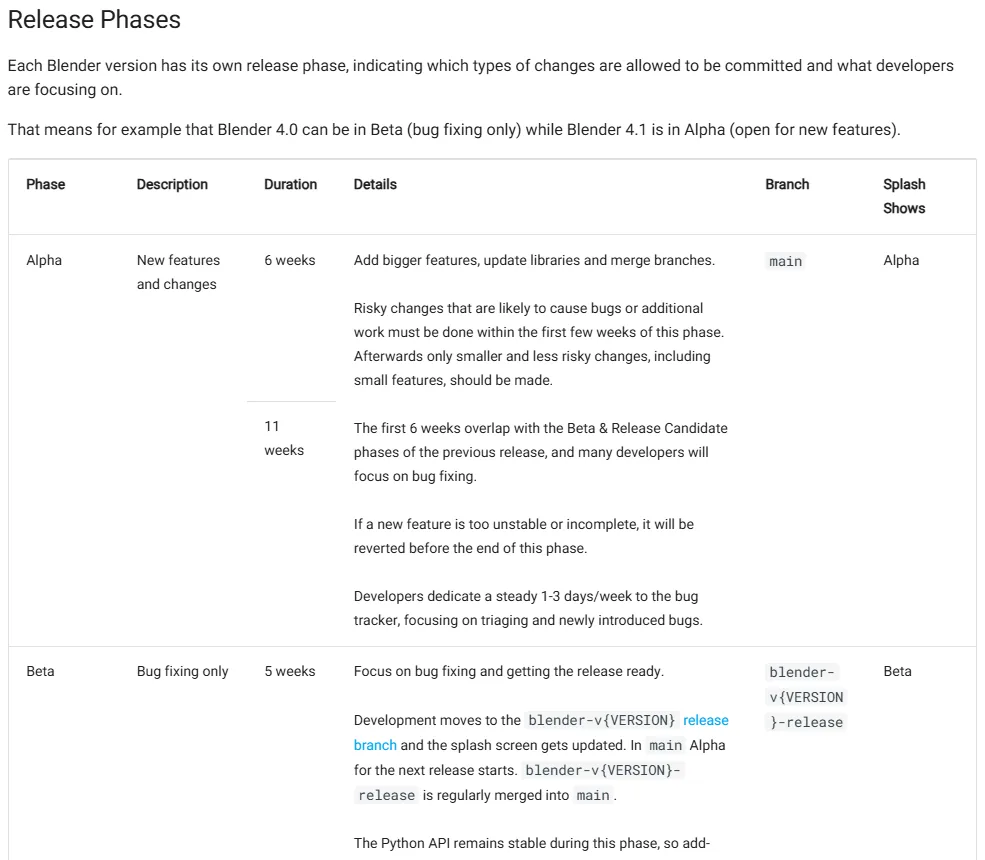 Figure 2. Part of the phases table. It lists each phase's length, purpose and the name shown on the splash screen (developer.blender.org screenshot)
| Phase | What happens | Length (per the page) |
|---|---|---|
| Alpha | New features and big changes go in | About 17 weeks (the first 6 overlap the previous version's Beta and RC) |
| Beta | Bug fixing only. The Python API is frozen so add-ons can catch up | 5 weeks |
| Release Candidate (RC) | Preparing the release. Only critical fixes | 1 week |
| Release | Builds for every platform are packaged and published | 1–2 days |
Alpha and beta builds show the phase name on the splash screen you see at startup (the Splash Shows column in Figure 2). If you are not sure whether you have a stable release, look at the splash screen.
3. What LTS promises
LTS stands for Long-Term Support: a version that keeps getting fixed for a long time. One version per year gets two years of support, and that support means:
- It gets critical bug fixes for two years.
- It gets no new features, API changes or improvements.
- Critical fixes made in the latest stable release are ported to the active LTS versions.
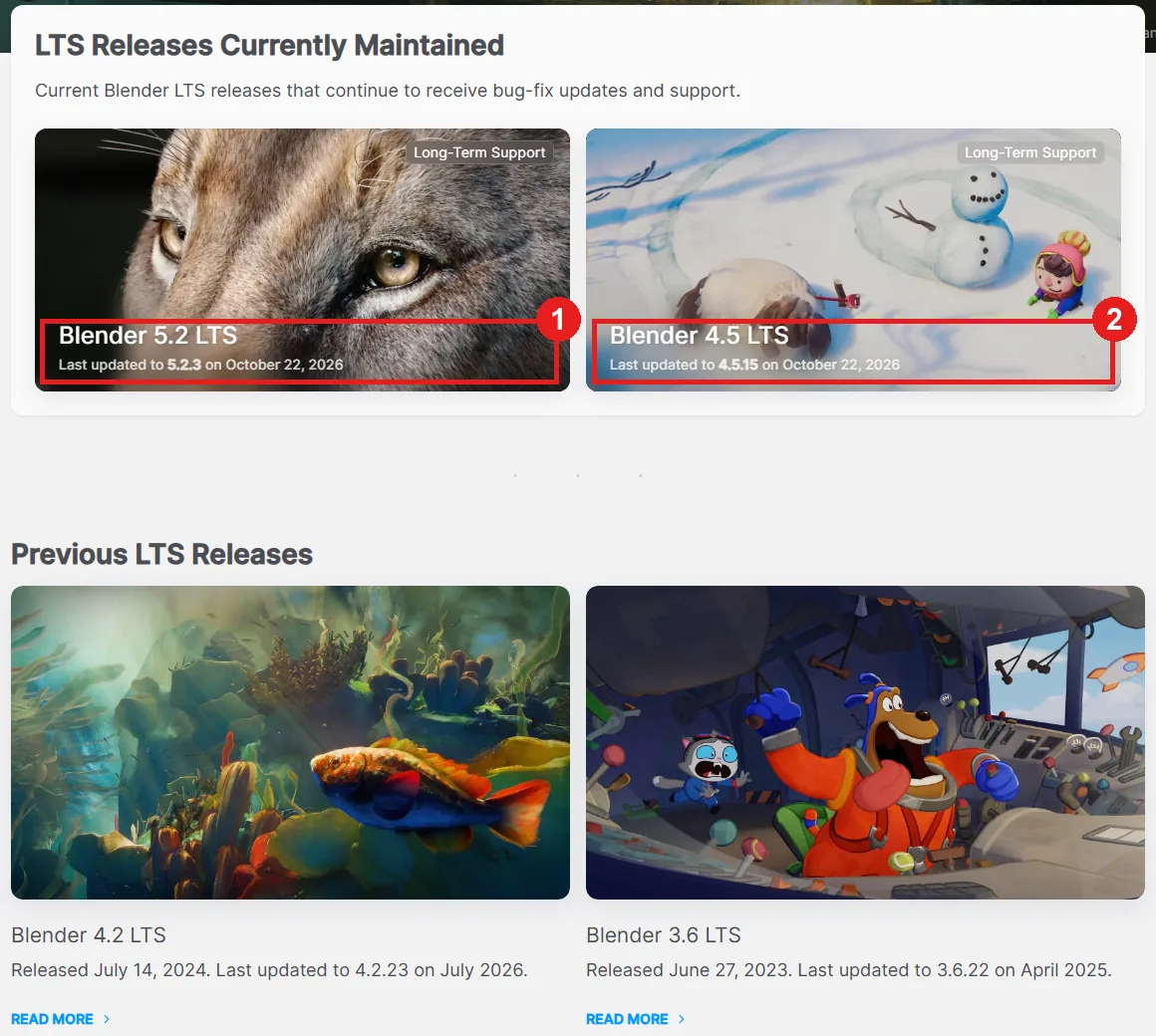 Figure 3. LTS versions maintained now. ① 5.2 LTS (5.2.3) ② 4.5 LTS (4.5.15) (blender.org screenshot)
As Figure 3 shows, two LTS versions are being fixed right now: 5.2 LTS, released on July 14, 2026, and 4.5 LTS, the LTS from the year before. Both got a corrective release on October 22. In the "previous LTS" list, 4.2 LTS came out on July 14, 2024 and was fixed up to 4.2.23 in July 2026. The two-year promise was kept.
Think of the regular release as a phone that gets a new model every year, and LTS as a promise of two years of security updates for the same model. No new features, but the way you work does not change. To see what 5.2 LTS contains, follow Blender 5.2 LTS hands-on: node physics, new geometry nodes, EEVEE, and online assets.
4. Which one to choose
| If you | Pick | Why |
|---|---|---|
| are learning Blender for the first time | 5.2 LTS | Tutorials and screens stay mostly the same for two years |
| have a project or job that runs for months | 5.2 LTS | Features and the API do not change midway |
| use many add-ons | 5.2 LTS first | Add-ons need time to support a new version |
| want new features right away | 5.3 (after its November release) | New features only go into regular releases |
| want to try both for study | Both | Each version has its own settings, so you can install both (section 5) |
Which versions an add-on supports is shown in the Compatibility field of its page on the extensions site (extensions.blender.org). For example, the 3D Print Toolbox page says "Blender 4.2 LTS and newer". If you are installing for the first time, follow Blender for complete beginners, chapter 1: from checking your PC to downloading and installing.
When you follow a tutorial, first check which version it was written for. If it differs from yours, menu names or positions may differ.
You can see your Blender version at the right end of the status bar at the bottom of the window. It shows the version with default settings.
 Figure 4. Version number 5.2.1 at the end of the status bar. The picture also has scene statistics turned on (Blender screenshot)
5. Separate settings for each version
Blender saves preferences, the startup file and installed extensions in a folder named after the version. The 5.2 manual gives this location on Windows:
%USERPROFILE%\AppData\Roaming\Blender Foundation\Blender\5.2\
Installing 5.3 creates a new 5.3 folder next to it. Changing settings in 5.3 leaves the 5.2 settings alone. When you first start a new version and a settings folder from an earlier version exists, the first screen offers a button to bring those settings over. You can also skip it and start fresh.
A clean way to install two versions:
- Leave your current version (for example 5.2 LTS) installed with the installer as it is.
- For the new version, download the zip (portable) file from the "macOS, Linux, and other versions" list on blender.org and unzip it to a folder you like. There is no install step: run
blender.exein the unzipped folder. - When you start the new version the first time, choose whether to import the earlier settings.
- Make a copy of important work files before saving them in the new version. A file saved in a newer version may lose the new-feature parts when opened in an older version.
If you want to carry Blender on a USB drive along with its settings, create a folder named portable next to blender.exe in the unzipped folder. Preferences, the startup file and extensions are then stored in that folder.
Common mistakes and fixes
| Symptom | Cause | Fix |
|---|---|---|
| Menu names differ from the tutorial | The tutorial and your version differ | Compare the status bar version with the tutorial's version |
| The Blender I downloaded keeps crashing | It is a beta or alpha build | Check the phase name on the splash screen and switch to a stable release |
| An add-on will not enable in the new version | The add-on does not support it yet | Check the add-on's supported versions and keep working in LTS meanwhile |
| Settings changed in the new version are missing in the old one | Each version has its own settings folder | Normal. Set the old version up separately if needed |
| A file saved in the new version looks wrong in the old one | The old version does not know the new features | Make a copy before opening it in the new version |
Summary
A new version every four months, one per year becomes an LTS fixed for two years. Use 5.2 LTS for learning and long projects, 5.3 for new features, and install both if you like, since their settings folders are separate.
References
- Blender download page: https://www.blender.org/download/
- Blender LTS page: https://www.blender.org/download/lts/
- Blender Developer Handbook, release cycle: https://developer.blender.org/docs/handbook/release_process/release_cycle/
- Blender 5.2 LTS release page: https://www.blender.org/download/releases/5-2/
- Blender 5.3 release notes (beta): https://developer.blender.org/docs/release_notes/5.3/
- Blender 5.2 manual, Blender's directory layout: https://docs.blender.org/manual/en/5.2/advanced/blender_directory_layout.html
- Pictures: screenshots of the official blender.org and developer.blender.org pages and of Blender 5.2.1